> ## Documentation Index
> Fetch the complete documentation index at: https://benchgen.com/docs/llms.txt
> Use this file to discover all available pages before exploring further.
# Agent Connections
> Securely integrate your Agentspace agents with external platforms and services.
# Agent Connections
Agent Connections enable your UBOS Agentspace agents to securely integrate with external platforms and services. By establishing authenticated connections, your agents can access APIs, retrieve data, and perform actions across different systems while maintaining security and proper authorization.
***
## Overview
Agent Connections provide a centralized way to manage authentication and authorization for external integrations. This allows your agents to:
* Access third-party APIs with proper authentication
* Retrieve data from external databases and services
* Perform actions on behalf of users across different platforms
* Maintain secure, reusable connections across multiple agents
* Handle different authentication methods (API keys, JWT tokens, OAuth flows)
**Prerequisites**
Before setting up connections, ensure you have:
* An active Agentspace account
* Administrative access to the external platforms you want to connect
* The necessary credentials (API keys, client IDs, secrets) from those platforms
* Understanding of the authentication method required by each service
***
## Getting Started
### Accessing Agent Connections
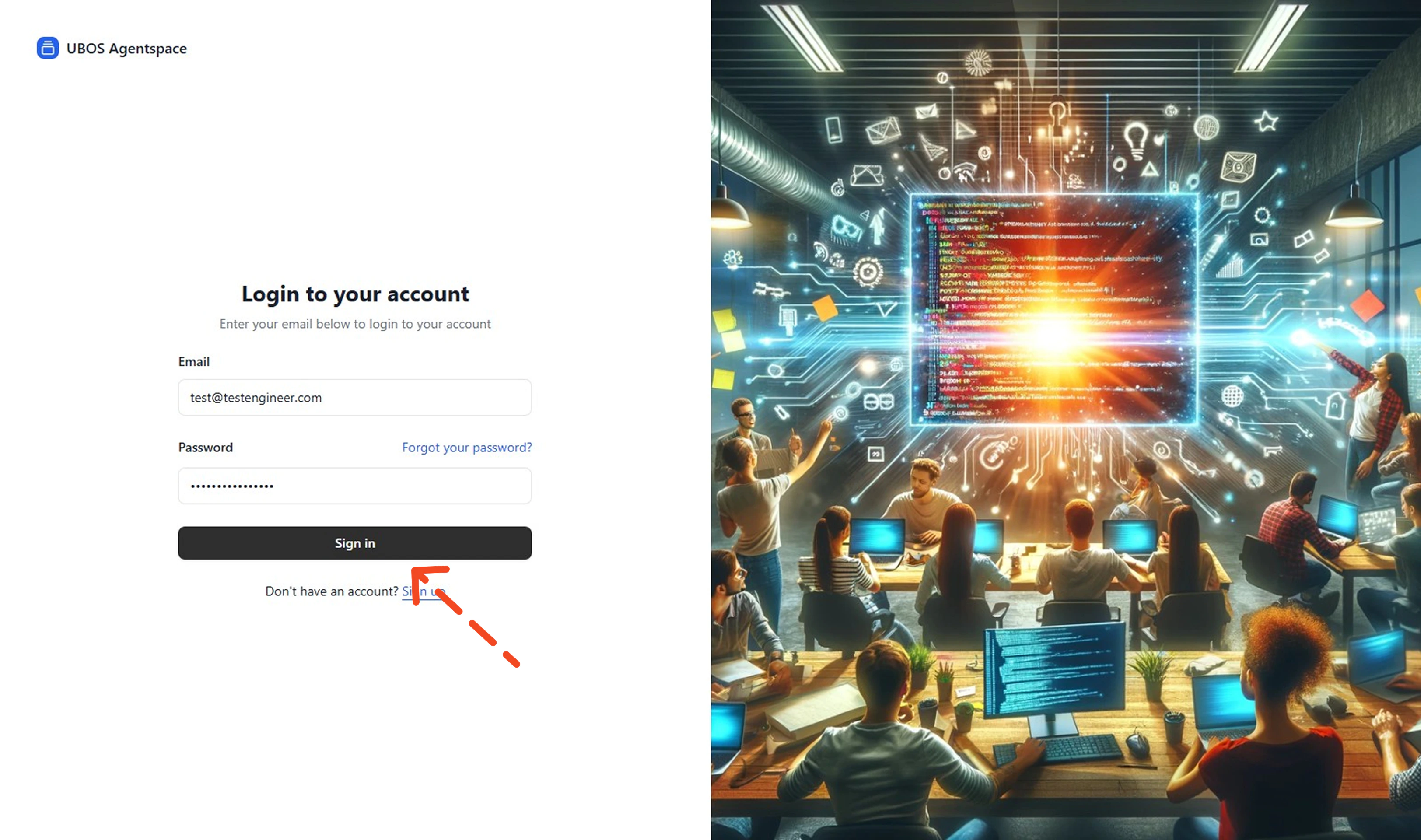
1. **Sign in to Agentspace**
Log in to your Agentspace platform using your credentials.
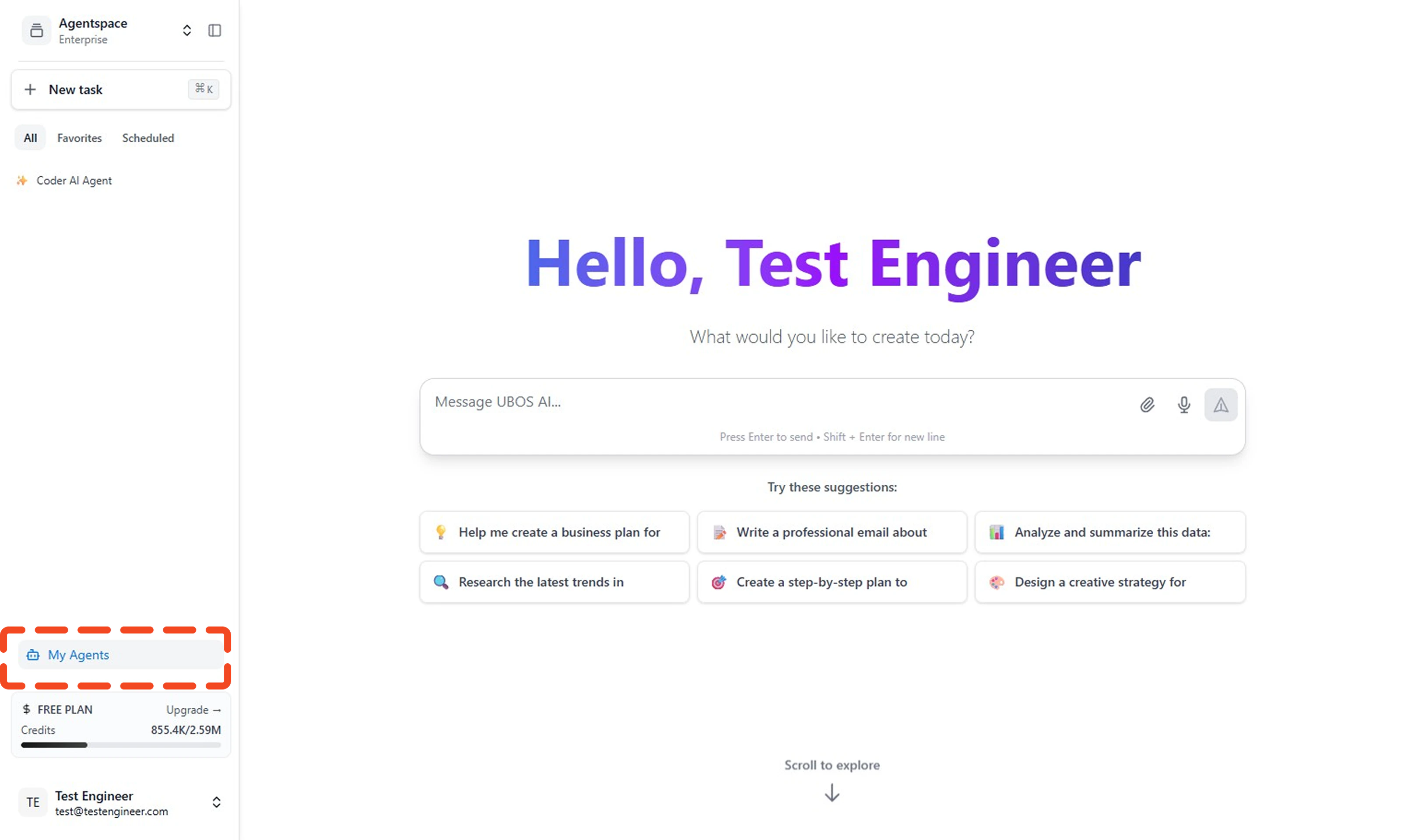
 2. **Navigate to My Agents**
Click on **My Agents** from the left sidebar to view your available agents.
2. **Navigate to My Agents**
Click on **My Agents** from the left sidebar to view your available agents.
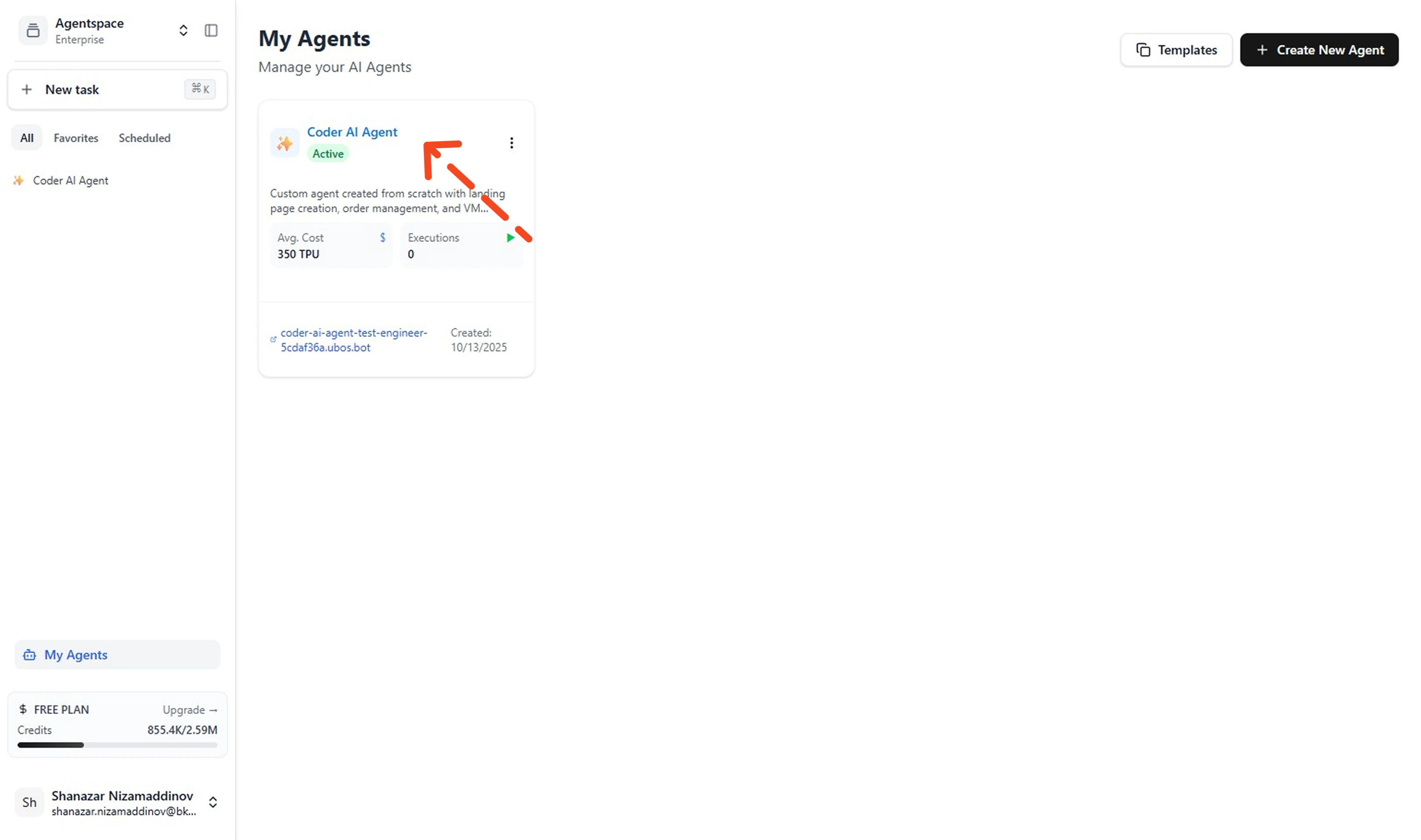
 3. **Select Your Agent**
Click on the agent you want to configure connections for.
3. **Select Your Agent**
Click on the agent you want to configure connections for.
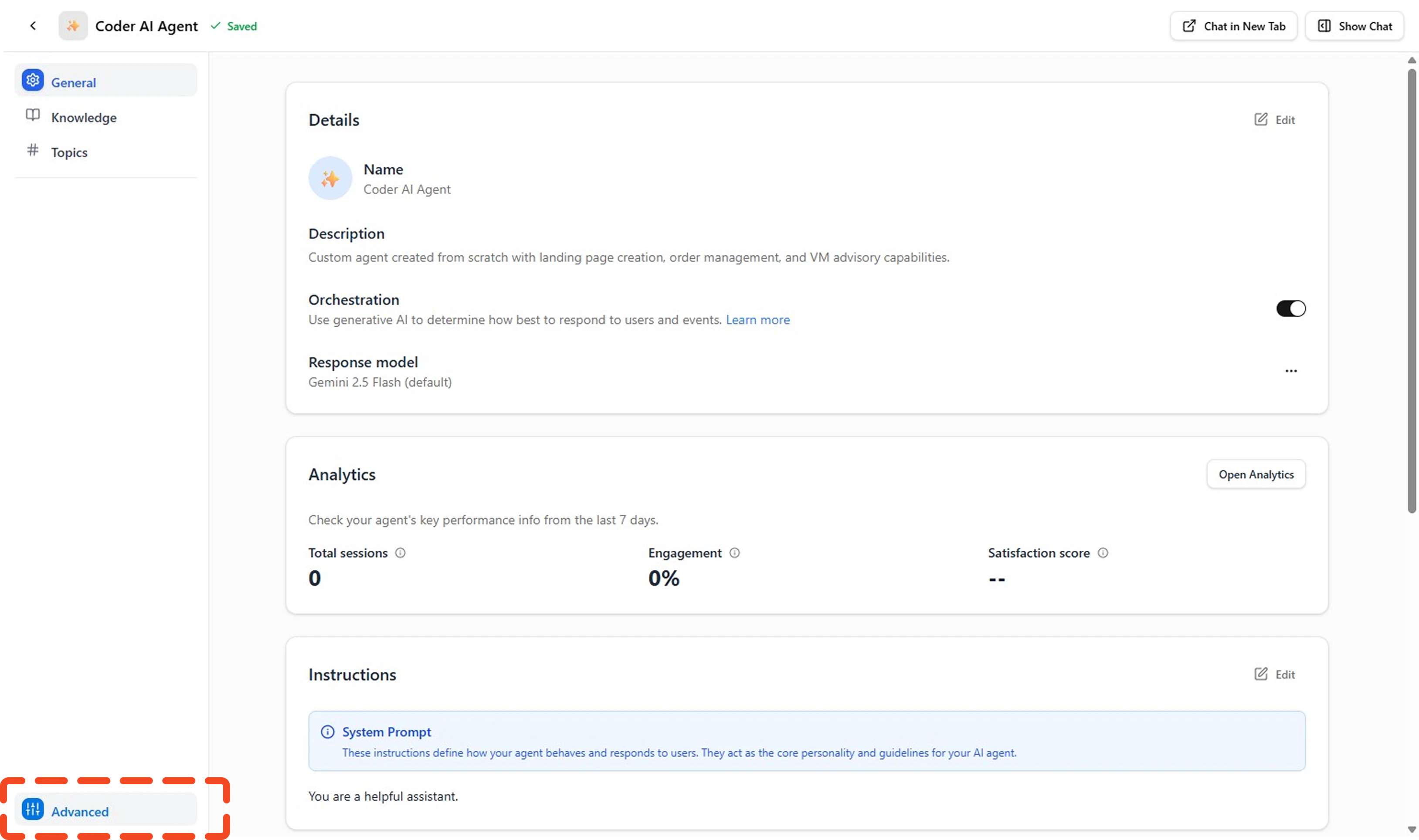
 4. **Access Advanced Settings**
In the agent details page, click on **Advanced** in the left sidebar menu.
4. **Access Advanced Settings**
In the agent details page, click on **Advanced** in the left sidebar menu.
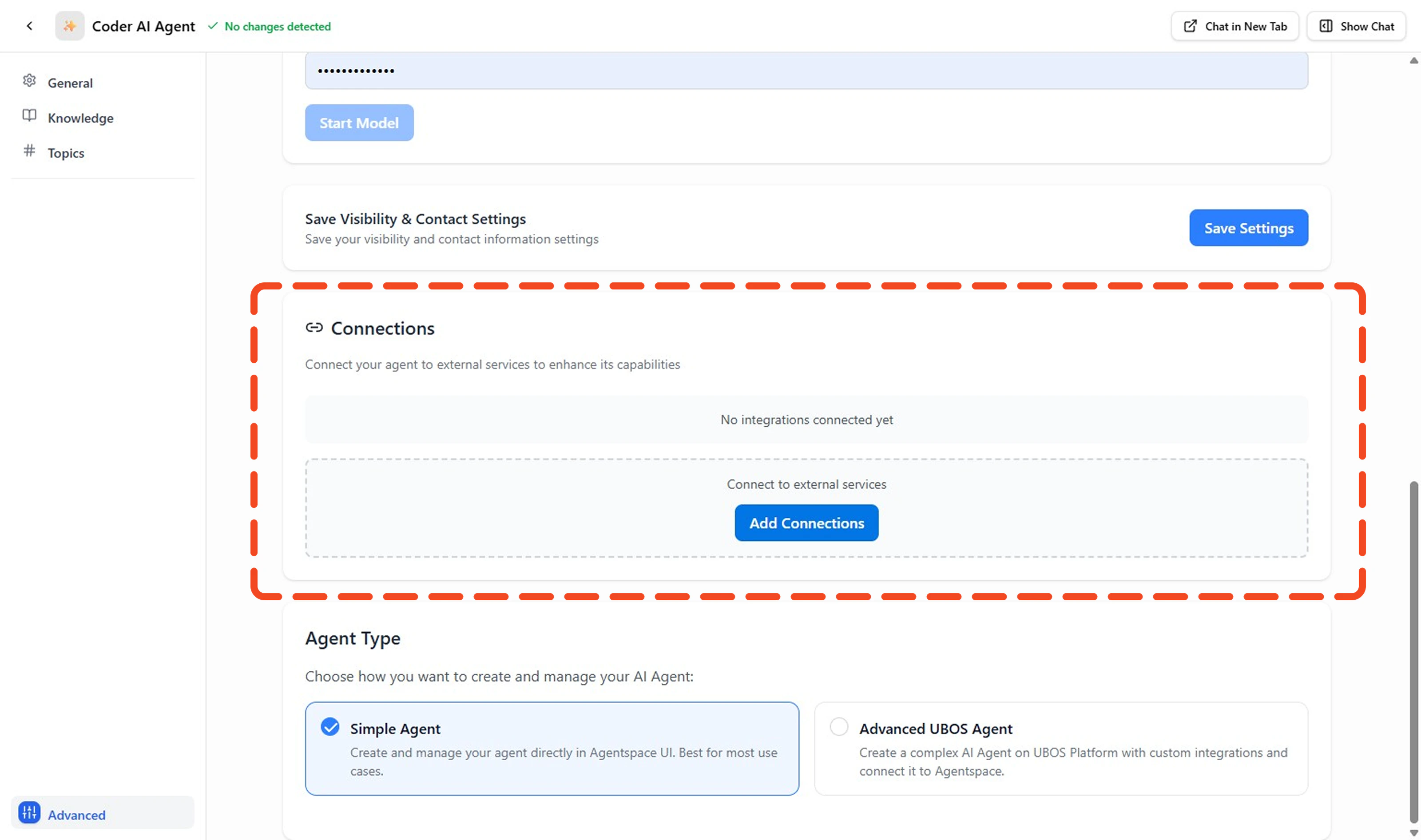
 5. **Navigate to Connections Section**
Scroll down to find the **Connections** section where you can manage all external integrations.
5. **Navigate to Connections Section**
Scroll down to find the **Connections** section where you can manage all external integrations.
 ### Adding New Connections
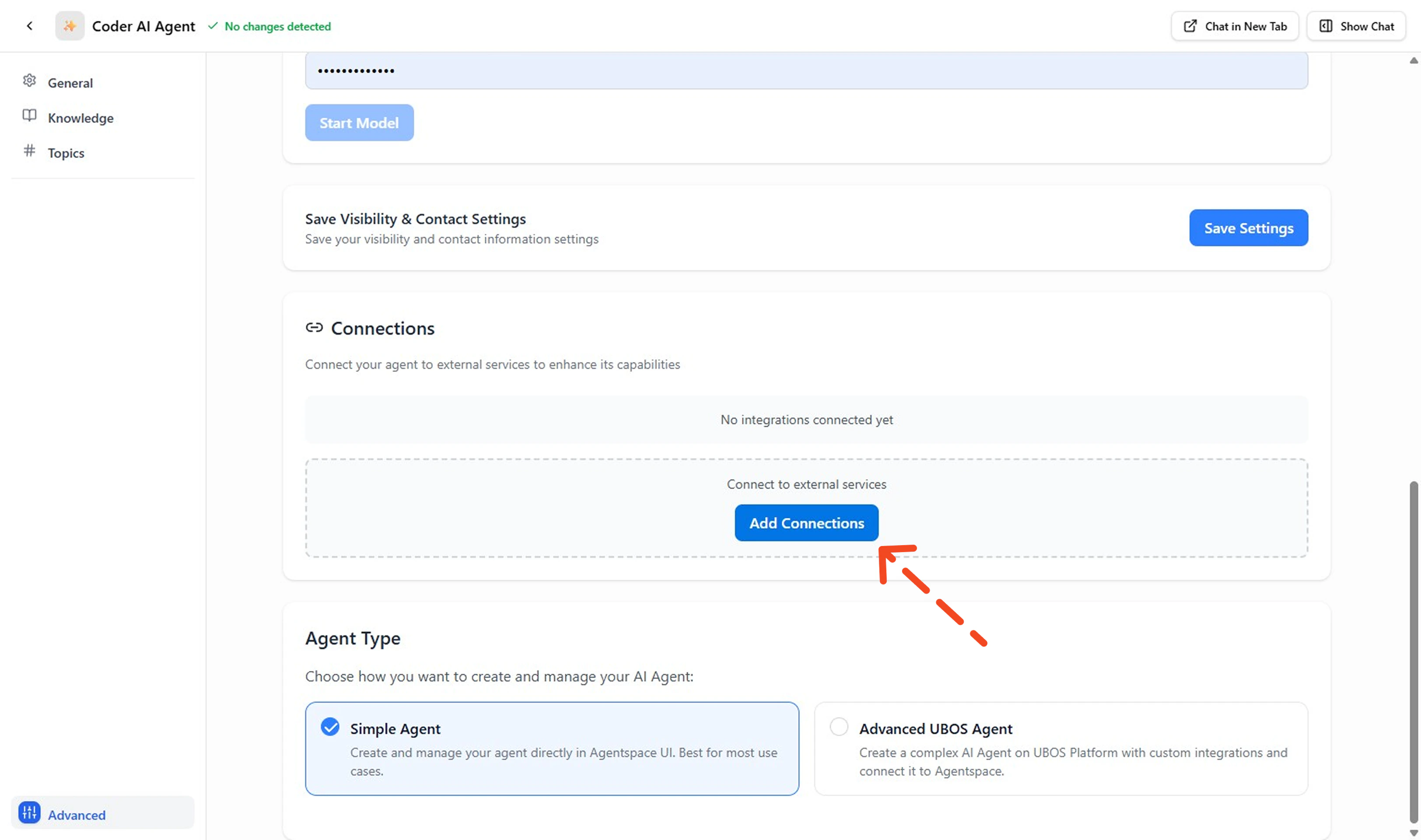
1. **Click Add Connections**
In the Connections section, click the **Add Connections** button to create a new connection.
### Adding New Connections
1. **Click Add Connections**
In the Connections section, click the **Add Connections** button to create a new connection.
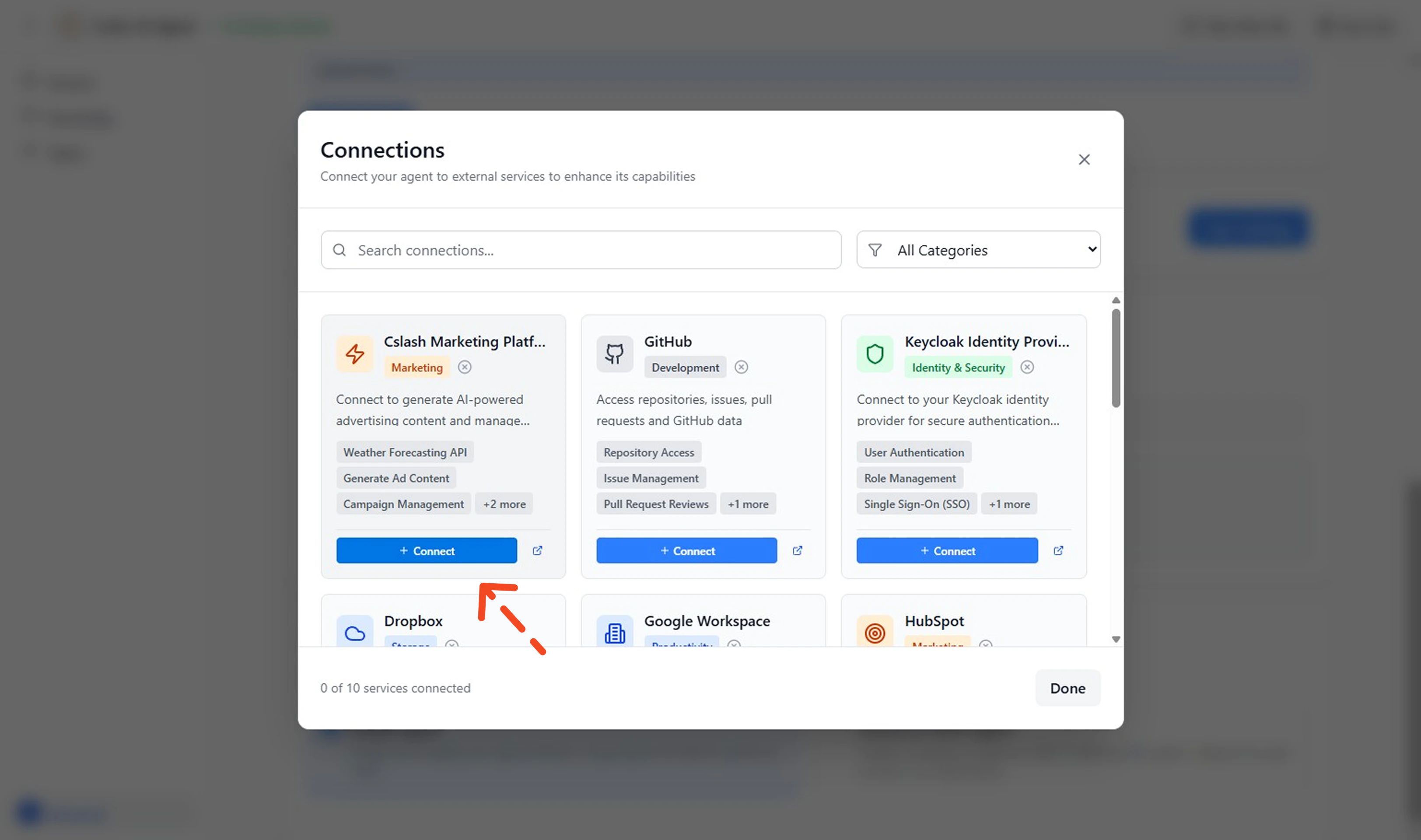
 2. **Choose Connection Type**
Select from the available connection types based on your integration needs.
2. **Choose Connection Type**
Select from the available connection types based on your integration needs.
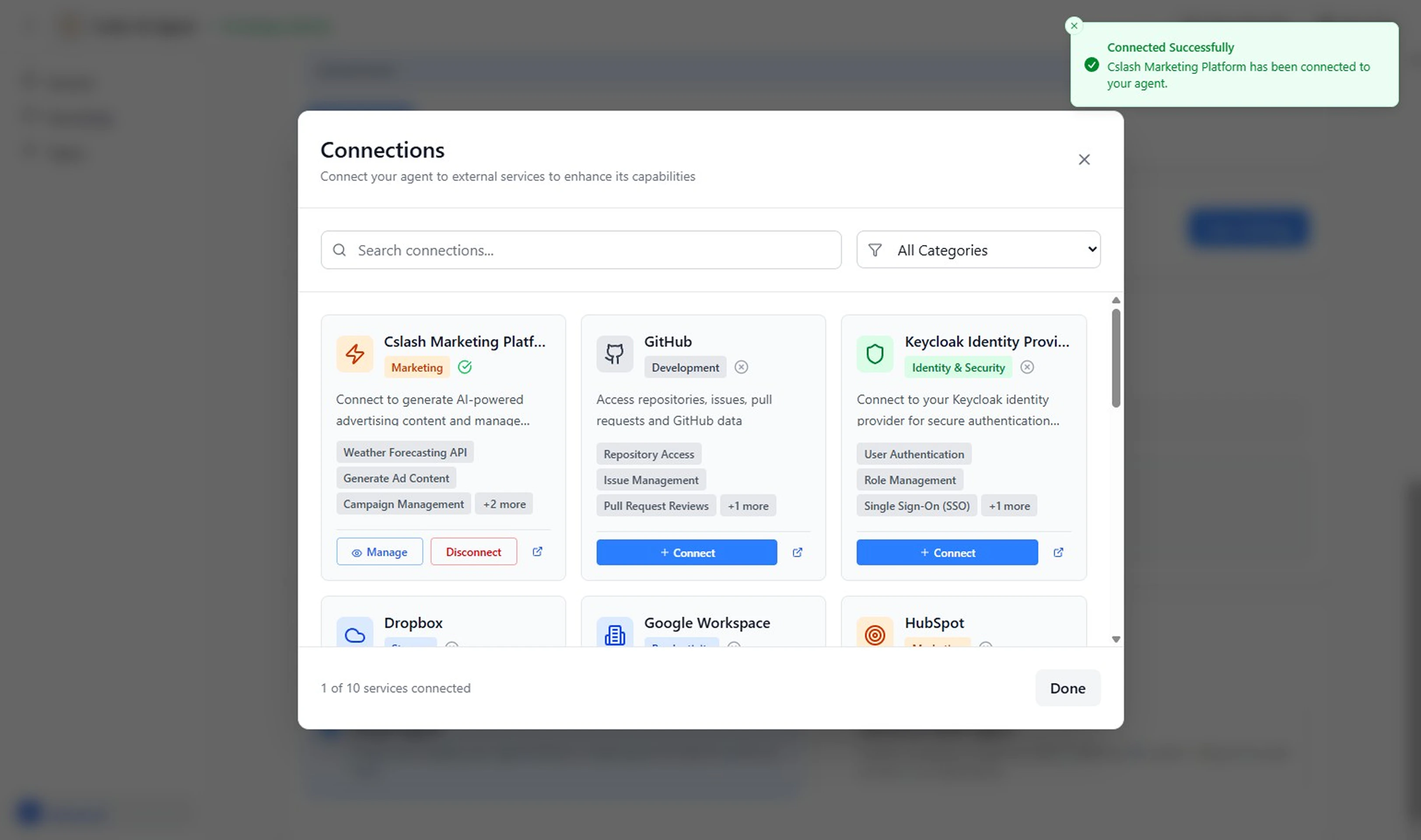
 3. **Complete Connection**
Fill in the required credentials and configuration details for your selected platform. Once configured correctly, you'll see a success confirmation.
3. **Complete Connection**
Fill in the required credentials and configuration details for your selected platform. Once configured correctly, you'll see a success confirmation.
 ***
## Using Connections in Actions
Once your connection is established, you can use it within your agent's actions to interact with external services.
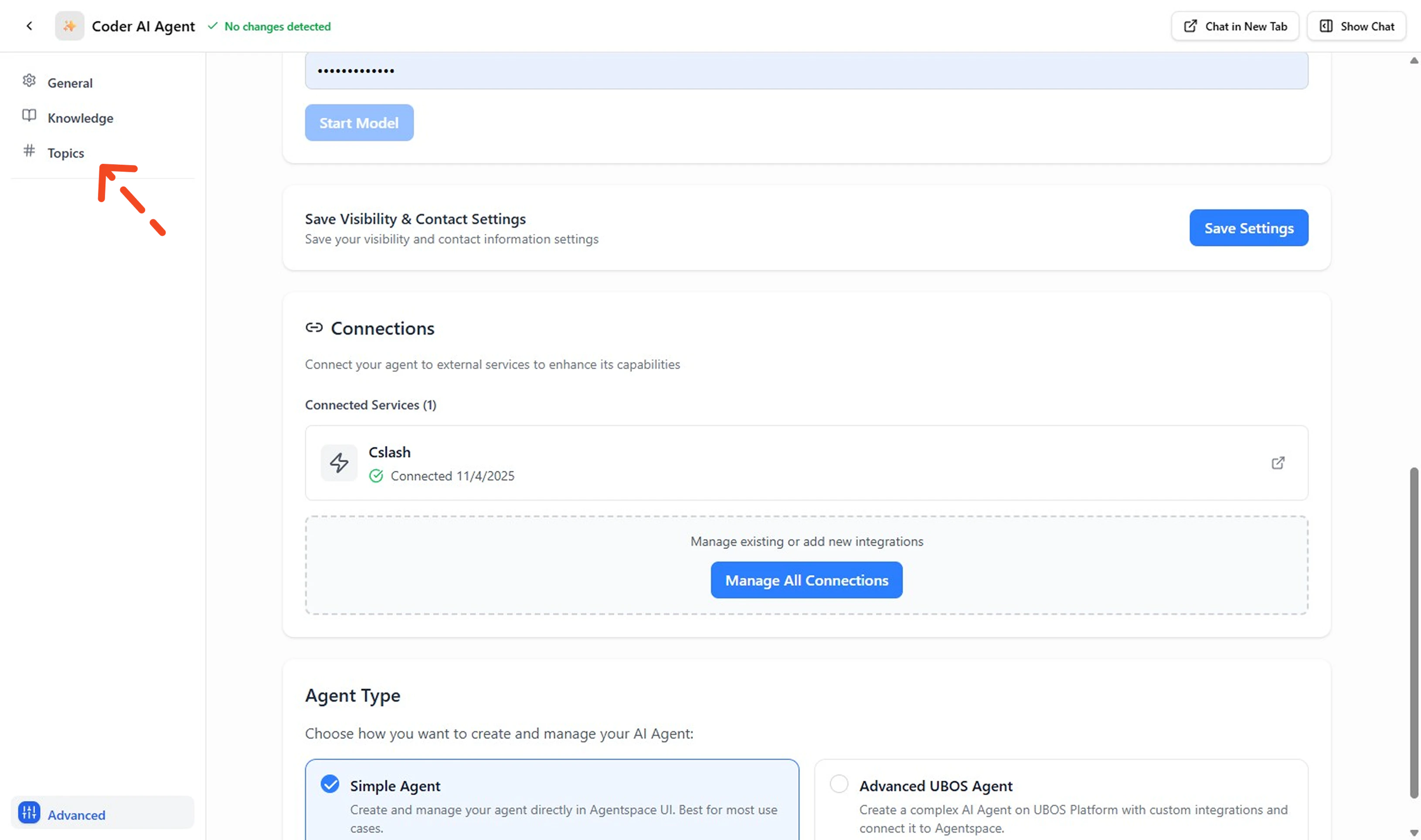
1. **Go to Topic Page**
Navigate to your agent's Topics section where you can add actions that will use your connections.
***
## Using Connections in Actions
Once your connection is established, you can use it within your agent's actions to interact with external services.
1. **Go to Topic Page**
Navigate to your agent's Topics section where you can add actions that will use your connections.
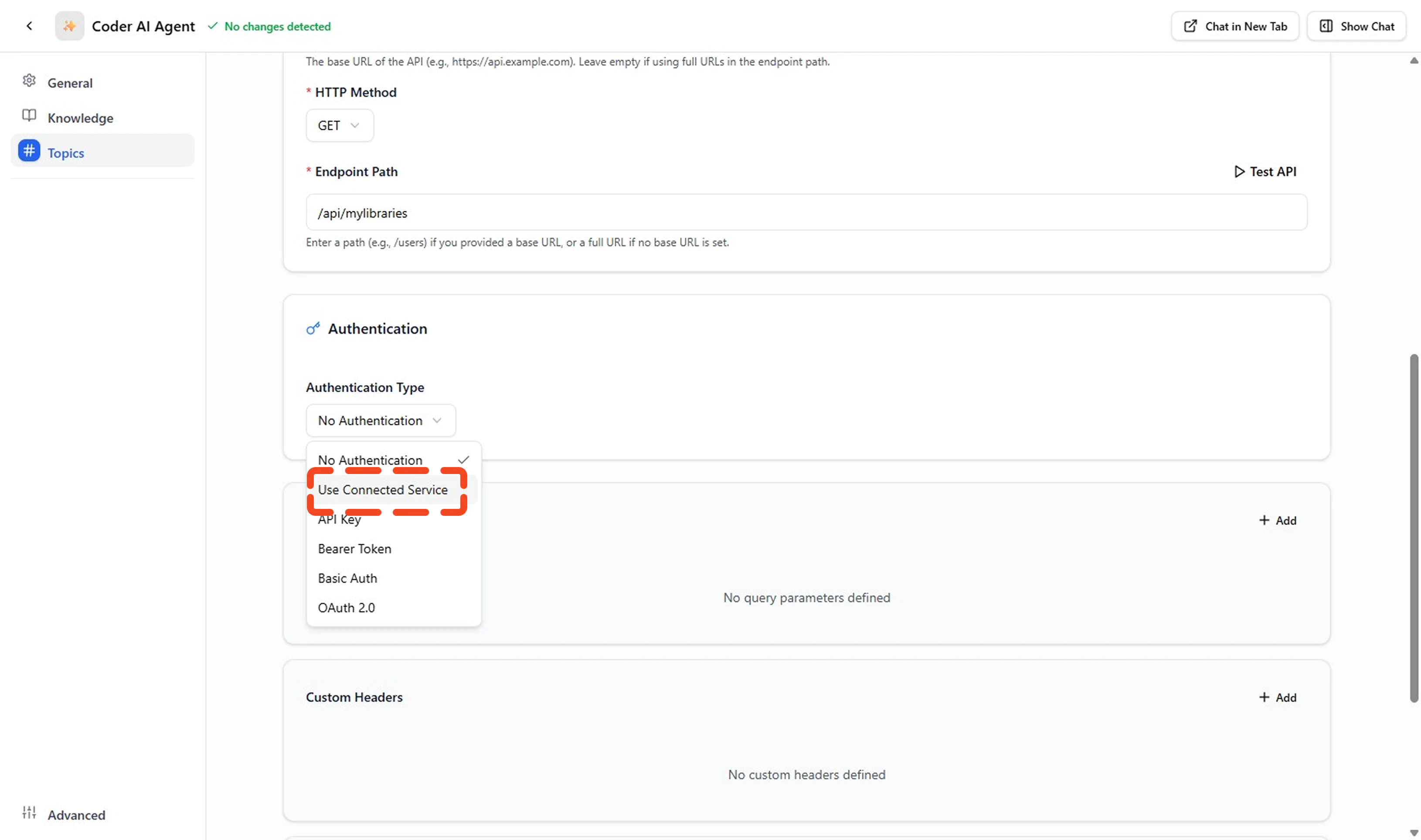
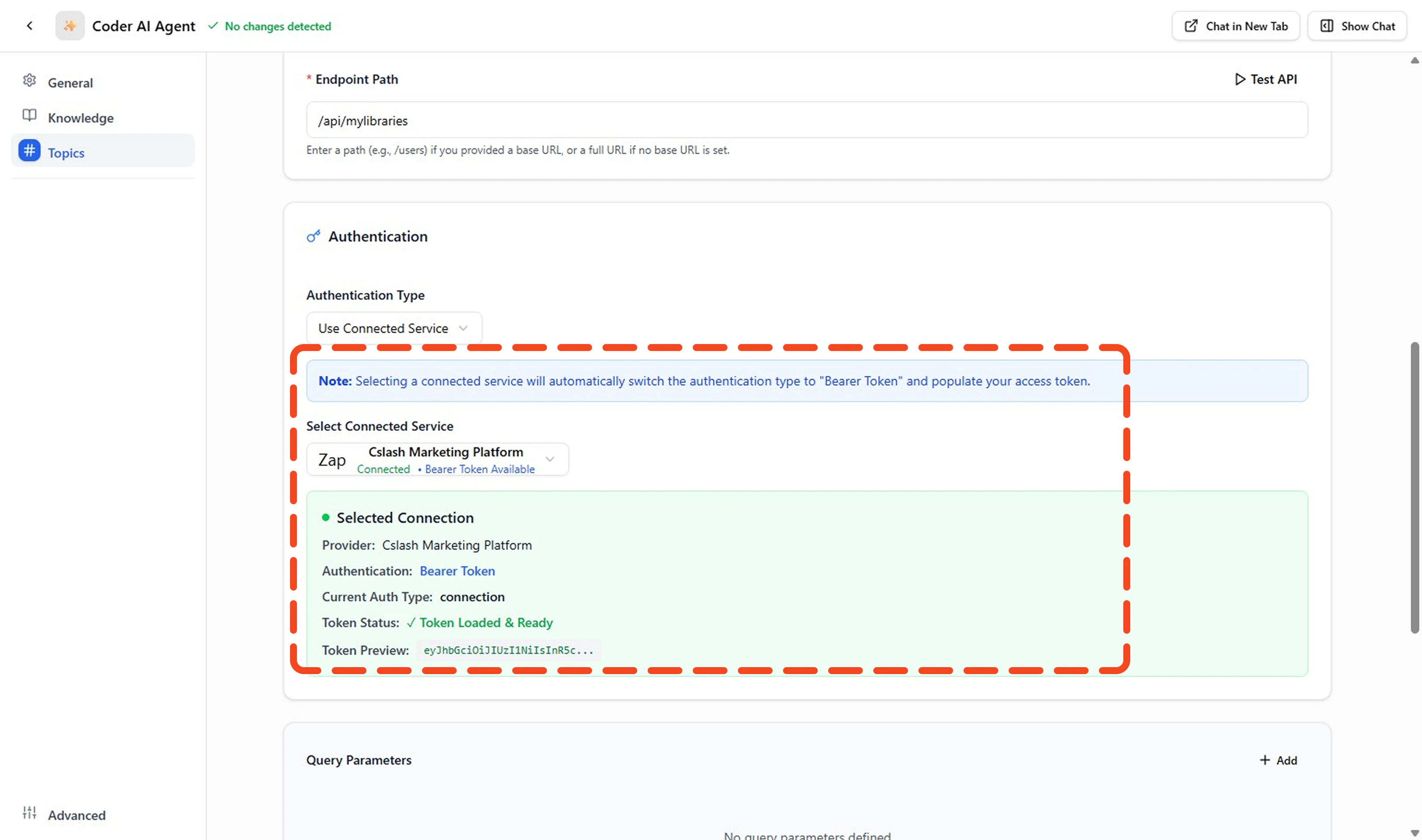
 2. **Select Connected Service**
In the action configuration, go to the Auth section and select **Use Connected Service** to leverage your established connection.
2. **Select Connected Service**
In the action configuration, go to the Auth section and select **Use Connected Service** to leverage your established connection.
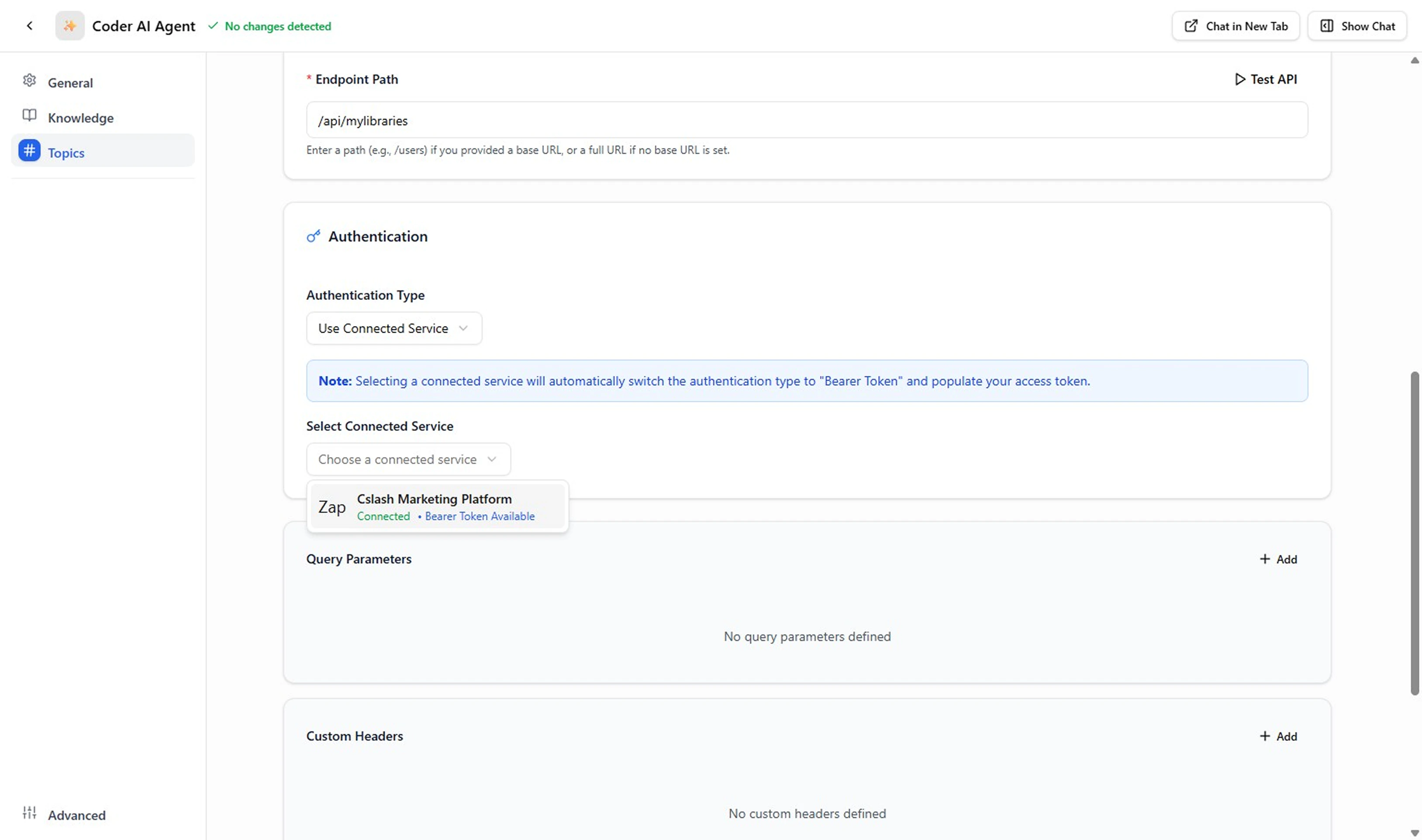
 3. **Choose Your Connection**
Select the specific connection you want to use from the dropdown list of your available connections.
3. **Choose Your Connection**
Select the specific connection you want to use from the dropdown list of your available connections.
 4. **Verify Connection Status**
You can now see that your action is properly connected and ready to use the external service.
4. **Verify Connection Status**
You can now see that your action is properly connected and ready to use the external service.
 5. **Test the Connection**
Use the test functionality to verify that your connection works properly with the configured action.
5. **Test the Connection**
Use the test functionality to verify that your connection works properly with the configured action.
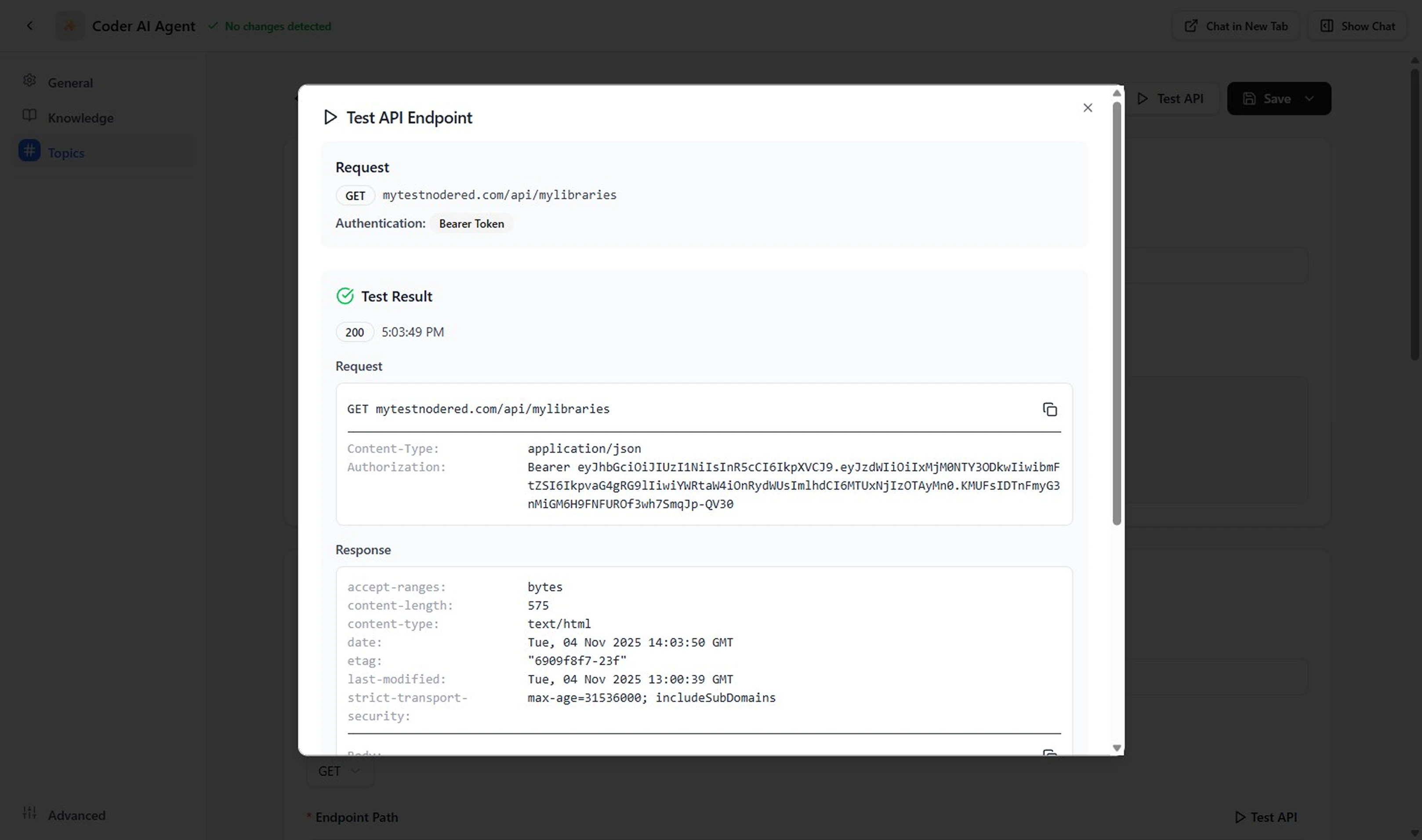
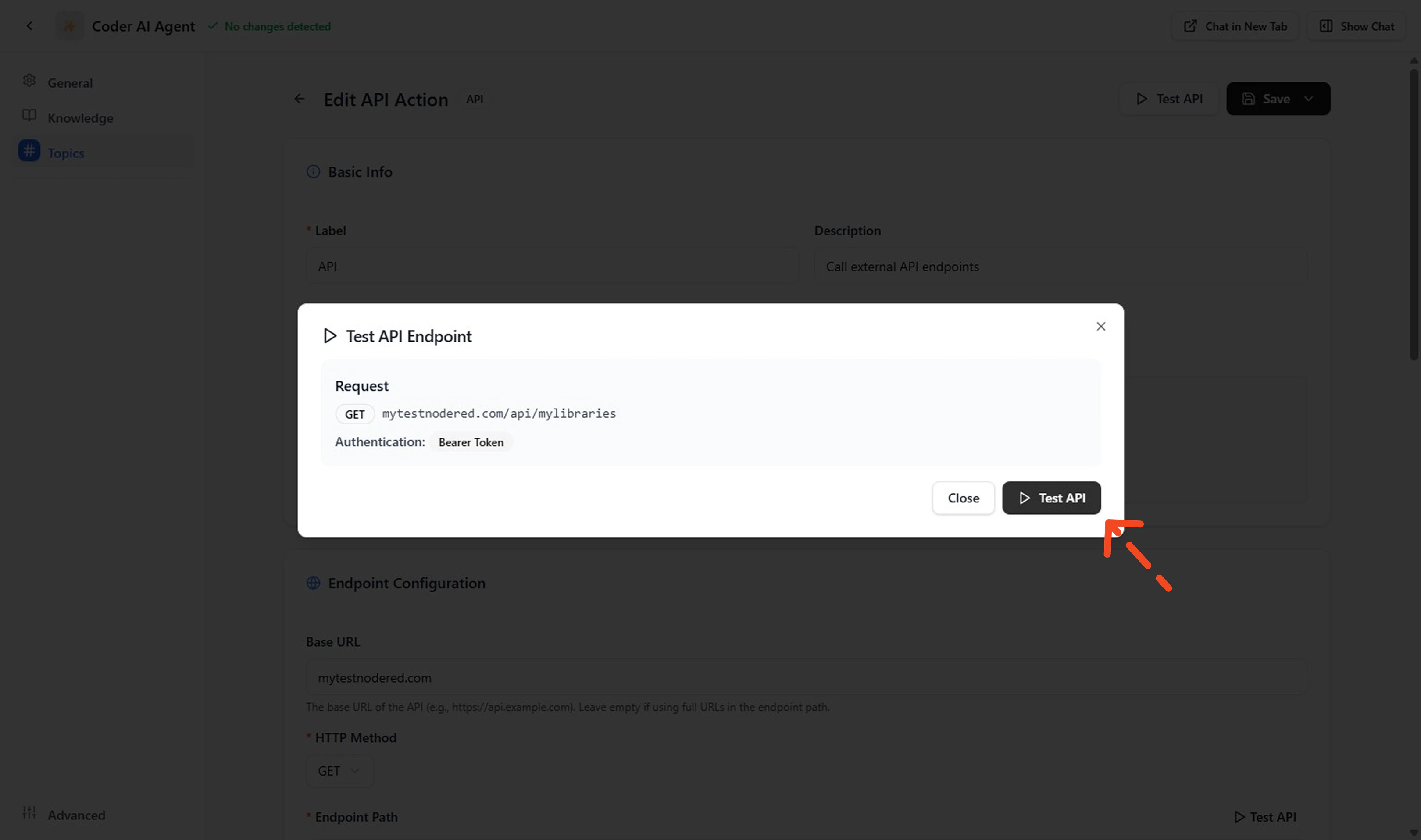 6. **Review Response**
Check the response from your external service to ensure the connection and action are working as expected.
6. **Review Response**
Check the response from your external service to ensure the connection and action are working as expected.