> ## Documentation Index
> Fetch the complete documentation index at: https://benchgen.com/docs/llms.txt
> Use this file to discover all available pages before exploring further.
# How to Create a Topic
> Step-by-step guide to adding a new Topic to your agent in Agentspace.
# How to Create a Topic
This step-by-step guide will help you add a new topic to one of your agents in Agentspace. Each step is illustrated with real screenshots for clarity.
**What Is a Topic**
A **Topic** represents a defined job, capability, or "problem space" your agent is authorized to handle end‑to‑end. Think of it as a focused mini playbook: it tells the agent **when** to engage (classification), **what** it's allowed to do (scope + actions), and **how** to behave (instructions + tone + guard rails). Collectively, all topics assigned to an agent = its skill set.
Topics work together with **Actions**:
* **Topic** = framed intent domain (Reservation Cancellation, Password Reset, Order Tracking…)
* **Actions** = executable tools or procedures the agent can call inside that domain
By carving work into clear topics you:
* Improve intent routing accuracy (less confusion between similar requests)
* Reduce hallucinations (the agent knows what's out‑of‑scope)
* Simplify auditing & iteration (each topic is a contained artifact)
* Enable reuse (drop a proven topic into another agent)
> For deeper conceptual detail see: [What is a Topic](/agentspace/topic-concepts)
***
## Core Parts of a Topic
| Part | Purpose | Authoring Tips |
| -------------------------- | ----------------------------------------------------------------------------- | ------------------------------------------------------------------------------------ |
| Name / Label | Human + API identifiers used in routing. | Plain, specific language a user might actually say. Distinct from other topic names. |
| Classification Description | 1–3 sentences of trigger patterns (what user messages should map here). | Include concrete verbs / objects / variants users say. Avoid vague phrasing. |
| Scope | Explicit boundaries: what the topic does AND will not do. | "Your job is… You cannot… Never…" clarity prevents overreach. |
| Instructions | Atomic behavioral rules guiding decisions & response style within this topic. | Make each testable; prefer "If/When… then…" patterns. |
| Actions | Tooling the agent can execute while in this topic. | Only include actions genuinely needed; name them verb‑first. |
### When to Create vs Reuse
**Create a new Topic if:**
* The intent category isn't covered without overloading an existing Topic's scope.
* The policy / decision rules differ materially (would require many conditional instructions otherwise).
* Auditing or metrics need a separate lens (e.g., track cancellations separate from general booking changes).
**Reuse / extend an existing Topic if:**
* User phrasing & decision logic mostly overlap.
* Only an additional Action or narrow instruction tweak is required.
Write Scope & Instructions first in a scratch pad. If you struggle to stay concise, you probably have multiple topics tangled together.
***
## Create Your Own Topic
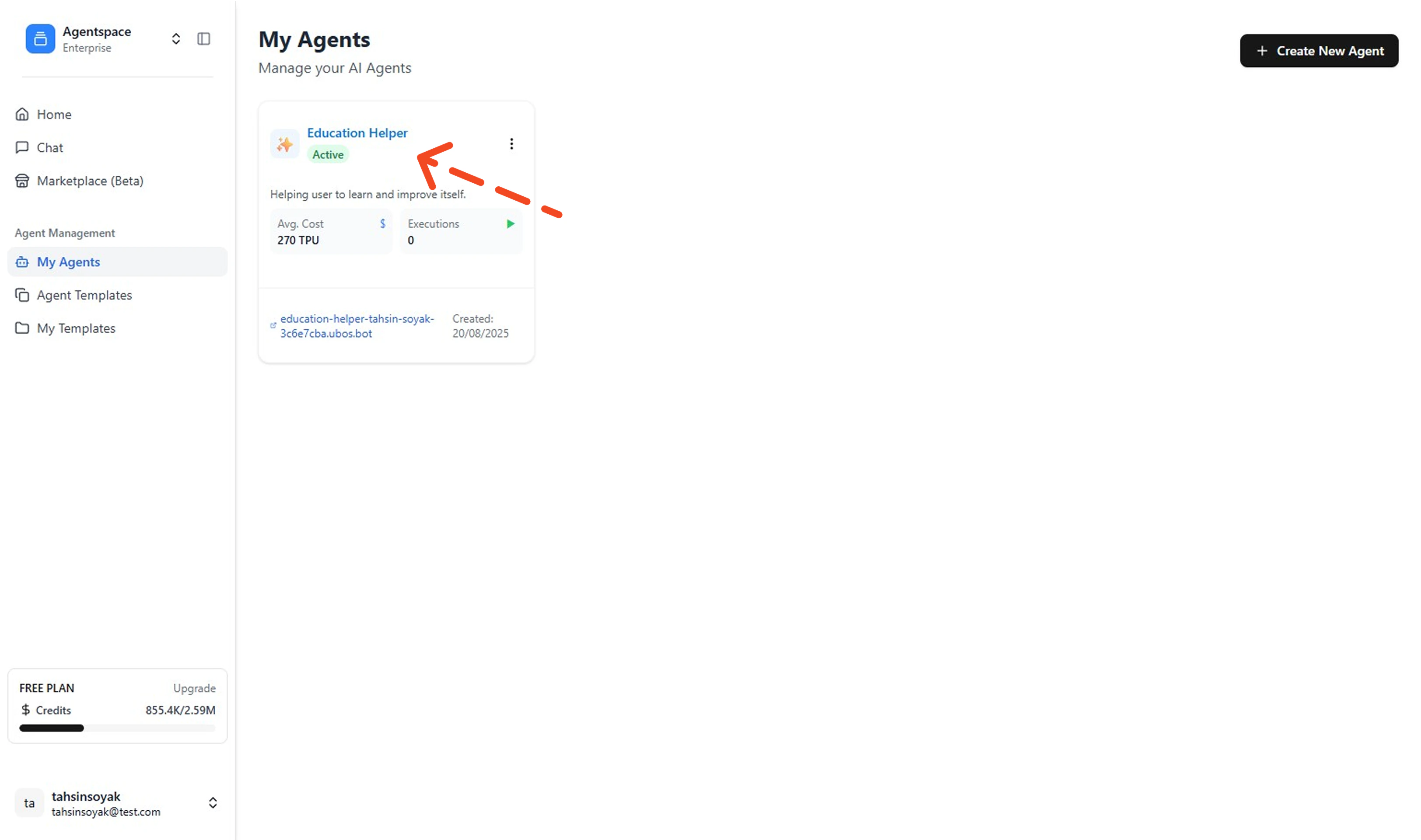
1. **Open My Agents & Select an Agent**
Go to your Left Menu and click **My Agents**. Then click the agent you want to add a topic to (opens its details).
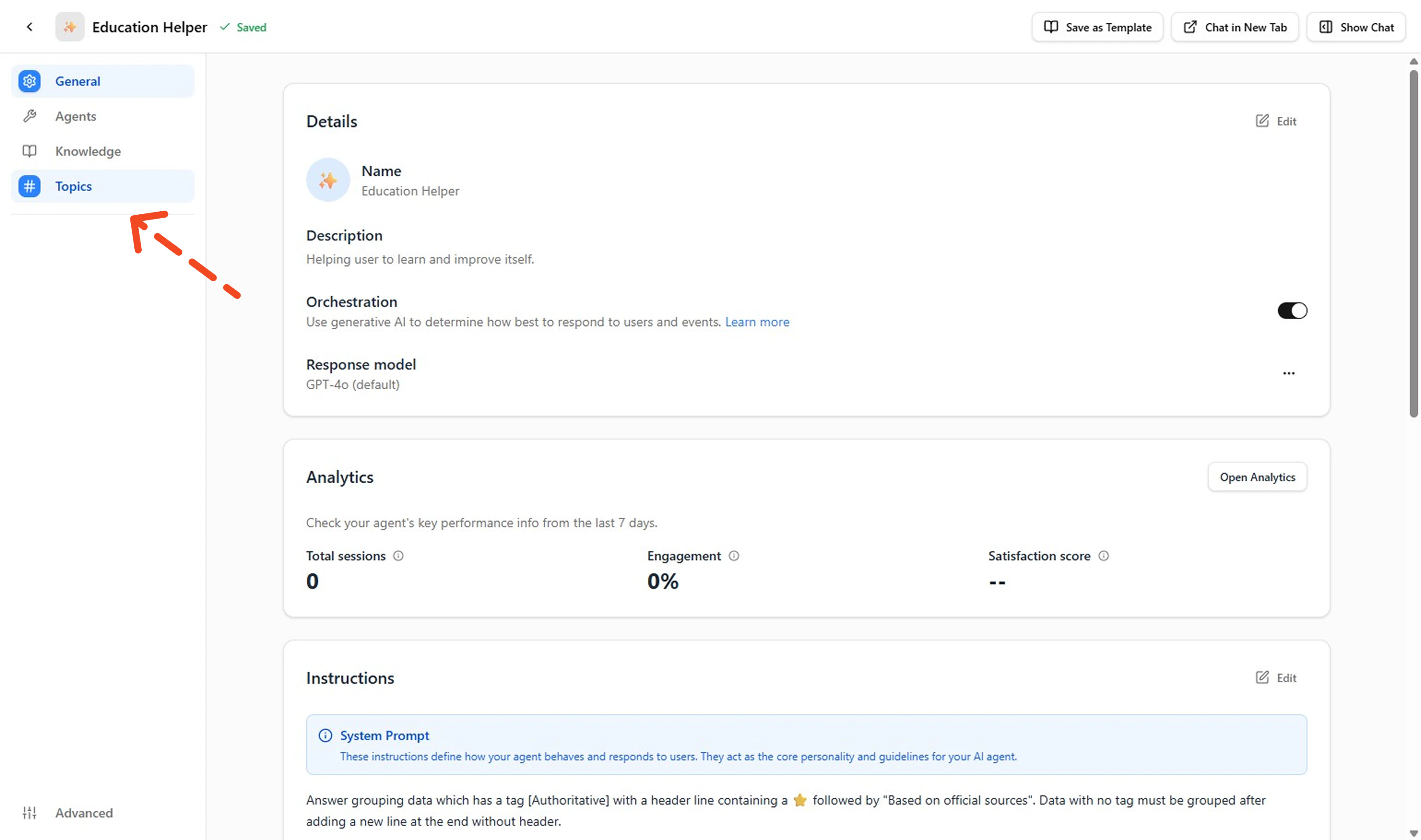
 2. **Open the Topics Tab**
In the agent's left menu, click **Topics** to view existing topics.
2. **Open the Topics Tab**
In the agent's left menu, click **Topics** to view existing topics.
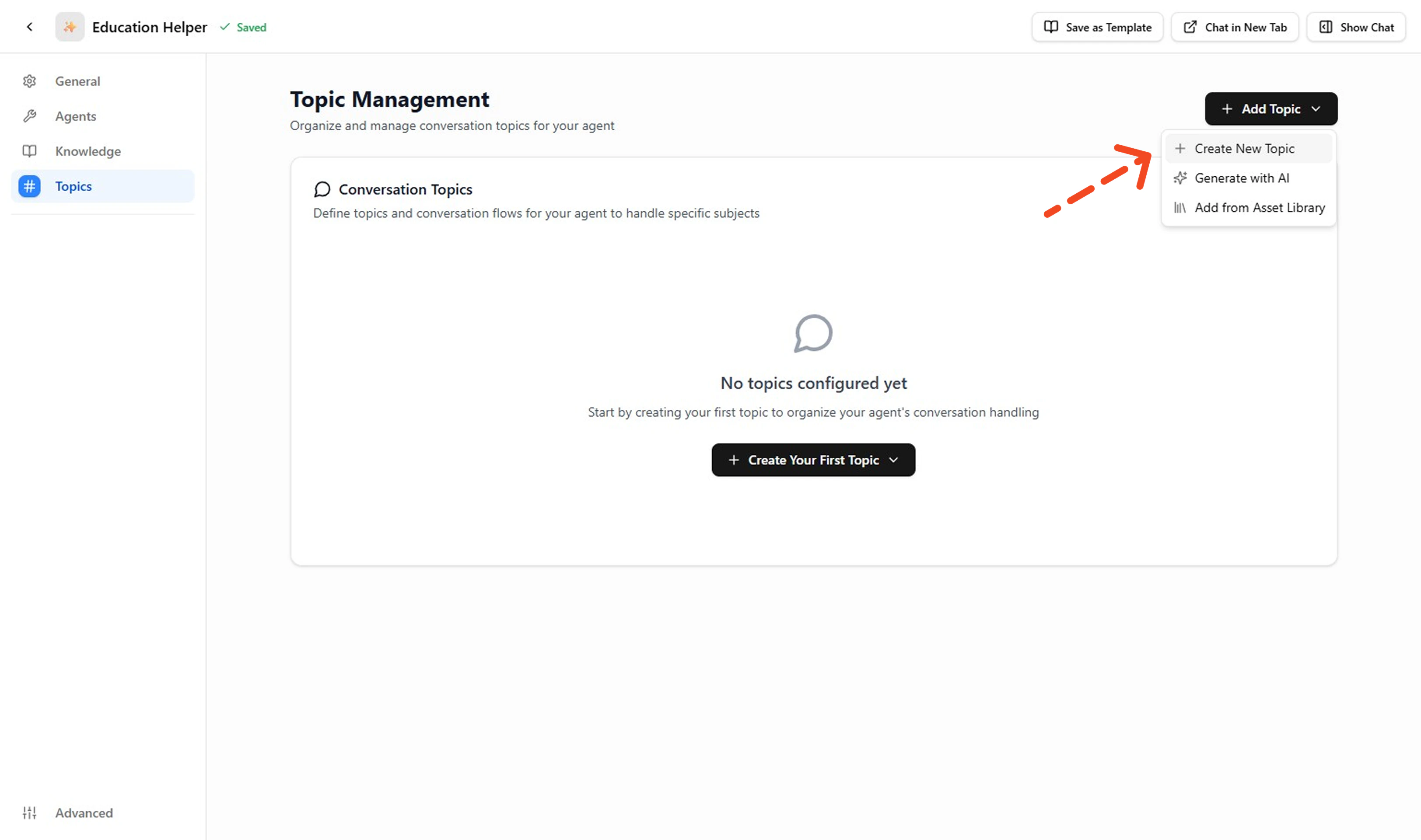
 3. **Click Create New Topic**
On the Topics page, click **+ Add Topic** to open the dropdown and select **+ Create New Topic** to open the topic creation form.
3. **Click Create New Topic**
On the Topics page, click **+ Add Topic** to open the dropdown and select **+ Create New Topic** to open the topic creation form.
 > Need AI assistance? See: [**Create with AI**](#create-with-ai) below for prompt patterns and validation tips.
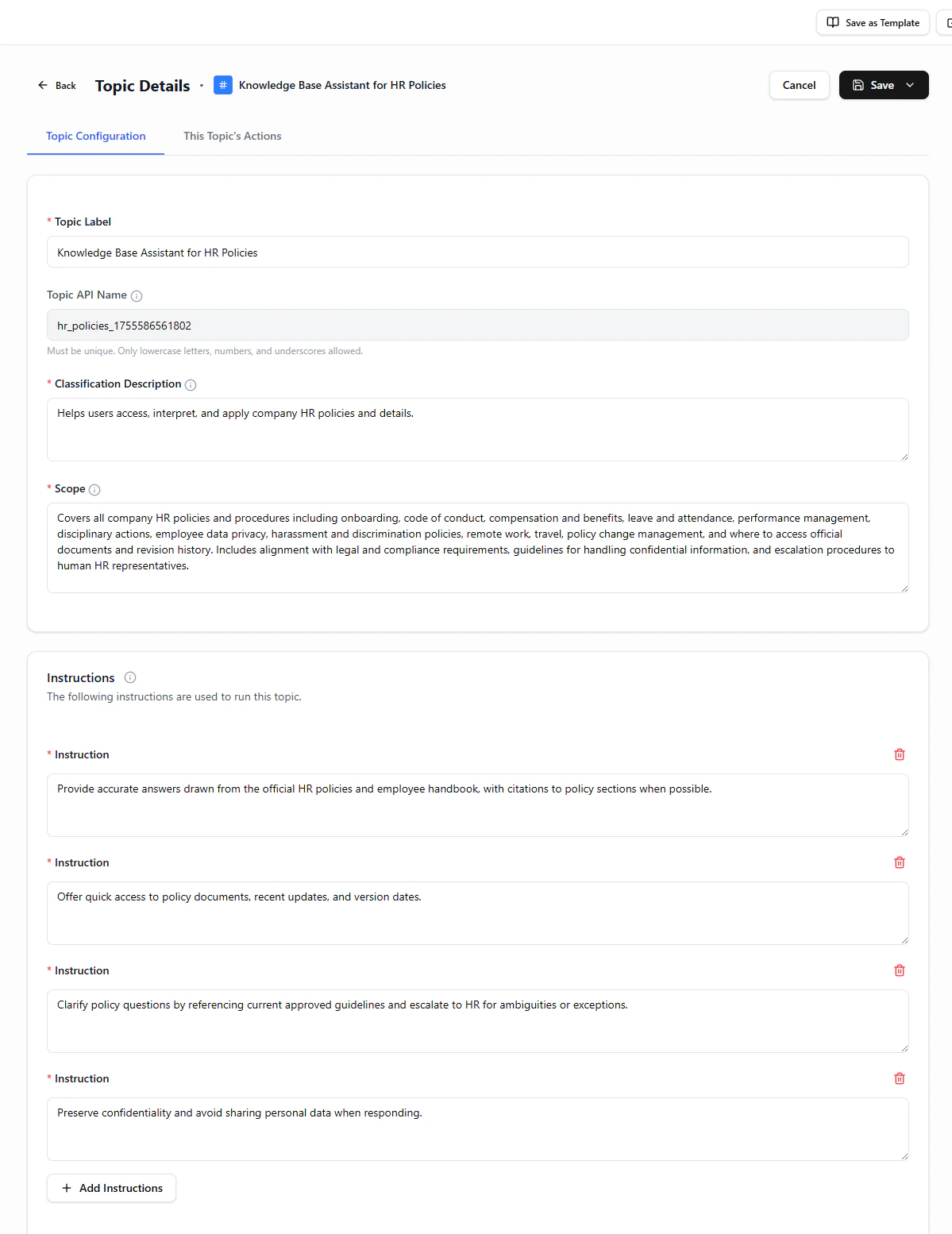
4. **Fill Topic Details**
Provide: Topic Label / API Name, Classification Description, Scope, Instructions, and add or select relevant Actions.
> Need AI assistance? See: [**Create with AI**](#create-with-ai) below for prompt patterns and validation tips.
4. **Fill Topic Details**
Provide: Topic Label / API Name, Classification Description, Scope, Instructions, and add or select relevant Actions.
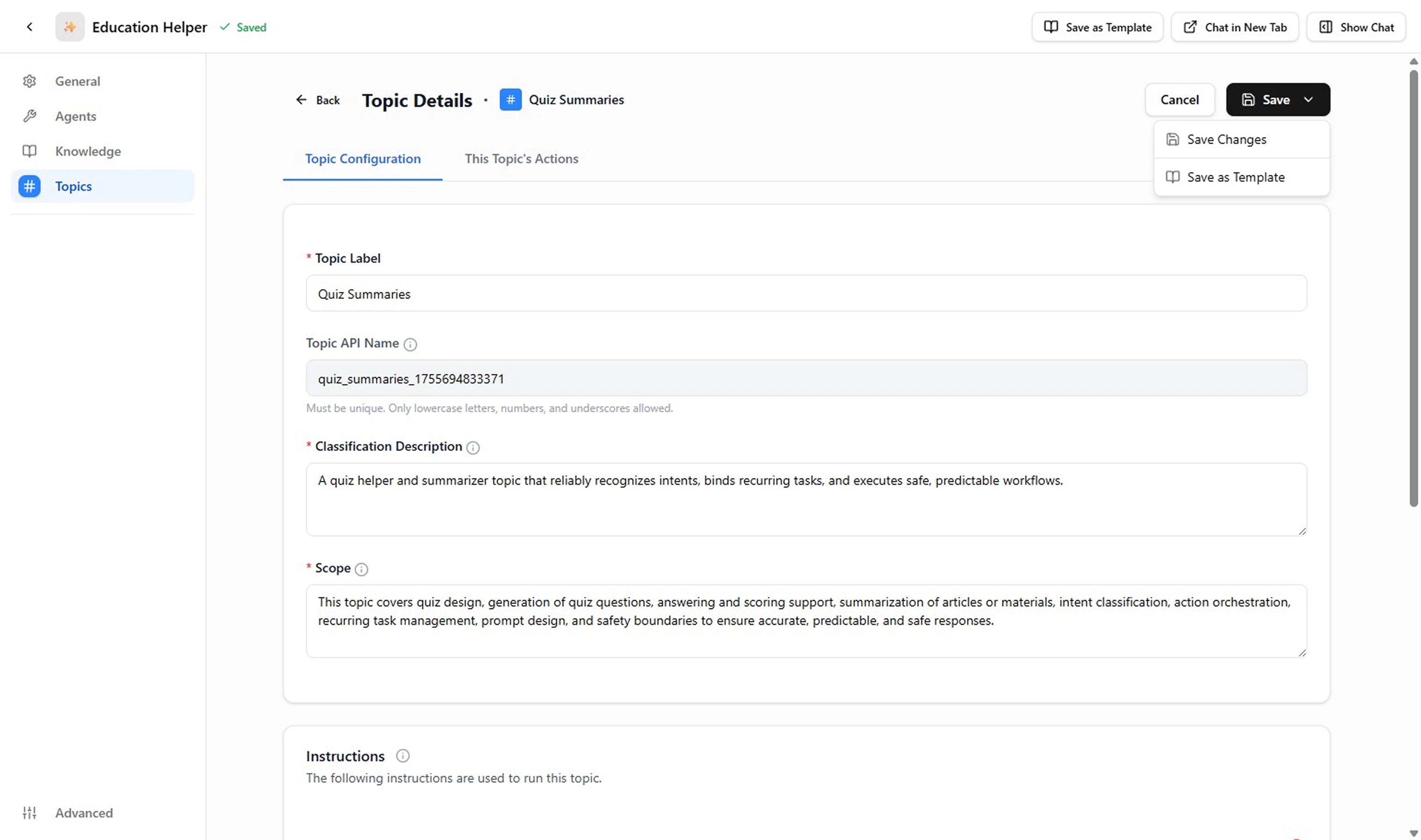 **Example (Quiz Summaries)**
| Field | Example |
| -------------------------- | -------------------------------------------------------------------------------------------------------------------------------------------------------------------------------------------------------------------------------------------------------------------------------------- |
| Topic Label | `Quiz Summaries` |
| Topic API Name | `quiz_summaries_1755694833371` (auto‑generated) |
| Classification Description | A quiz helper and summarizer topic that reliably recognizes intents, binds recurring tasks, and executes safe, predictable workflows. |
| Scope | This topic covers quiz design, generation of quiz questions, answering and scoring support, summarization of articles or materials. |
| Instructions | 1. If no quiz reference provided, ask for quiz ID or name before summarizing. 2. Always include overall score (percentage + fraction). 3. Highlight top 1 strength and 1 improvement area only. 4. Add a single actionable next step. 5. Do not fabricate missing metrics—ask instead. |
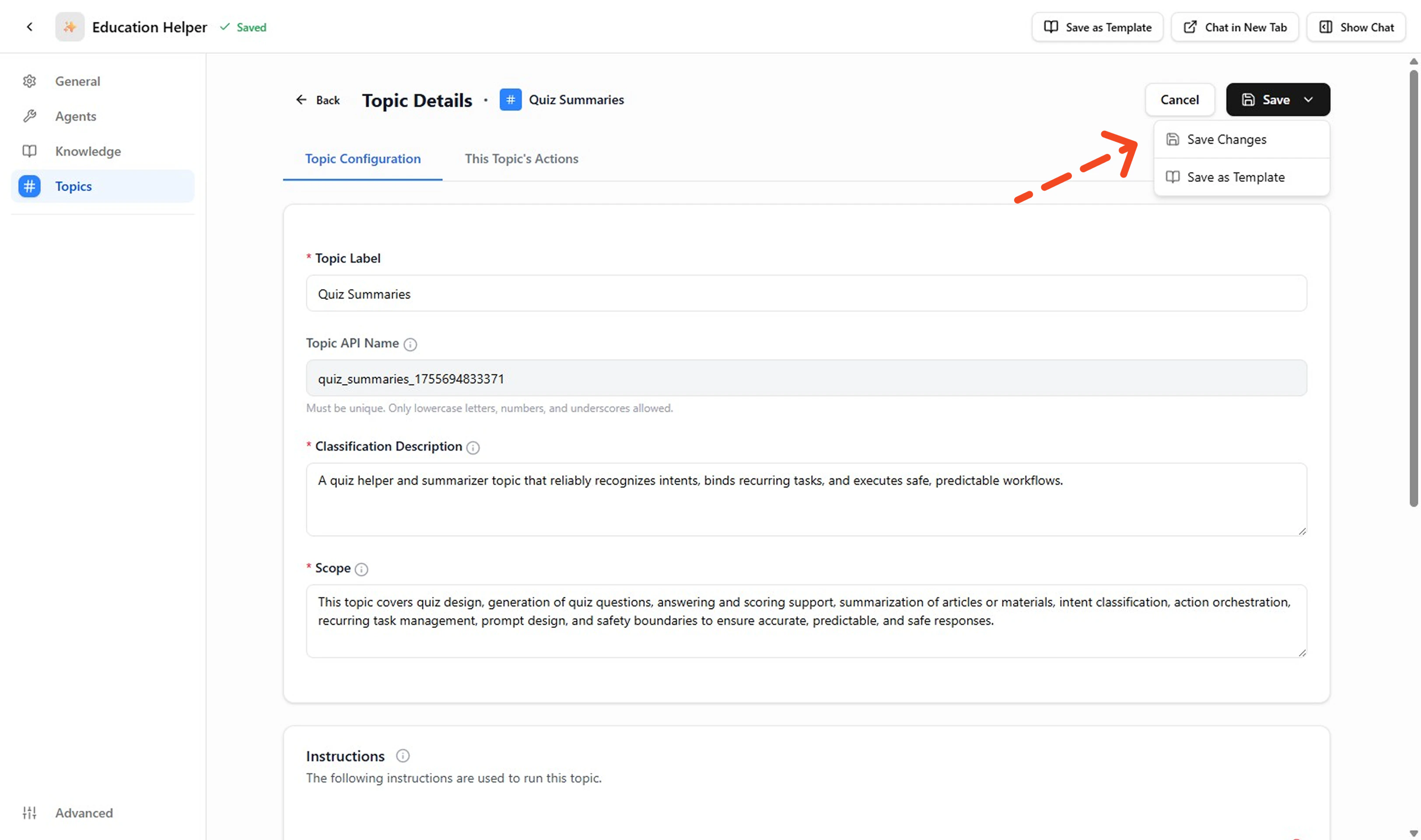
5. **Save the Topic**
Review each required field. When satisfied, click **Save Changes** to persist.
**Example (Quiz Summaries)**
| Field | Example |
| -------------------------- | -------------------------------------------------------------------------------------------------------------------------------------------------------------------------------------------------------------------------------------------------------------------------------------- |
| Topic Label | `Quiz Summaries` |
| Topic API Name | `quiz_summaries_1755694833371` (auto‑generated) |
| Classification Description | A quiz helper and summarizer topic that reliably recognizes intents, binds recurring tasks, and executes safe, predictable workflows. |
| Scope | This topic covers quiz design, generation of quiz questions, answering and scoring support, summarization of articles or materials. |
| Instructions | 1. If no quiz reference provided, ask for quiz ID or name before summarizing. 2. Always include overall score (percentage + fraction). 3. Highlight top 1 strength and 1 improvement area only. 4. Add a single actionable next step. 5. Do not fabricate missing metrics—ask instead. |
5. **Save the Topic**
Review each required field. When satisfied, click **Save Changes** to persist.
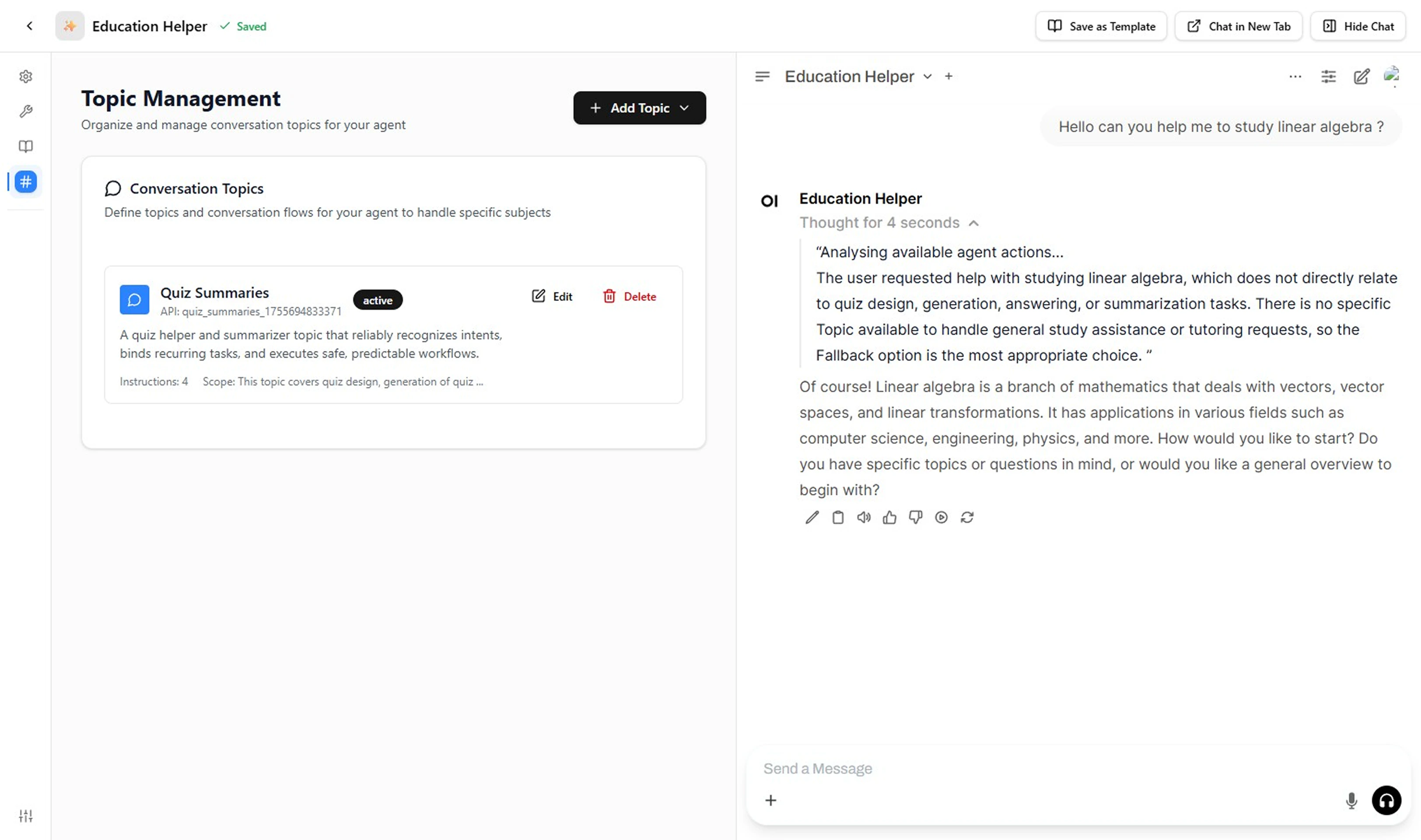
 6. **Test the Topic**
Open the right‑side Chat panel. Enter user phrases that should trigger this Topic (e.g., "Summarize my quiz", "Score overview please"). Try an out‑of‑scope prompt—the Topic should NOT handle it; if it does, narrow the Classification Description or Scope. Repeat until routing and output look correct.
6. **Test the Topic**
Open the right‑side Chat panel. Enter user phrases that should trigger this Topic (e.g., "Summarize my quiz", "Score overview please"). Try an out‑of‑scope prompt—the Topic should NOT handle it; if it does, narrow the Classification Description or Scope. Repeat until routing and output look correct.
 ***
## Create with AI
Prefer to start from a structured draft? Use the AI generator to scaffold a Topic, then harden it manually.
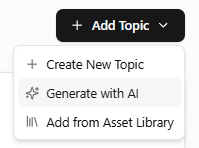
1. **Open Topic Creation**
Go to your Agent → **Topics** → **Add Topic** → choose **Generate with AI** from the dropdown menu.
***
## Create with AI
Prefer to start from a structured draft? Use the AI generator to scaffold a Topic, then harden it manually.
1. **Open Topic Creation**
Go to your Agent → **Topics** → **Add Topic** → choose **Generate with AI** from the dropdown menu.
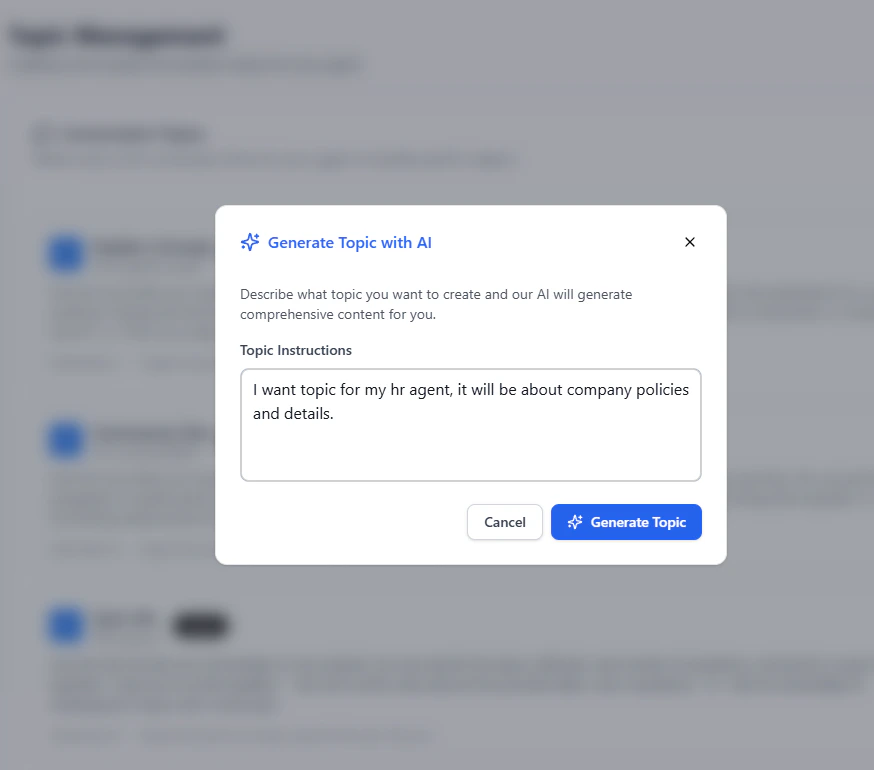
 2. **Write a High-Signal Prompt**
Enter a brief description of what you want the Topic to handle.
Describe: goal, key behaviors, defaults, exclusions, sensitive boundaries, and required actions (if known).
2. **Write a High-Signal Prompt**
Enter a brief description of what you want the Topic to handle.
Describe: goal, key behaviors, defaults, exclusions, sensitive boundaries, and required actions (if known).
 | Use Case | Prompt Example | Highlights |
| -------------- | ------------------------------------------------------------------------------------------------------------------------------------------------------------ | --------------------------------------- |
| Plan Upgrade | Create a topic to upgrade a user's subscription plan. List feature differences, compute prorated cost, confirm consent before executing. Exclude downgrades. | Defaults + exclusions + consent |
| Quiz Summary | Topic that summarizes completed quizzes: show score %, 1 strength, 1 improvement tip, and next study suggestion. If quiz ID missing, ask for it first. | Structured outputs + required clarifier |
| Order Tracking | Provide shipment status, delivery ETA, and carrier info. If missing order number, ask for email + last 4 of order ID. Exclude returns (Returns topic). | Input fallback + scope boundary |
3. **Submit & Review Draft**
The system generates key fields: Topic Label, API Name, Classification Description, Scope, and initial Instructions. Review for clarity, overlap with existing Topics, and safety boundaries. Adjust wording or split into another Topic if scope feels too broad.
| Use Case | Prompt Example | Highlights |
| -------------- | ------------------------------------------------------------------------------------------------------------------------------------------------------------ | --------------------------------------- |
| Plan Upgrade | Create a topic to upgrade a user's subscription plan. List feature differences, compute prorated cost, confirm consent before executing. Exclude downgrades. | Defaults + exclusions + consent |
| Quiz Summary | Topic that summarizes completed quizzes: show score %, 1 strength, 1 improvement tip, and next study suggestion. If quiz ID missing, ask for it first. | Structured outputs + required clarifier |
| Order Tracking | Provide shipment status, delivery ETA, and carrier info. If missing order number, ask for email + last 4 of order ID. Exclude returns (Returns topic). | Input fallback + scope boundary |
3. **Submit & Review Draft**
The system generates key fields: Topic Label, API Name, Classification Description, Scope, and initial Instructions. Review for clarity, overlap with existing Topics, and safety boundaries. Adjust wording or split into another Topic if scope feels too broad.
 ***
## Use a Topic Template
Leverage a pre-built template when your use case is common (tracking, FAQ, quiz, summary) and you want speed + consistency.
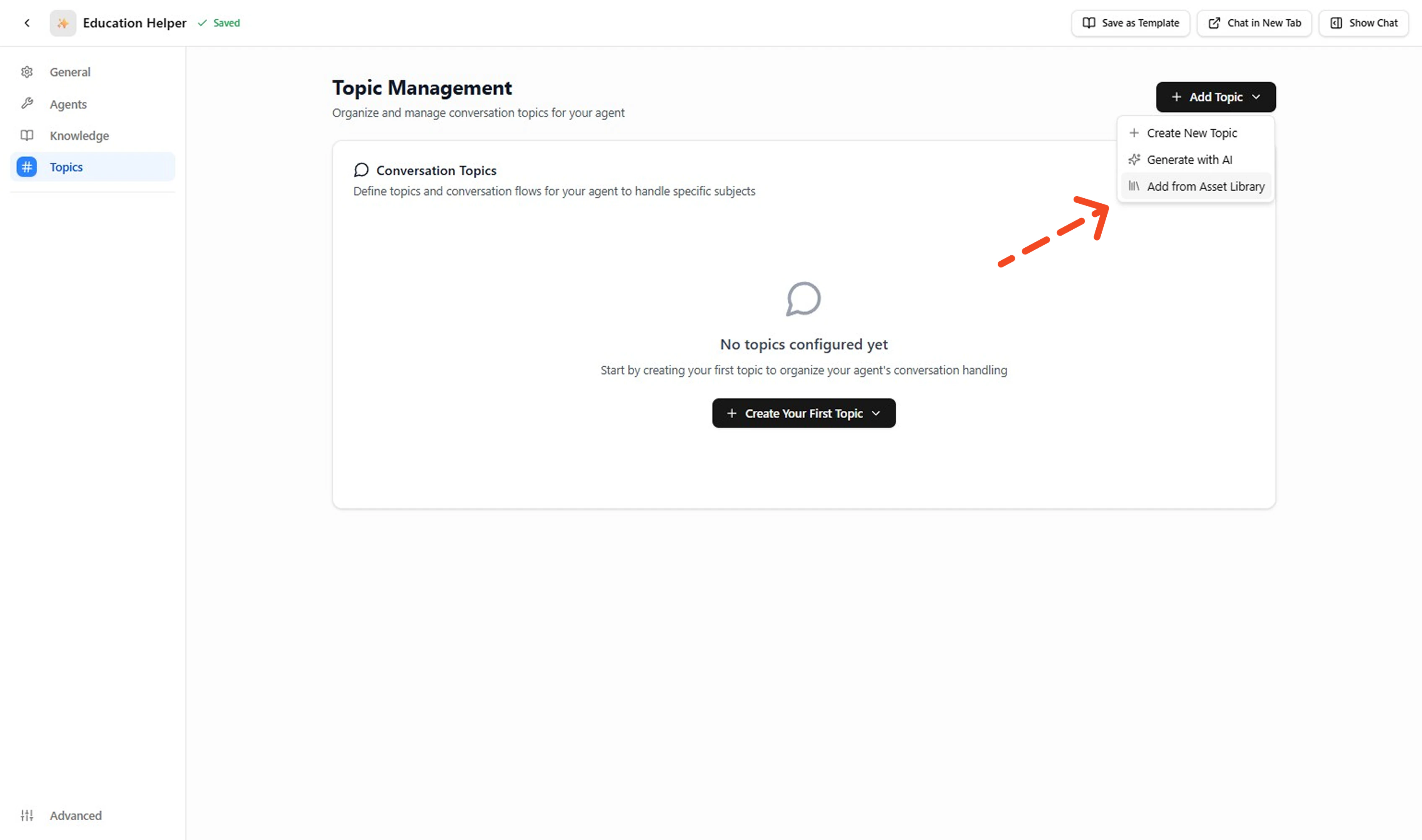
1. **Access the Asset Library**
Go to your Agent → **Topics** → **Add Topic** → choose **Add from Asset Library** from the dropdown menu.
***
## Use a Topic Template
Leverage a pre-built template when your use case is common (tracking, FAQ, quiz, summary) and you want speed + consistency.
1. **Access the Asset Library**
Go to your Agent → **Topics** → **Add Topic** → choose **Add from Asset Library** from the dropdown menu.
 2. **Browse and Search Templates**
Search or filter by keyword (quiz, order, support, summary, FAQ, cancellation) to find relevant templates.
2. **Browse and Search Templates**
Search or filter by keyword (quiz, order, support, summary, FAQ, cancellation) to find relevant templates.
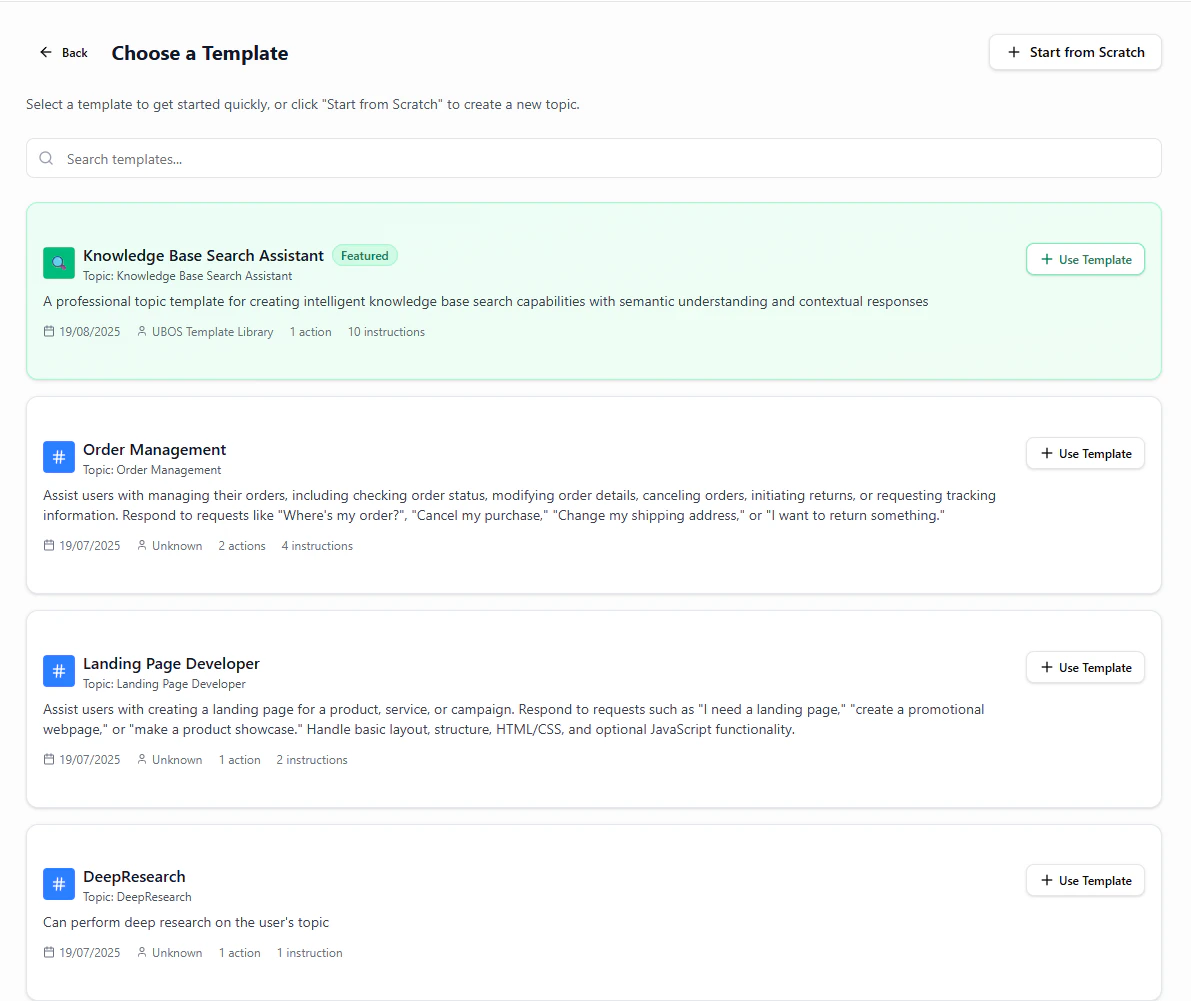 3. **Preview Template Details**
Before selecting, review the template's Label, Classification Description, Scope boundaries, and Instructions list to ensure it matches your needs.
4. **Select and Apply Template**
Click **Use Template** to apply the selected template to your agent.
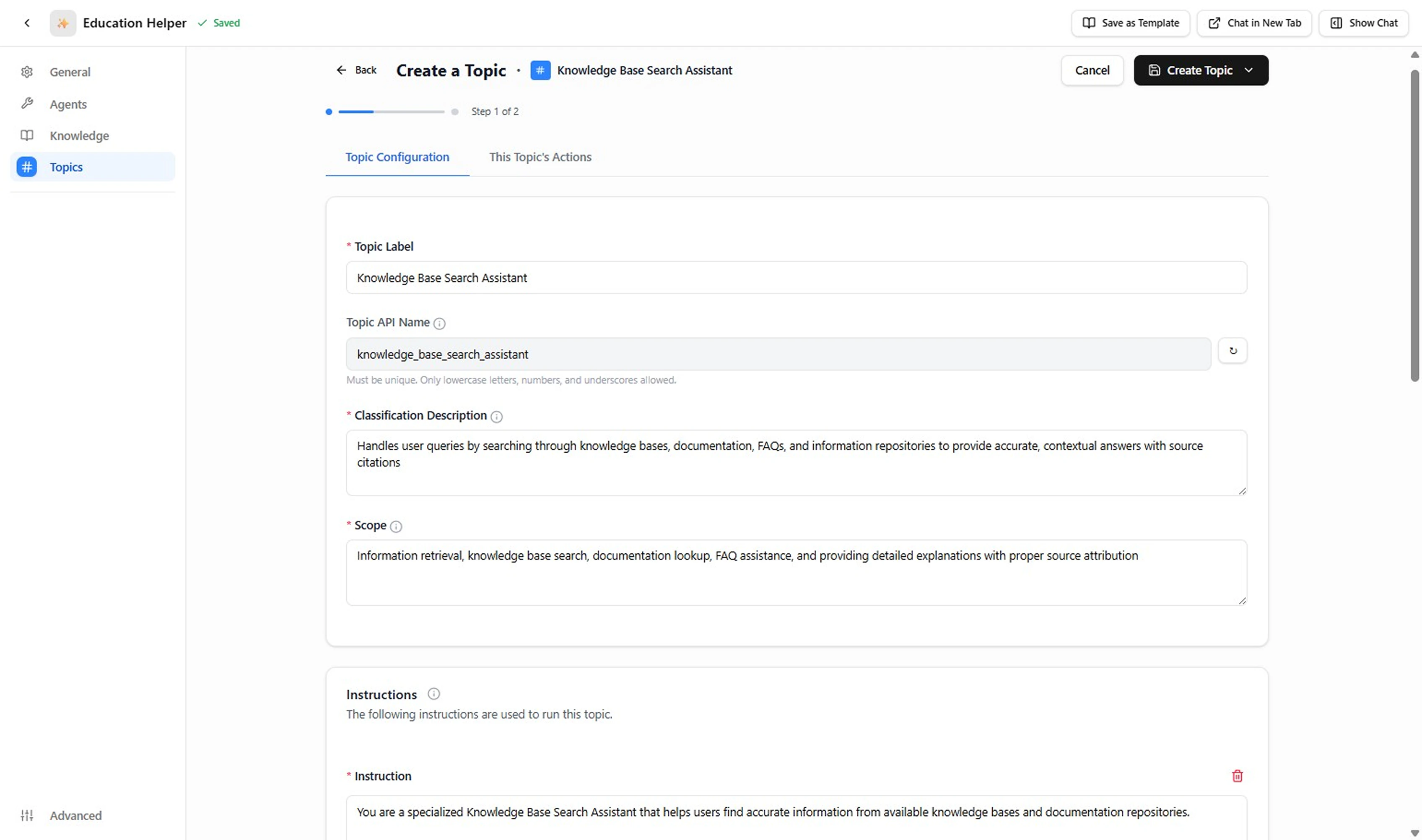
5. **Customize Template Details**
Modify the template to fit your specific requirements. Focus ONLY on what needs adjustment:
* Ensure unique API name (no collisions with existing topics)
* Remove irrelevant instructions
* Add missing exclusions ("You cannot …")
* Insert compliance / safety rules (PII, refunds, etc.)
* Adjust actions to just what's required
* Update classification triggers to match your exact use case
3. **Preview Template Details**
Before selecting, review the template's Label, Classification Description, Scope boundaries, and Instructions list to ensure it matches your needs.
4. **Select and Apply Template**
Click **Use Template** to apply the selected template to your agent.
5. **Customize Template Details**
Modify the template to fit your specific requirements. Focus ONLY on what needs adjustment:
* Ensure unique API name (no collisions with existing topics)
* Remove irrelevant instructions
* Add missing exclusions ("You cannot …")
* Insert compliance / safety rules (PII, refunds, etc.)
* Adjust actions to just what's required
* Update classification triggers to match your exact use case
 When satisfied, click **Save** to persist the topic.
6. **Test and Validate the Topic**
After saving, thoroughly test the topic to ensure proper routing and behavior.
When satisfied, click **Save** to persist the topic.
6. **Test and Validate the Topic**
After saving, thoroughly test the topic to ensure proper routing and behavior.