> ## Documentation Index
> Fetch the complete documentation index at: https://benchgen.com/docs/llms.txt
> Use this file to discover all available pages before exploring further.
# Monitor Model Usage
> Track requests, tokens, latency, and spend for a deployed model, and inspect individual request logs.
Once a model is serving traffic, the **Usage** tab on its model card is where you monitor performance and API usage. It summarizes requests, token counts, latency, and spend over a time window, and lets you drill into any individual request to see its full prompt, response, and metrics.
The Usage tab is available on any deployed model. If you don't have one yet, see [Deploy an inference model](/eval/run-an-inference-model).
***
## Steps
### 1. Open the Usage tab
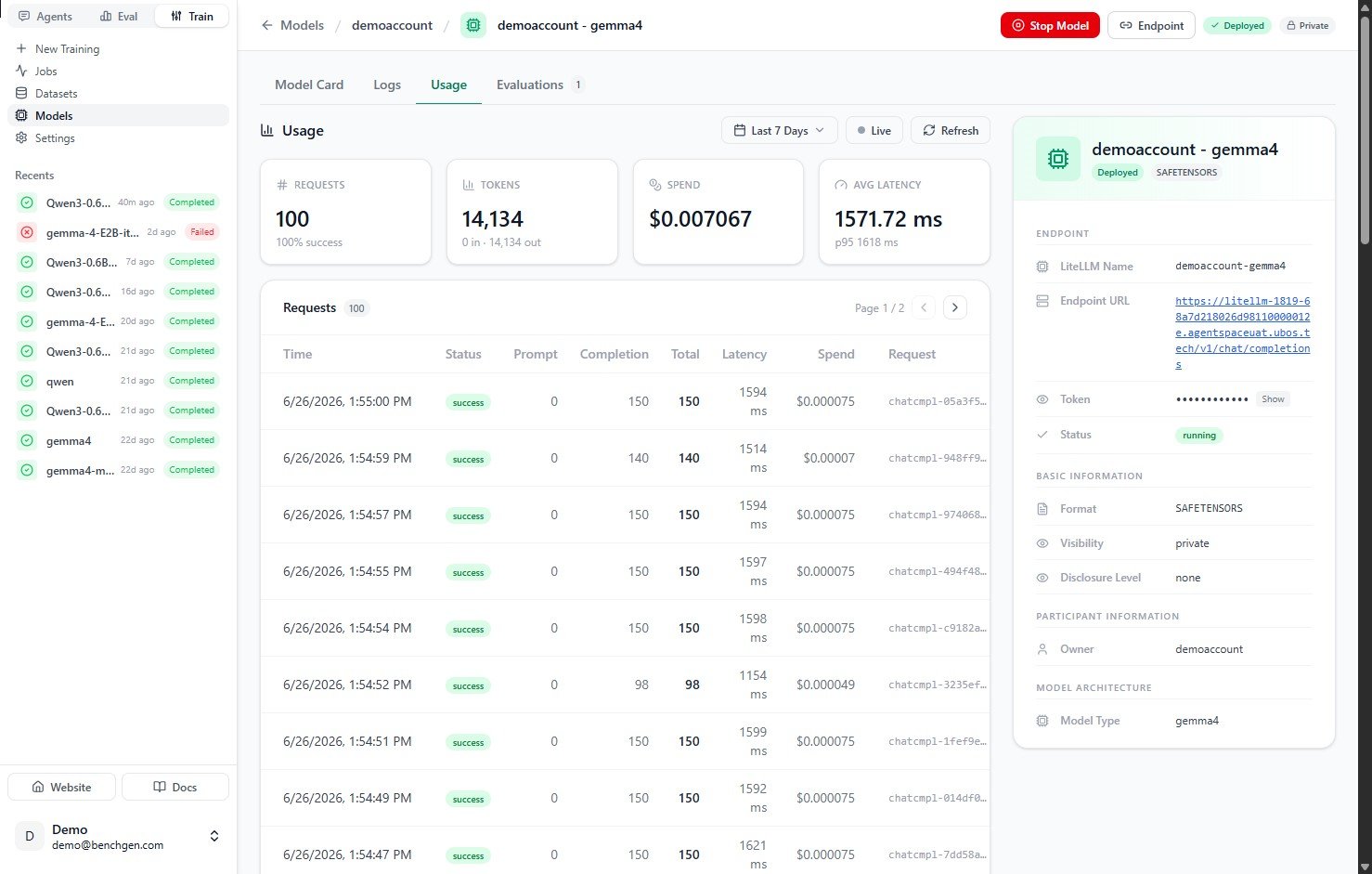
Open a deployed model's card and select the **Usage** tab. Use the **Last 7 Days** dropdown to change the time window, **Refresh** to pull the latest data, or **Live** to stream new requests as they arrive.
 ### 2. Read the summary metrics
Four cards summarize activity for the selected window:
| Card | What it shows |
| --------------- | ---------------------------------------------------------------- |
| **Requests** | Total requests, with the success rate below. |
| **Tokens** | Total tokens, split into input (prompt) and output (completion). |
| **Spend** | Total cost across all requests. |
| **Avg Latency** | Mean response time, with the p95 latency below it. |
### 3. Browse the request log
The **Requests** table lists every call to the endpoint, newest first. It's paginated, so use the arrows to page through history.
| Column | Meaning |
| -------------- | ------------------------------------------ |
| **Time** | When the request was made. |
| **Status** | `success` or `error`. |
| **Prompt** | Input (prompt) tokens. |
| **Completion** | Output (completion) tokens. |
| **Total** | Total tokens for the request. |
| **Latency** | Response time in milliseconds. |
| **Spend** | Cost of the request. |
| **Request** | The request ID (for example `chatcmpl-…`). |
### 4. Inspect a single request
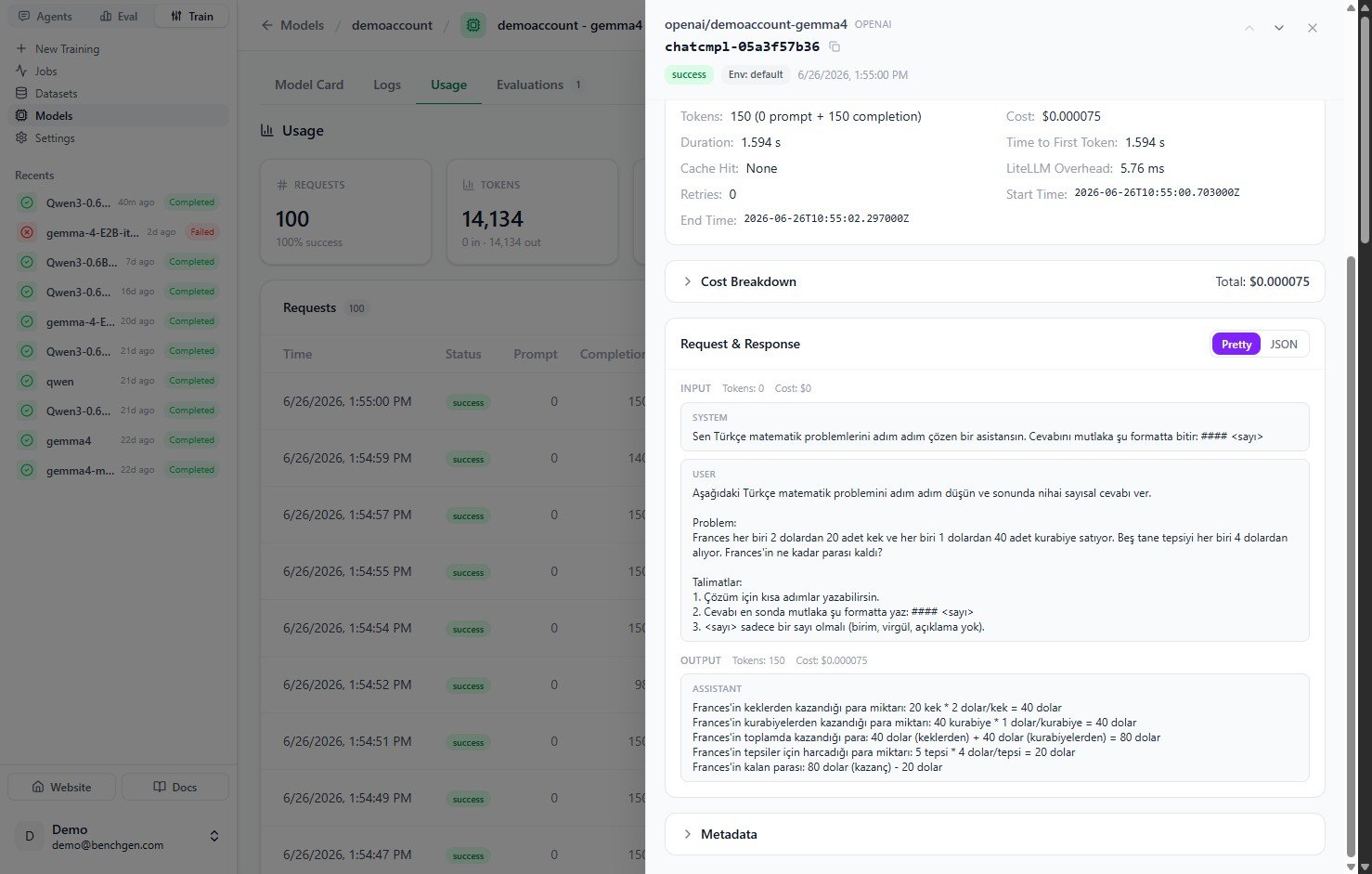
Click any row to open its detail drawer. This is where you debug a specific call.
### 2. Read the summary metrics
Four cards summarize activity for the selected window:
| Card | What it shows |
| --------------- | ---------------------------------------------------------------- |
| **Requests** | Total requests, with the success rate below. |
| **Tokens** | Total tokens, split into input (prompt) and output (completion). |
| **Spend** | Total cost across all requests. |
| **Avg Latency** | Mean response time, with the p95 latency below it. |
### 3. Browse the request log
The **Requests** table lists every call to the endpoint, newest first. It's paginated, so use the arrows to page through history.
| Column | Meaning |
| -------------- | ------------------------------------------ |
| **Time** | When the request was made. |
| **Status** | `success` or `error`. |
| **Prompt** | Input (prompt) tokens. |
| **Completion** | Output (completion) tokens. |
| **Total** | Total tokens for the request. |
| **Latency** | Response time in milliseconds. |
| **Spend** | Cost of the request. |
| **Request** | The request ID (for example `chatcmpl-…`). |
### 4. Inspect a single request
Click any row to open its detail drawer. This is where you debug a specific call.
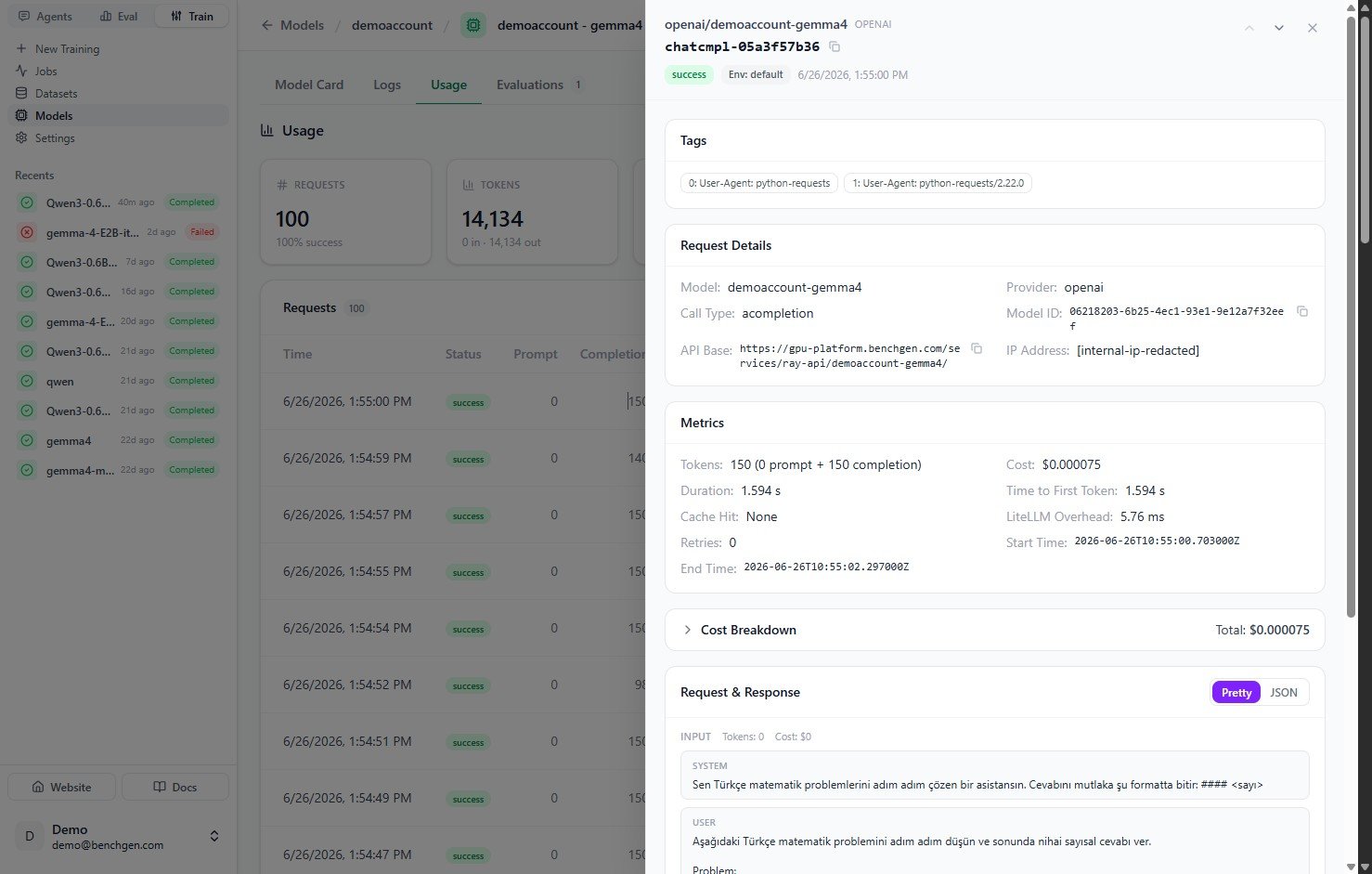 | Section | What's inside |
| ---------------------- | ----------------------------------------------------------------------------------------------------------------- |
| **Request Details** | Model, provider, call type, model ID, API base, and (redacted) IP address. |
| **Metrics** | Token split, cost, duration, time to first token, cache hit, LiteLLM overhead, retries, and start/end times. |
| **Cost Breakdown** | The cost components that add up to the request total. |
| **Request & Response** | The full exchange, with a **Pretty** / **JSON** toggle. Shows the system and user input and the assistant output. |
| **Metadata** | Additional metadata captured for the request. |
| Section | What's inside |
| ---------------------- | ----------------------------------------------------------------------------------------------------------------- |
| **Request Details** | Model, provider, call type, model ID, API base, and (redacted) IP address. |
| **Metrics** | Token split, cost, duration, time to first token, cache hit, LiteLLM overhead, retries, and start/end times. |
| **Cost Breakdown** | The cost components that add up to the request total. |
| **Request & Response** | The full exchange, with a **Pretty** / **JSON** toggle. Shows the system and user input and the assistant output. |
| **Metadata** | Additional metadata captured for the request. |
 ### 5. Watch live traffic
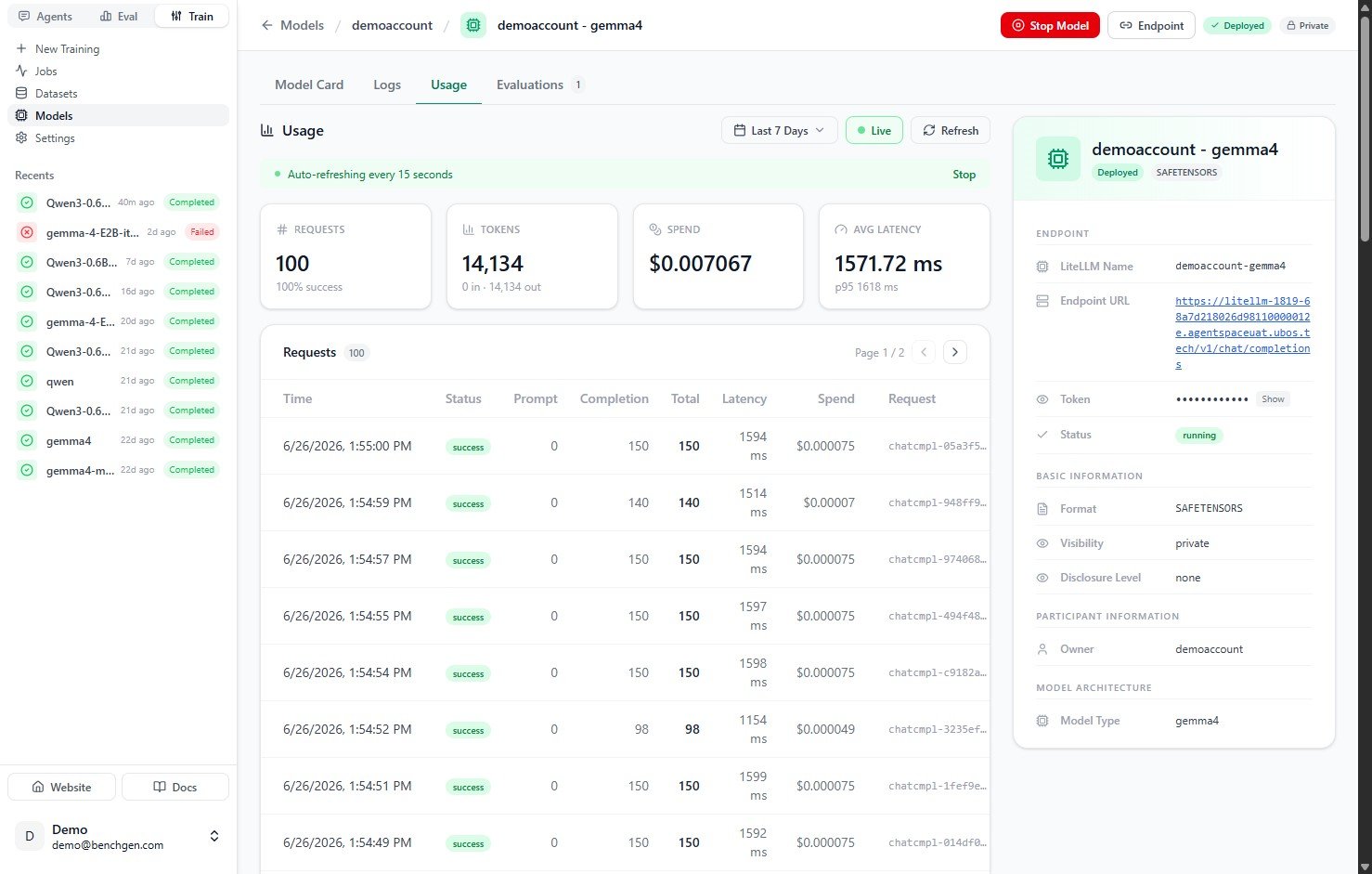
Toggle **Live** to auto-refresh the tab every 15 seconds. A banner confirms live mode is on; click **Stop** to pause it. This is useful while load-testing or watching a benchmark run drive requests.
### 5. Watch live traffic
Toggle **Live** to auto-refresh the tab every 15 seconds. A banner confirms live mode is on; click **Stop** to pause it. This is useful while load-testing or watching a benchmark run drive requests.
 ***
## Next Steps
**Usage data comes from real traffic.** Deploy a model to start serving requests, or run an evaluation against it to generate activity you can watch here in real time.
Spin up a live, OpenAI-compatible endpoint that records usage.
Benchmark a running model and watch the requests stream in.
***
## Next Steps
**Usage data comes from real traffic.** Deploy a model to start serving requests, or run an evaluation against it to generate activity you can watch here in real time.
Spin up a live, OpenAI-compatible endpoint that records usage.
Benchmark a running model and watch the requests stream in.