> ## Documentation Index
> Fetch the complete documentation index at: https://benchgen.com/docs/llms.txt
> Use this file to discover all available pages before exploring further.
# From a HuggingFace Model
> Pull any public model from the HuggingFace Hub, deploy it on the fly, and benchmark it against an Eval environment.
The **HuggingFace** source lets you benchmark a model you have not deployed yet. You search the
HuggingFace Hub from inside BenchGen, pick a model, and BenchGen deploys it for you and runs the
evaluation. This is the fastest way to score a public model against an environment without adding
it to your workspace first.
**When to use this.** Reach for HuggingFace when the model lives on the Hub and you just want a
quick score. If the model is already deployed on BenchGen, use [On a platform
model](/docs/eval/run-a-benchmark-platform); if you started it yourself, use [On a running
model](/docs/eval/evaluate-a-running-model).
***
## Prerequisites
* A benchmark or environment to evaluate against, from the Environments Hub or a [custom
environment](/docs/eval/create-environment) you uploaded.
* GPU capacity for BenchGen to deploy the model onto.
* For private or gated models, a HuggingFace access token.
***
## Steps
### 1. Open a benchmark
Open the environment you want to evaluate against. The **Overview** tab describes what the
benchmark measures and how it scores submissions.
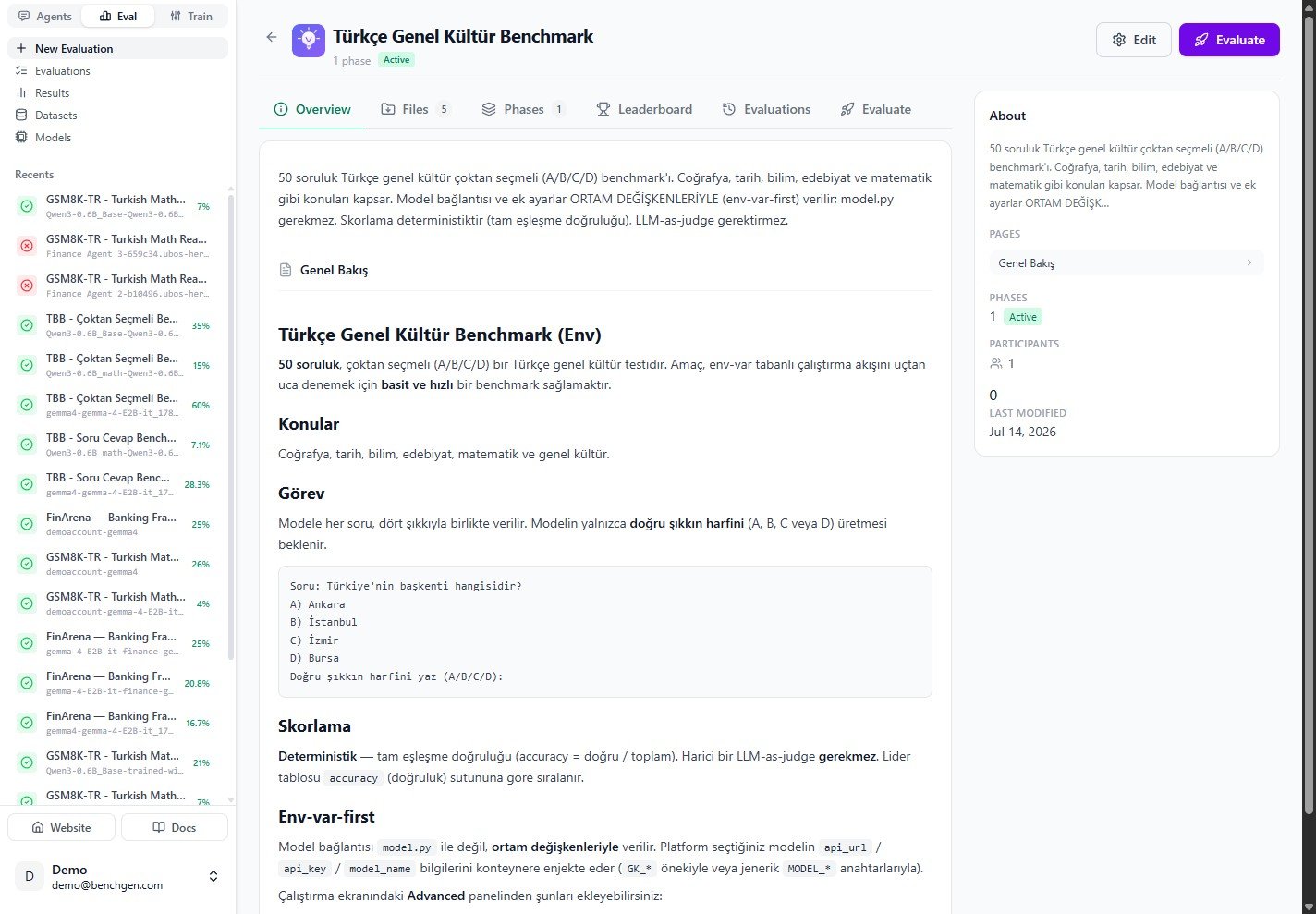 Click **Evaluate** in the top right, or open the **Evaluate** tab.
### 2. Switch to the HuggingFace source
On the **Evaluate** tab, the model sources are grouped into tabs: **Platform Models**, **Running**,
**Trained**, **HuggingFace**, and **External API**. Click **HuggingFace**.
Click **Evaluate** in the top right, or open the **Evaluate** tab.
### 2. Switch to the HuggingFace source
On the **Evaluate** tab, the model sources are grouped into tabs: **Platform Models**, **Running**,
**Trained**, **HuggingFace**, and **External API**. Click **HuggingFace**.
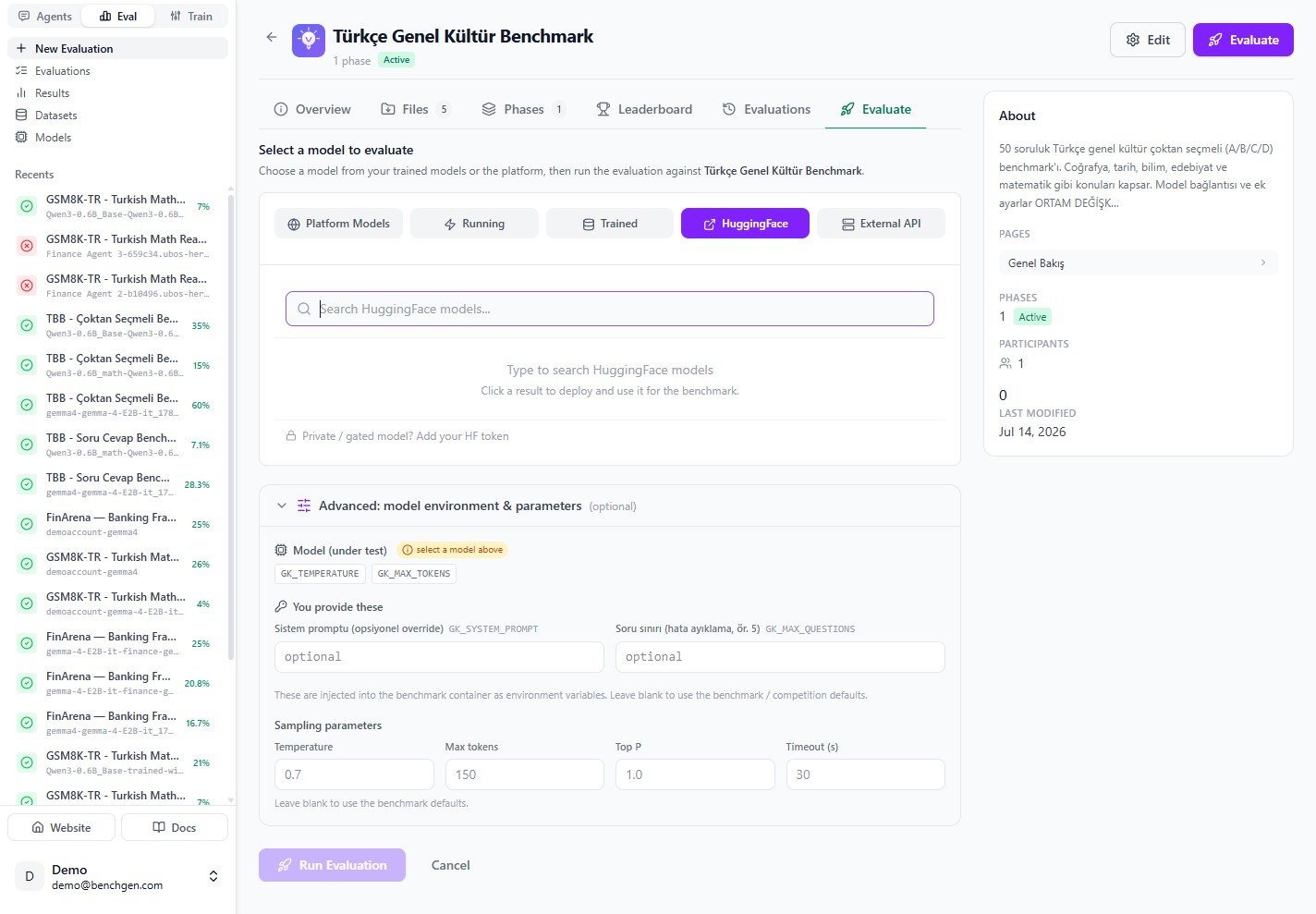 For a private or gated repository, use **Add your HF token** below the search box so BenchGen can
download the weights.
### 3. Search the Hub
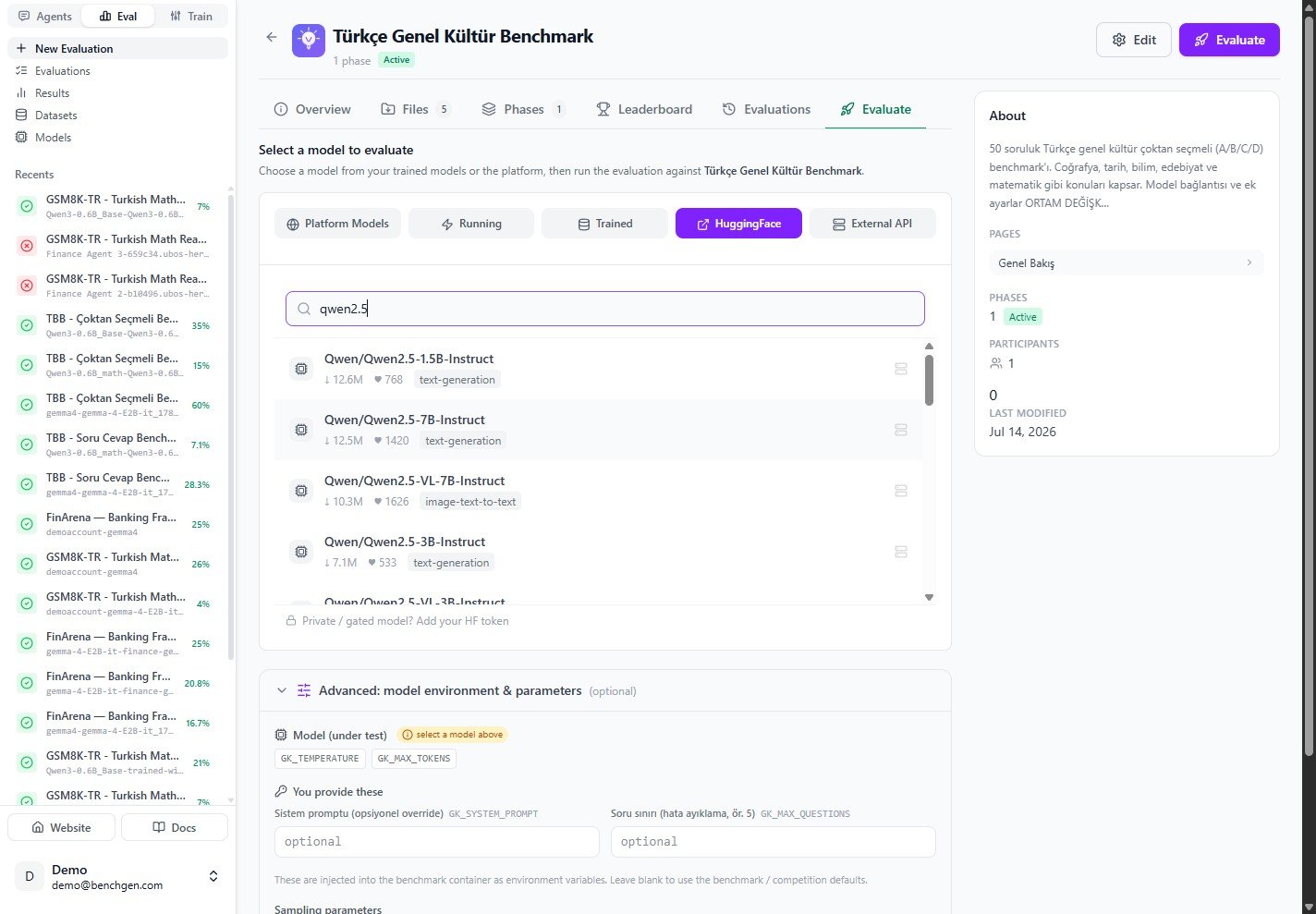
Type a model name to search the HuggingFace Hub. Results show the repository, download and like
counts, and the task tag (for example `text-generation`).
For a private or gated repository, use **Add your HF token** below the search box so BenchGen can
download the weights.
### 3. Search the Hub
Type a model name to search the HuggingFace Hub. Results show the repository, download and like
counts, and the task tag (for example `text-generation`).
 ### 4. Select and deploy the model
Click a result to select it. BenchGen deploys the model and confirms with **Deployed & selected**.
The **Advanced: model environment & parameters** panel now reads **auto-filled from selected
model**, so the model connection values are wired up for you.
### 4. Select and deploy the model
Click a result to select it. BenchGen deploys the model and confirms with **Deployed & selected**.
The **Advanced: model environment & parameters** panel now reads **auto-filled from selected
model**, so the model connection values are wired up for you.
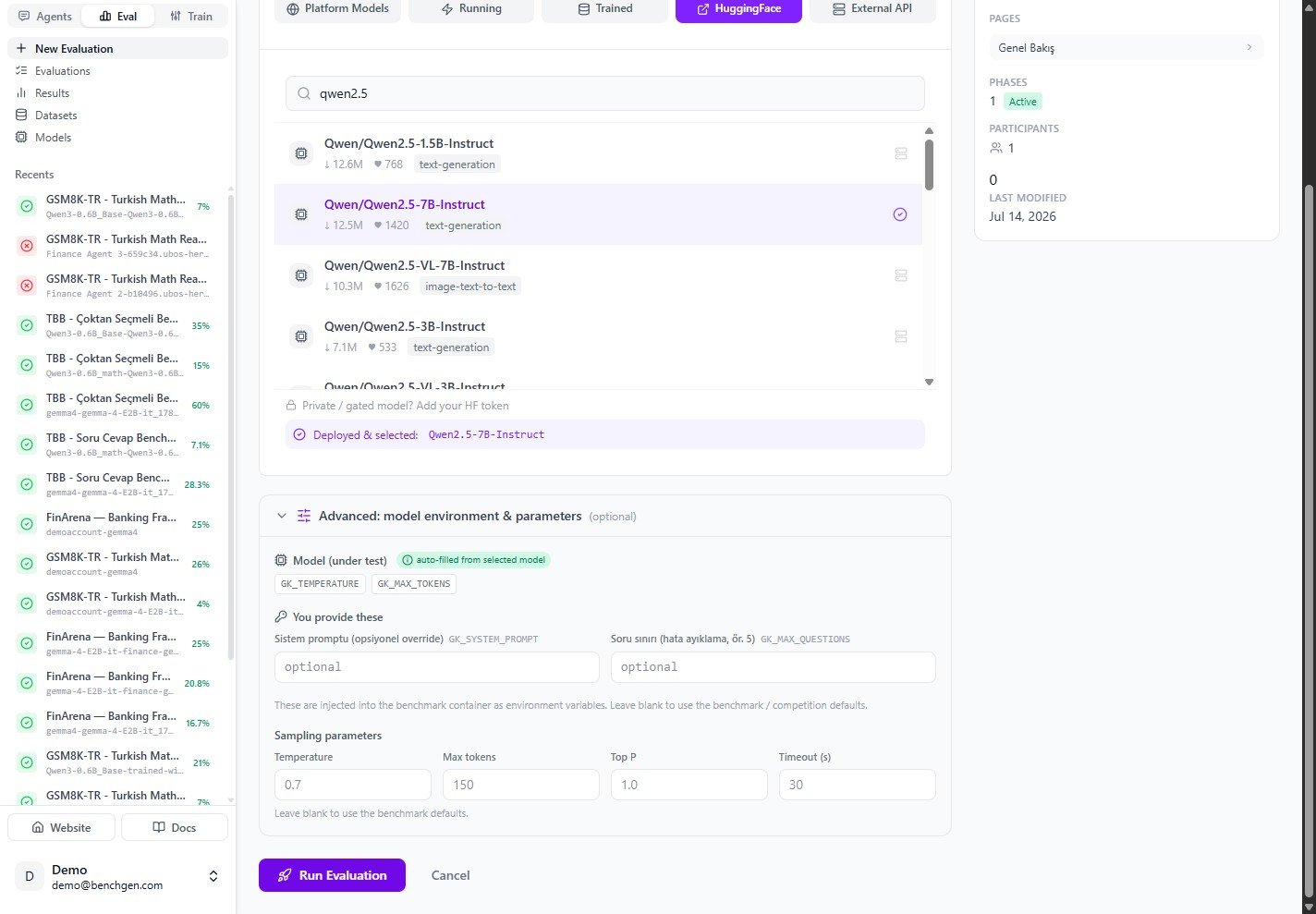 The environment variables the benchmark declares are filled from this deployed model. You only fill
in the fields the benchmark owner exposed (here `GK_SYSTEM_PROMPT` and `GK_MAX_QUESTIONS`), and you
can adjust the sampling parameters. See [Environment variables](/docs/eval/environment-variables) for how
these values are injected.
Leave a field blank to fall back to the benchmark defaults. The runner fills in values only; the
keys are fixed by the benchmark owner.
### 5. Run the evaluation
Click **Run Evaluation**. BenchGen creates the run and opens a live view. While the model comes
online, the status reads **Deploying** and the logs wait for output.
The environment variables the benchmark declares are filled from this deployed model. You only fill
in the fields the benchmark owner exposed (here `GK_SYSTEM_PROMPT` and `GK_MAX_QUESTIONS`), and you
can adjust the sampling parameters. See [Environment variables](/docs/eval/environment-variables) for how
these values are injected.
Leave a field blank to fall back to the benchmark defaults. The runner fills in values only; the
keys are fixed by the benchmark owner.
### 5. Run the evaluation
Click **Run Evaluation**. BenchGen creates the run and opens a live view. While the model comes
online, the status reads **Deploying** and the logs wait for output.
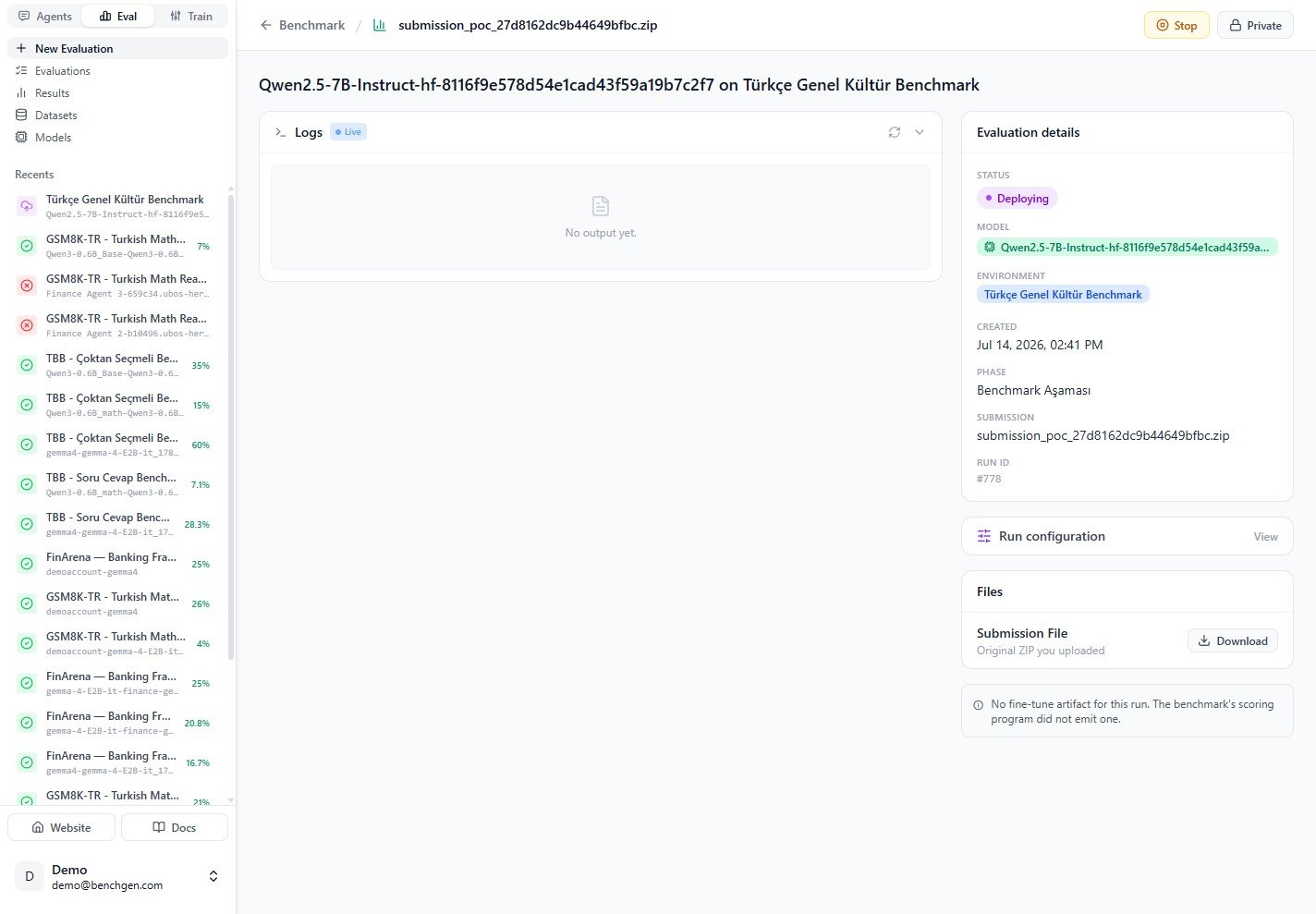 The **Evaluation details** panel summarizes the run: status, model, environment, phase, submission
archive, and the run ID.
### 6. Review the results
When the run finishes, the status turns **Completed** and the **Score Breakdown** appears. The
example below scored **92%** (46 of 50 correct).
The **Evaluation details** panel summarizes the run: status, model, environment, phase, submission
archive, and the run ID.
### 6. Review the results
When the run finishes, the status turns **Completed** and the **Score Breakdown** appears. The
example below scored **92%** (46 of 50 correct).
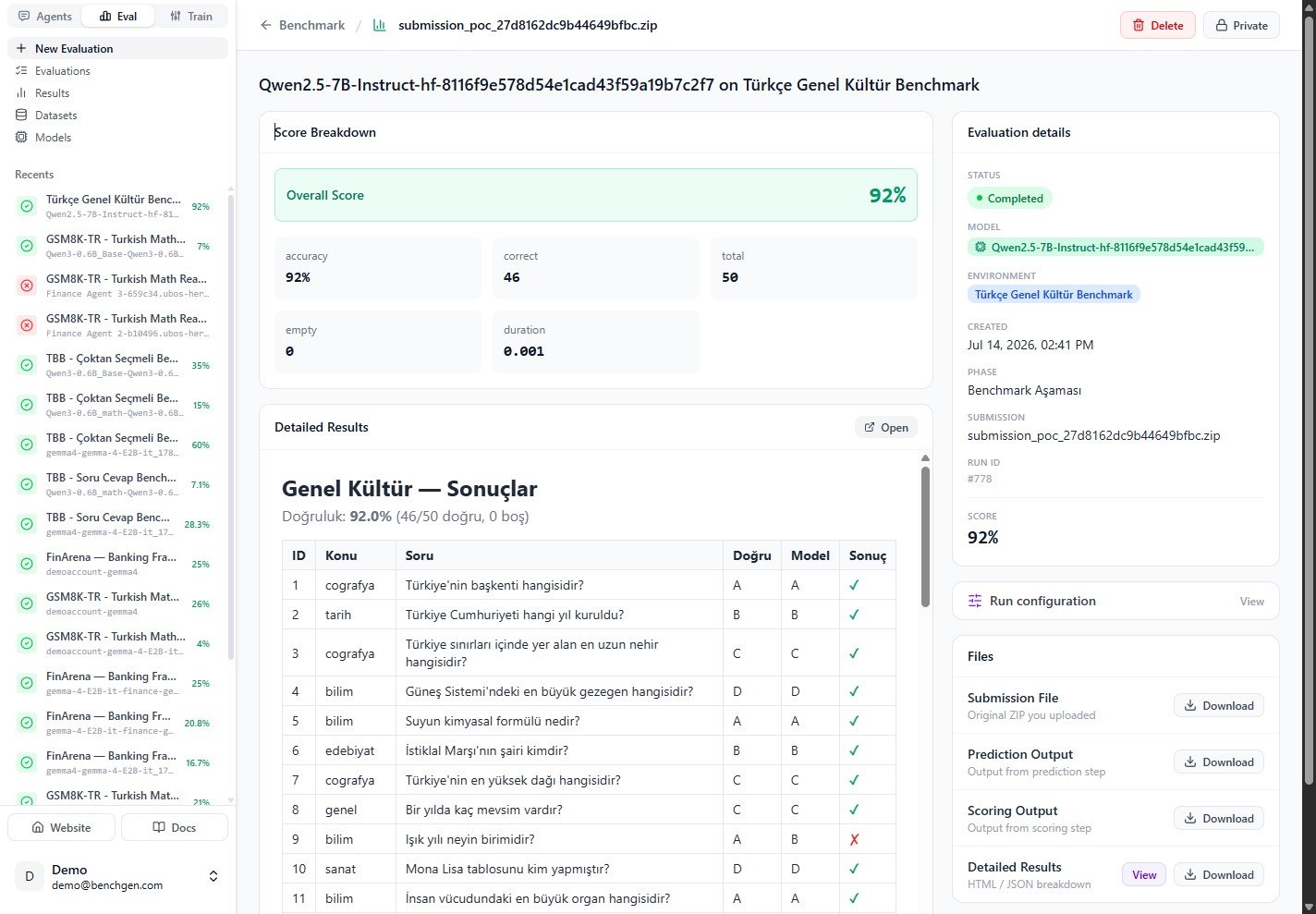 The **Detailed Results** table lists each question with its correct answer (**Doğru**), the model's
answer (**Model**), and whether it matched (**Sonuç**). Download the prediction output, scoring
output, or the full HTML/JSON breakdown from the **Files** panel. See [Read
results](/docs/eval/read-results) for a full walkthrough.
***
## Next steps
* [Read results](/docs/eval/read-results): interpret the score breakdown and detailed table.
* [Environment variables](/docs/eval/environment-variables): how run values reach the model.
* [On a platform model](/docs/eval/run-a-benchmark-platform): benchmark a model already on BenchGen.
The **Detailed Results** table lists each question with its correct answer (**Doğru**), the model's
answer (**Model**), and whether it matched (**Sonuç**). Download the prediction output, scoring
output, or the full HTML/JSON breakdown from the **Files** panel. See [Read
results](/docs/eval/read-results) for a full walkthrough.
***
## Next steps
* [Read results](/docs/eval/read-results): interpret the score breakdown and detailed table.
* [Environment variables](/docs/eval/environment-variables): how run values reach the model.
* [On a platform model](/docs/eval/run-a-benchmark-platform): benchmark a model already on BenchGen.