> ## Documentation Index
> Fetch the complete documentation index at: https://benchgen.com/docs/llms.txt
> Use this file to discover all available pages before exploring further.
# On a Platform Model
> Benchmark a model that is already published or deployed on BenchGen against an Eval environment.
**Platform Models** are the models already available on BenchGen: published models and endpoints
that are ready to evaluate without any extra setup. This is the default source on the Evaluate
screen and the quickest way to score a model your workspace already has.
**Not the source you need?** If you want to pull a model from the Hub, see [From a HuggingFace
model](/docs/eval/run-a-benchmark-huggingface); if you started a live endpoint yourself, see [On a
running model](/docs/eval/evaluate-a-running-model).
***
## Prerequisites
* A benchmark or environment to evaluate against, from the Environments Hub or a [custom
environment](/docs/eval/create-environment) you uploaded.
* At least one model available under **Platform Models**. See [Add a model](/docs/eval/add-a-model).
***
## Steps
### 1. Open a benchmark
From **Eval → Environments**, open the benchmark you want to run against.
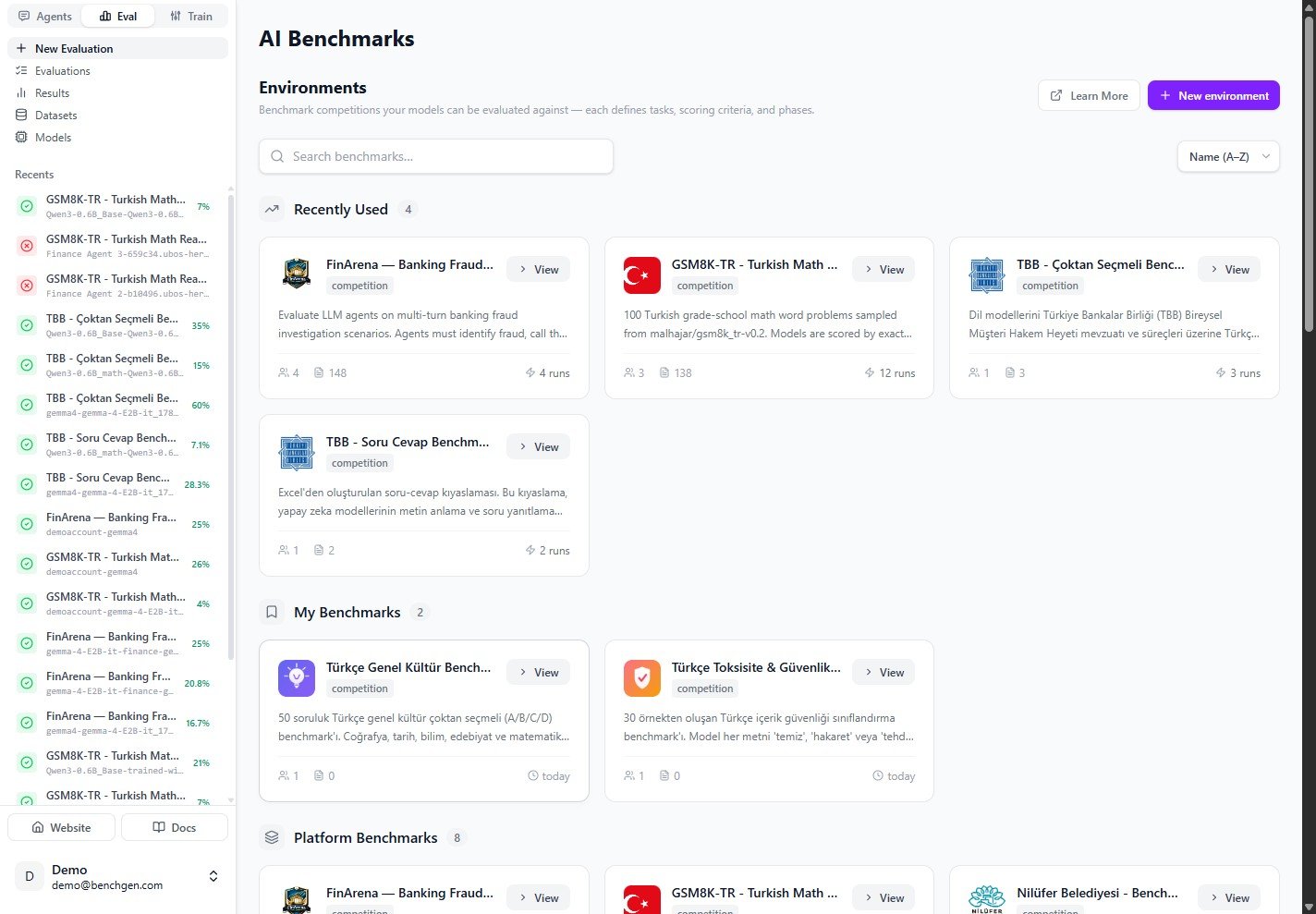 Click **Evaluate** in the top right, or open the **Evaluate** tab.
### 2. Select a platform model
The **Evaluate** tab opens on the **Platform Models** tab. It lists every model available on the
platform, each with a **ready** badge. Use the search box to filter, then click a model to select
it.
Click **Evaluate** in the top right, or open the **Evaluate** tab.
### 2. Select a platform model
The **Evaluate** tab opens on the **Platform Models** tab. It lists every model available on the
platform, each with a **ready** badge. Use the search box to filter, then click a model to select
it.
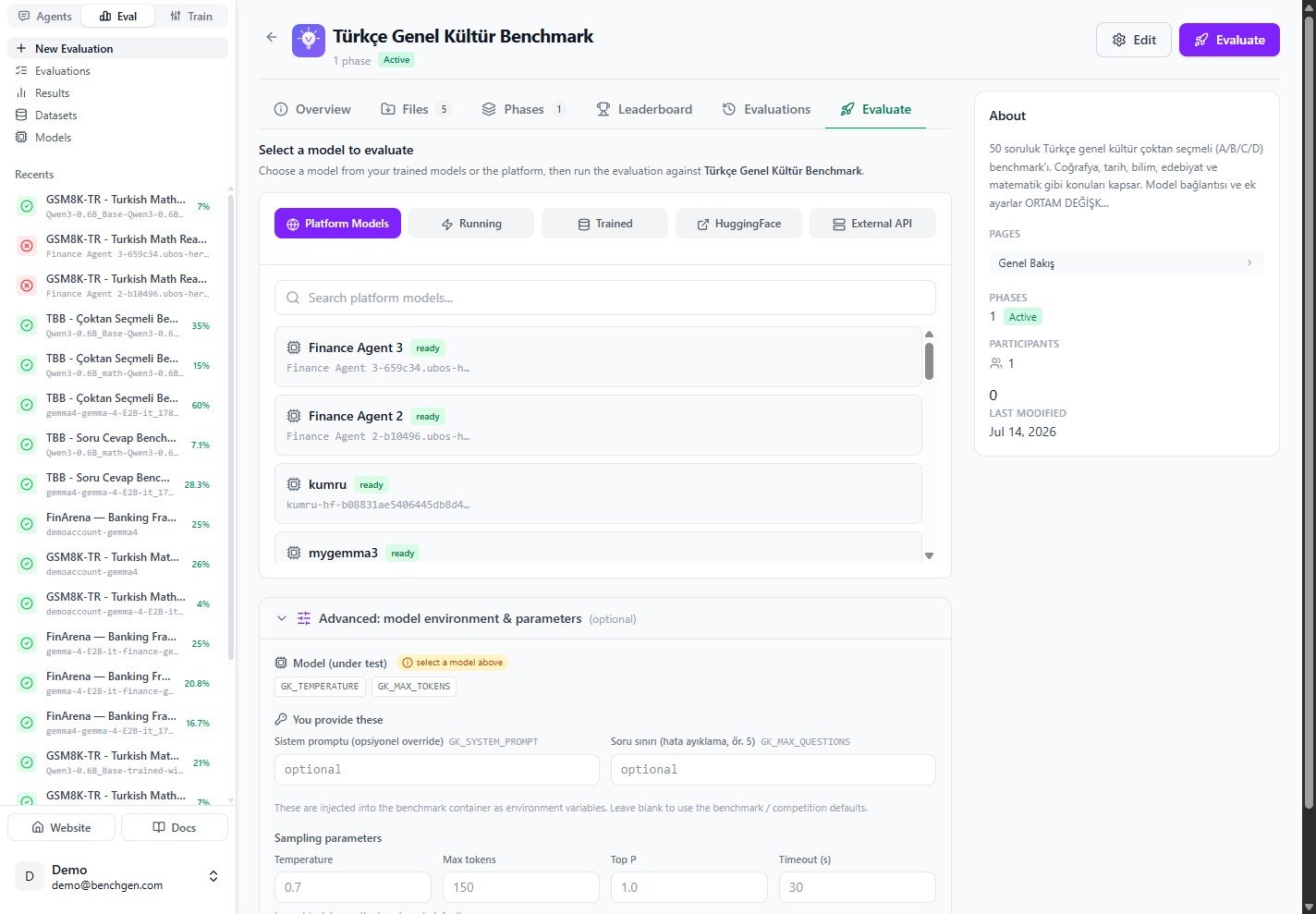 Once a model is selected, the **Advanced: model environment & parameters** panel fills its
connection values from that model, and the **Run Evaluation** button becomes active.
### 3. Set run values (optional)
Expand **Advanced: model environment & parameters** to review what the benchmark injects:
* **Model (under test)** chips are auto-filled from the selected model.
* **You provide these** are the fields the benchmark owner exposed to runners.
* **Sampling parameters** (Temperature, Max tokens, Top P, Timeout) tune the model connection.
See [Environment variables](/docs/eval/environment-variables) for how these values are declared and
injected into the run.
Leave a field blank to fall back to the benchmark defaults. The runner fills in values only; the
keys are fixed by the benchmark owner.
### 4. Run and review
Click **Run Evaluation**. BenchGen creates the run, streams live logs, and computes the score when
it finishes. Open the completed run to see the **Score Breakdown** and the per-question **Detailed
Results** table.
See [Read results](/docs/eval/read-results) for a full walkthrough of the results page.
***
## Next steps
* [On a running model](/docs/eval/evaluate-a-running-model): benchmark a live endpoint you deployed.
* [From a HuggingFace model](/docs/eval/run-a-benchmark-huggingface): pull and score a Hub model.
* [Read results](/docs/eval/read-results): interpret the score breakdown and detailed table.
Once a model is selected, the **Advanced: model environment & parameters** panel fills its
connection values from that model, and the **Run Evaluation** button becomes active.
### 3. Set run values (optional)
Expand **Advanced: model environment & parameters** to review what the benchmark injects:
* **Model (under test)** chips are auto-filled from the selected model.
* **You provide these** are the fields the benchmark owner exposed to runners.
* **Sampling parameters** (Temperature, Max tokens, Top P, Timeout) tune the model connection.
See [Environment variables](/docs/eval/environment-variables) for how these values are declared and
injected into the run.
Leave a field blank to fall back to the benchmark defaults. The runner fills in values only; the
keys are fixed by the benchmark owner.
### 4. Run and review
Click **Run Evaluation**. BenchGen creates the run, streams live logs, and computes the score when
it finishes. Open the completed run to see the **Score Breakdown** and the per-question **Detailed
Results** table.
See [Read results](/docs/eval/read-results) for a full walkthrough of the results page.
***
## Next steps
* [On a running model](/docs/eval/evaluate-a-running-model): benchmark a live endpoint you deployed.
* [From a HuggingFace model](/docs/eval/run-a-benchmark-huggingface): pull and score a Hub model.
* [Read results](/docs/eval/read-results): interpret the score breakdown and detailed table.