> ## Documentation Index
> Fetch the complete documentation index at: https://benchgen.com/docs/llms.txt
> Use this file to discover all available pages before exploring further.
# Deploy an Inference Model
> Spin up a live, OpenAI-compatible inference endpoint for a model in Eval, monitor its deployment, and verify it is serving requests.
Before you can benchmark a model or call it from an agent, it needs to be running: loaded onto a GPU and exposed as a live inference endpoint. This page walks through deploying a model from the Eval **Models** area, watching it come online, and confirming it is ready to serve requests.
**Run Inference here vs. in Train**
This page covers deploying a model as a persistent, OpenAI-compatible endpoint inside **Eval**. If you only want a quick chat sanity-check against a freshly trained adapter, use [Train → Run Inference](/train/run-inference) instead.
***
## Prerequisites
* A model available in your workspace: uploaded weights, a model from Train, or a published model. See [Add a model](/eval/add-a-model).
* At least one GPU node with free capacity in your environment.
***
## Steps
### 1. Open the Models page
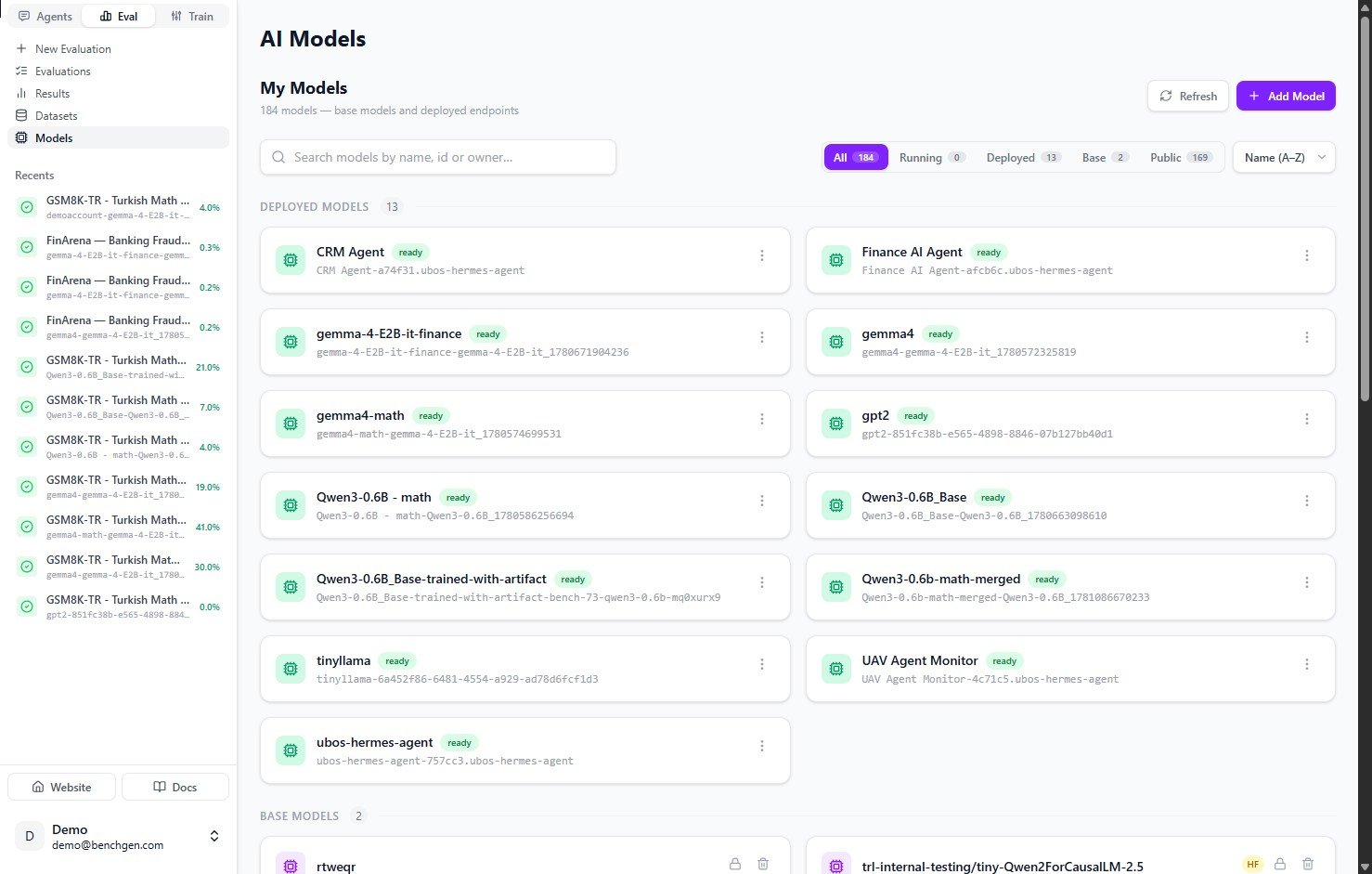
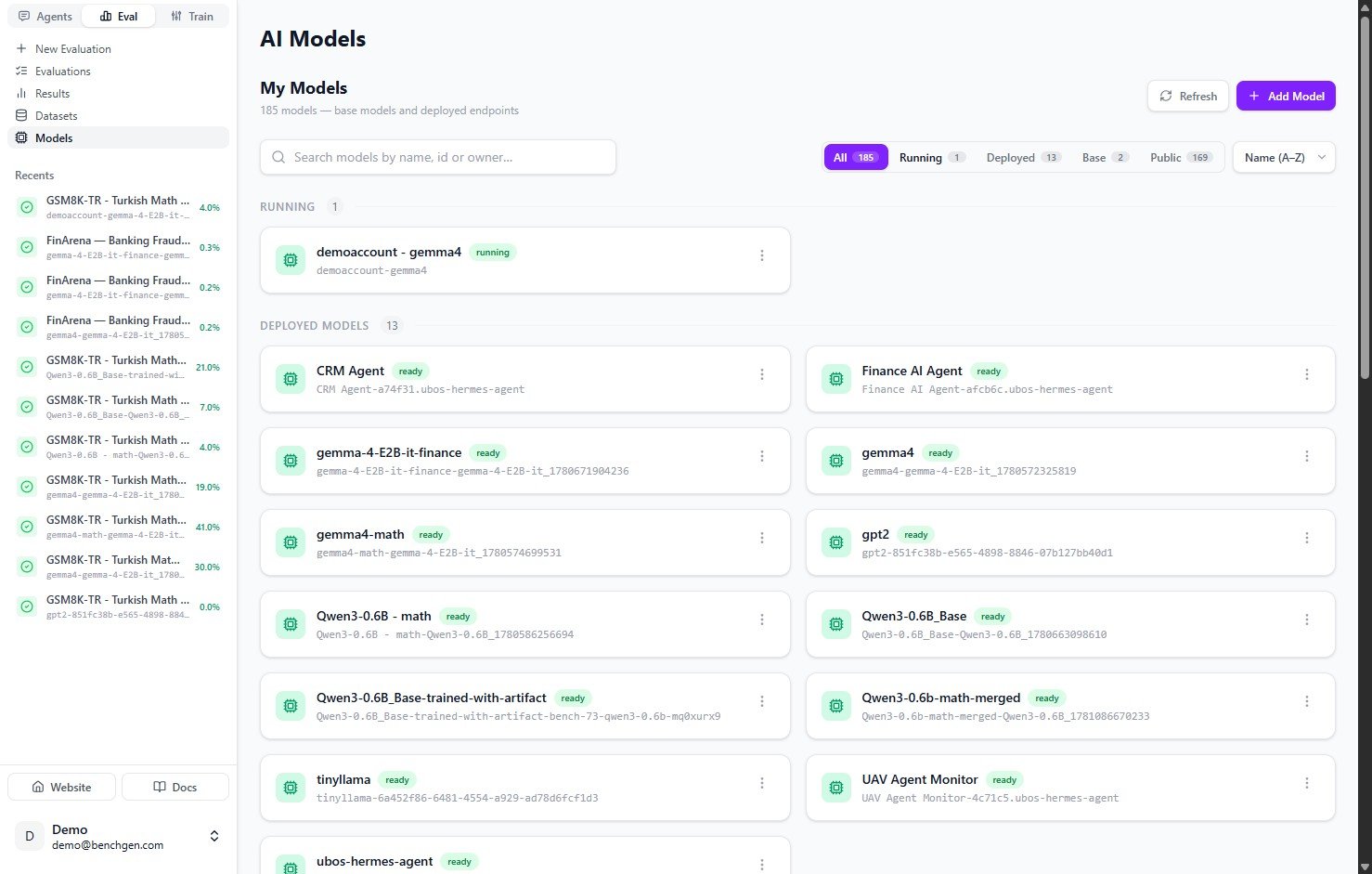
In the **Eval** tab, click **Models** in the left sidebar. The **AI Models** page lists every model in your workspace, both base models and deployed endpoints.
Use the filter chips (**All**, **Running**, **Deployed**, **Base**, **Public**) or the search box to find the model you want to deploy.
 ### 2. Open the model card
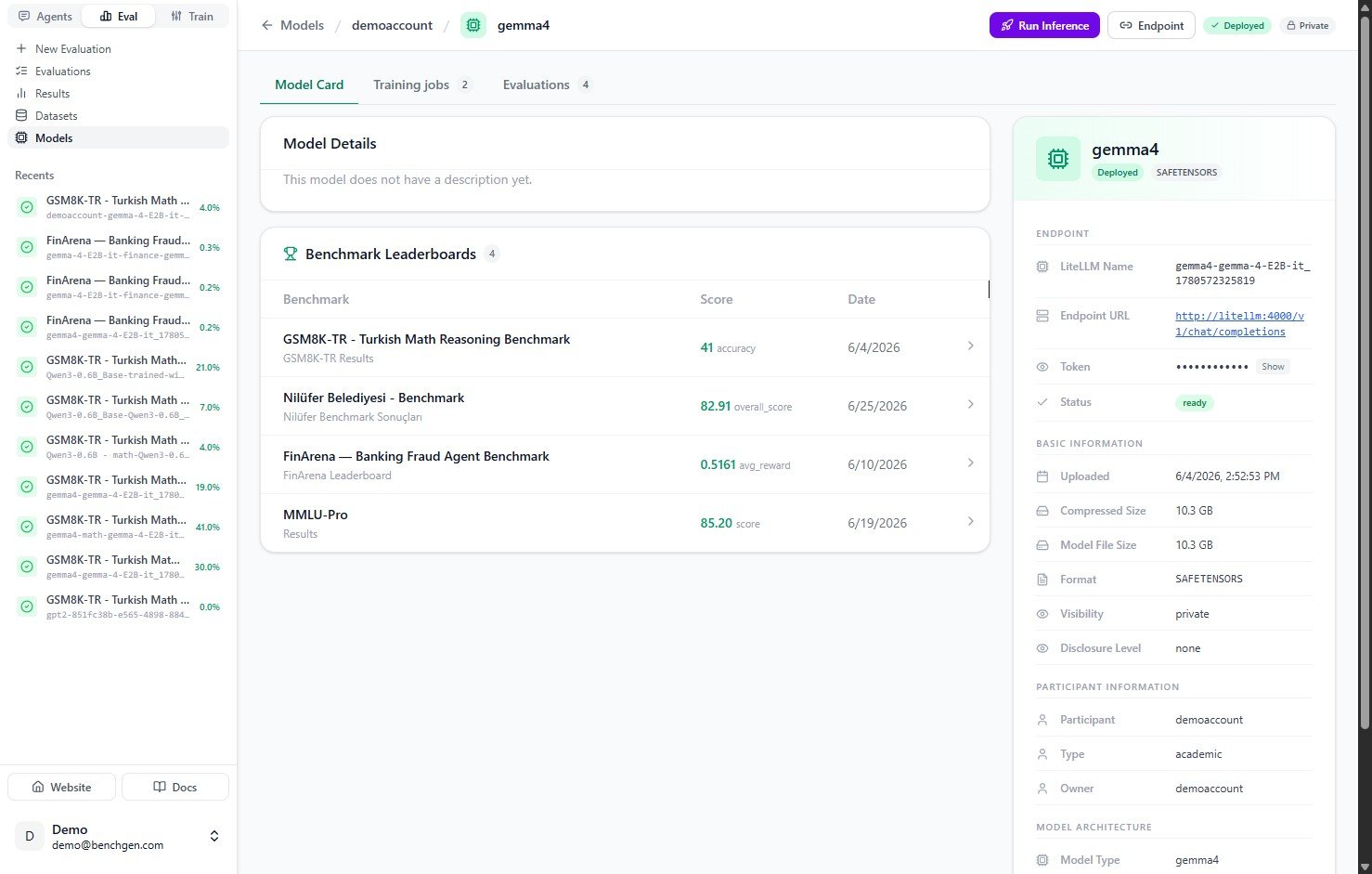
Click a model to open its **Model Card**. The card shows the model's details, benchmark leaderboards, and, in the panel on the right, its endpoint and basic information.
To deploy it for inference, click **Run Inference** in the top right corner.
### 2. Open the model card
Click a model to open its **Model Card**. The card shows the model's details, benchmark leaderboards, and, in the panel on the right, its endpoint and basic information.
To deploy it for inference, click **Run Inference** in the top right corner.
 ### 3. Configure and start inference
The **Run Inference** dialog opens. At the top, the **Will be served as** line shows the identifier your endpoint will use, for example `demoaccount/gemma4`.
Pick a **GPU** from the dropdown, which lists nodes that still have free capacity such as `1/1 free`, then review the inference configuration:
| Setting | Default | What it controls |
| ------------------ | ------- | -------------------------------------------------------------------------------------------------- |
| **GPU** | | The GPU node the model is loaded onto. Only nodes with free capacity can be selected. |
| **Max tokens** | `512` | Maximum number of tokens generated per response. |
| **Temperature** | `0.7` | Sampling randomness. Lower values are more deterministic. |
| **Top P** | `0.95` | Nucleus sampling cutoff. |
| **Context length** | `4096` | Maximum tokens (prompt plus response) the model keeps in context. |
| **Precision** | `auto` | Numeric precision for the weights. `auto` lets BenchGen pick the best option for the selected GPU. |
When you're happy with the settings, click **Run model**.
### 3. Configure and start inference
The **Run Inference** dialog opens. At the top, the **Will be served as** line shows the identifier your endpoint will use, for example `demoaccount/gemma4`.
Pick a **GPU** from the dropdown, which lists nodes that still have free capacity such as `1/1 free`, then review the inference configuration:
| Setting | Default | What it controls |
| ------------------ | ------- | -------------------------------------------------------------------------------------------------- |
| **GPU** | | The GPU node the model is loaded onto. Only nodes with free capacity can be selected. |
| **Max tokens** | `512` | Maximum number of tokens generated per response. |
| **Temperature** | `0.7` | Sampling randomness. Lower values are more deterministic. |
| **Top P** | `0.95` | Nucleus sampling cutoff. |
| **Context length** | `4096` | Maximum tokens (prompt plus response) the model keeps in context. |
| **Precision** | `auto` | Numeric precision for the weights. `auto` lets BenchGen pick the best option for the selected GPU. |
When you're happy with the settings, click **Run model**.
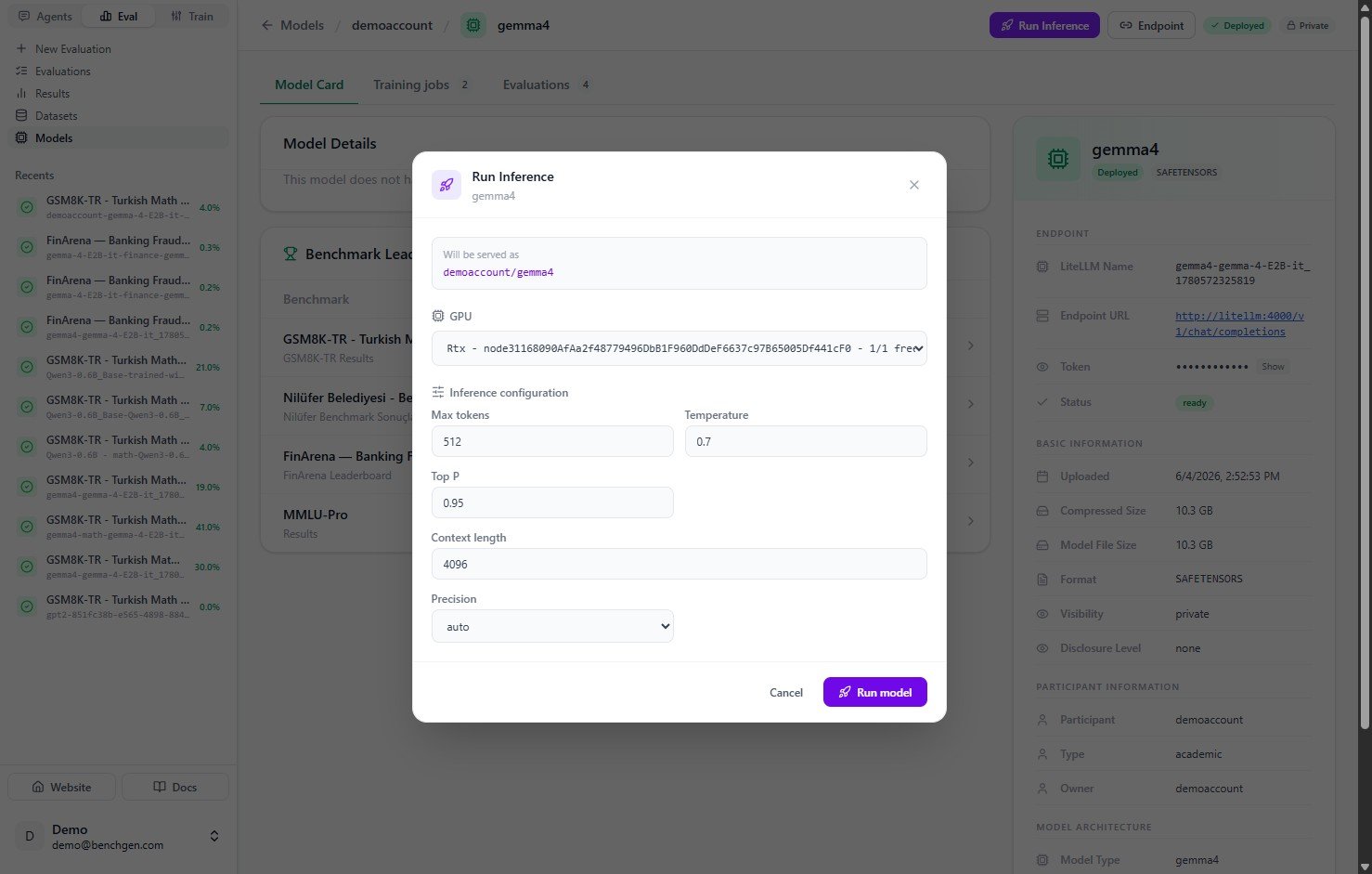 The defaults are a good starting point. For benchmarks that expect long answers, like detailed reasoning or code, raise **Max tokens** and **Context length**. For deterministic scoring, lower **Temperature**.
### 4. Monitor deployment status
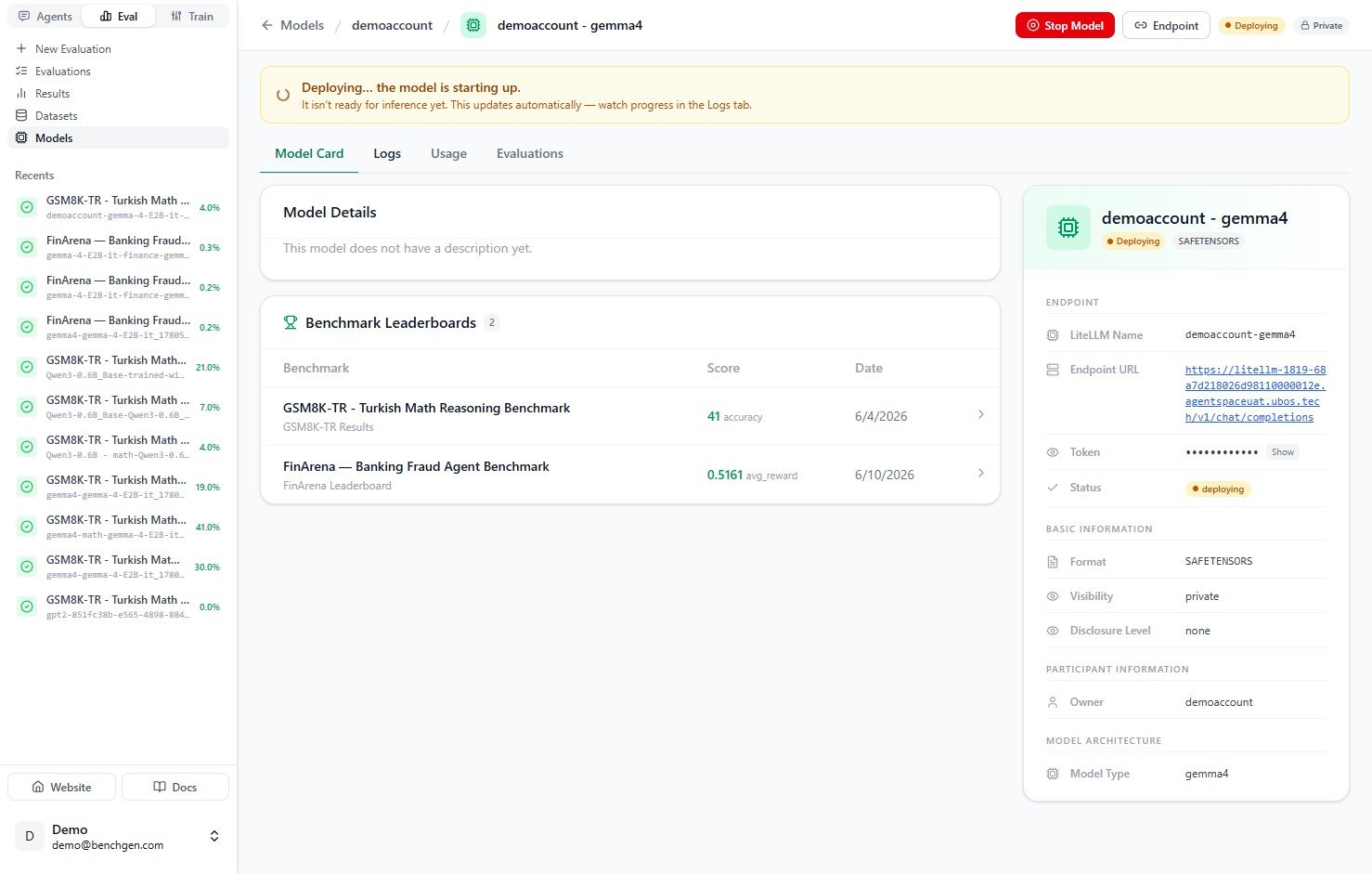
After you click **Run model**, the model begins deploying. A banner reads **"Deploying… the model is starting up"**, the status badge switches to **Deploying**, and a **Stop Model** button appears in the top right.
The panel on the right updates with the new endpoint details: its **LiteLLM Name**, **Endpoint URL**, access **Token**, and a **Status** of `deploying`. New **Logs** and **Usage** tabs also appear. The **Usage** tab is where you track requests, tokens, and latency once the model is serving traffic. See [Monitor model usage](/eval/monitor-model-usage).
The defaults are a good starting point. For benchmarks that expect long answers, like detailed reasoning or code, raise **Max tokens** and **Context length**. For deterministic scoring, lower **Temperature**.
### 4. Monitor deployment status
After you click **Run model**, the model begins deploying. A banner reads **"Deploying… the model is starting up"**, the status badge switches to **Deploying**, and a **Stop Model** button appears in the top right.
The panel on the right updates with the new endpoint details: its **LiteLLM Name**, **Endpoint URL**, access **Token**, and a **Status** of `deploying`. New **Logs** and **Usage** tabs also appear. The **Usage** tab is where you track requests, tokens, and latency once the model is serving traffic. See [Monitor model usage](/eval/monitor-model-usage).
 ### 5. Inspect the deployment logs
Open the **Logs** tab to watch the deployment in real time. The logs stream the runtime setup as the Ray cluster connects, the serve application starts, and the model weights load.
### 5. Inspect the deployment logs
Open the **Logs** tab to watch the deployment in real time. The logs stream the runtime setup as the Ray cluster connects, the serve application starts, and the model weights load.
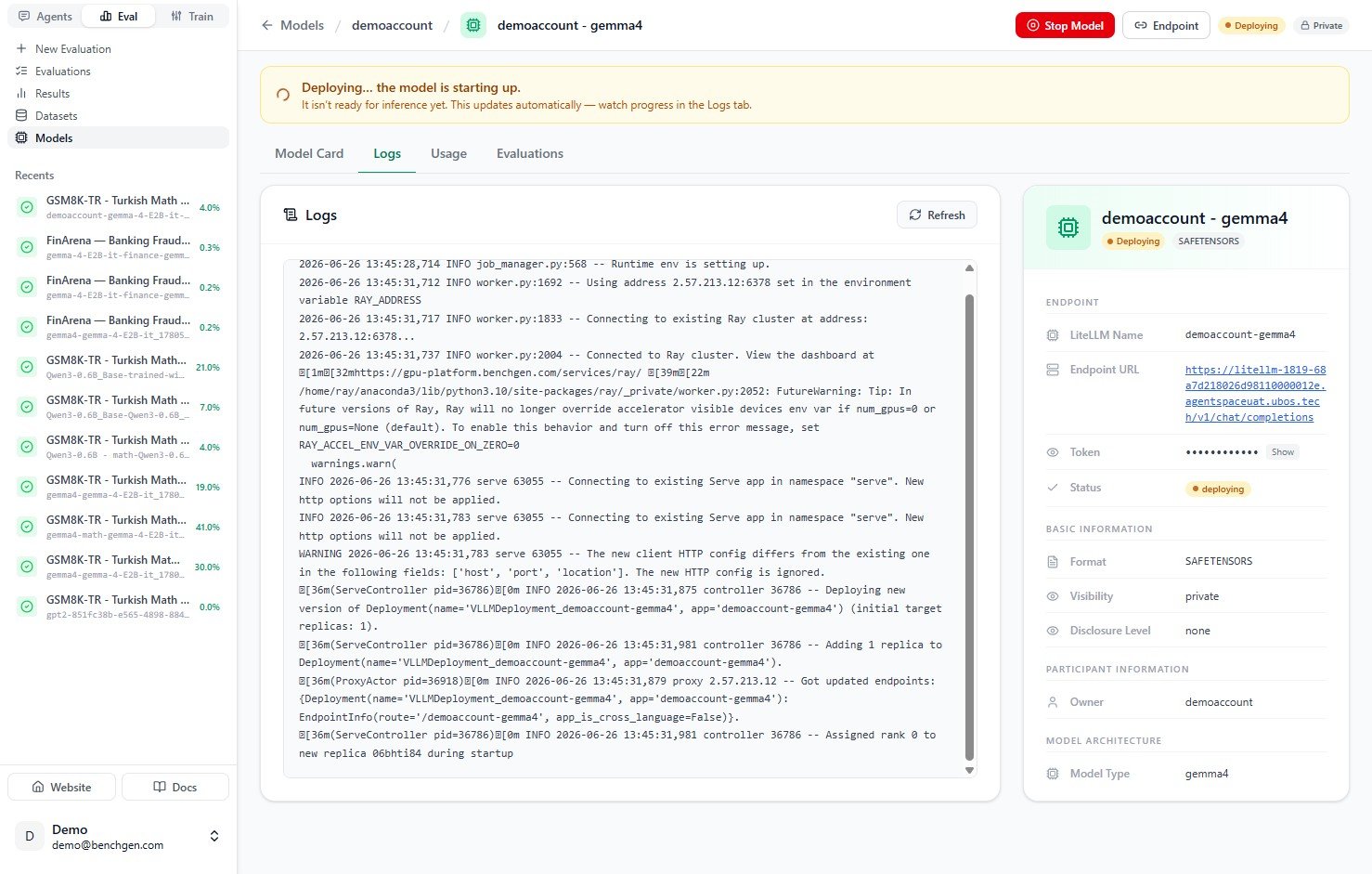 Loading can take a minute or two depending on model size. Click **Refresh** if you want to pull the latest lines manually.
### 6. Verify the model is running
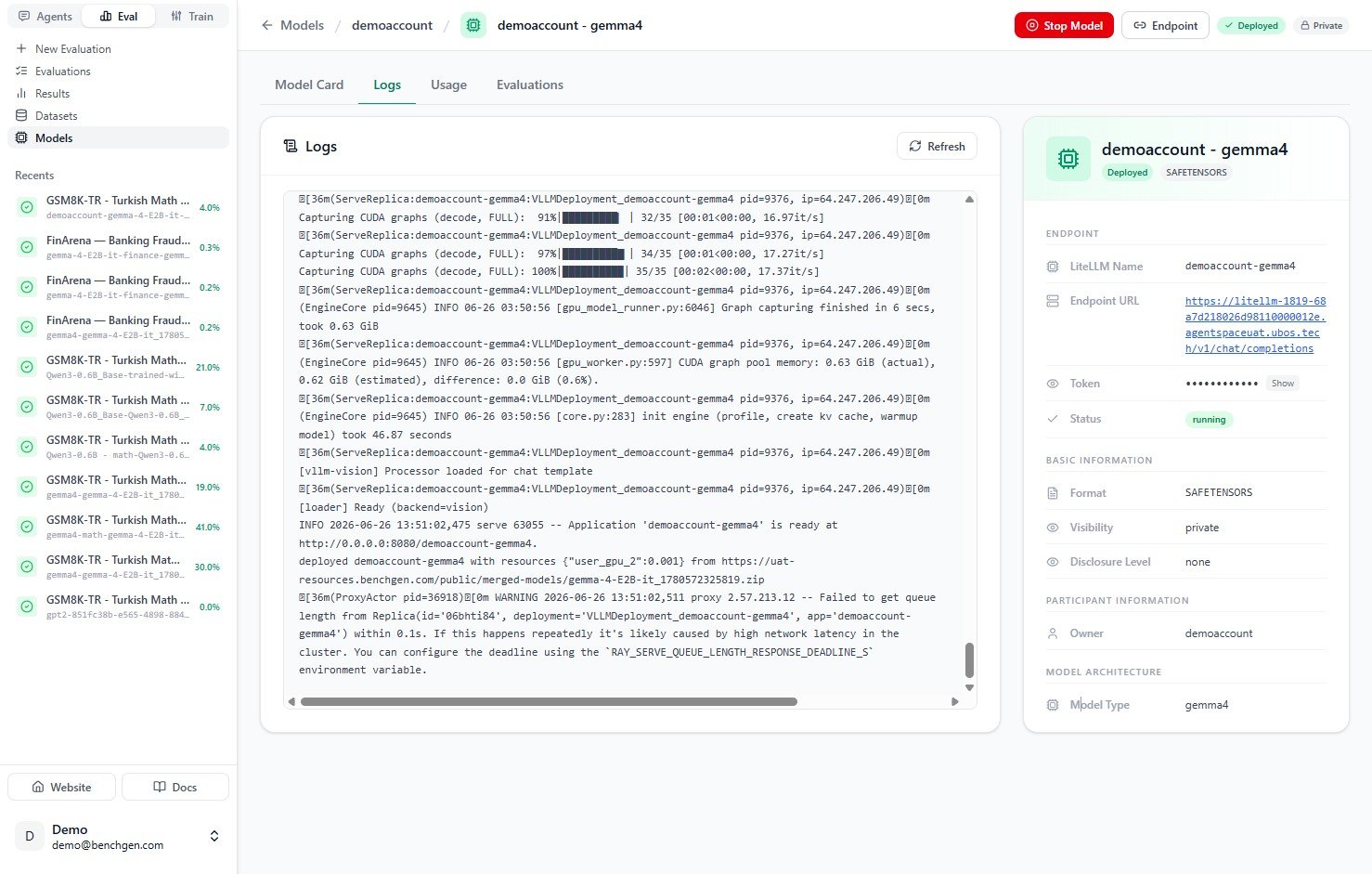
When startup finishes, the logs report that the application is ready. For example:
```text theme={null}
INFO Application 'demoaccount-gemma4' is ready at http://0.0.0.0:8080/demoaccount-gemma4.
```
The **Status** badge turns to **running** (green). Your model is now live and serving requests.
Loading can take a minute or two depending on model size. Click **Refresh** if you want to pull the latest lines manually.
### 6. Verify the model is running
When startup finishes, the logs report that the application is ready. For example:
```text theme={null}
INFO Application 'demoaccount-gemma4' is ready at http://0.0.0.0:8080/demoaccount-gemma4.
```
The **Status** badge turns to **running** (green). Your model is now live and serving requests.
 Back on the **Models** page, the model now appears under a **Running** section, and the **Running** filter count goes up by one.
 ***
## Accessing the inference endpoint
Once the model is running, the panel on the right of the model card gives you everything you need to call it:
| Field | What it is |
| ---------------- | ------------------------------------------------------------------------ |
| **LiteLLM Name** | The model identifier you pass in the `model` field of your request body. |
| **Endpoint URL** | The OpenAI-compatible base URL (ends in `/v1/chat/completions`). |
| **Token** | The bearer token for authentication. Click **Show** to reveal it. |
| **Status** | Must read `running` before the endpoint accepts requests. |
The endpoint is OpenAI-compatible, so you can call it with any OpenAI client or a plain `curl` request:
```bash theme={null}
curl https:///v1/chat/completions \
-H "Authorization: Bearer " \
-H "Content-Type: application/json" \
-d '{
"model": "demoaccount-gemma4",
"messages": [
{"role": "user", "content": "Solve: 12 x 8 = ?"}
],
"max_tokens": 256
}'
```
A running model holds a GPU for as long as it stays deployed. When you're done, open the model card and click **Stop Model** to free the resources.
***
## Next Steps
* [Evaluate an inference model](/eval/evaluate-a-running-model)
* [Monitor model usage](/eval/monitor-model-usage)
* [Run a benchmark](/eval/run-a-benchmark)
* [Add a model](/eval/add-a-model)
***
## Accessing the inference endpoint
Once the model is running, the panel on the right of the model card gives you everything you need to call it:
| Field | What it is |
| ---------------- | ------------------------------------------------------------------------ |
| **LiteLLM Name** | The model identifier you pass in the `model` field of your request body. |
| **Endpoint URL** | The OpenAI-compatible base URL (ends in `/v1/chat/completions`). |
| **Token** | The bearer token for authentication. Click **Show** to reveal it. |
| **Status** | Must read `running` before the endpoint accepts requests. |
The endpoint is OpenAI-compatible, so you can call it with any OpenAI client or a plain `curl` request:
```bash theme={null}
curl https:///v1/chat/completions \
-H "Authorization: Bearer " \
-H "Content-Type: application/json" \
-d '{
"model": "demoaccount-gemma4",
"messages": [
{"role": "user", "content": "Solve: 12 x 8 = ?"}
],
"max_tokens": 256
}'
```
A running model holds a GPU for as long as it stays deployed. When you're done, open the model card and click **Stop Model** to free the resources.
***
## Next Steps
* [Evaluate an inference model](/eval/evaluate-a-running-model)
* [Monitor model usage](/eval/monitor-model-usage)
* [Run a benchmark](/eval/run-a-benchmark)
* [Add a model](/eval/add-a-model)