> ## Documentation Index
> Fetch the complete documentation index at: https://benchgen.com/docs/llms.txt
> Use this file to discover all available pages before exploring further.
# Working with the BenchGen AI agent
> A task-by-task guide to the built-in agent: create and run benchmarks, inspect results, train models, and close the full improvement loop, all from chat.
The BenchGen AI agent is the default agent in the platform chat. It works **as you**: it creates
benchmarks, launches runs, and starts training jobs on your account, with your permissions and
your credits. New to it? See the [overview](/docs/self-improvement-agent) for where to open the chat.
The agent cannot stop or delete a training job, and it cannot delete or unpublish a benchmark.
Do those from the web app.
## Create a benchmark
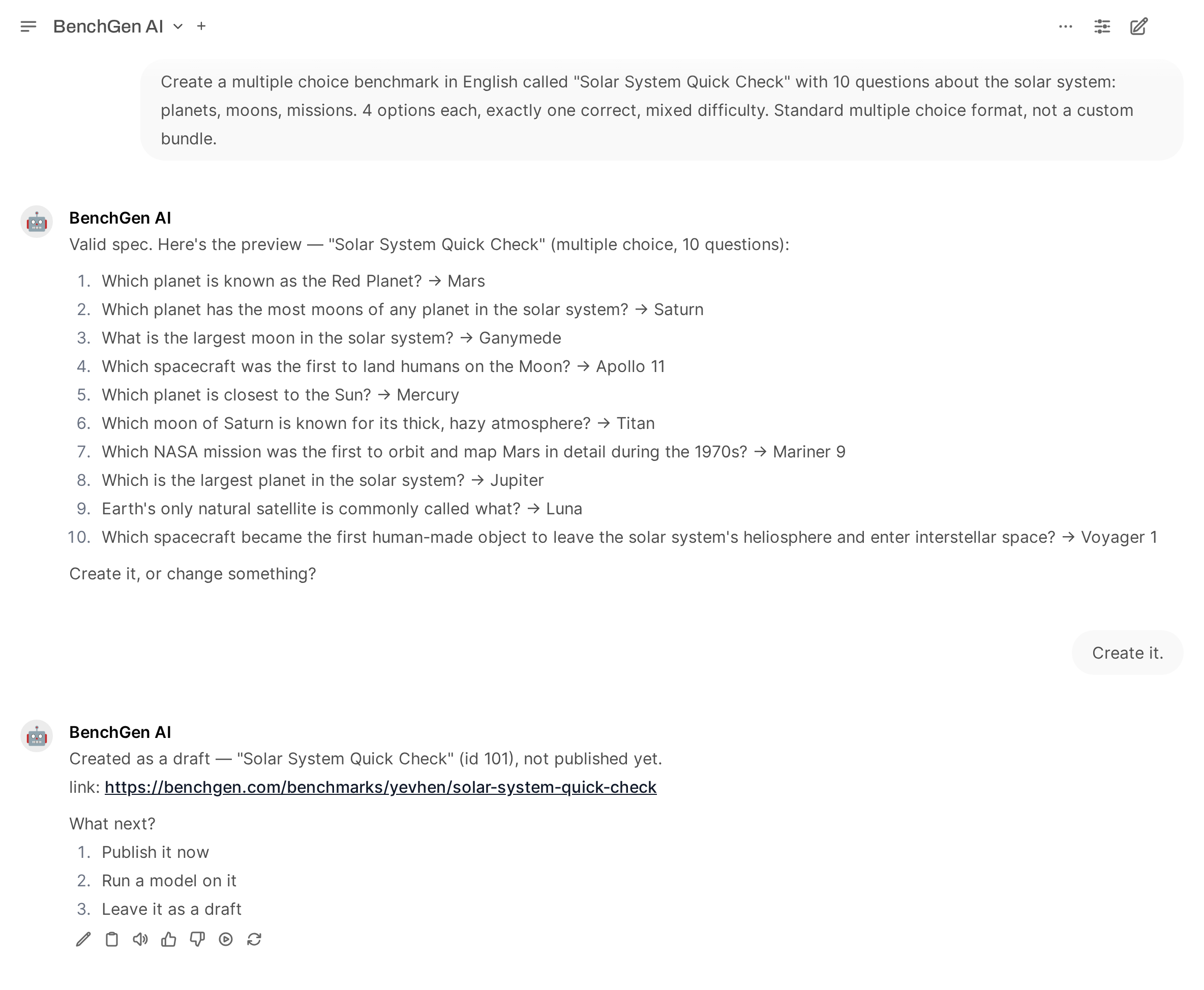
Describe what the benchmark should measure. The agent writes the questions and shows you a preview
with the correct answers. Nothing exists yet: reply `Create it` to create the benchmark, or say
what to change.
```text theme={null}
Create a multiple choice benchmark in English called "Solar System Basics" with 30 questions
about the solar system and space: planets, moons, orbits, missions, stars and galaxies.
4 options each, exactly one correct, mixed difficulty.
```
It supports question and answer benchmarks, multiple choice benchmarks, and custom formats (tool
calling, number answers, open answers scored on key points) that it builds as a bundle.
The benchmark is created as a draft. The agent reports its id and link, then asks what to do next:
publish it, run a model on it, or leave it as a draft.
A draft cannot be run. If you ask for a run on a draft, the agent tells you so and offers to
publish it first. To do both in one step, say "publish it and run `` on it".
 You do not need to ask for the correct answers to be spread across A, B, C and D. The agent's
tooling reorders the options so the correct letters come out even.
### Large benchmarks
A benchmark can hold up to 2,000 questions. One chat turn is limited to about 15 minutes, so the
agent writes a large benchmark in parts of about 25 questions, checks them for duplicates, and
submits them as a single benchmark.
```text theme={null}
Create a multiple choice benchmark in English called "Solar System 100" with 100 questions,
in 4 groups of 25: planets, moons, missions, stars and galaxies. 4 options each, exactly one correct.
```
Around 150 questions fit in one turn. For more, the agent stops after a batch, tells you how many
questions are written, and continues when you reply `continue`.
A benchmark keeps the evaluation and scoring programs it was created with. Platform improvements
to those programs apply to benchmarks created afterwards, so compare scores within one benchmark
rather than across an old one and a new one.
## Run a benchmark on a model
```text theme={null}
Run this benchmark on .
```
The benchmark must be published. Use a model name from the catalogue or one of your own models;
if several models match, the agent says which one it picked. It replies with the run id
and a link. When you ask for the status later, it reports the overall score and the breakdown by
category.
To compare models, run the same benchmark on each and ask:
```text theme={null}
Show the scores of these runs side by side with the run links.
```
## Look inside a run
A finished run of a question and answer or multiple choice benchmark produces a dataset. Ask the
agent to show it:
```text theme={null}
Show the dataset of run in mode all, 10 rows.
```
| Mode | What you see |
| ---------- | -------------------------------------------------------------------------------- |
| `failures` | The questions the model got wrong, with the correct answers. |
| `all` | Every question, the correct answer, and what the model actually answered. |
| `distill` | The questions the model got right, with its own full answer, reasoning included. |
You do not need to ask for the correct answers to be spread across A, B, C and D. The agent's
tooling reorders the options so the correct letters come out even.
### Large benchmarks
A benchmark can hold up to 2,000 questions. One chat turn is limited to about 15 minutes, so the
agent writes a large benchmark in parts of about 25 questions, checks them for duplicates, and
submits them as a single benchmark.
```text theme={null}
Create a multiple choice benchmark in English called "Solar System 100" with 100 questions,
in 4 groups of 25: planets, moons, missions, stars and galaxies. 4 options each, exactly one correct.
```
Around 150 questions fit in one turn. For more, the agent stops after a batch, tells you how many
questions are written, and continues when you reply `continue`.
A benchmark keeps the evaluation and scoring programs it was created with. Platform improvements
to those programs apply to benchmarks created afterwards, so compare scores within one benchmark
rather than across an old one and a new one.
## Run a benchmark on a model
```text theme={null}
Run this benchmark on .
```
The benchmark must be published. Use a model name from the catalogue or one of your own models;
if several models match, the agent says which one it picked. It replies with the run id
and a link. When you ask for the status later, it reports the overall score and the breakdown by
category.
To compare models, run the same benchmark on each and ask:
```text theme={null}
Show the scores of these runs side by side with the run links.
```
## Look inside a run
A finished run of a question and answer or multiple choice benchmark produces a dataset. Ask the
agent to show it:
```text theme={null}
Show the dataset of run in mode all, 10 rows.
```
| Mode | What you see |
| ---------- | -------------------------------------------------------------------------------- |
| `failures` | The questions the model got wrong, with the correct answers. |
| `all` | Every question, the correct answer, and what the model actually answered. |
| `distill` | The questions the model got right, with its own full answer, reasoning included. |
 Mode `all` is the fastest way to understand a surprising score. If a model scores lower than you
expect, read what it actually answered before drawing conclusions: a low score is often an answer
format problem, such as a missing final answer line, rather than missing knowledge.
## Train a model
The agent can launch LoRA fine-tuning, reinforcement learning (GRPO), continued training of an
existing adapter, and training on the results of a benchmark run.
Training holds a GPU and spends credits, so it is always two steps:
```text theme={null}
Plan a LoRA fine-tune of Qwen/Qwen2.5-0.5B-Instruct on the dataset yahma/alpaca-cleaned,
1 epoch, 50 steps maximum.
```
The agent shows exactly what it would submit: job type, base model, dataset, hyperparameters,
and GPU availability. Nothing has started yet.
Reply `yes`. Anything else cancels. To change something, say what to change and ask for the
updated plan first.
Ask `training status` or `training logs`. When the job completes, the trained model is
registered in your catalogue and you can run benchmarks on it.
The base model for training is a Hugging Face repository id such as
`Qwen/Qwen2.5-0.5B-Instruct`, not a catalogue display name. Check the `base_model` line in the
plan before you confirm.
## Close the full improvement loop
The most useful workflow chains the steps above: measure a model, train it on what the benchmark
revealed, and measure again.
Run a benchmark on the model you want to improve and wait for the score.
```text theme={null}
Plan a from-run training from run .
```
By default this trains on the questions the model got wrong. Confirm with `yes`.
```text theme={null}
Run the same benchmark on the model this training produced.
```
Ask for both scores side by side. The agent does not claim an improvement before the second
run has finished.
### Distill a strong model into a small one
You can also teach a small open-source model from a strong model's run. The benchmark records how
the strong model reasoned on every question. Distillation keeps the answers it got right and
trains the small model on that reasoning.
Run the benchmark on a frontier model. This is the ceiling.
Run the same benchmark on the open-source model. This is the baseline.
```text theme={null}
Plan a from-run training from run , dataset mode distill,
base model Qwen/Qwen2.5-0.5B-Instruct.
```
The plan states how many correct trajectories the run holds. Always name the base model: the
strong model's run does not say which model to train.
Mode `all` is the fastest way to understand a surprising score. If a model scores lower than you
expect, read what it actually answered before drawing conclusions: a low score is often an answer
format problem, such as a missing final answer line, rather than missing knowledge.
## Train a model
The agent can launch LoRA fine-tuning, reinforcement learning (GRPO), continued training of an
existing adapter, and training on the results of a benchmark run.
Training holds a GPU and spends credits, so it is always two steps:
```text theme={null}
Plan a LoRA fine-tune of Qwen/Qwen2.5-0.5B-Instruct on the dataset yahma/alpaca-cleaned,
1 epoch, 50 steps maximum.
```
The agent shows exactly what it would submit: job type, base model, dataset, hyperparameters,
and GPU availability. Nothing has started yet.
Reply `yes`. Anything else cancels. To change something, say what to change and ask for the
updated plan first.
Ask `training status` or `training logs`. When the job completes, the trained model is
registered in your catalogue and you can run benchmarks on it.
The base model for training is a Hugging Face repository id such as
`Qwen/Qwen2.5-0.5B-Instruct`, not a catalogue display name. Check the `base_model` line in the
plan before you confirm.
## Close the full improvement loop
The most useful workflow chains the steps above: measure a model, train it on what the benchmark
revealed, and measure again.
Run a benchmark on the model you want to improve and wait for the score.
```text theme={null}
Plan a from-run training from run .
```
By default this trains on the questions the model got wrong. Confirm with `yes`.
```text theme={null}
Run the same benchmark on the model this training produced.
```
Ask for both scores side by side. The agent does not claim an improvement before the second
run has finished.
### Distill a strong model into a small one
You can also teach a small open-source model from a strong model's run. The benchmark records how
the strong model reasoned on every question. Distillation keeps the answers it got right and
trains the small model on that reasoning.
Run the benchmark on a frontier model. This is the ceiling.
Run the same benchmark on the open-source model. This is the baseline.
```text theme={null}
Plan a from-run training from run , dataset mode distill,
base model Qwen/Qwen2.5-0.5B-Instruct.
```
The plan states how many correct trajectories the run holds. Always name the base model: the
strong model's run does not say which model to train.
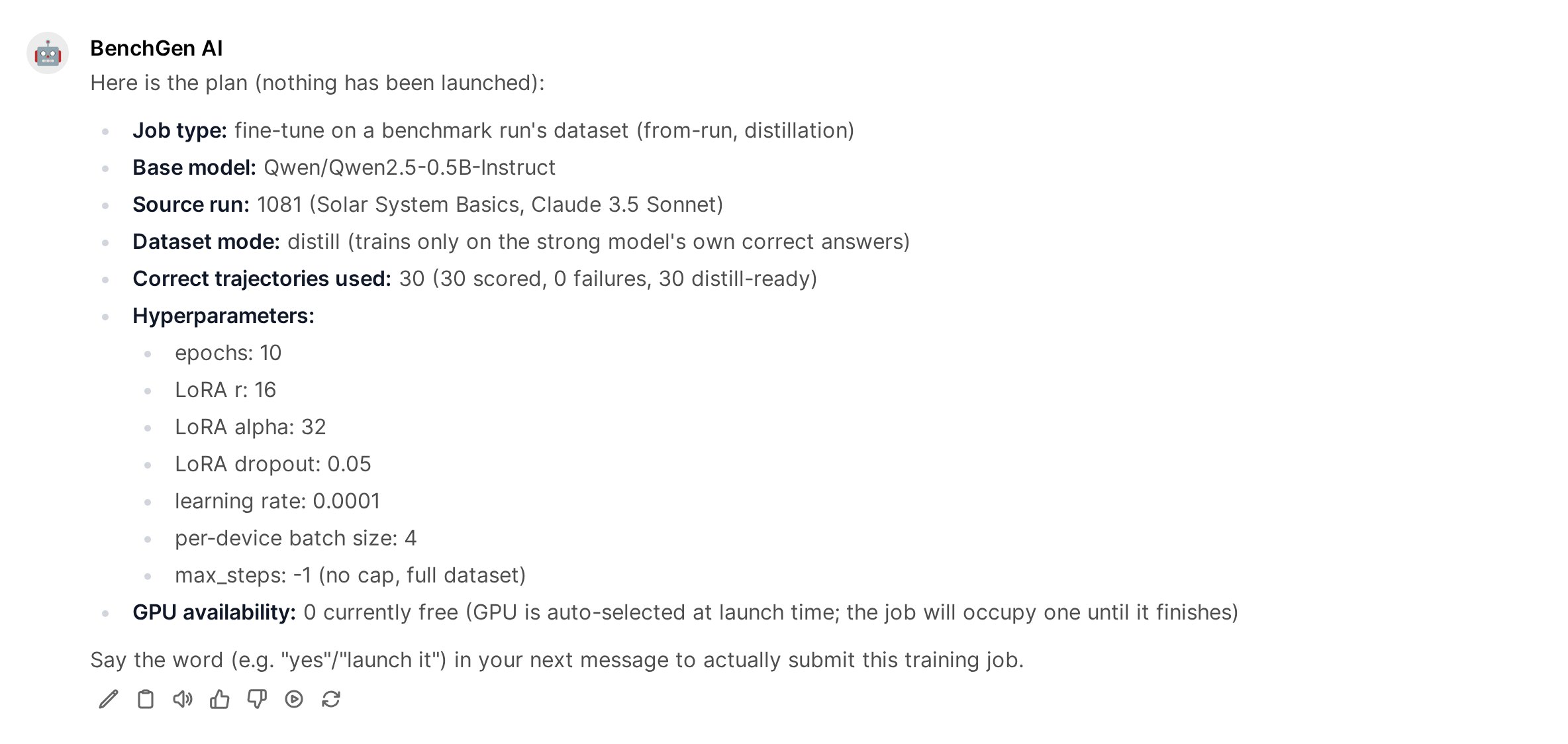 Reply `yes`, wait for the job to complete, run the same benchmark on the trained model, and
ask for the three scores side by side.
In one of our runs on a 30-question multiple choice benchmark, a frontier model scored 100%, a
0.5B open-source model scored 46.7%, and the same 0.5B model scored 73.3% after distillation.
Reply `yes`, wait for the job to complete, run the same benchmark on the trained model, and
ask for the three scores side by side.
In one of our runs on a 30-question multiple choice benchmark, a frontier model scored 100%, a
0.5B open-source model scored 46.7%, and the same 0.5B model scored 73.3% after distillation.
 Three things make distillation work well:
* **Match the language.** A small model that scores at guessing level on a benchmark, for example
25% with four options, has little to build on. Use a benchmark language the small model reads
well.
* **Give it capacity.** A larger student, such as a 1.5B model, gains more and more steadily.
* **Check on new questions.** Training and testing on the same questions includes memorisation.
For an honest number, create a second benchmark on the same topic with different questions and
compare the base and distilled models there.
## Merge and publish a trained model
A trained adapter is served on top of its base model by default, and that is enough to benchmark
it. Merging is an explicit export, for when you want standalone weights:
```text theme={null}
Merge the adapter of job and publish it as "my-model-merged".
```
The agent states the model id and the name it will get, asks for confirmation, and publishes the
merged model to your catalogue once the merge is available.
## Limits and troubleshooting
| What you see | What it means | What to do |
| ---------------------------------------------- | --------------------------------------------------------------- | ----------------------------------------------------------------------------- |
| "The agent took too long to finish this turn." | One chat turn is limited to about 15 minutes. | Split the request. For large benchmarks, reply `continue`. |
| "The agent is offline." | The agent's gateway is restarting or disconnected. | Wait a minute and send the message again. |
| A `403` when launching training | The credential for that turn did not carry training permission. | Send the request again. If it persists, the deployment does not allow it yet. |
| The trained model scores below its baseline | Usually an answer format problem, not lost knowledge. | Ask for the run's dataset in mode `all` and read what the model answered. |
| The agent mixes up runs or models | The conversation covers too many of them. | Start a new chat and refer to runs by id. |
**Tips for talking to the agent**
* Be specific: give names, counts, and ids ("30 questions", "run 1081").
* Ask for one action per message. Each step that spends credits gets its own confirmation.
* When it asks a numbered question, reply with the number.
* Runs and training take minutes. Ask "what is the status?" instead of waiting.
* Start a new chat for a new piece of work.
* You never paste an API token into the chat, and the agent never prints one.
## Related
Where to open the chat and what to ask first.
The same creation flow, called from your own code.
Launch runs and read their status programmatically.
Start training jobs without the chat.
Three things make distillation work well:
* **Match the language.** A small model that scores at guessing level on a benchmark, for example
25% with four options, has little to build on. Use a benchmark language the small model reads
well.
* **Give it capacity.** A larger student, such as a 1.5B model, gains more and more steadily.
* **Check on new questions.** Training and testing on the same questions includes memorisation.
For an honest number, create a second benchmark on the same topic with different questions and
compare the base and distilled models there.
## Merge and publish a trained model
A trained adapter is served on top of its base model by default, and that is enough to benchmark
it. Merging is an explicit export, for when you want standalone weights:
```text theme={null}
Merge the adapter of job and publish it as "my-model-merged".
```
The agent states the model id and the name it will get, asks for confirmation, and publishes the
merged model to your catalogue once the merge is available.
## Limits and troubleshooting
| What you see | What it means | What to do |
| ---------------------------------------------- | --------------------------------------------------------------- | ----------------------------------------------------------------------------- |
| "The agent took too long to finish this turn." | One chat turn is limited to about 15 minutes. | Split the request. For large benchmarks, reply `continue`. |
| "The agent is offline." | The agent's gateway is restarting or disconnected. | Wait a minute and send the message again. |
| A `403` when launching training | The credential for that turn did not carry training permission. | Send the request again. If it persists, the deployment does not allow it yet. |
| The trained model scores below its baseline | Usually an answer format problem, not lost knowledge. | Ask for the run's dataset in mode `all` and read what the model answered. |
| The agent mixes up runs or models | The conversation covers too many of them. | Start a new chat and refer to runs by id. |
**Tips for talking to the agent**
* Be specific: give names, counts, and ids ("30 questions", "run 1081").
* Ask for one action per message. Each step that spends credits gets its own confirmation.
* When it asks a numbered question, reply with the number.
* Runs and training take minutes. Ask "what is the status?" instead of waiting.
* Start a new chat for a new piece of work.
* You never paste an API token into the chat, and the agent never prints one.
## Related
Where to open the chat and what to ask first.
The same creation flow, called from your own code.
Launch runs and read their status programmatically.
Start training jobs without the chat.