> ## Documentation Index
> Fetch the complete documentation index at: https://benchgen.com/docs/llms.txt
> Use this file to discover all available pages before exploring further.
# Inference API Token
> Issue a new inference token from a model's page for direct API usage.
Every deployed model has its own **API Keys** tab where you generate a key scoped to that model, then call its endpoint directly, from `curl`, your own backend, or any OpenAI-compatible client.
This works on any deployed model, a router like `benchgen-router-lite`, a model you uploaded, or one you fine-tuned in Train. If you don't have a deployed model yet, see [Deploy an Inference Model](/docs/eval/run-an-inference-model).
***
## Step 1: Open your model
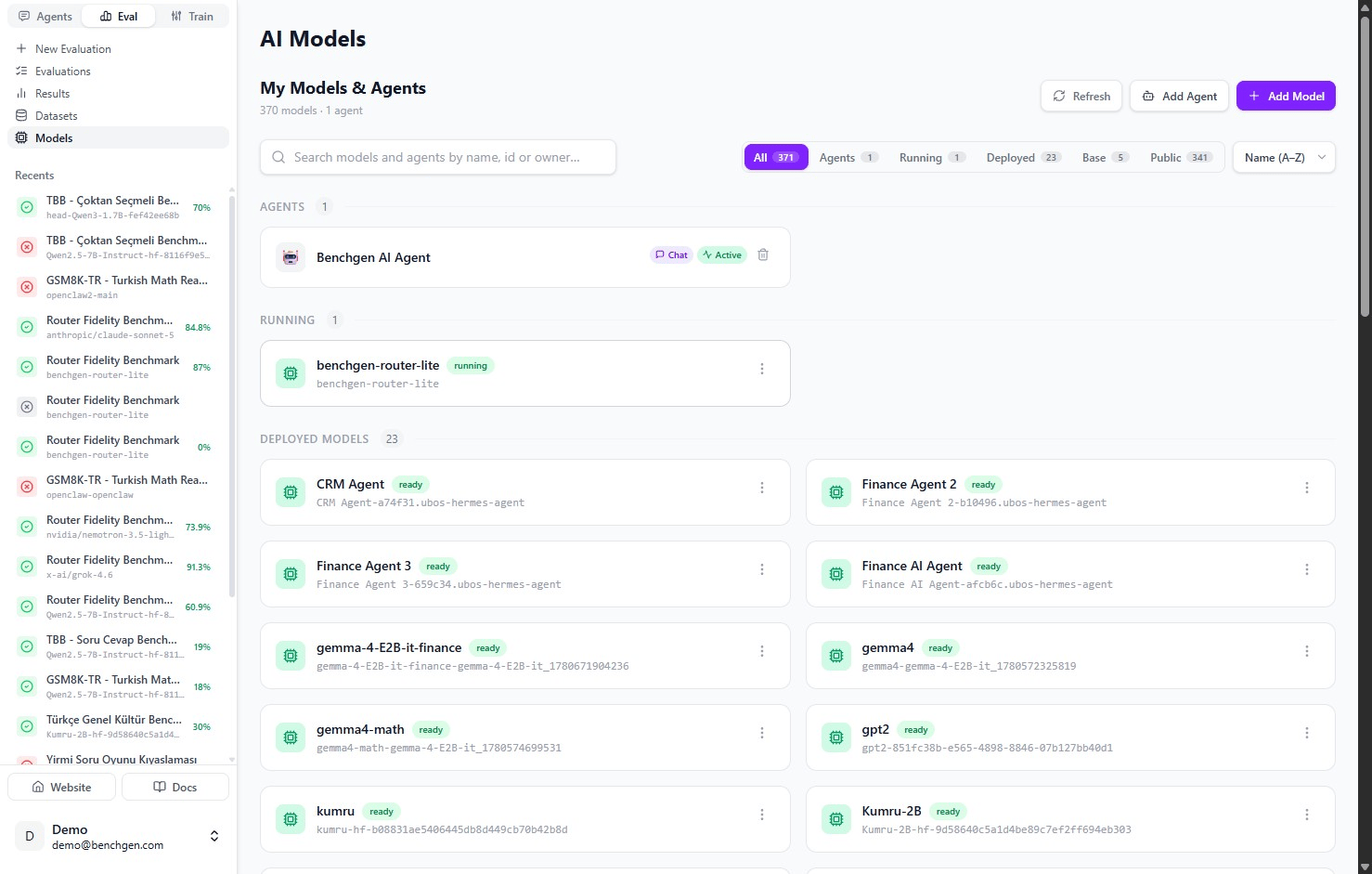
In **Models**, find the model you want a key for, it needs to be **Deployed** or **Running** to serve an endpoint. Here, [`benchgen-router-lite`](https://benchgen.com/models/benchgen/benchgen-router-lite) is running.
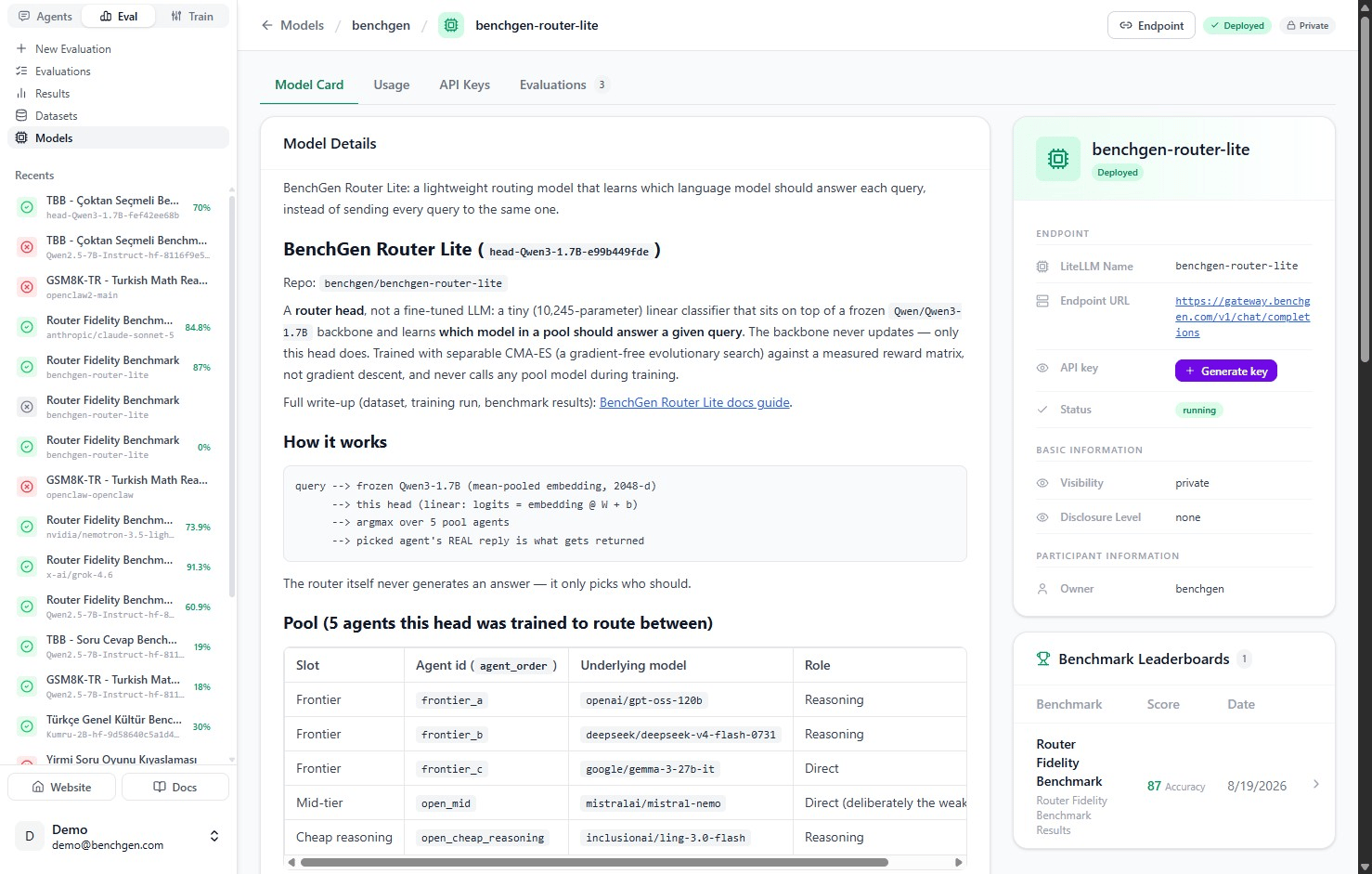
 Open it. Its card has four tabs: **Model Card**, **Usage**, **API Keys**, and **Evaluations**. Notice the sidebar on the right already carries an **API key** field with a **Generate key** shortcut, that same control is there no matter which tab you're on.
 ## Step 2: The quick way, or the full API Keys tab
Click that sidebar **Generate key** button any time you just need a key fast. For naming keys or seeing everything you've already issued, click the **API Keys** tab instead, it's the same action dialog either way, just with more around it.
## Step 2: The quick way, or the full API Keys tab
Click that sidebar **Generate key** button any time you just need a key fast. For naming keys or seeing everything you've already issued, click the **API Keys** tab instead, it's the same action dialog either way, just with more around it.
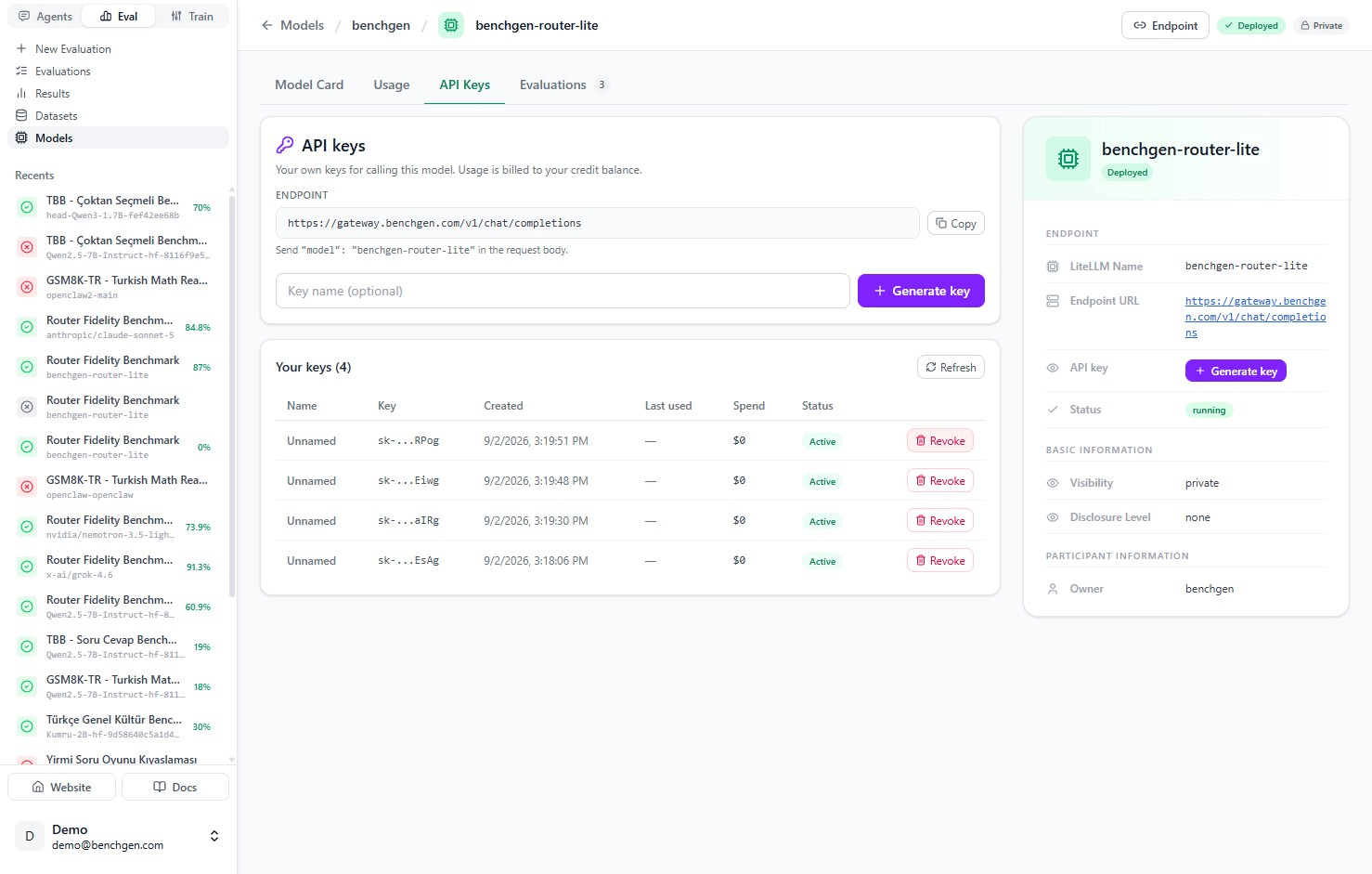 Optionally name the key (useful if you're issuing separate keys per app or environment), then click **+ Generate key**.
## Step 3: Copy the key now, it won't be shown again
A dialog shows your new **secret key** plus a ready-to-run example request.
Optionally name the key (useful if you're issuing separate keys per app or environment), then click **+ Generate key**.
## Step 3: Copy the key now, it won't be shown again
A dialog shows your new **secret key** plus a ready-to-run example request.
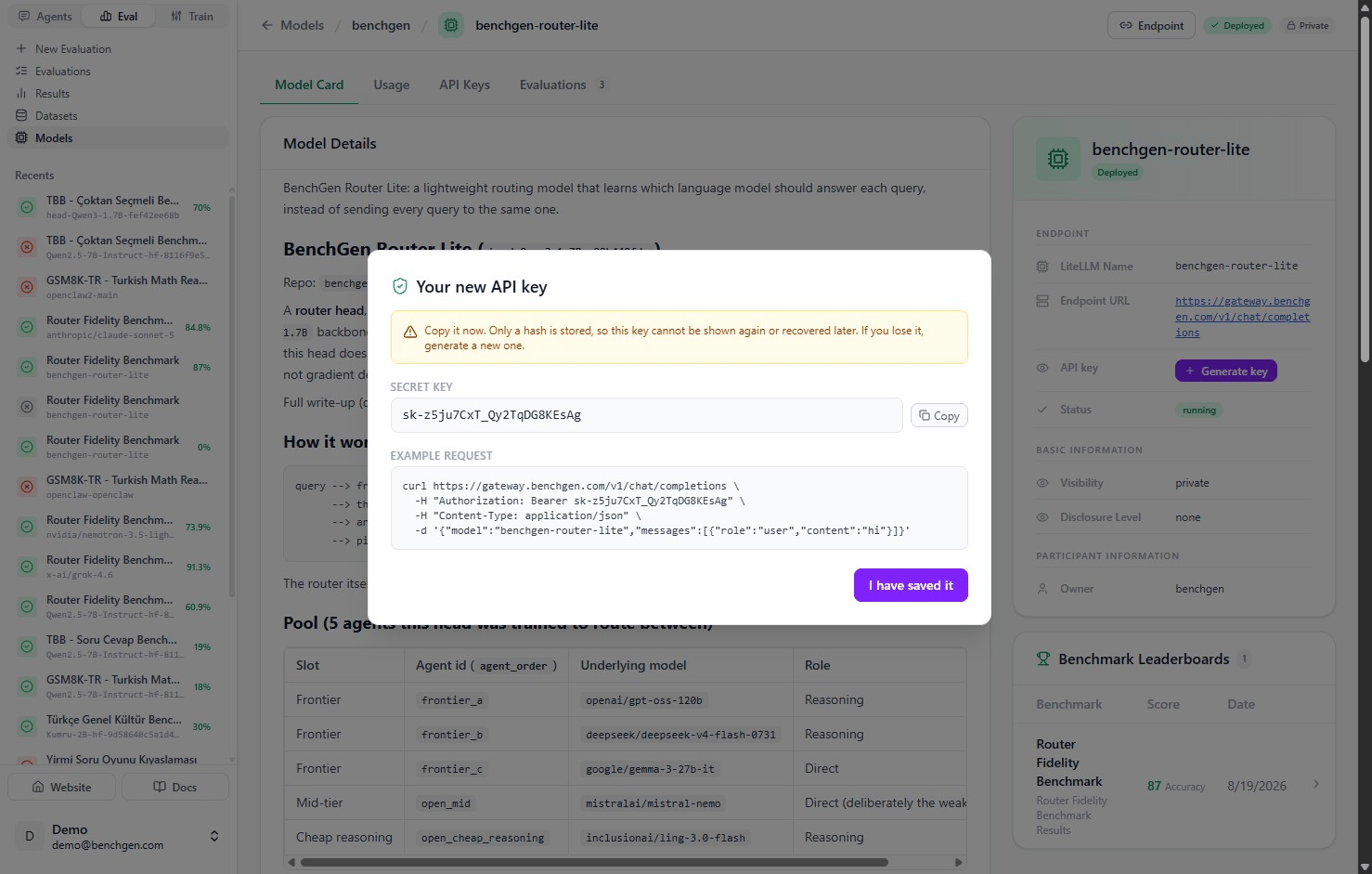 **Copy it now.** BenchGen stores only a hash of the key, so if you close this dialog without saving it, you can't recover it, you'd have to generate a new one. If a key is ever exposed, revoke it and generate a replacement.
Click **Copy** to grab just the key, or copy the example request as-is:
```bash theme={null}
curl https://gateway.benchgen.com/v1/chat/completions \
-H "Authorization: Bearer sk-..." \
-H "Content-Type: application/json" \
-d '{"model":"benchgen-router-lite","messages":[{"role":"user","content":"hi"}]}'
```
Click **I have saved it** to dismiss the dialog.
## Managing keys afterward
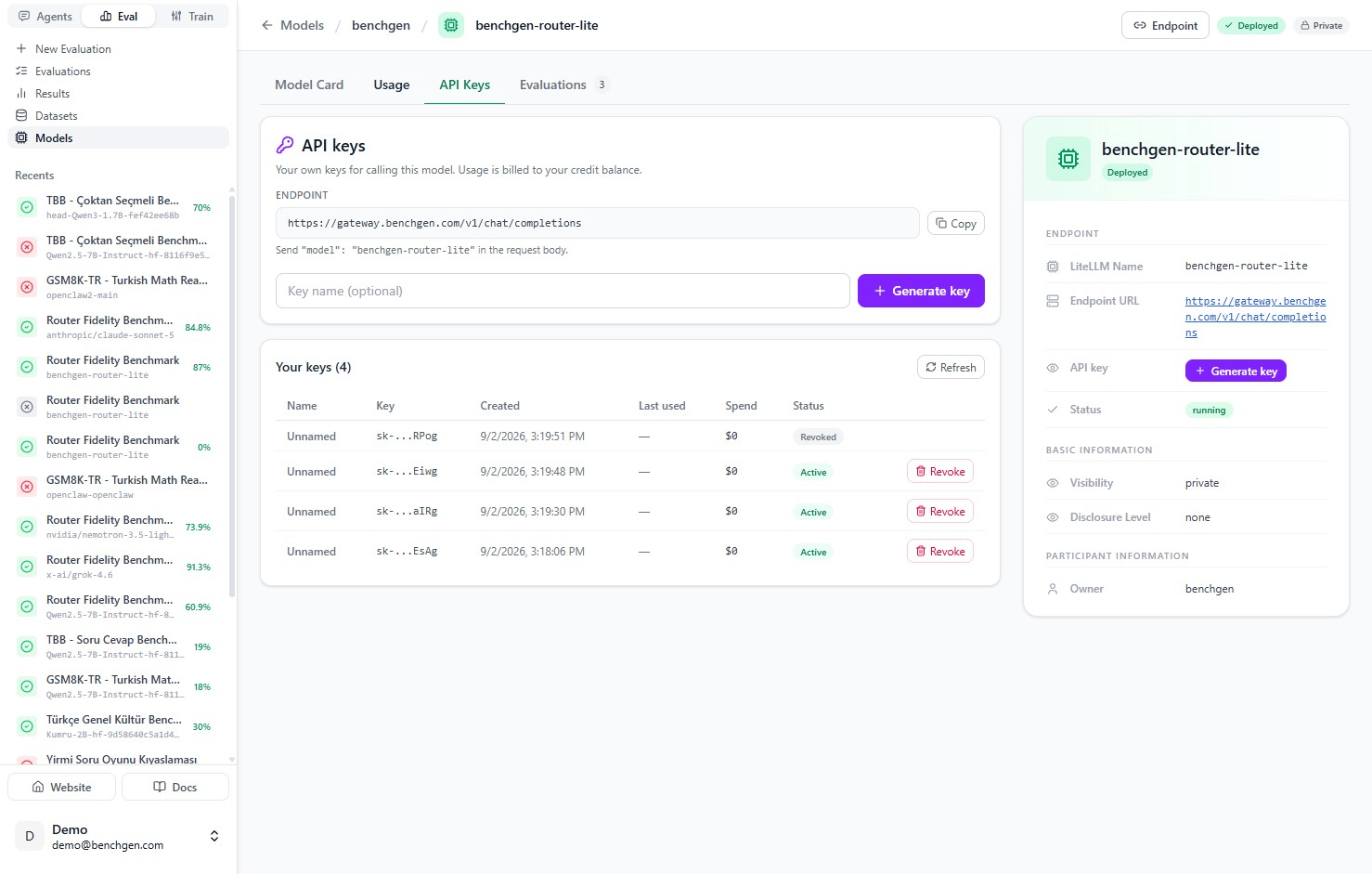
Your new key appears in the table on the API Keys tab, **Active**, with its creation date, last-used timestamp, and running spend. Click **Revoke** on any key you no longer want live, it flips to a **Revoked** status immediately and stops authenticating.
**Copy it now.** BenchGen stores only a hash of the key, so if you close this dialog without saving it, you can't recover it, you'd have to generate a new one. If a key is ever exposed, revoke it and generate a replacement.
Click **Copy** to grab just the key, or copy the example request as-is:
```bash theme={null}
curl https://gateway.benchgen.com/v1/chat/completions \
-H "Authorization: Bearer sk-..." \
-H "Content-Type: application/json" \
-d '{"model":"benchgen-router-lite","messages":[{"role":"user","content":"hi"}]}'
```
Click **I have saved it** to dismiss the dialog.
## Managing keys afterward
Your new key appears in the table on the API Keys tab, **Active**, with its creation date, last-used timestamp, and running spend. Click **Revoke** on any key you no longer want live, it flips to a **Revoked** status immediately and stops authenticating.
 ***
## Watching it get used
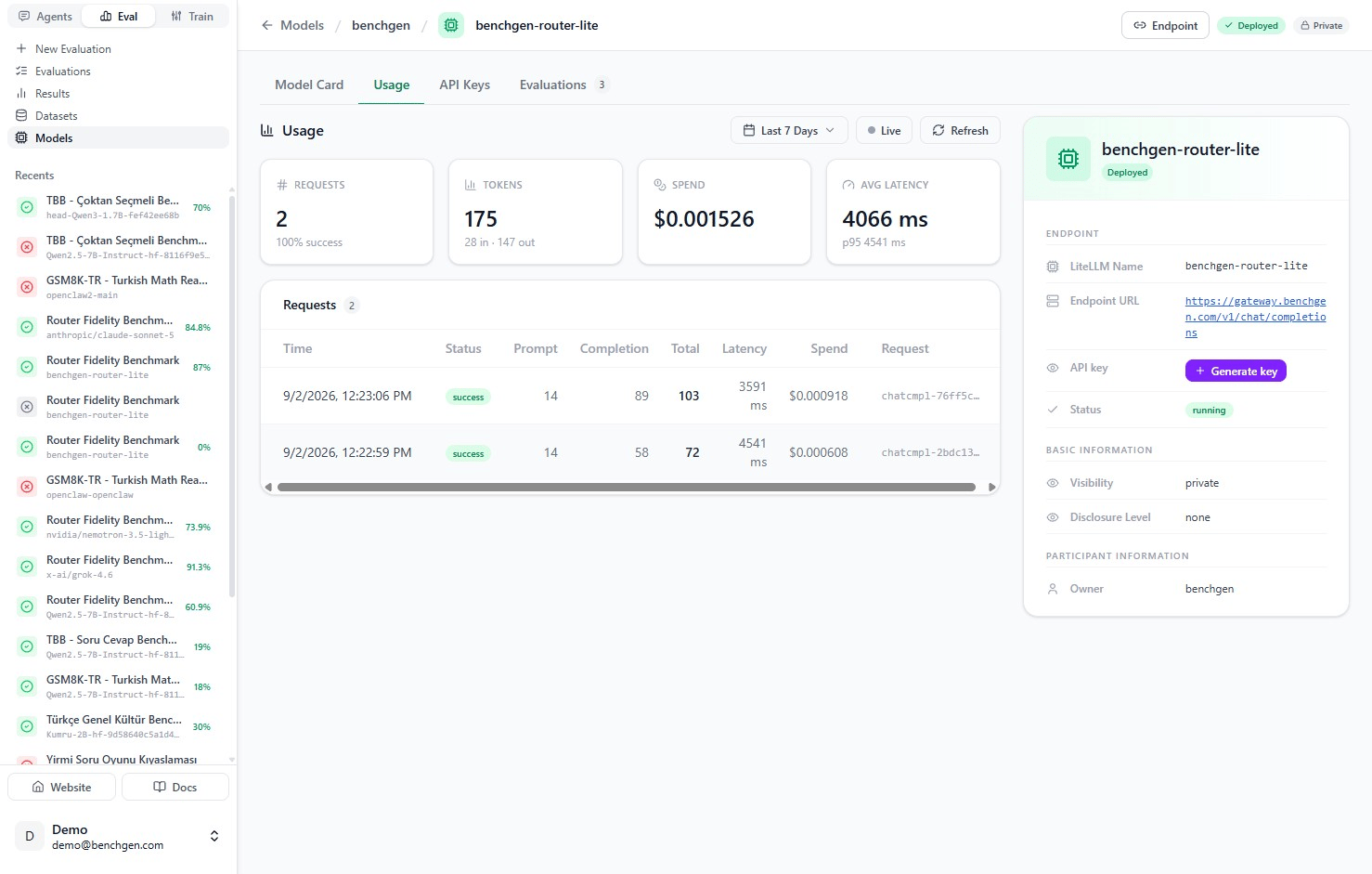
Every call made with the key rolls up into the model's **Usage** tab: total requests, tokens, spend, and average latency, plus a log of every individual request.
***
## Watching it get used
Every call made with the key rolls up into the model's **Usage** tab: total requests, tokens, spend, and average latency, plus a log of every individual request.
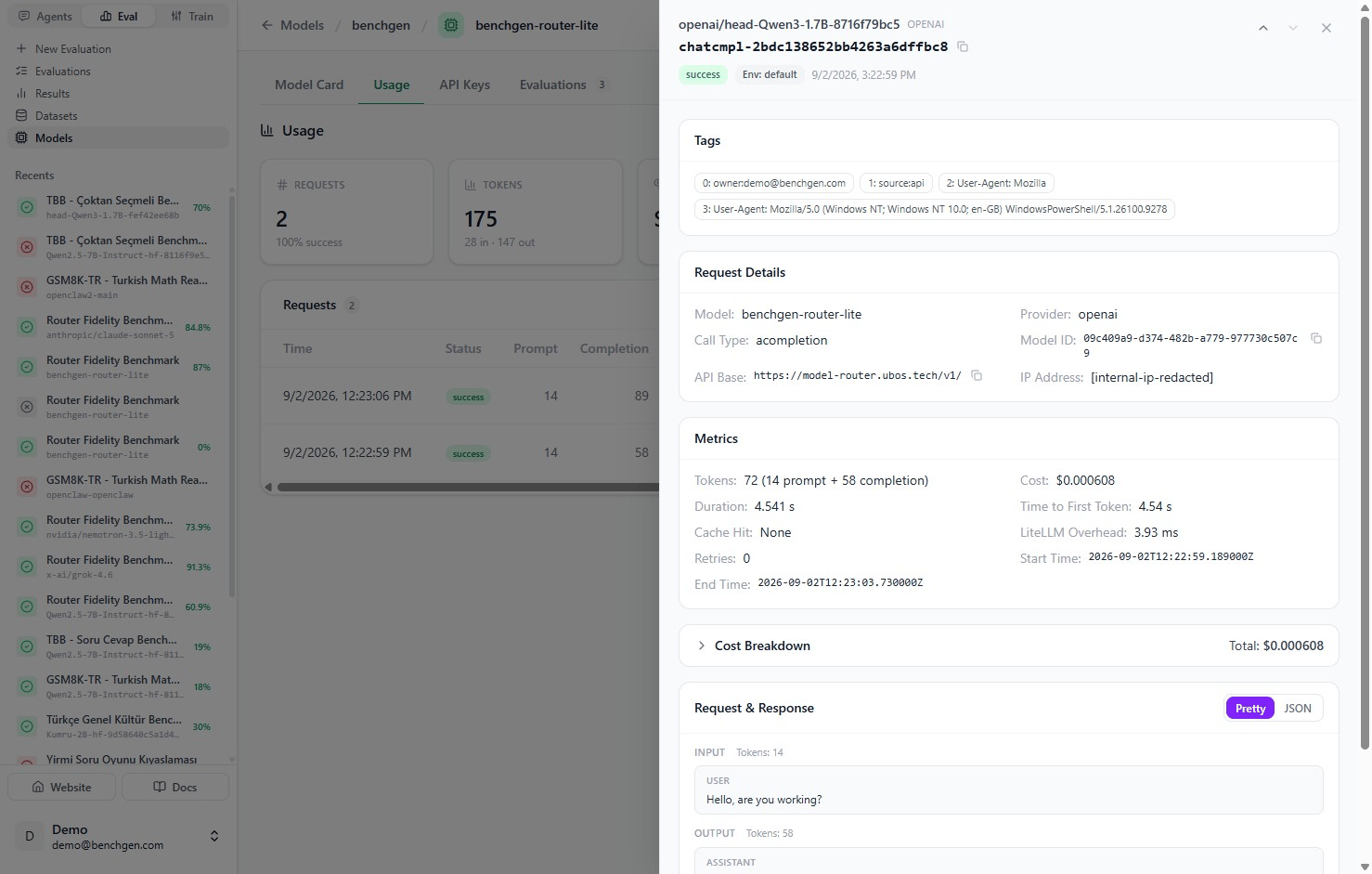
 Click any row to see that exact call in full: its tags, request details, token and cost metrics, and the actual prompt and response.
 See [Monitor Model Usage](/docs/eval/monitor-model-usage) for the full breakdown of everything on this tab.
***
## Next Steps
Track requests, tokens, spend, and inspect individual calls made with your key.
Point your key at the router endpoint instead of a single model.
Open the model card these screenshots were taken from.
See [Monitor Model Usage](/docs/eval/monitor-model-usage) for the full breakdown of everything on this tab.
***
## Next Steps
Track requests, tokens, spend, and inspect individual calls made with your key.
Point your key at the router endpoint instead of a single model.
Open the model card these screenshots were taken from.