> ## Documentation Index
> Fetch the complete documentation index at: https://benchgen.com/docs/llms.txt
> Use this file to discover all available pages before exploring further.
# Add a Dataset
> Register a training dataset by importing it from HuggingFace or uploading your own file.
Every training run needs a dataset. Adding one is a quick two-part flow: give the dataset a name, then choose where its data comes from. You can import a public dataset from HuggingFace or upload your own file.
***
## Two ways to add a dataset
| Source | Use when | What you provide |
| -------------------- | --------------------------------------- | ------------------------------------------------------ |
| **From HuggingFace** | You want a public dataset from the Hub. | A search term, then pick the dataset from the results. |
| **Upload File** | You have your own data. | Your dataset file. |
Datasets exported from an Eval benchmark run show up automatically under the **Fine-tune** filter, so you don't need to add those by hand. See [Export datasets to Train](/eval/export-datasets).
***
## Steps
### 1. Open the Datasets page and click Add Dataset
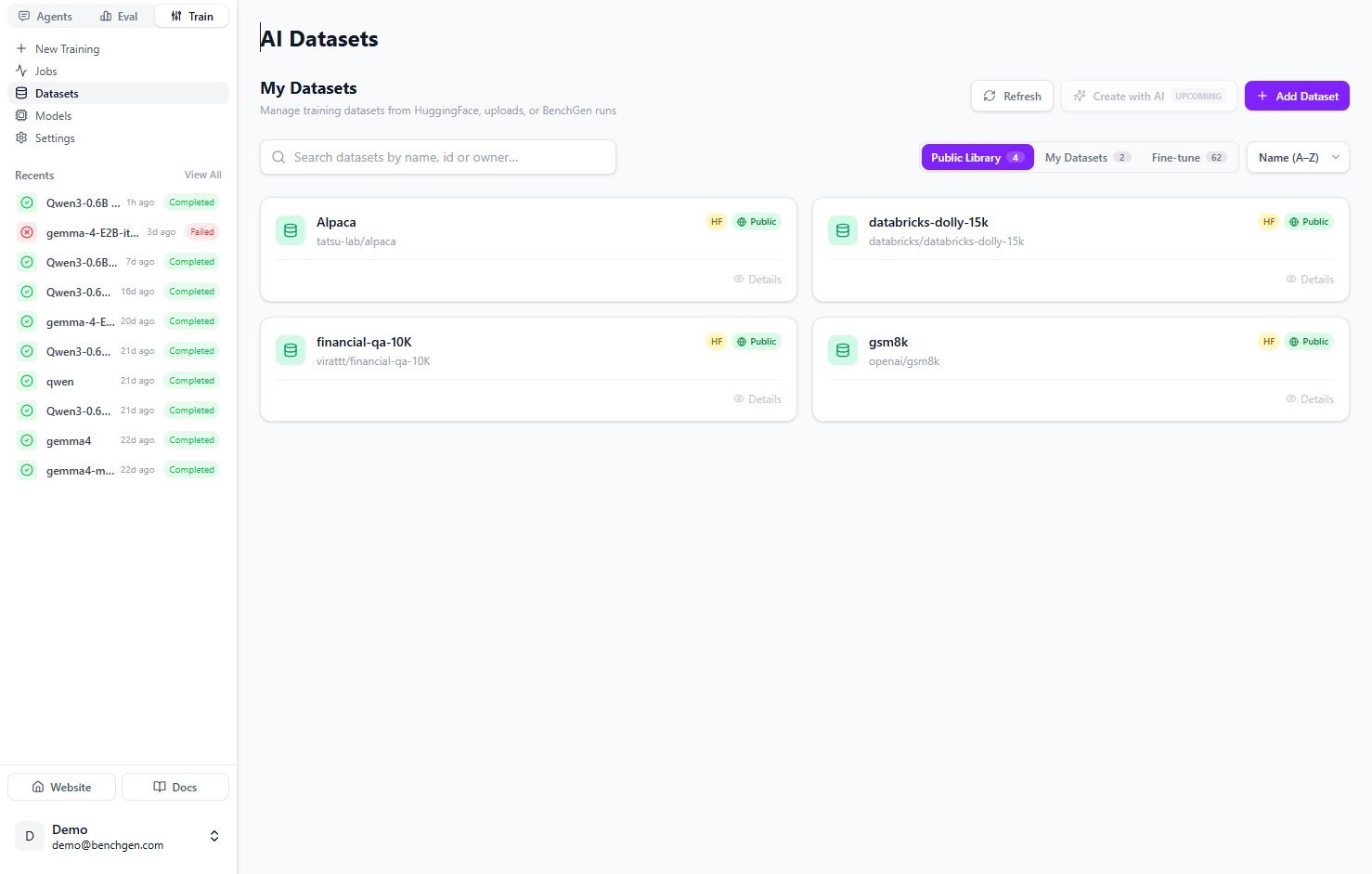
In the **Train** tab, click **Datasets** in the left sidebar. The **AI Datasets** page lists your datasets, filterable by **Public Library**, **My Datasets**, and **Fine-tune**. Click **+ Add Dataset** in the top right.
 ### 2. Enter the basic details
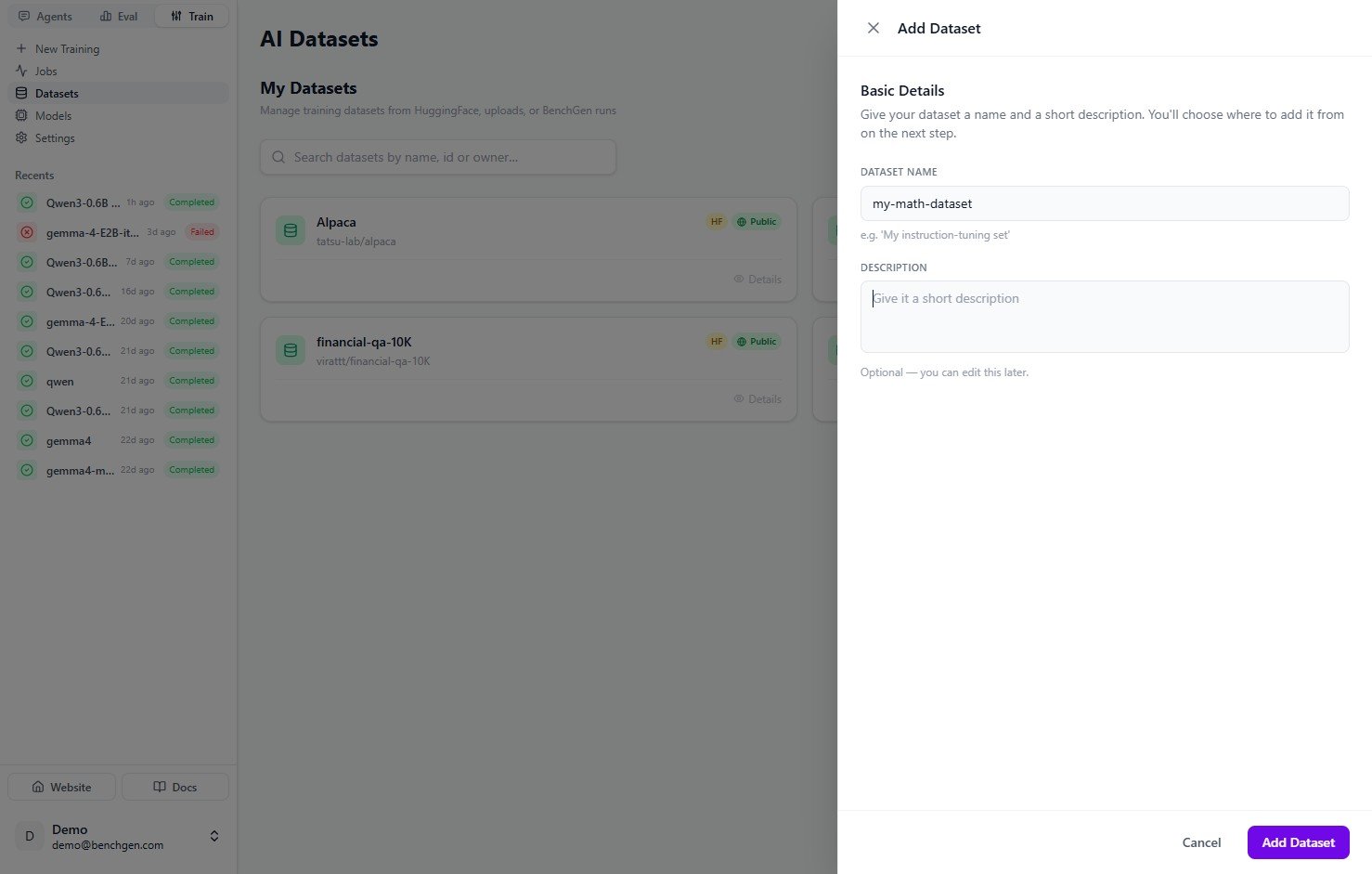
The **Add Dataset** panel slides in. Give the dataset a **name** (for example `my-math-dataset`) and, optionally, a short **description**. You can edit the description later.
Click **Add Dataset** to continue. You'll choose where the data comes from on the next step.
### 2. Enter the basic details
The **Add Dataset** panel slides in. Give the dataset a **name** (for example `my-math-dataset`) and, optionally, a short **description**. You can edit the description later.
Click **Add Dataset** to continue. You'll choose where the data comes from on the next step.
 Use a name you'll recognize later when selecting a dataset for a training run. Avoid throwaway names like `test1`.
### 3. Choose where the data comes from
The dataset is created in a **Draft** state and opens to its card. The **Add Dataset** card prompts you to choose a source. Pick one of the two tabs.
#### Option A — Import from HuggingFace
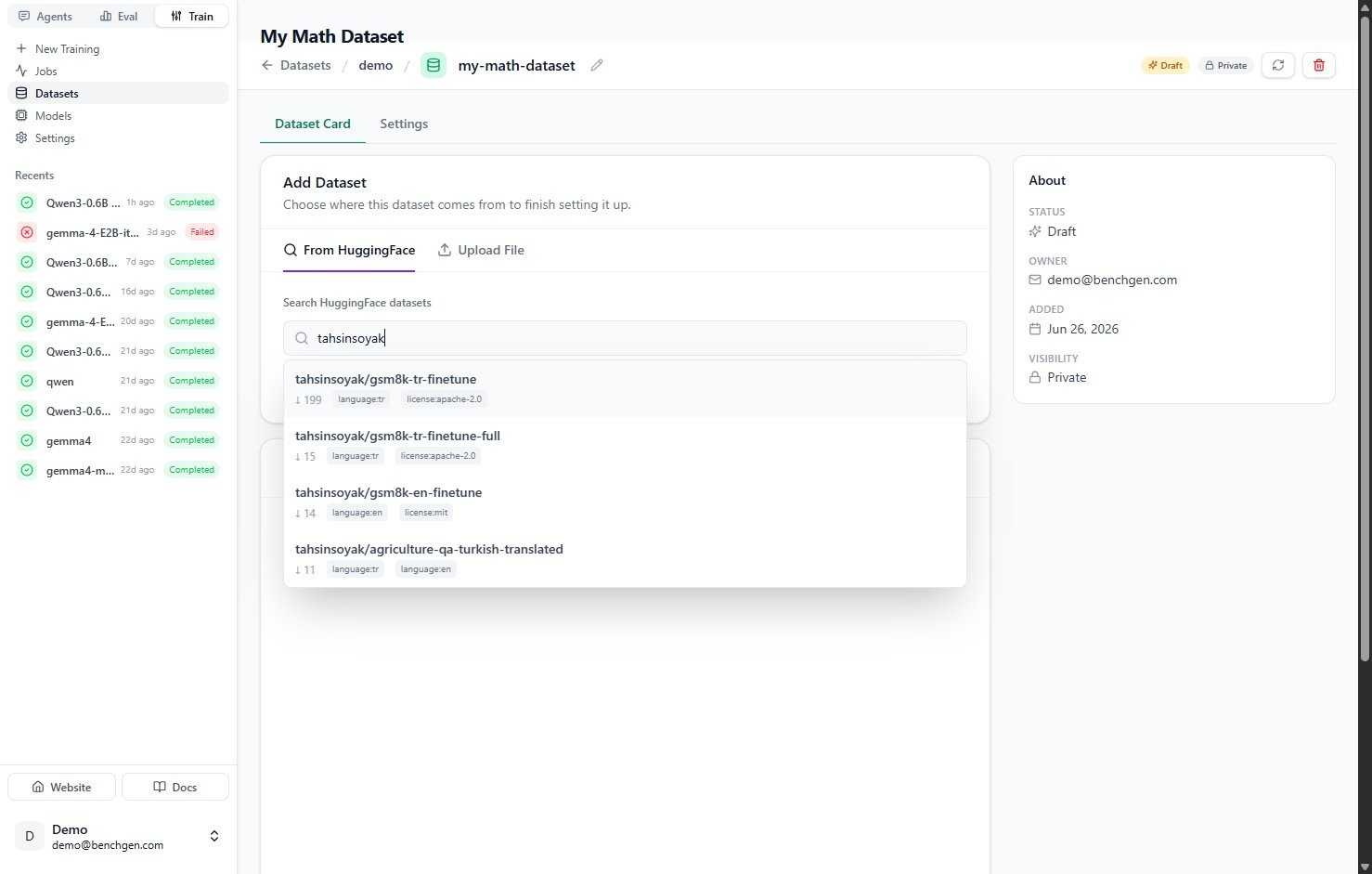
On the **From HuggingFace** tab, type a dataset name into **Search HuggingFace datasets**. Matching datasets appear with their download count, language, and license tags. Click the one you want.
Use a name you'll recognize later when selecting a dataset for a training run. Avoid throwaway names like `test1`.
### 3. Choose where the data comes from
The dataset is created in a **Draft** state and opens to its card. The **Add Dataset** card prompts you to choose a source. Pick one of the two tabs.
#### Option A — Import from HuggingFace
On the **From HuggingFace** tab, type a dataset name into **Search HuggingFace datasets**. Matching datasets appear with their download count, language, and license tags. Click the one you want.
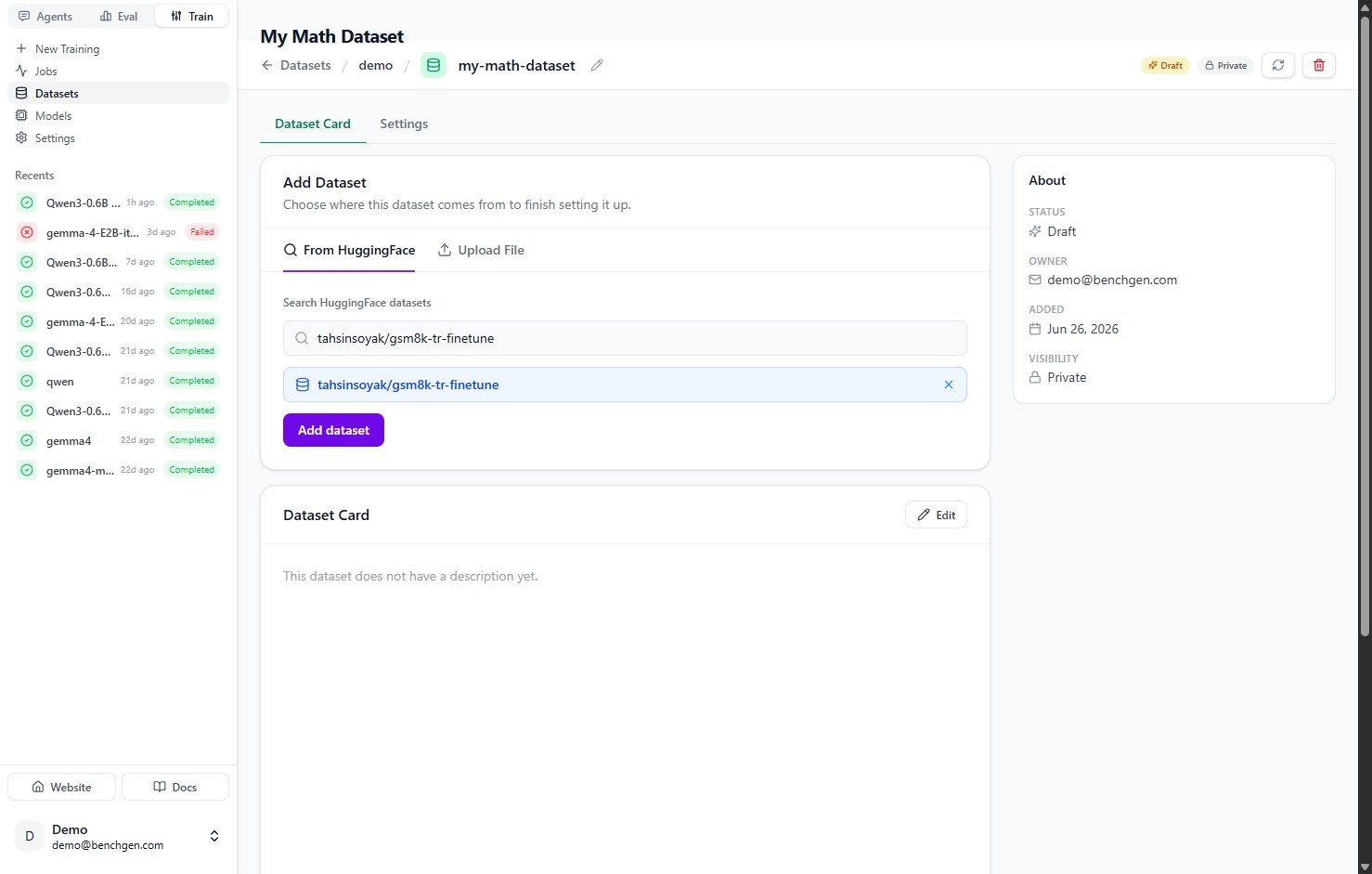
 The selected dataset shows as a chip, and the **Add dataset** button becomes active. Click **Add dataset** to import it.
 #### Option B — Upload a file
On the **Upload File** tab, upload your own dataset file, then click **Add dataset**.
### 4. Confirm the dataset is ready
BenchGen registers the dataset and fills in its card with details such as **Rows**, **Columns**, **Splits**, download size, and update dates. The status badge reflects the source (for example **HuggingFace**).
#### Option B — Upload a file
On the **Upload File** tab, upload your own dataset file, then click **Add dataset**.
### 4. Confirm the dataset is ready
BenchGen registers the dataset and fills in its card with details such as **Rows**, **Columns**, **Splits**, download size, and update dates. The status badge reflects the source (for example **HuggingFace**).
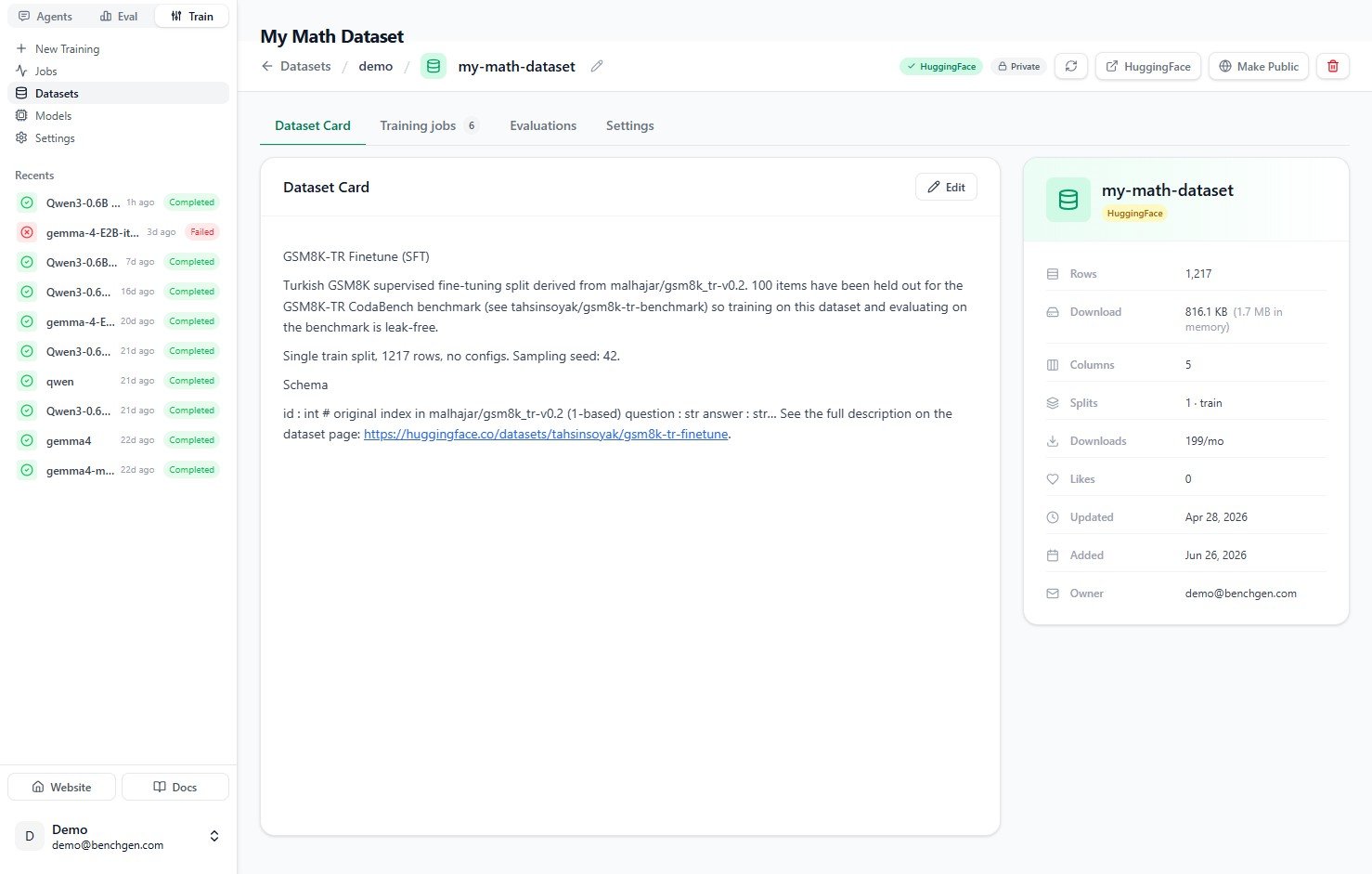 Your dataset now appears in the **Datasets** list and is available to select when you configure a training run.
***
## Next Steps
* [Fine-tune a model](/train/fine-tune-a-model) using your dataset.
* [Export datasets from Eval](/eval/export-datasets) to turn benchmark failures into training data.
Your dataset now appears in the **Datasets** list and is available to select when you configure a training run.
***
## Next Steps
* [Fine-tune a model](/train/fine-tune-a-model) using your dataset.
* [Export datasets from Eval](/eval/export-datasets) to turn benchmark failures into training data.