> ## Documentation Index
> Fetch the complete documentation index at: https://benchgen.com/docs/llms.txt
> Use this file to discover all available pages before exploring further.
# Fine-tune a Model
> Configure and launch a LoRA fine-tuning run, then monitor it to completion.
Fine-tuning adapts a base model to your task using a LoRA (Low-Rank Adaptation) adapter. You configure a training run, BenchGen provisions the GPU and runs it, and you watch progress in real time until the adapter is ready to merge and save.
***
## Prerequisites
* A base model to fine-tune. You can pick one from your workspace, the public library, the platform, or HuggingFace.
* A training dataset. See [Add a dataset](/train/add-a-dataset), or pick one from the library or HuggingFace.
***
## Steps
### 1. Start a new training run
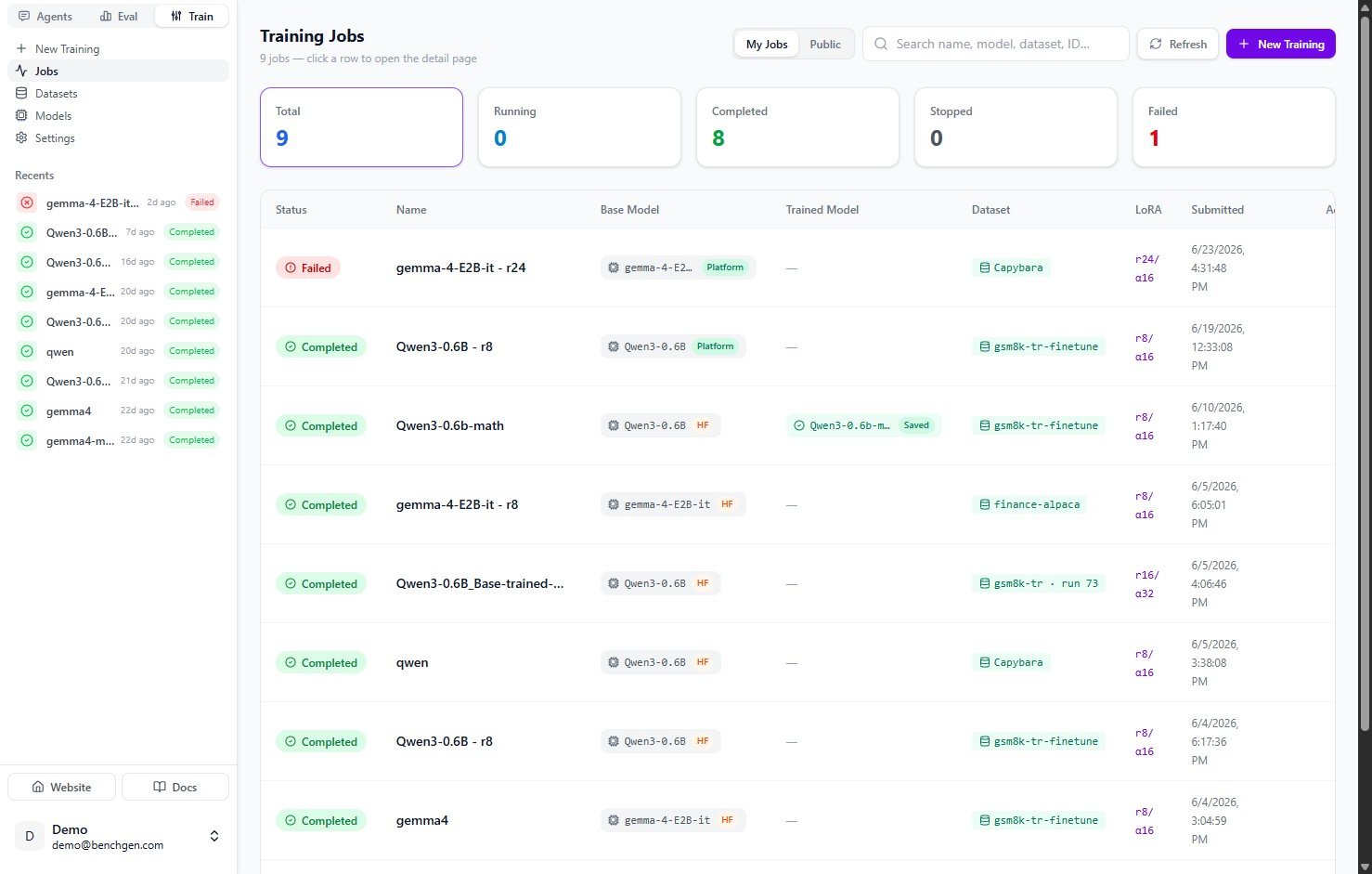
In the **Train** tab, click **Jobs** in the left sidebar to see your **Training Jobs**, with totals for running, completed, stopped, and failed runs. Click **+ New Training** in the top right.
 ### 2. Name the run and pick a base model
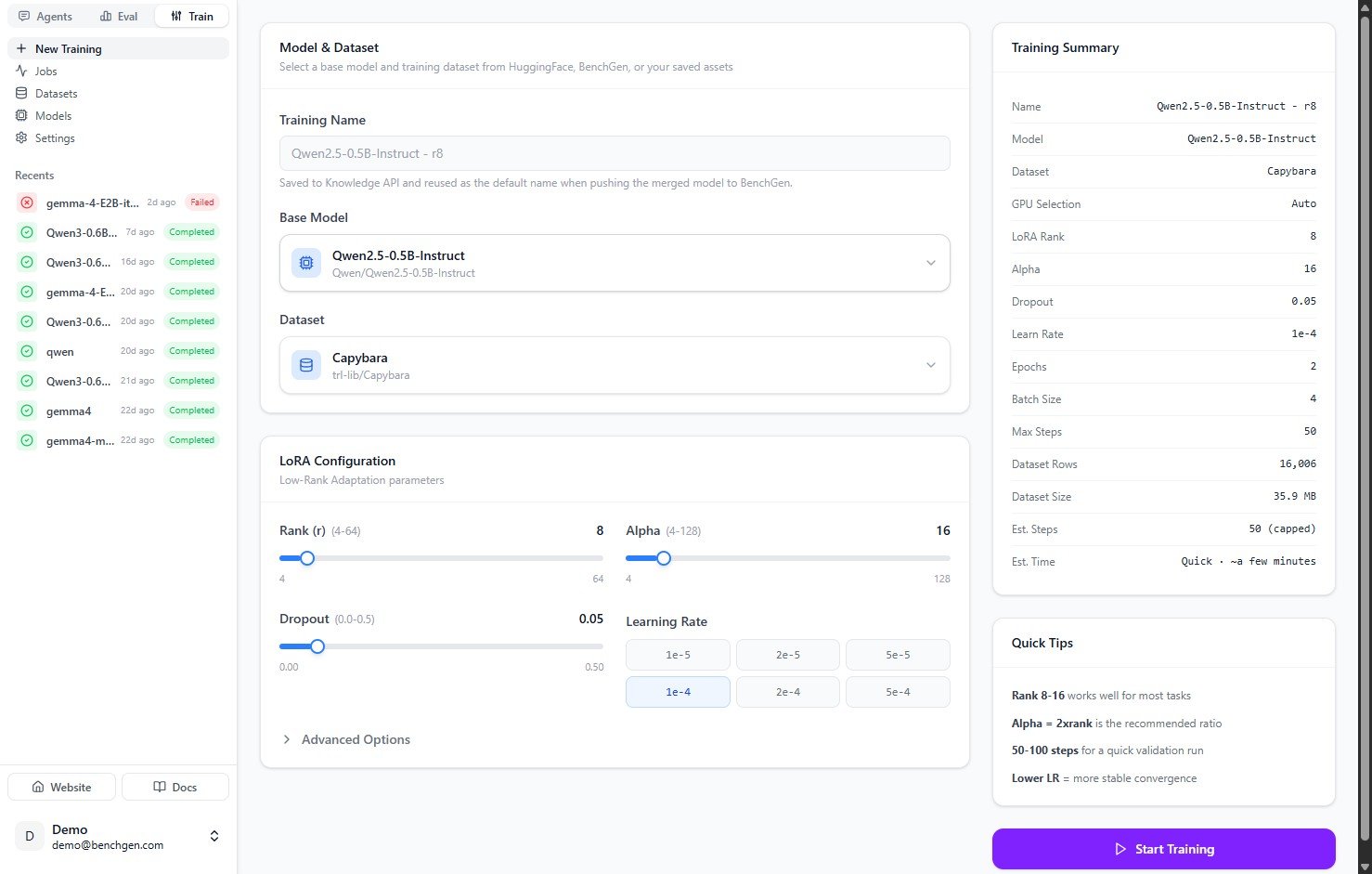
Give the run a **Training Name**. This name is saved to the Knowledge API and reused as the default when you push the merged model to BenchGen later.
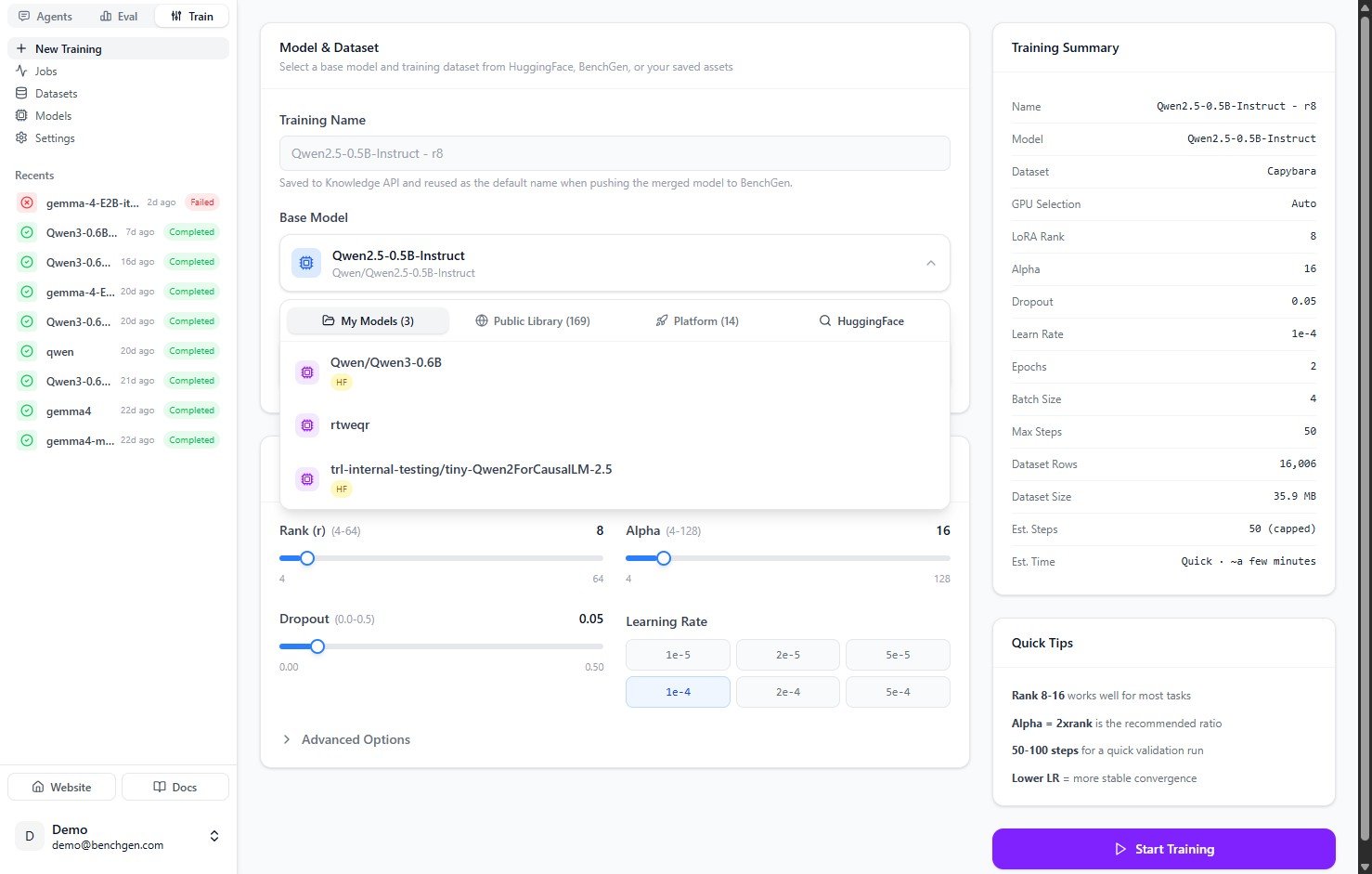
Open the **Base Model** dropdown and choose a source:
| Source | What it is |
| ------------------ | ---------------------------------------------- |
| **My Models** | Models already in your workspace. |
| **Public Library** | Models shared by the community. |
| **Platform** | Models published on BenchGen. |
| **HuggingFace** | Any public model from the Hub. Search by name. |
### 2. Name the run and pick a base model
Give the run a **Training Name**. This name is saved to the Knowledge API and reused as the default when you push the merged model to BenchGen later.
Open the **Base Model** dropdown and choose a source:
| Source | What it is |
| ------------------ | ---------------------------------------------- |
| **My Models** | Models already in your workspace. |
| **Public Library** | Models shared by the community. |
| **Platform** | Models published on BenchGen. |
| **HuggingFace** | Any public model from the Hub. Search by name. |
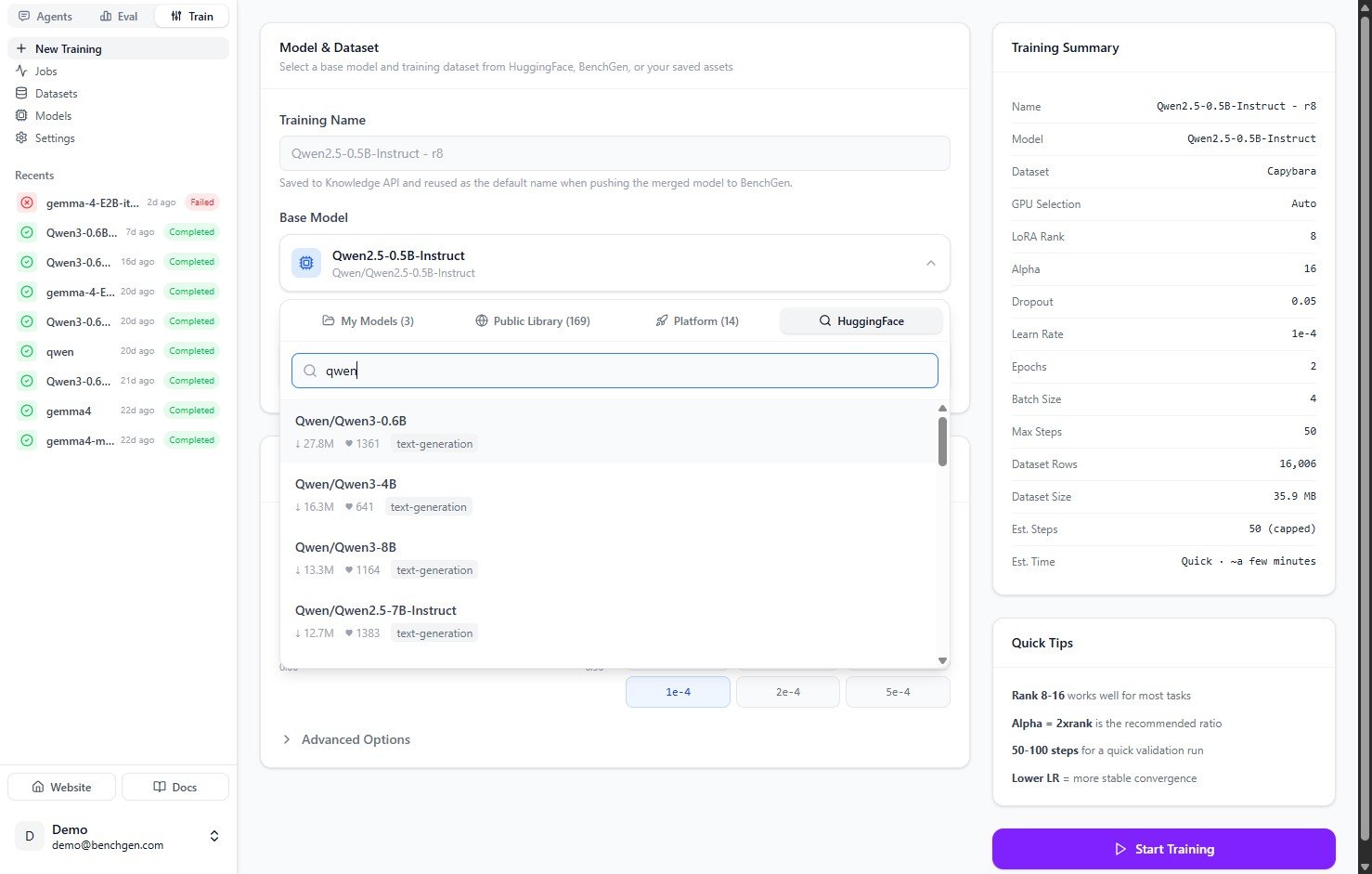
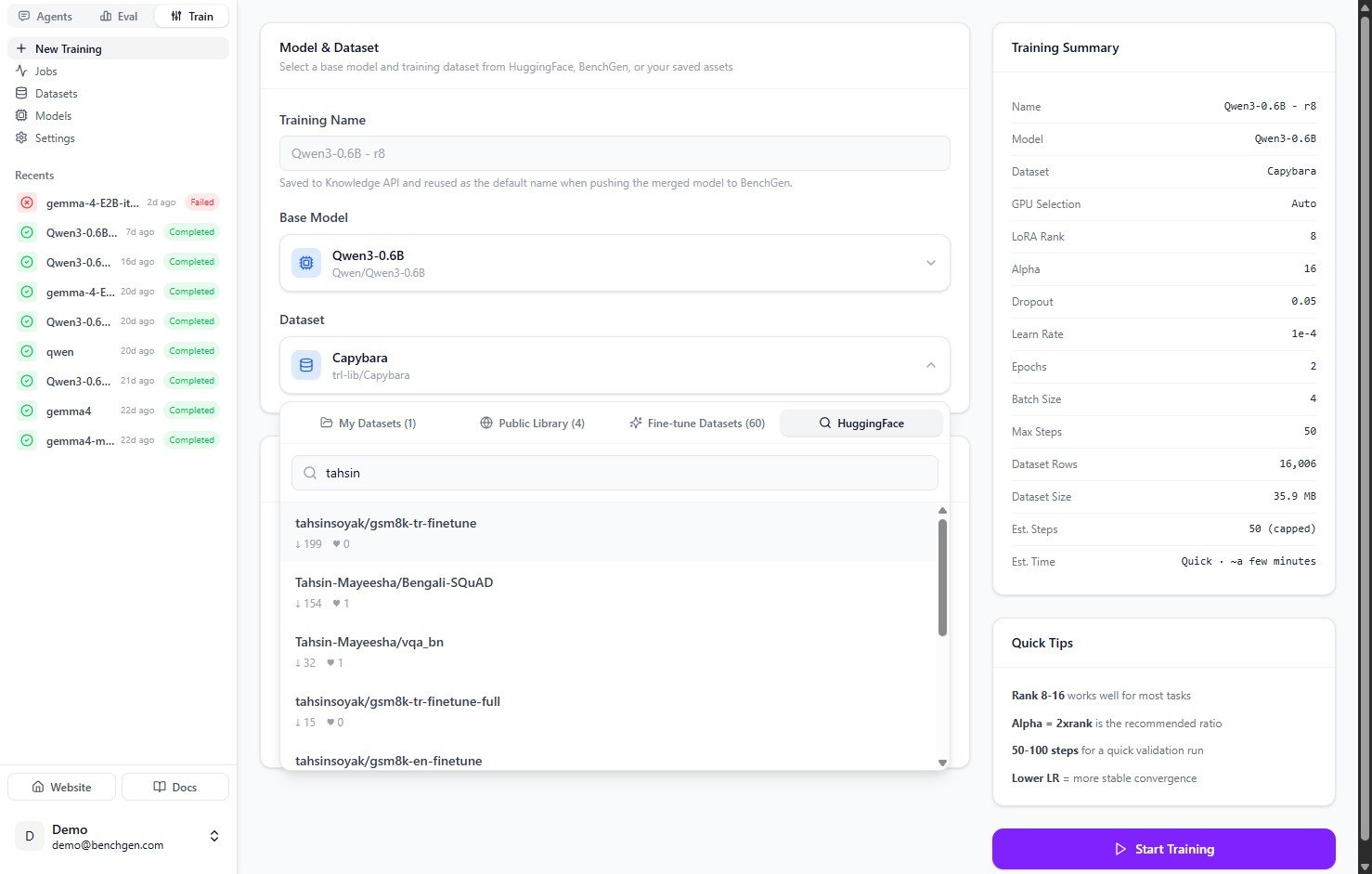
 To use a model that isn't already in your workspace, switch to the **HuggingFace** tab and search the Hub by name. Each result shows its download count, likes, and task tag. Click one to select it as the base model.
 ### 3. Choose a dataset
Open the **Dataset** dropdown and pick from **My Datasets**, **Public Library**, **Fine-tune Datasets** (datasets exported from Eval runs), or **HuggingFace**.
### 3. Choose a dataset
Open the **Dataset** dropdown and pick from **My Datasets**, **Public Library**, **Fine-tune Datasets** (datasets exported from Eval runs), or **HuggingFace**.
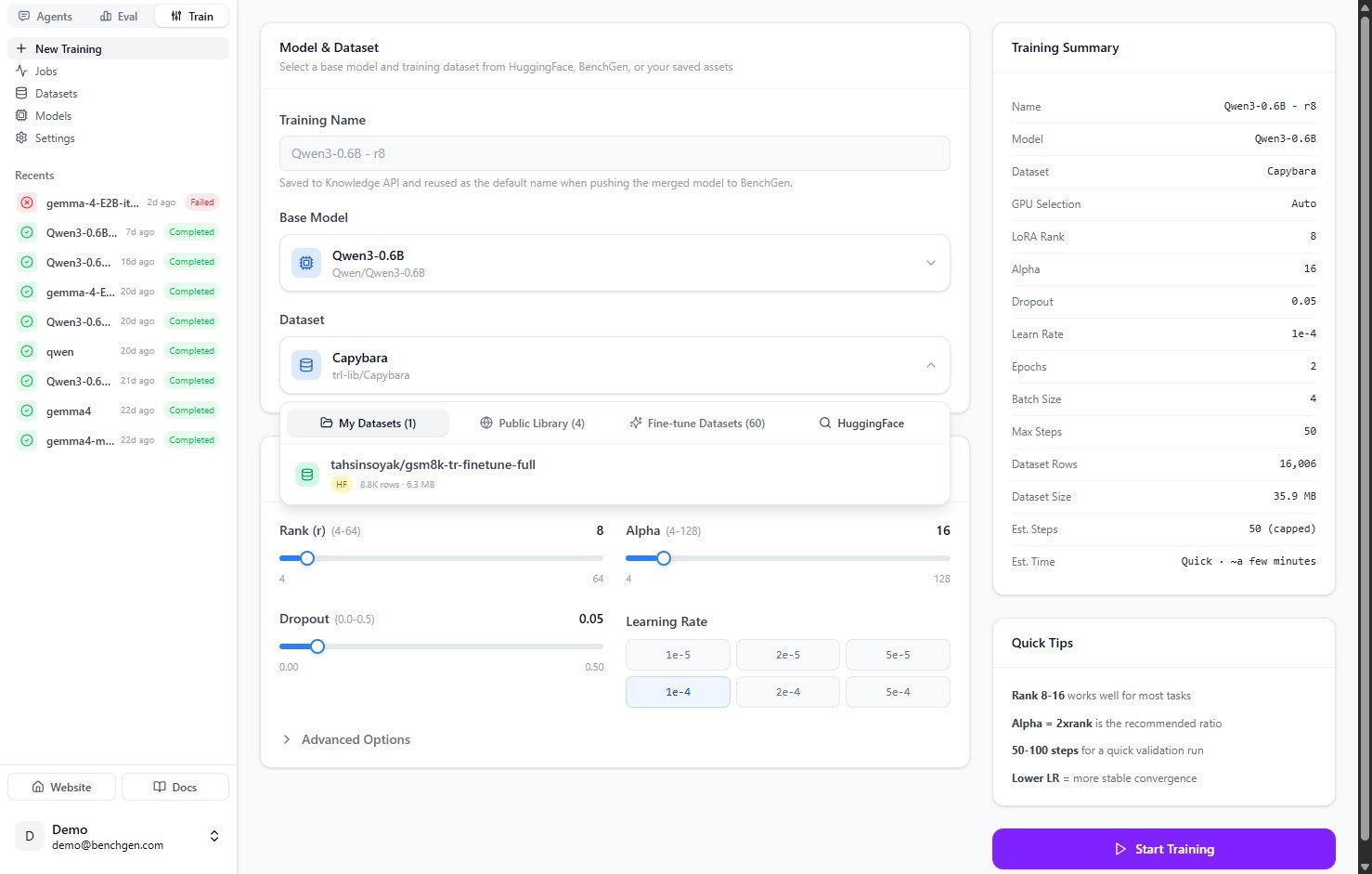 The **HuggingFace** tab works the same way for datasets. Search the Hub and pick any public dataset by name.
 ### 4. Configure the LoRA parameters
| Parameter | Range | Default | What it controls |
| ----------------- | ---------------- | ------- | --------------------------------------------------- |
| **Rank (r)** | 4–64 | `8` | Adapter capacity. |
| **Alpha** | 4–128 | `16` | Scaling factor. A common ratio is Alpha = 2 × rank. |
| **Dropout** | 0.0–0.5 | `0.05` | Regularization. |
| **Learning Rate** | `1e-5` to `5e-4` | `1e-4` | Step size for gradient updates. |
The Quick Tips panel sums up sensible defaults: rank 8–16 works well for most tasks, Alpha = 2 × rank is a good ratio, 50–100 steps is enough for a quick validation run, and a lower learning rate gives more stable convergence.
### 5. (Optional) Adjust advanced options
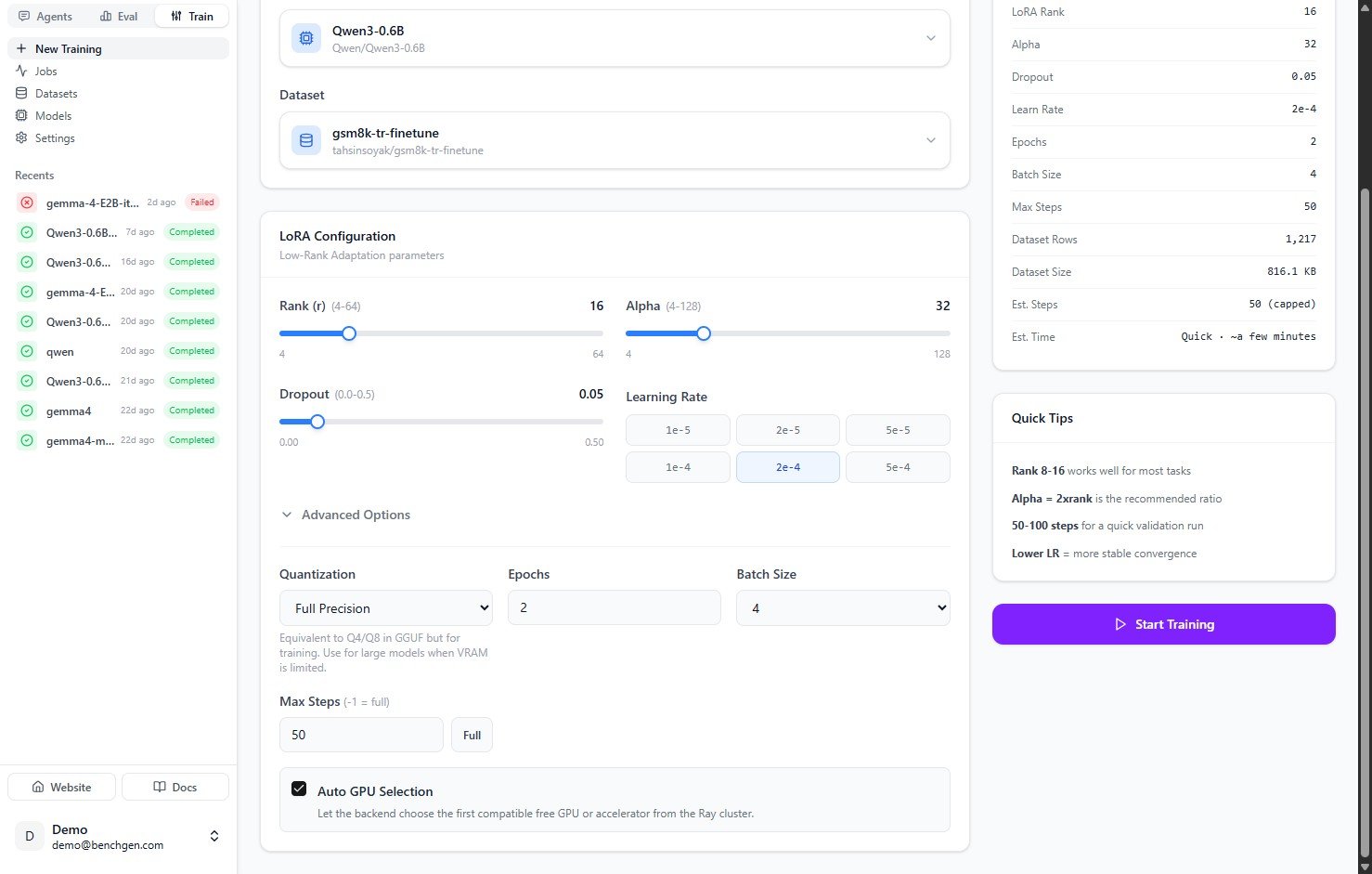
Expand **Advanced Options** for finer control:
| Setting | Default | Notes |
| ---------------------- | -------------- | ----------------------------------------------------------------------------------------------------------- |
| **Quantization** | Full Precision | Equivalent to Q4/Q8 in GGUF, but for training. Use a lower precision for large models when VRAM is limited. |
| **Epochs** | `2` | Full passes over the dataset. |
| **Batch Size** | `4` | Examples per gradient step. |
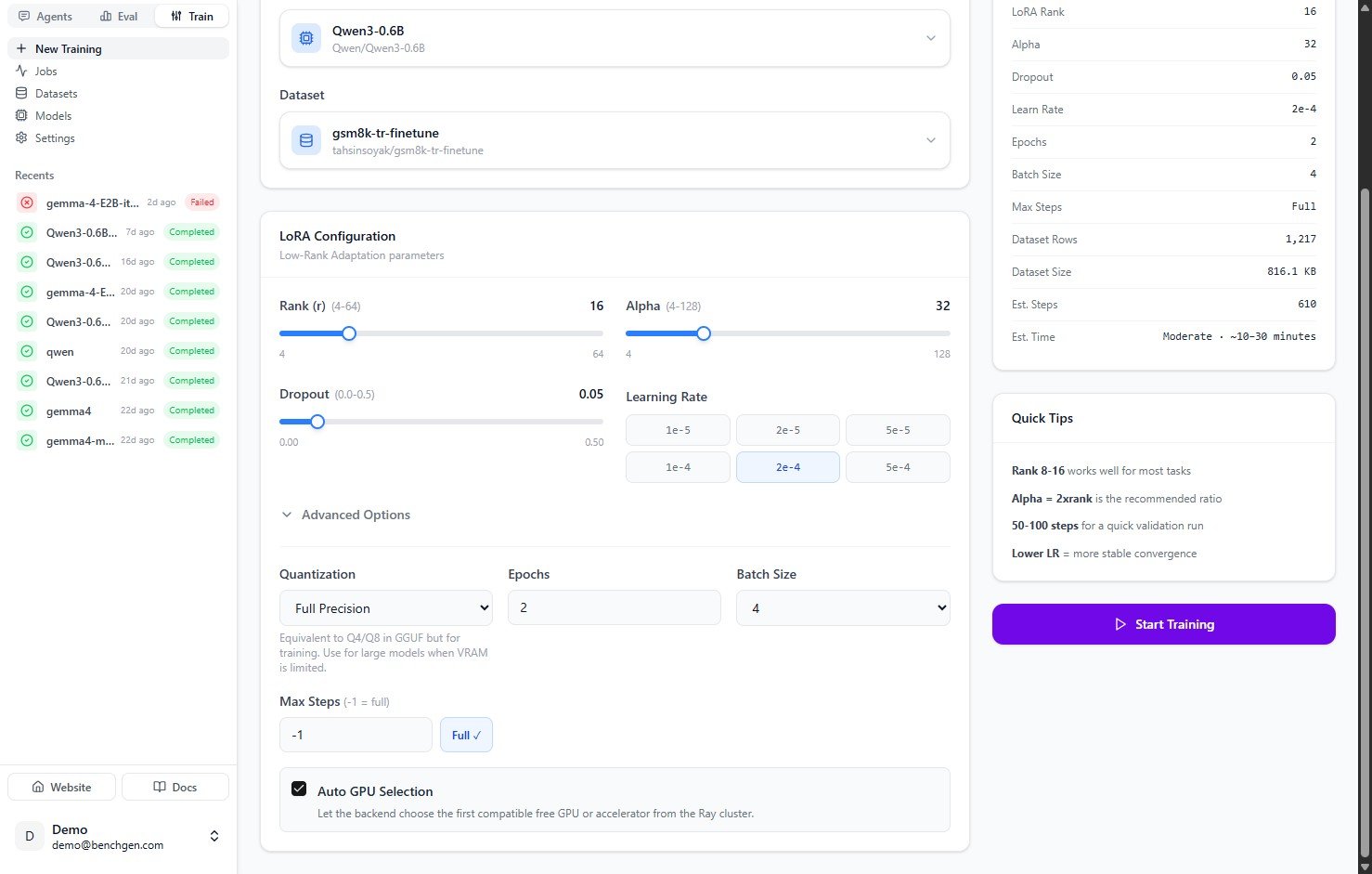
| **Max Steps** | `50` | Caps the run. Set `-1` or click **Full** to train over the entire dataset. |
| **Auto GPU Selection** | On | Lets the backend pick the first compatible free GPU or accelerator from the Ray cluster. |
The **Training Summary** panel on the right updates as you change settings. It shows the estimated steps and time, so capping at 50 steps reads as a quick run, while **Full** estimates a longer one.
### 4. Configure the LoRA parameters
| Parameter | Range | Default | What it controls |
| ----------------- | ---------------- | ------- | --------------------------------------------------- |
| **Rank (r)** | 4–64 | `8` | Adapter capacity. |
| **Alpha** | 4–128 | `16` | Scaling factor. A common ratio is Alpha = 2 × rank. |
| **Dropout** | 0.0–0.5 | `0.05` | Regularization. |
| **Learning Rate** | `1e-5` to `5e-4` | `1e-4` | Step size for gradient updates. |
The Quick Tips panel sums up sensible defaults: rank 8–16 works well for most tasks, Alpha = 2 × rank is a good ratio, 50–100 steps is enough for a quick validation run, and a lower learning rate gives more stable convergence.
### 5. (Optional) Adjust advanced options
Expand **Advanced Options** for finer control:
| Setting | Default | Notes |
| ---------------------- | -------------- | ----------------------------------------------------------------------------------------------------------- |
| **Quantization** | Full Precision | Equivalent to Q4/Q8 in GGUF, but for training. Use a lower precision for large models when VRAM is limited. |
| **Epochs** | `2` | Full passes over the dataset. |
| **Batch Size** | `4` | Examples per gradient step. |
| **Max Steps** | `50` | Caps the run. Set `-1` or click **Full** to train over the entire dataset. |
| **Auto GPU Selection** | On | Lets the backend pick the first compatible free GPU or accelerator from the Ray cluster. |
The **Training Summary** panel on the right updates as you change settings. It shows the estimated steps and time, so capping at 50 steps reads as a quick run, while **Full** estimates a longer one.
 ### 6. Start training
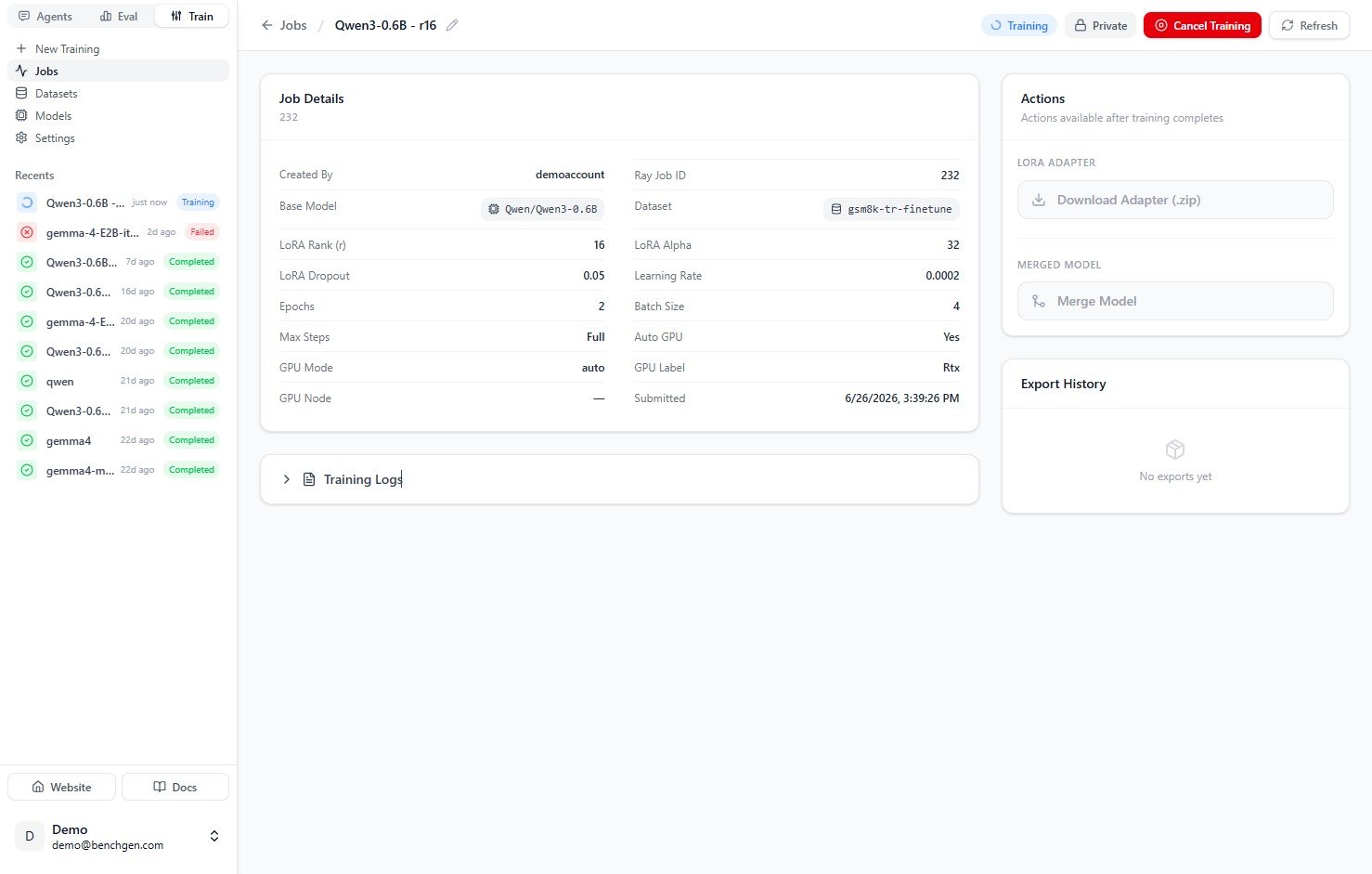
Click **Start Training**. The job opens to its detail page with a status of **Training**.
### 6. Start training
Click **Start Training**. The job opens to its detail page with a status of **Training**.
 ### 7. Monitor progress
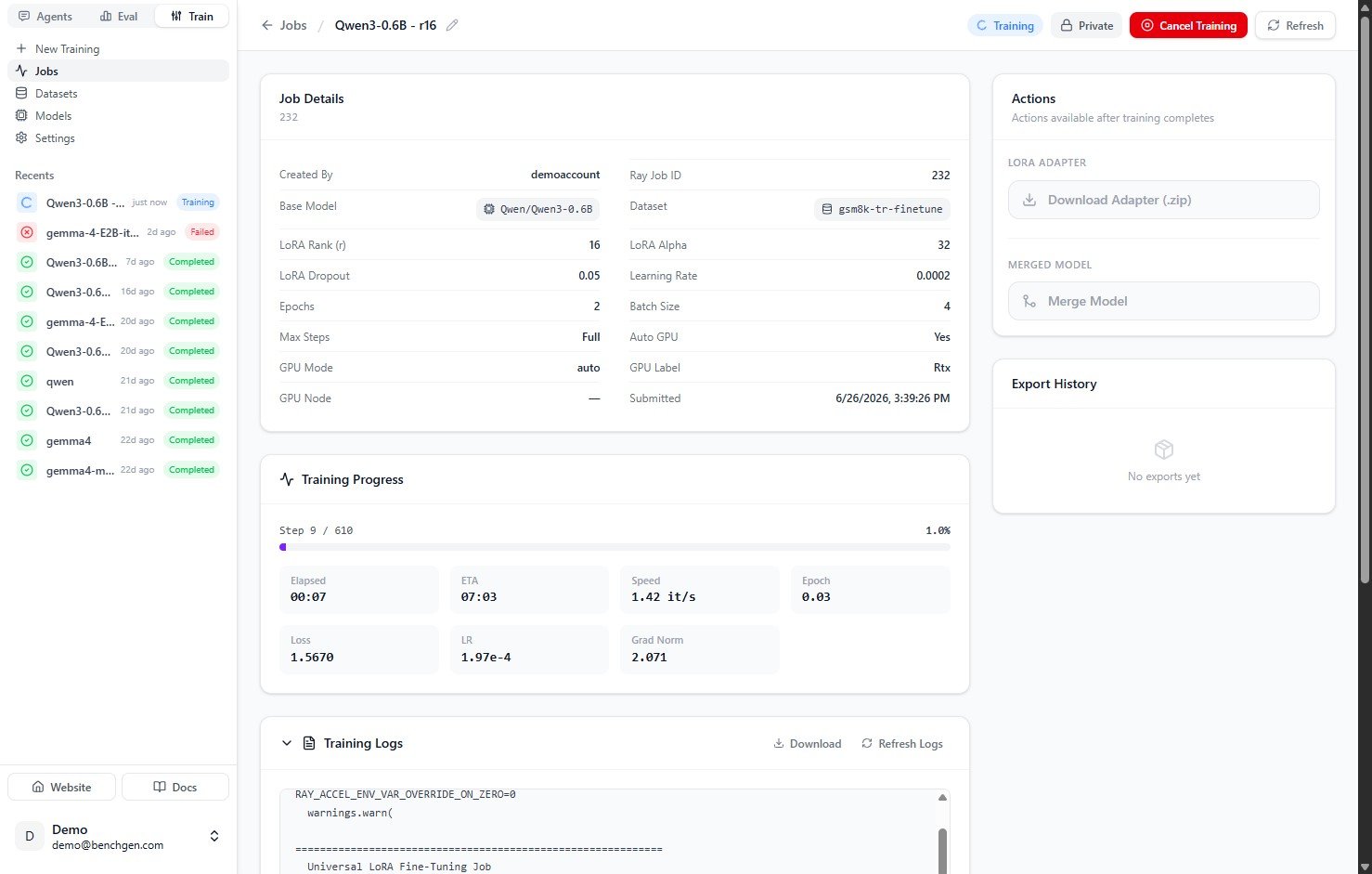
The **Training Progress** card streams the current step and percent complete, along with elapsed time, ETA, speed (it/s), epoch, loss, learning rate, and gradient norm. Expand **Training Logs** for the raw output, or click **Cancel Training** if you need to stop early.
### 7. Monitor progress
The **Training Progress** card streams the current step and percent complete, along with elapsed time, ETA, speed (it/s), epoch, loss, learning rate, and gradient norm. Expand **Training Logs** for the raw output, or click **Cancel Training** if you need to stop early.
 ### 8. Training completes
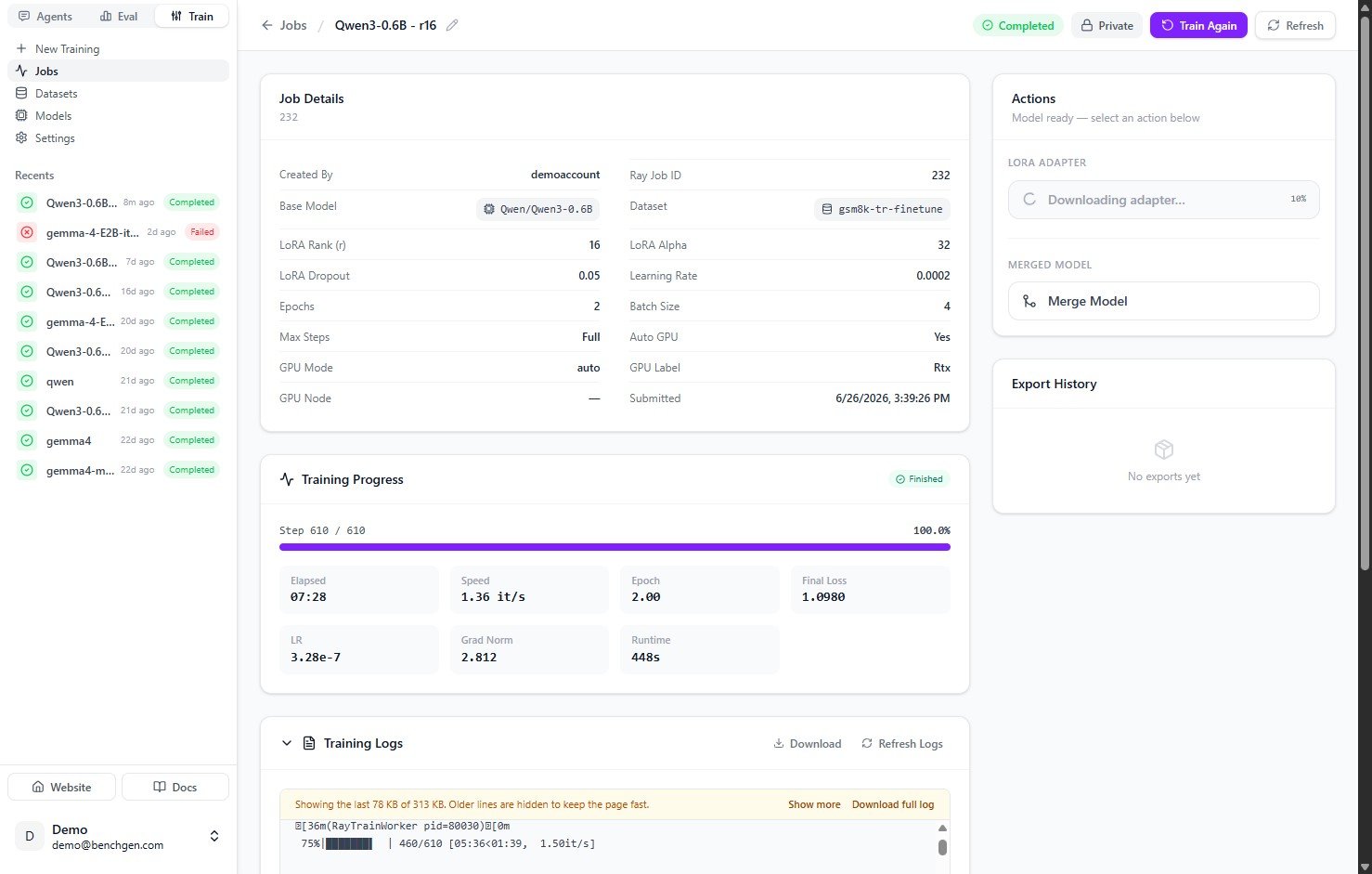
When the run finishes, the status changes to **Completed** and the progress card shows **Finished** with the final loss and runtime. The **Actions** panel unlocks so you can download the adapter or merge and save the model.
### 8. Training completes
When the run finishes, the status changes to **Completed** and the progress card shows **Finished** with the final loss and runtime. The **Actions** panel unlocks so you can download the adapter or merge and save the model.
 ***
## Next Steps
**Training is complete and the adapter is ready.** Merge it into the base model and push it to BenchGen so you can run and evaluate it.
Combine the adapter with the base model and save it to the platform.
Test the adapter in a chat interface before merging.
***
## Next Steps
**Training is complete and the adapter is ready.** Merge it into the base model and push it to BenchGen so you can run and evaluate it.
Combine the adapter with the base model and save it to the platform.
Test the adapter in a chat interface before merging.