> ## Documentation Index
> Fetch the complete documentation index at: https://benchgen.com/docs/llms.txt
> Use this file to discover all available pages before exploring further.
# Merge & Save a Model
> Merge a trained LoRA adapter into its base model and push it to BenchGen so you can run and evaluate it.
A finished training run produces a LoRA adapter, which is a small set of weight deltas. To use the model anywhere on BenchGen, you merge the adapter into its base model to get a standalone checkpoint, then push that checkpoint to the platform. Once saved, the model appears in your **Models** list with a ready inference endpoint.
***
## Two actions after training
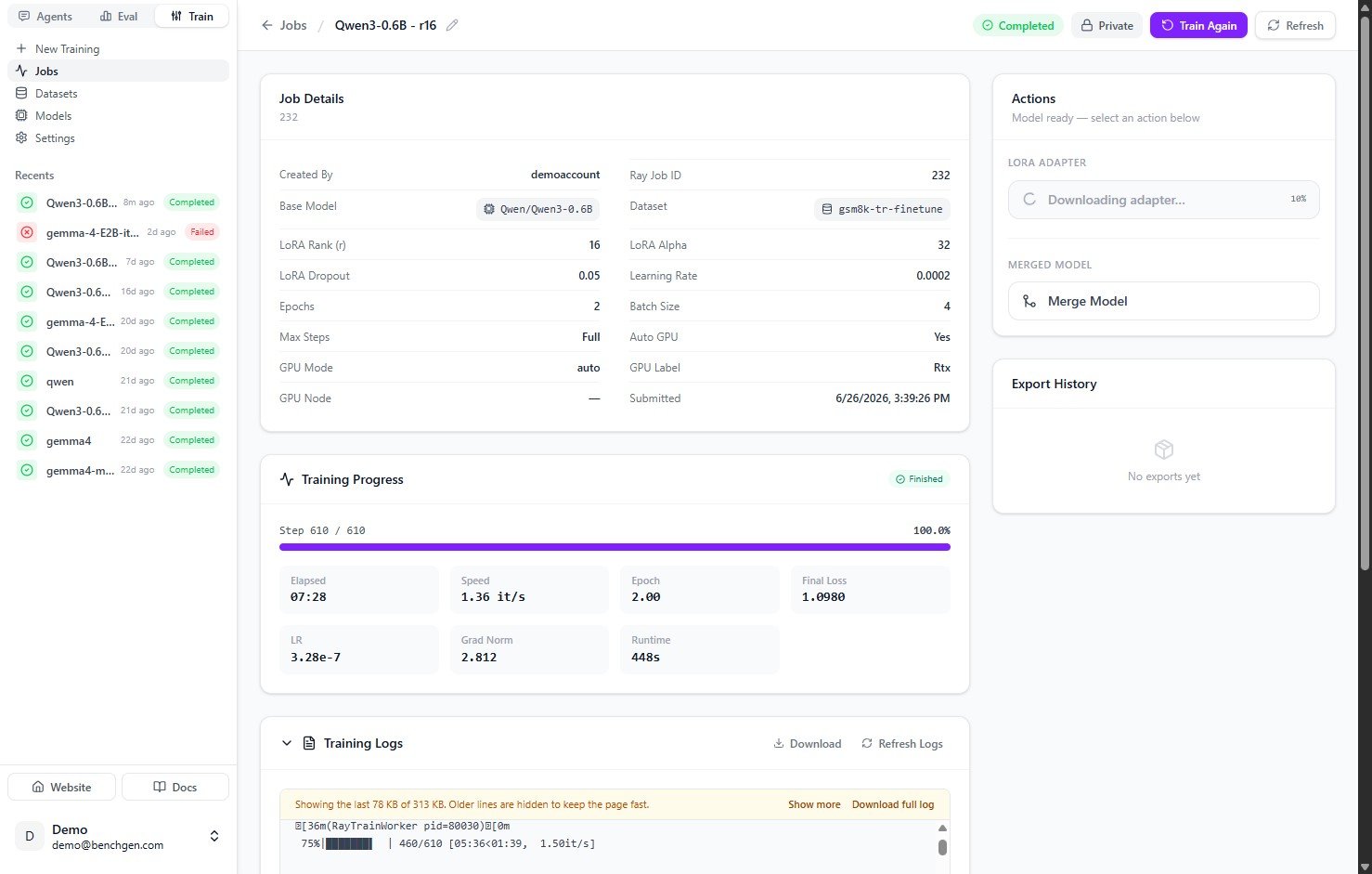
When a run completes, the **Actions** panel offers two things:
| Action | Result |
| --------------------------- | ------------------------------------------------------------------------------------------------ |
| **Download Adapter (.zip)** | The raw LoRA adapter on its own. Use this if you want to keep or apply the adapter yourself. |
| **Merge Model** | Combines the adapter with the base model into a full checkpoint you can save, run, and evaluate. |
You don't have to merge just to test the model. Train can run inference against the adapter directly. See [Run inference](/train/run-inference).
***
## Steps
### 1. Open the completed run
Go to **Train → Jobs** and open the completed job. The **Actions** panel reads "Model ready — select an action below".
 ### 2. Merge the adapter
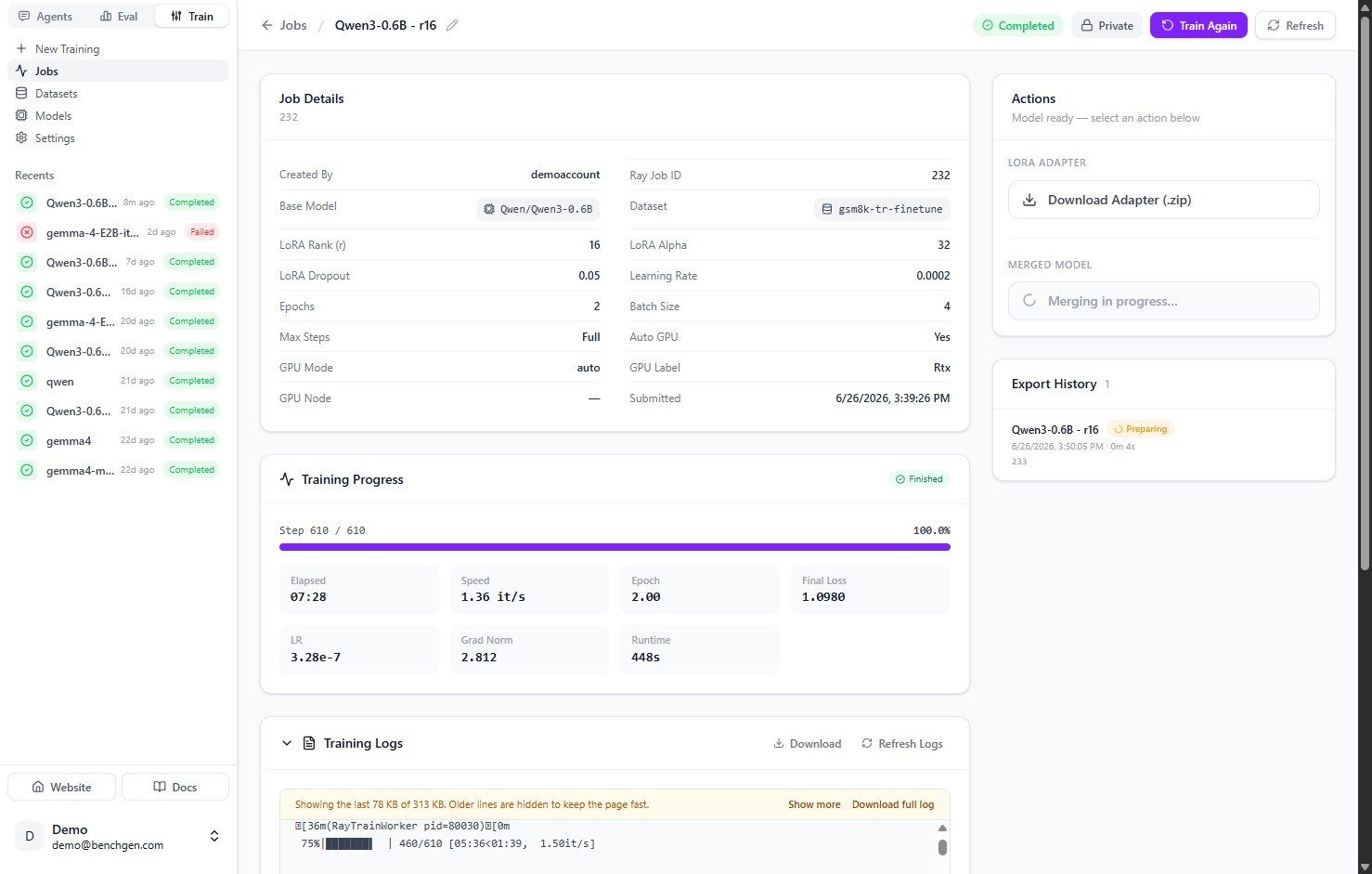
Under **Merged Model**, click **Merge Model**. Merging starts, the panel shows "Merging in progress…", and a new entry appears in **Export History** with a **Preparing** badge. This usually takes a couple of minutes.
### 2. Merge the adapter
Under **Merged Model**, click **Merge Model**. Merging starts, the panel shows "Merging in progress…", and a new entry appears in **Export History** with a **Preparing** badge. This usually takes a couple of minutes.
 ### 3. Name the model
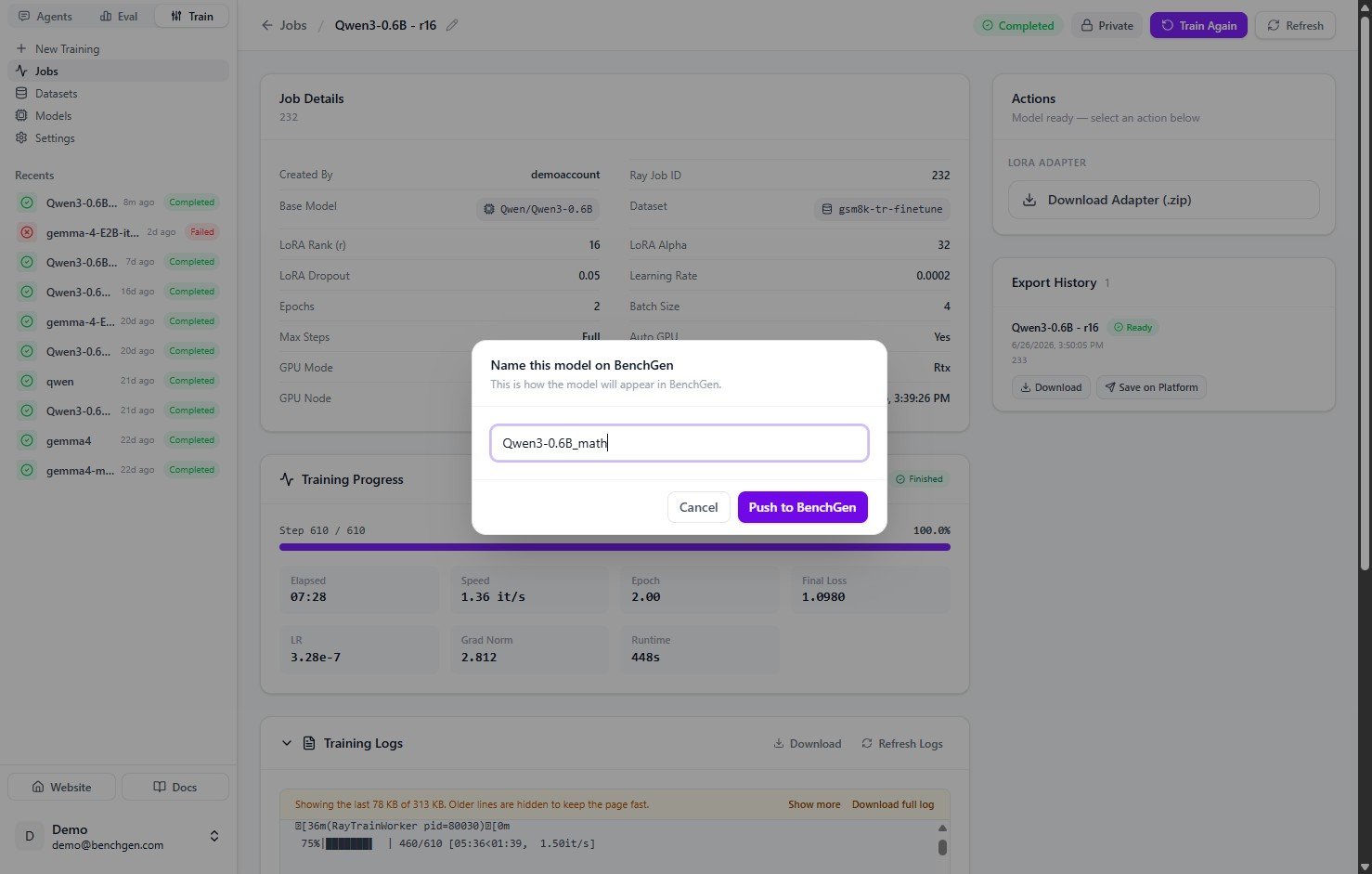
When the merge is ready, click **Save on Platform** on the Export History entry. In the **Name this model on BenchGen** dialog, enter the name the model will appear under (for example `Qwen3-0.6B_math`), then click **Push to BenchGen**.
### 3. Name the model
When the merge is ready, click **Save on Platform** on the Export History entry. In the **Name this model on BenchGen** dialog, enter the name the model will appear under (for example `Qwen3-0.6B_math`), then click **Push to BenchGen**.
 ### 4. Confirm it's saved
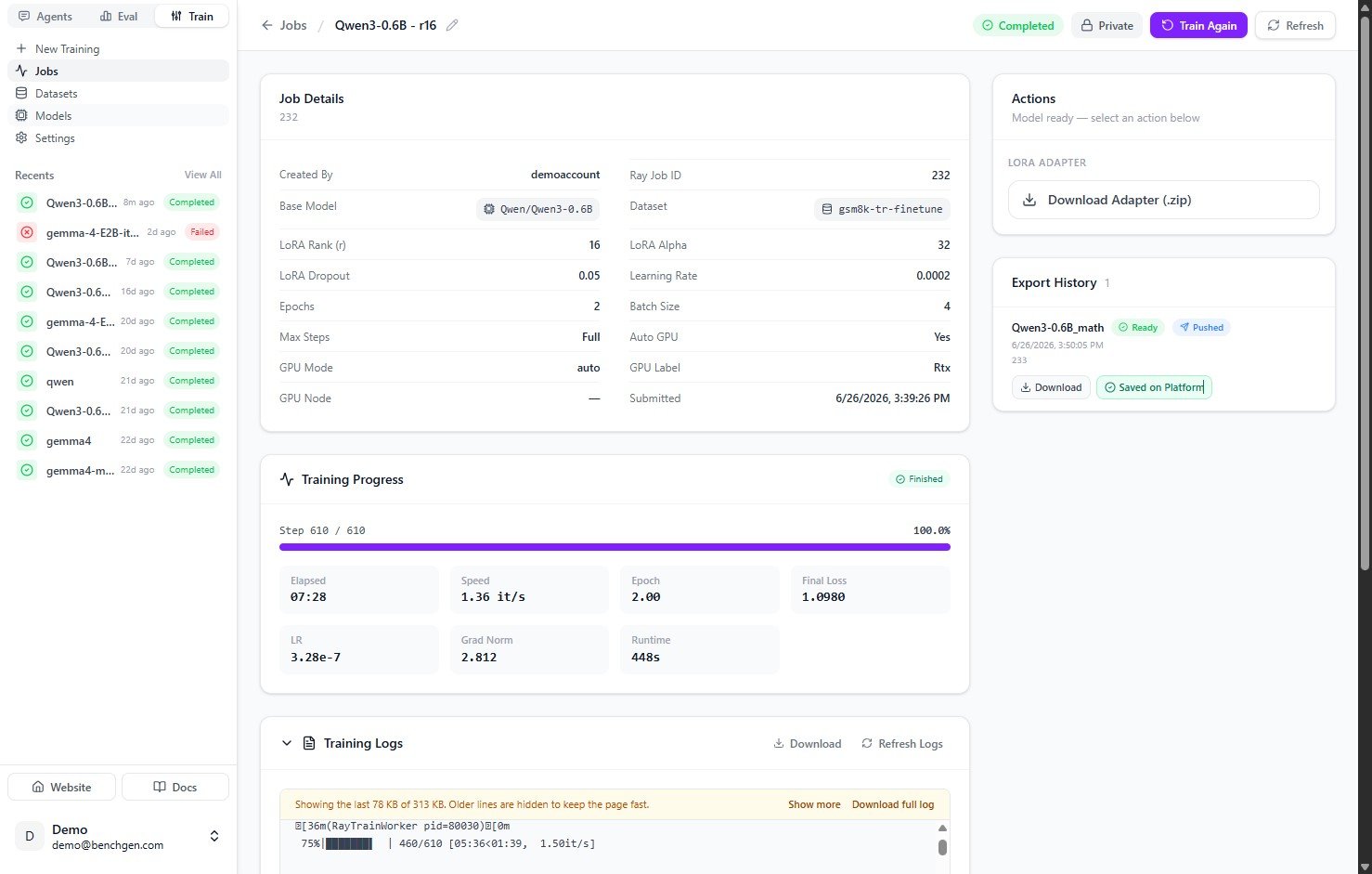
The Export History entry updates to **Ready** and **Pushed**, with a **Saved on Platform** check. You can also **Download** the merged checkpoint from here.
### 4. Confirm it's saved
The Export History entry updates to **Ready** and **Pushed**, with a **Saved on Platform** check. You can also **Download** the merged checkpoint from here.
 ### 5. Use the model
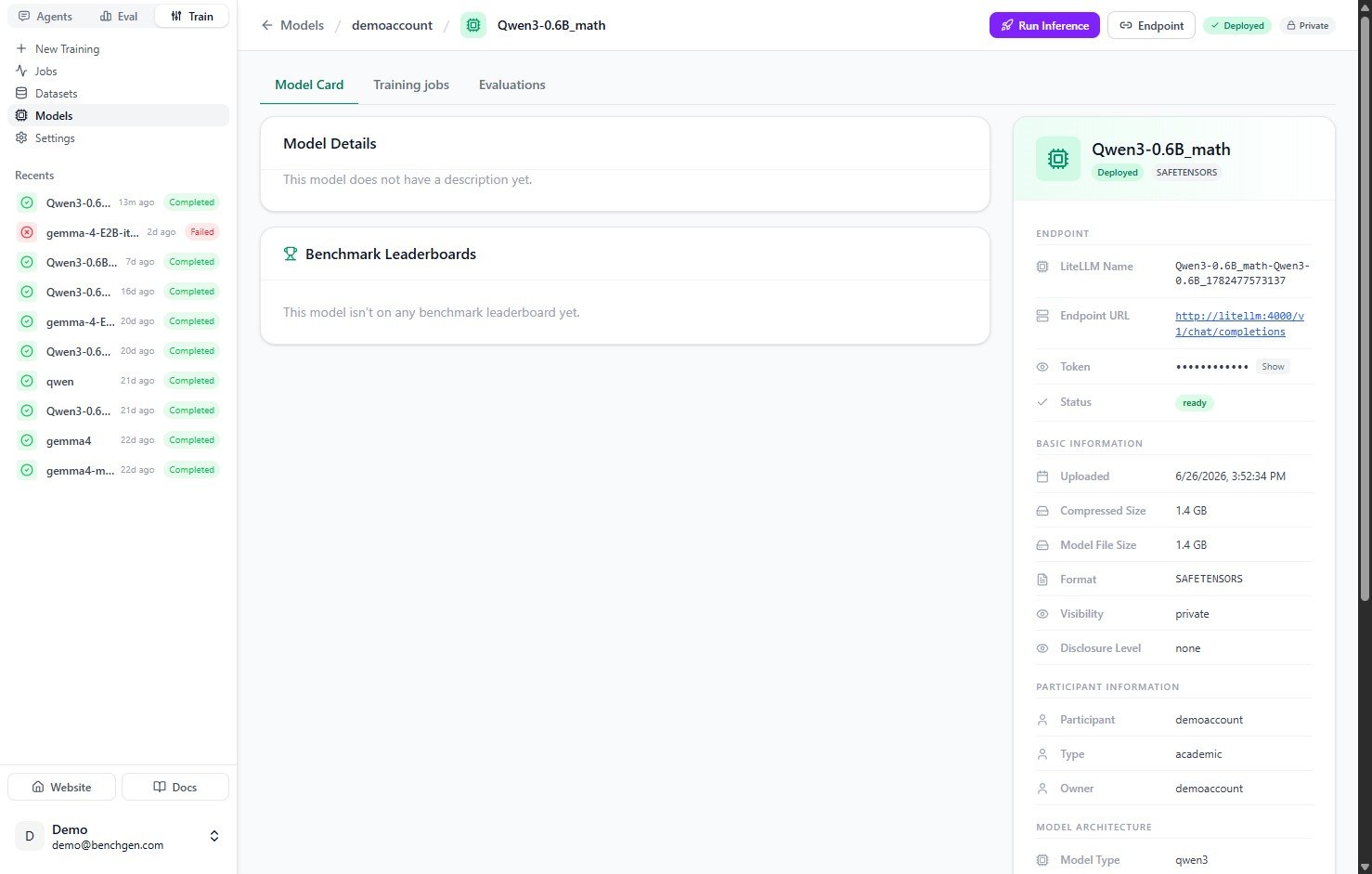
The saved model now appears in **Models** as a deployed, ready endpoint. Open it to **Run Inference** or evaluate it. Its endpoint panel shows the **LiteLLM Name**, **Endpoint URL**, access **Token**, and a `SAFETENSORS` format.
### 5. Use the model
The saved model now appears in **Models** as a deployed, ready endpoint. Open it to **Run Inference** or evaluate it. Its endpoint panel shows the **LiteLLM Name**, **Endpoint URL**, access **Token**, and a `SAFETENSORS` format.
 ***
## Next Steps
**Your model is saved on BenchGen and ready to use.** Head over to Eval to serve it as a live endpoint, then benchmark it against an environment.
Spin up a live, OpenAI-compatible endpoint for your saved model.
Benchmark the running model against an environment and read the scores.
***
## Next Steps
**Your model is saved on BenchGen and ready to use.** Head over to Eval to serve it as a live endpoint, then benchmark it against an environment.
Spin up a live, OpenAI-compatible endpoint for your saved model.
Benchmark the running model against an environment and read the scores.