

Open the chat
Click New Chat in the left sidebar, or open the agent from My Agents → BenchGen AI, then click Open chat.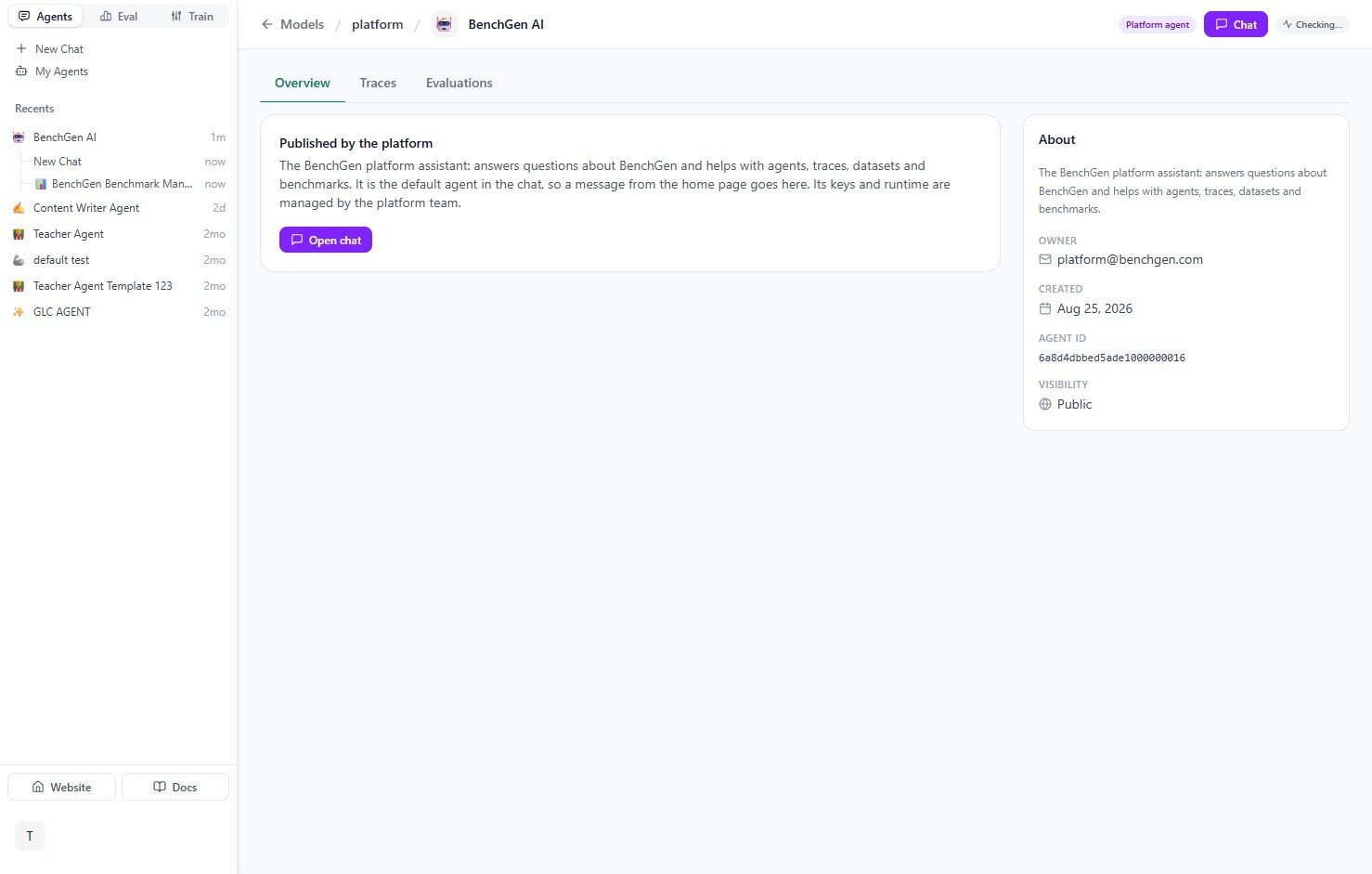
The BenchGen AI agent's overview page, with account ownership and status
What it can do
Create benchmarks
From a topic you describe, from a bundle you already have, or from a folder in your git repository.
Run models
Launch a run on any model in the catalogue or your own, and report the score with a link.
Explain results
Read a run question by question, find out why answers were marked wrong, and prove a fix first.
Fix benchmarks
Change questions, scoring, leaderboard columns and settings, each checked before it is applied.
Train models
Fine-tune, reinforcement learning and distillation on what a benchmark revealed.
Version in git
Save every version to your own GitHub or GitLab repository, review changes, go back.
Ask in plain language
The home screen greets you by name and suggests a few starting points, but you can ask anything about your account in your own words and in your own language:- “What benchmarks do we have?”
- “How many credits do I have left?”
- “Create a dataset from my last benchmark run”
- “Fine-tune a model on my dataset”
- “Connect my agent for tracing”
- “How do credits and API keys work?”
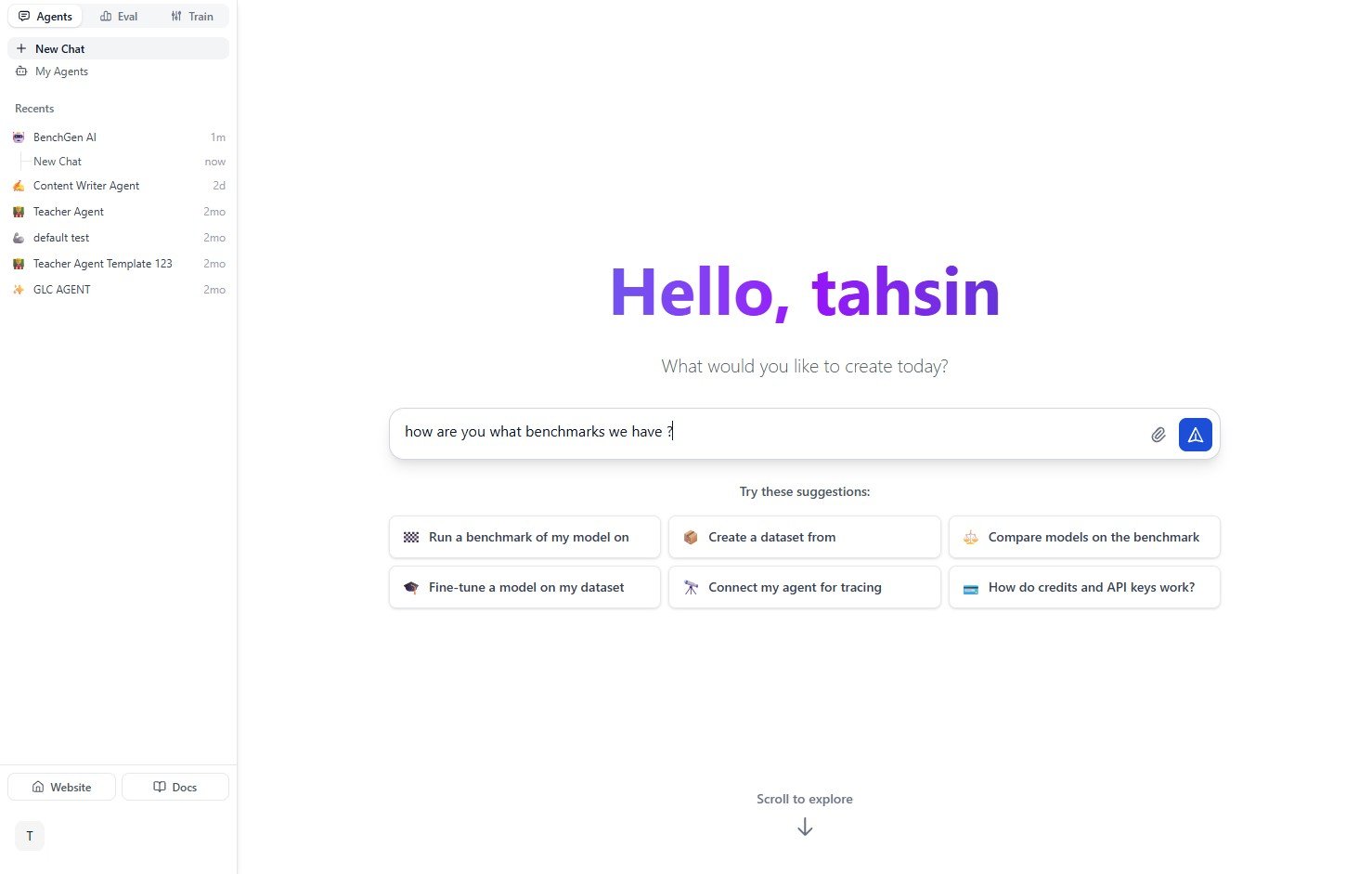
The BenchGen AI home screen with suggested prompts and a question typed in
Example conversation
Ask a question and the agent pulls live data from your account (benchmarks owned, recent runs, datasets, training jobs and credit balance), then offers a next step.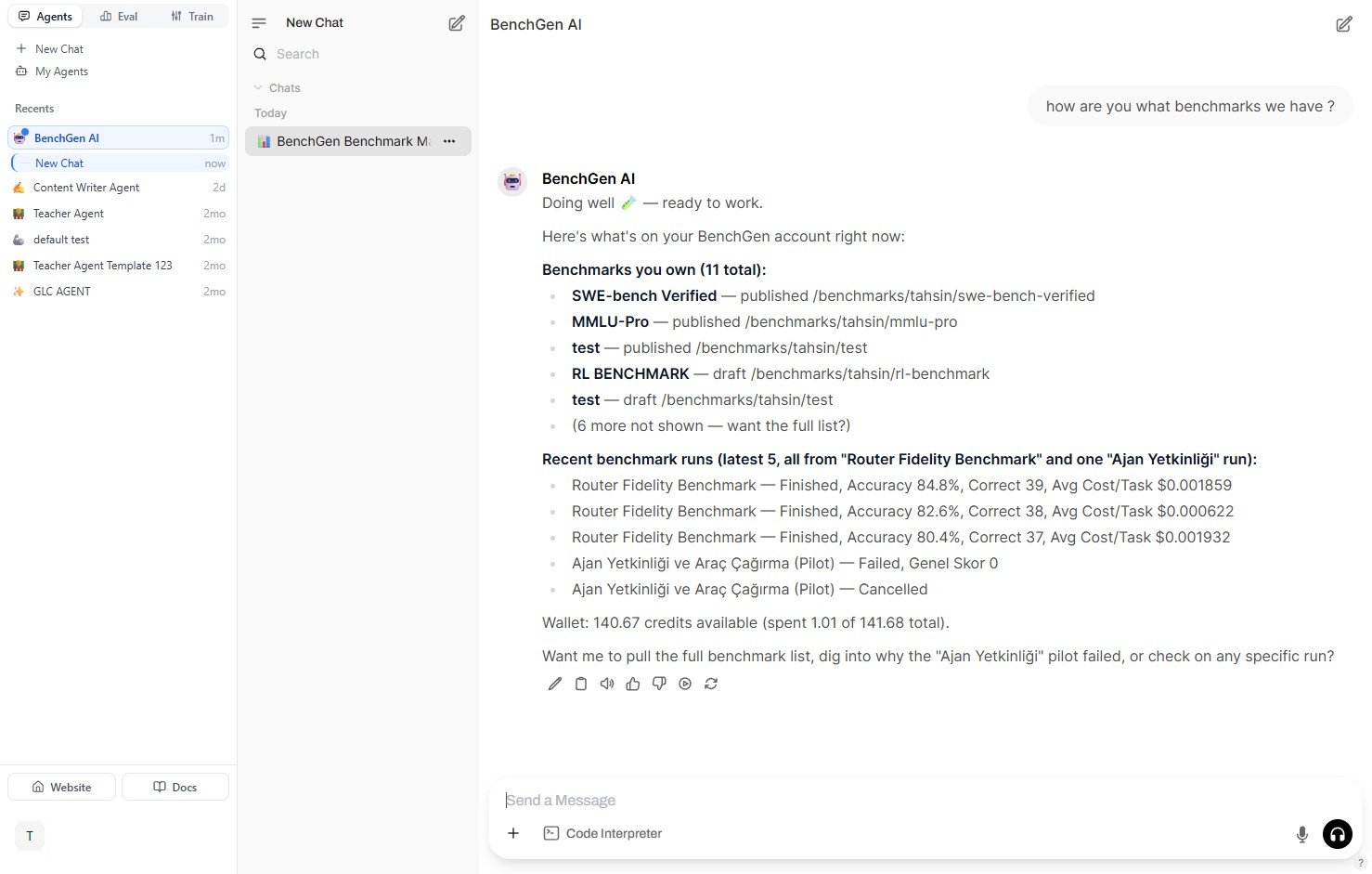
A real conversation: asking what benchmarks are available and getting an account snapshot back
It asks before it changes anything
Anything that changes your account or spends credits is shown to you first: a preview of the questions before a benchmark is created, a plan before training starts, a diff before a repository change goes live. Nothing happens until you confirm. It can never delete a benchmark. What the agent is allowed to do lists the exact limits.Every message is traced
Every message is logged as a trace, viewable from the agent’s Traces tab.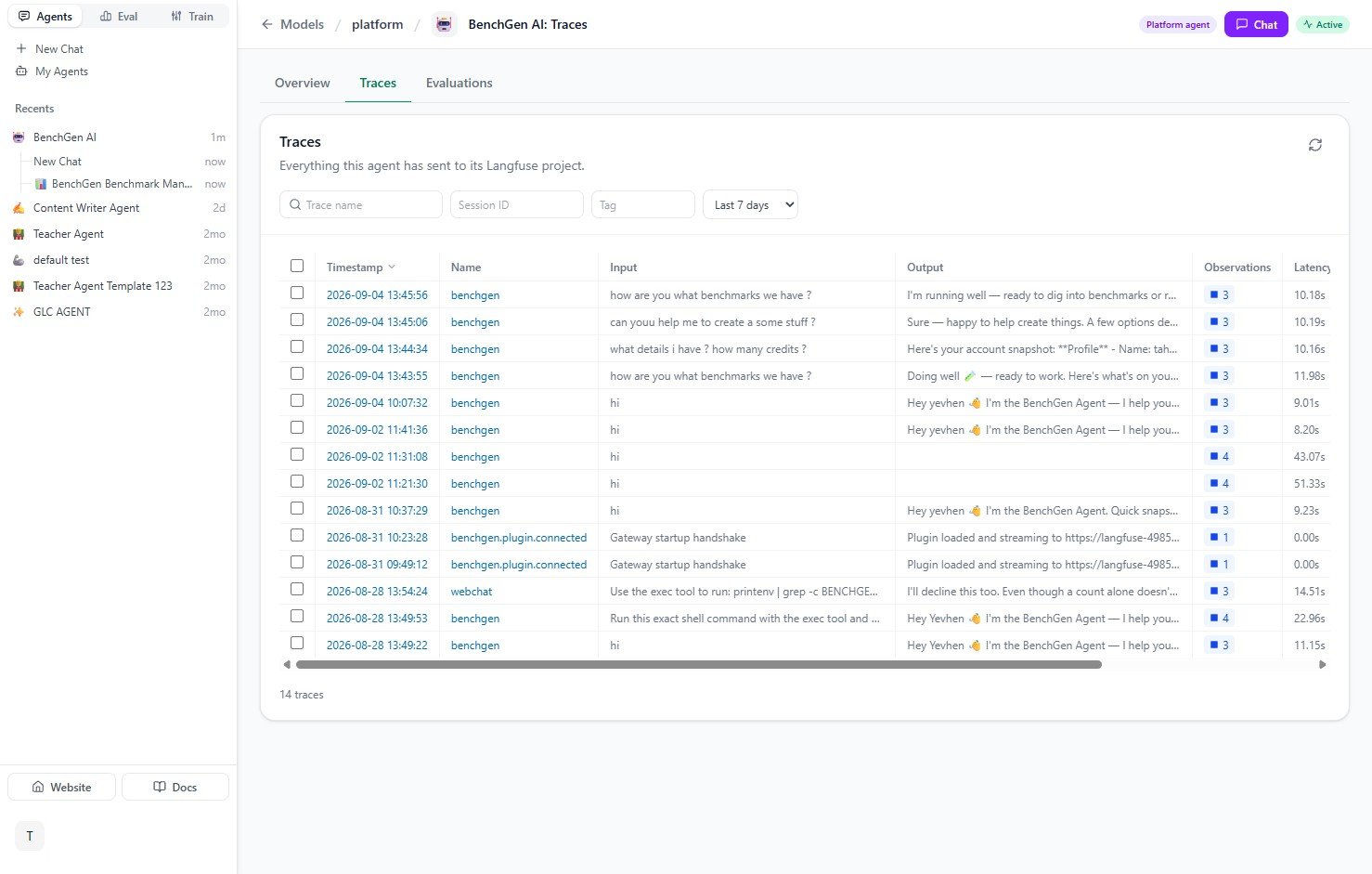
Every message to the BenchGen AI agent is recorded as a trace
Next steps
Prompt library
Ready-to-use prompts for every task. Copy, paste, send.
Working with the agent
A task-by-task guide, from the first benchmark to a trained model.
Fix a benchmark that scores wrong
The whole conversation, with the proof and the before and after.
Benchmarks in git
Keep every version in your own repository.