

Prerequisites
- A base model to fine-tune. You can pick one from your workspace, the public library, the platform, or HuggingFace.
- A training dataset. See Add a dataset, or pick one from the library or HuggingFace.
Steps
1. Start a new training run
In the Train tab, click Jobs in the left sidebar to see your Training Jobs, with totals for running, completed, stopped, and failed runs. Click + New Training in the top right.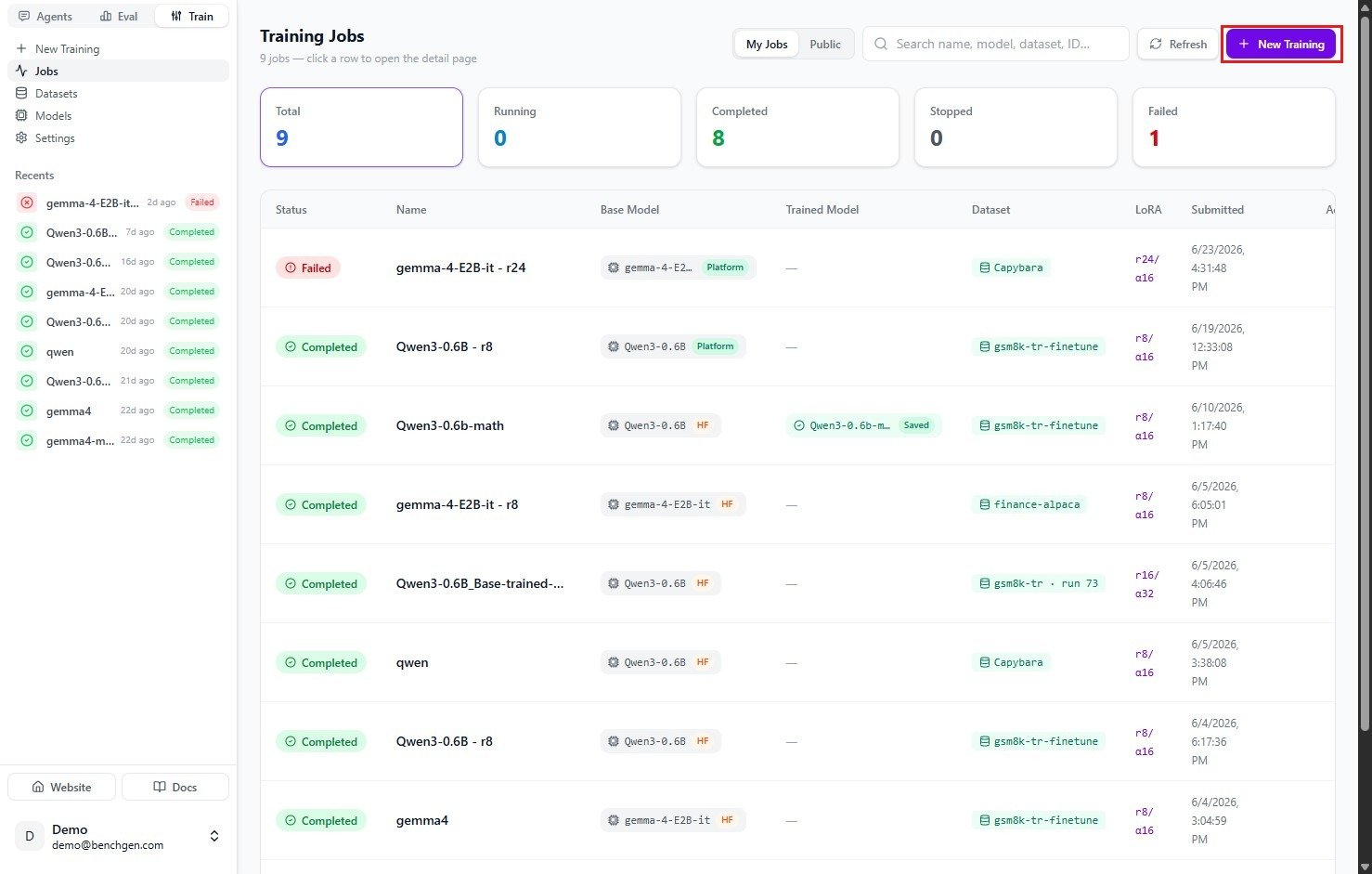
The Training Jobs list with the New Training button
2. Name the run and pick a base model
Give the run a Training Name. This name is saved to the Knowledge API and reused as the default when you push the merged model to BenchGen later. Open the Base Model dropdown and choose a source: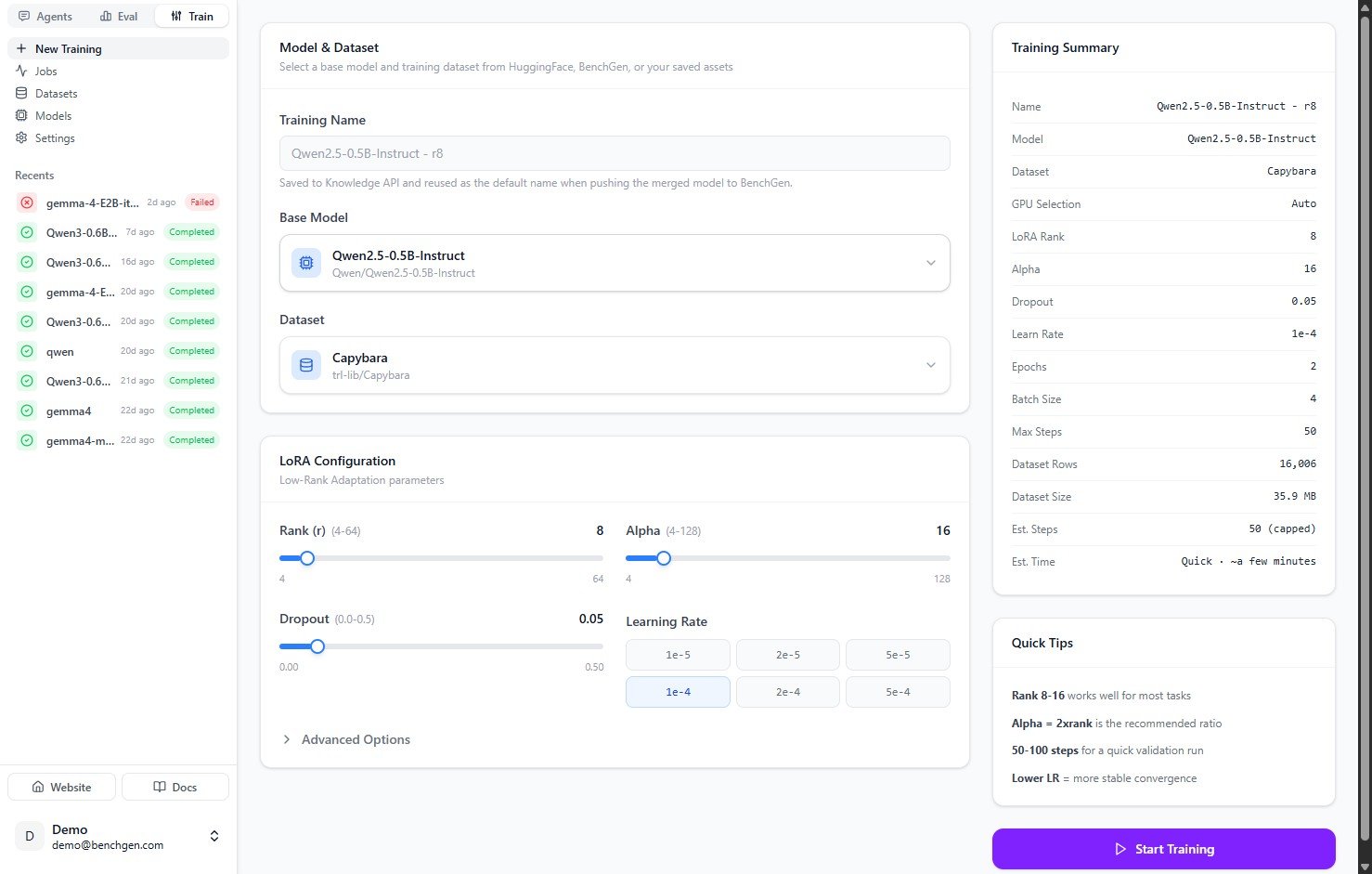
The New Training form with the base model, dataset, and LoRA configuration
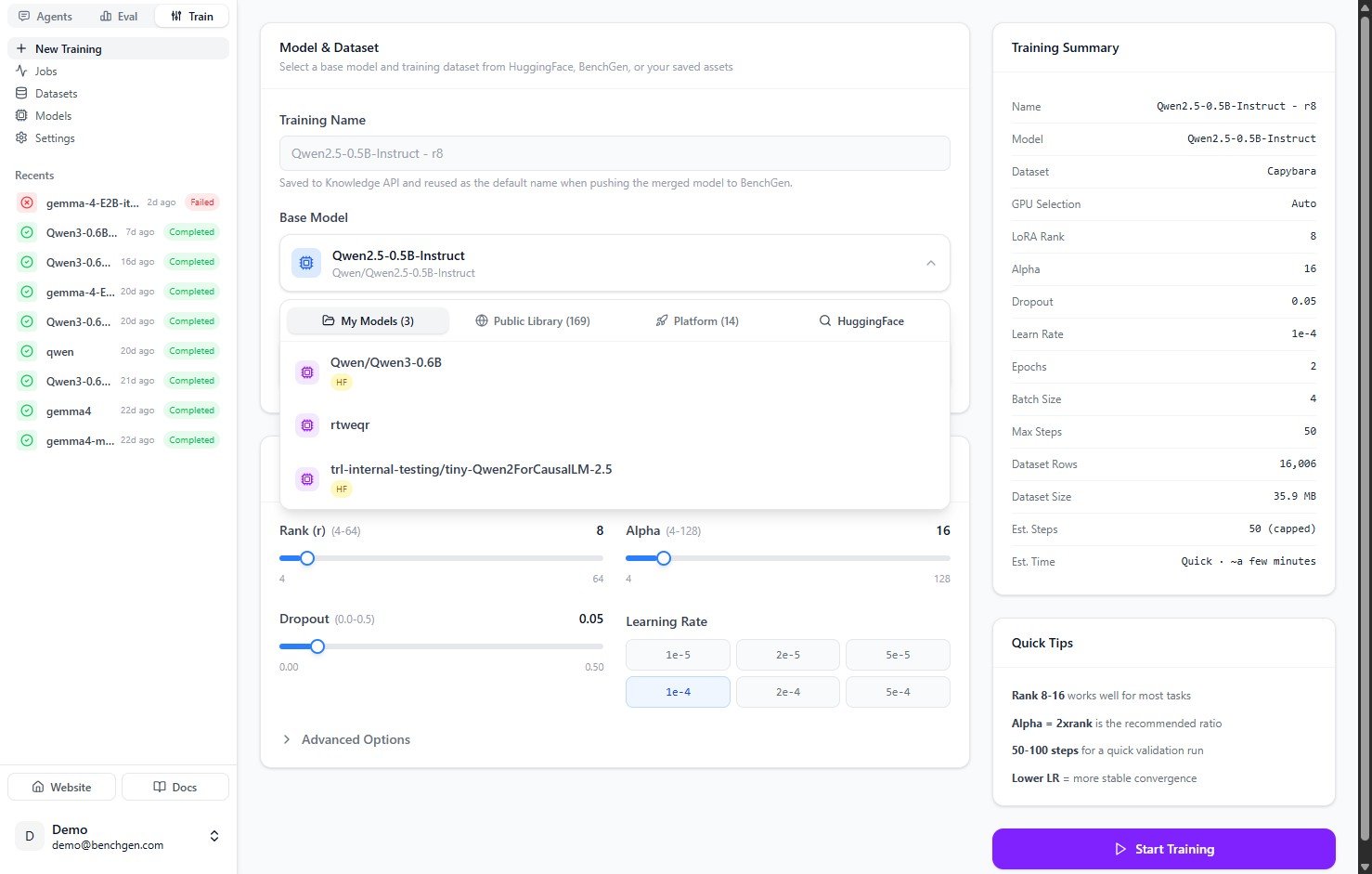
The base model dropdown showing the four sources
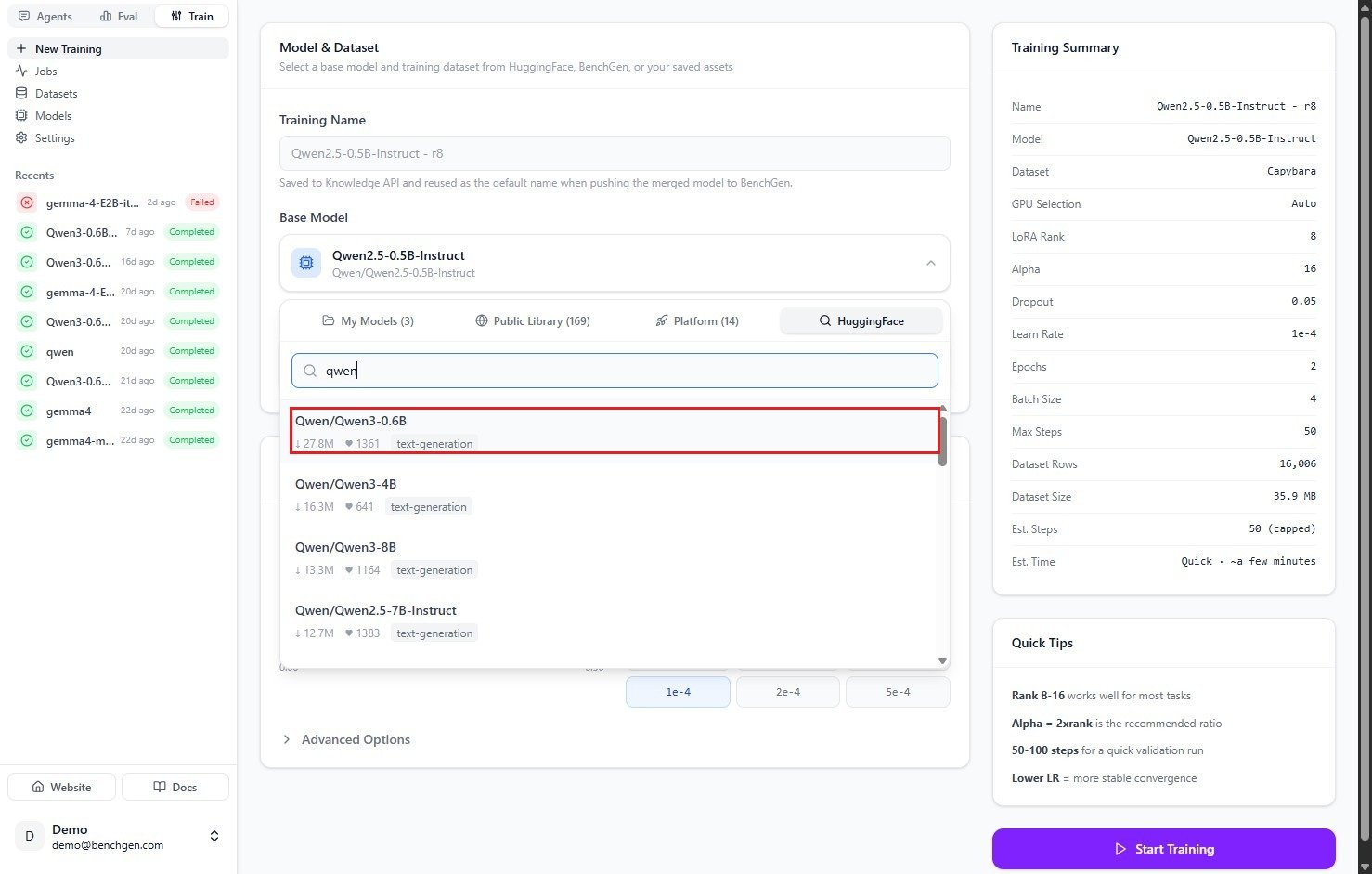
Searching HuggingFace for a base model, the first result outlined as the one to click
3. Choose a dataset
Open the Dataset dropdown and pick from My Datasets, Public Library, Fine-tune Datasets (datasets exported from Eval runs), or HuggingFace.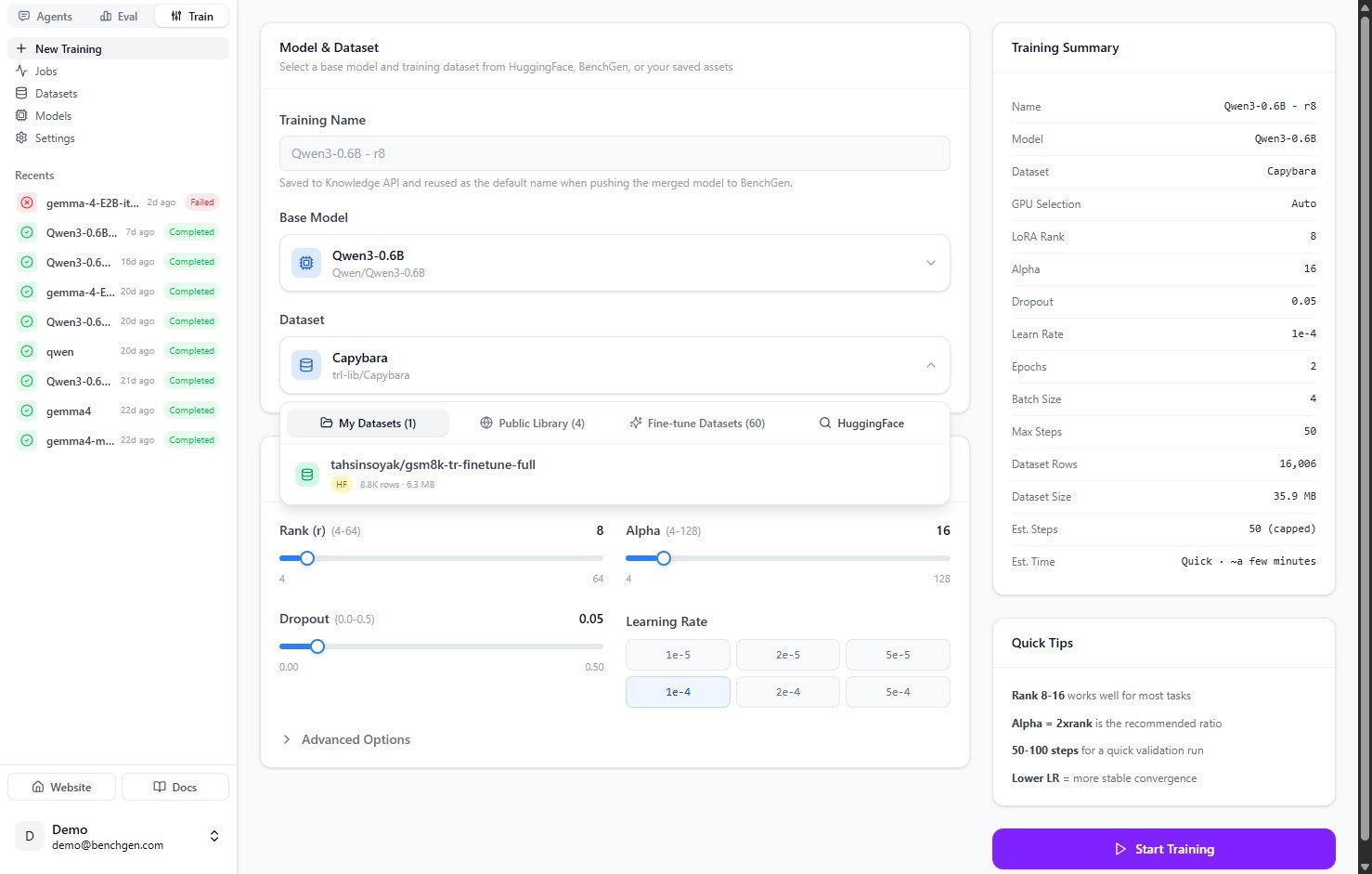
The dataset dropdown showing the available sources
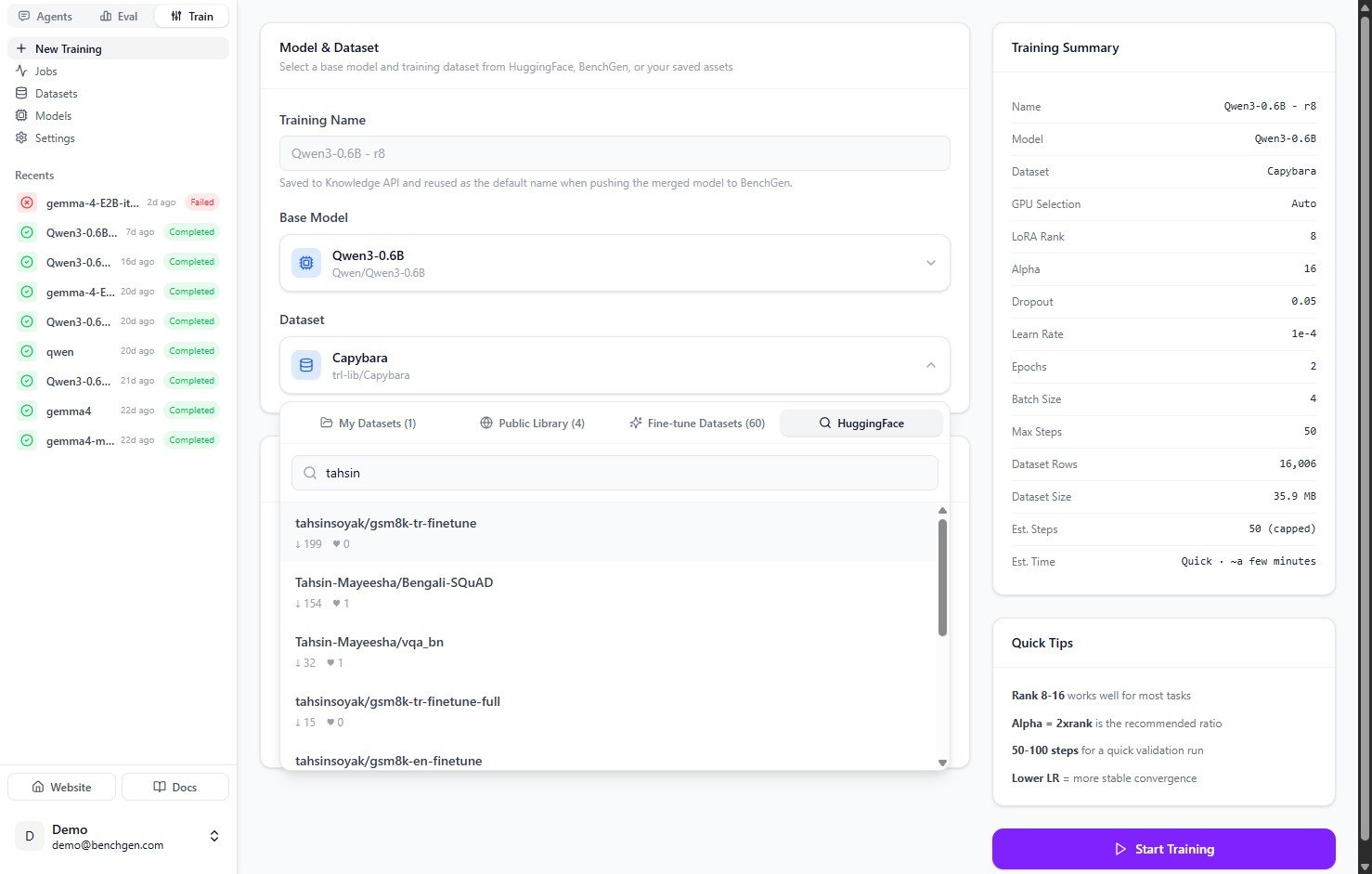
Searching HuggingFace for a dataset
4. Configure the LoRA parameters
5. (Optional) Adjust advanced options
Expand Advanced Options for finer control:
The Training Summary panel on the right updates as you change settings. It shows the estimated steps and time, so capping at 50 steps reads as a quick run, while Full estimates a longer one.
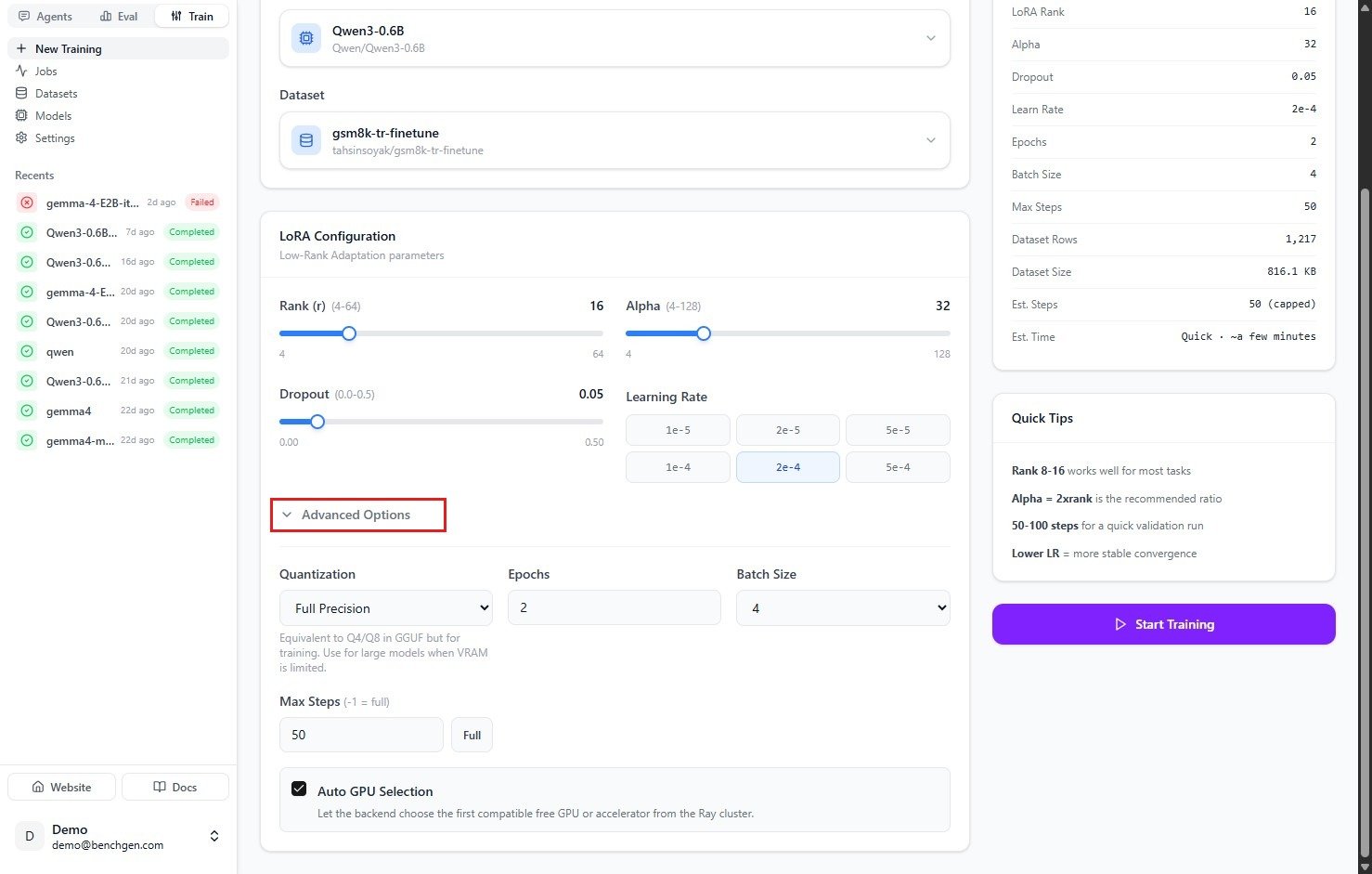
Advanced options expanded, with quantization, epochs, batch size, and max steps
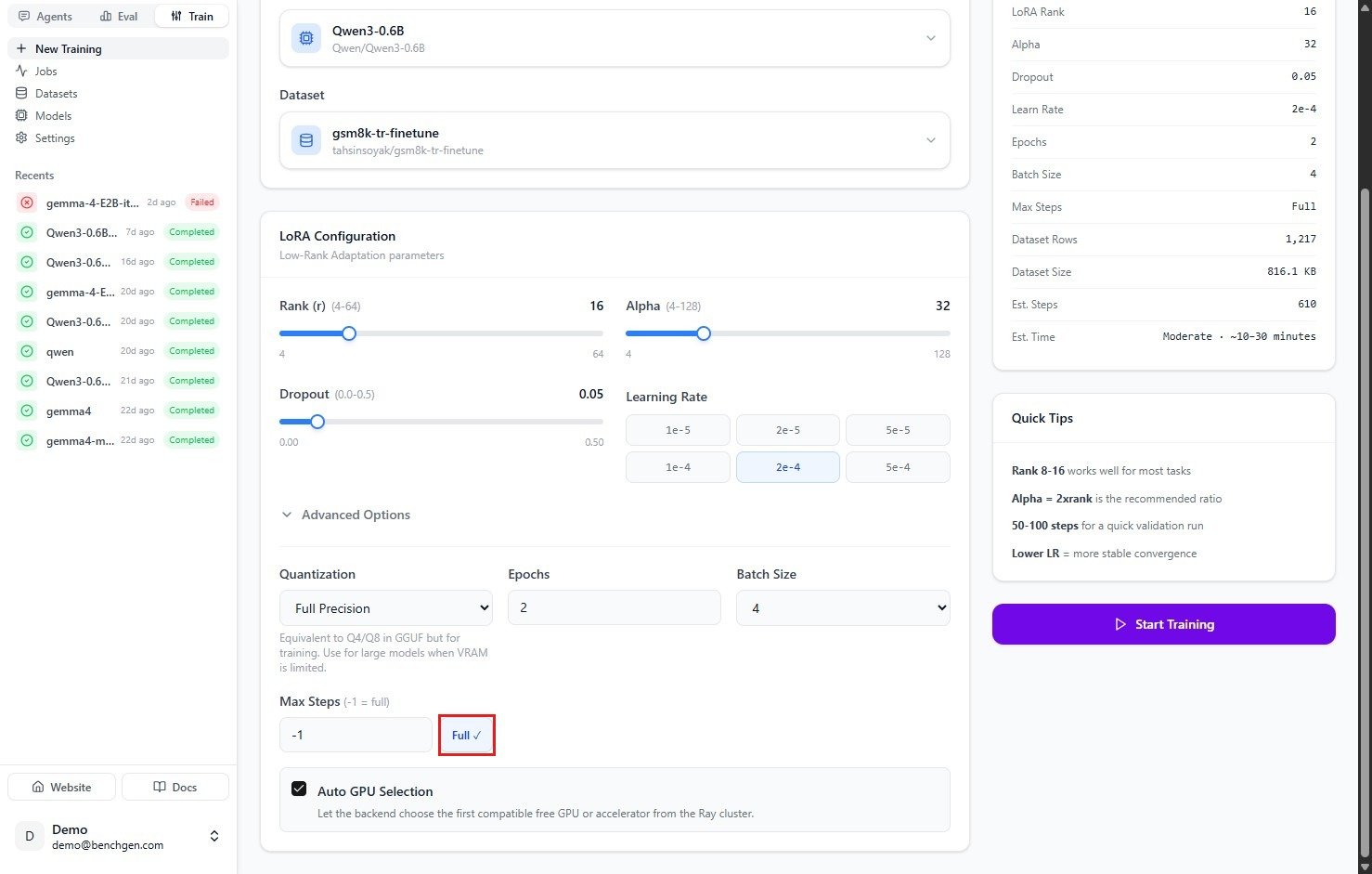
Max Steps set to Full, with the summary showing the longer estimate
6. Start training
Click Start Training. The job opens to its detail page with a status of Training.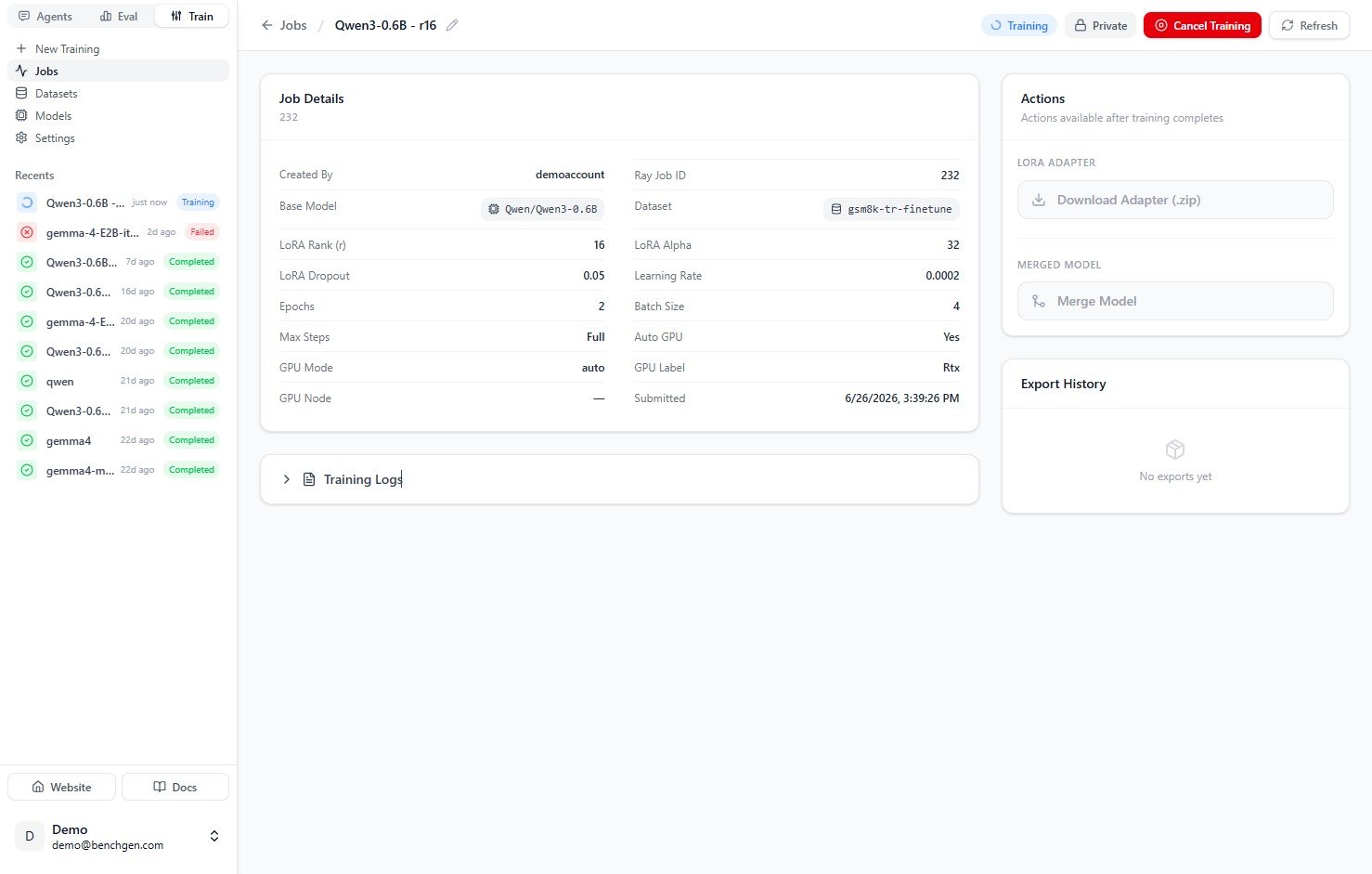
The job detail page just after training starts
7. Monitor progress
The Training Progress card streams the current step and percent complete, along with elapsed time, ETA, speed (it/s), epoch, loss, learning rate, and gradient norm. Expand Training Logs for the raw output, or click Cancel Training if you need to stop early.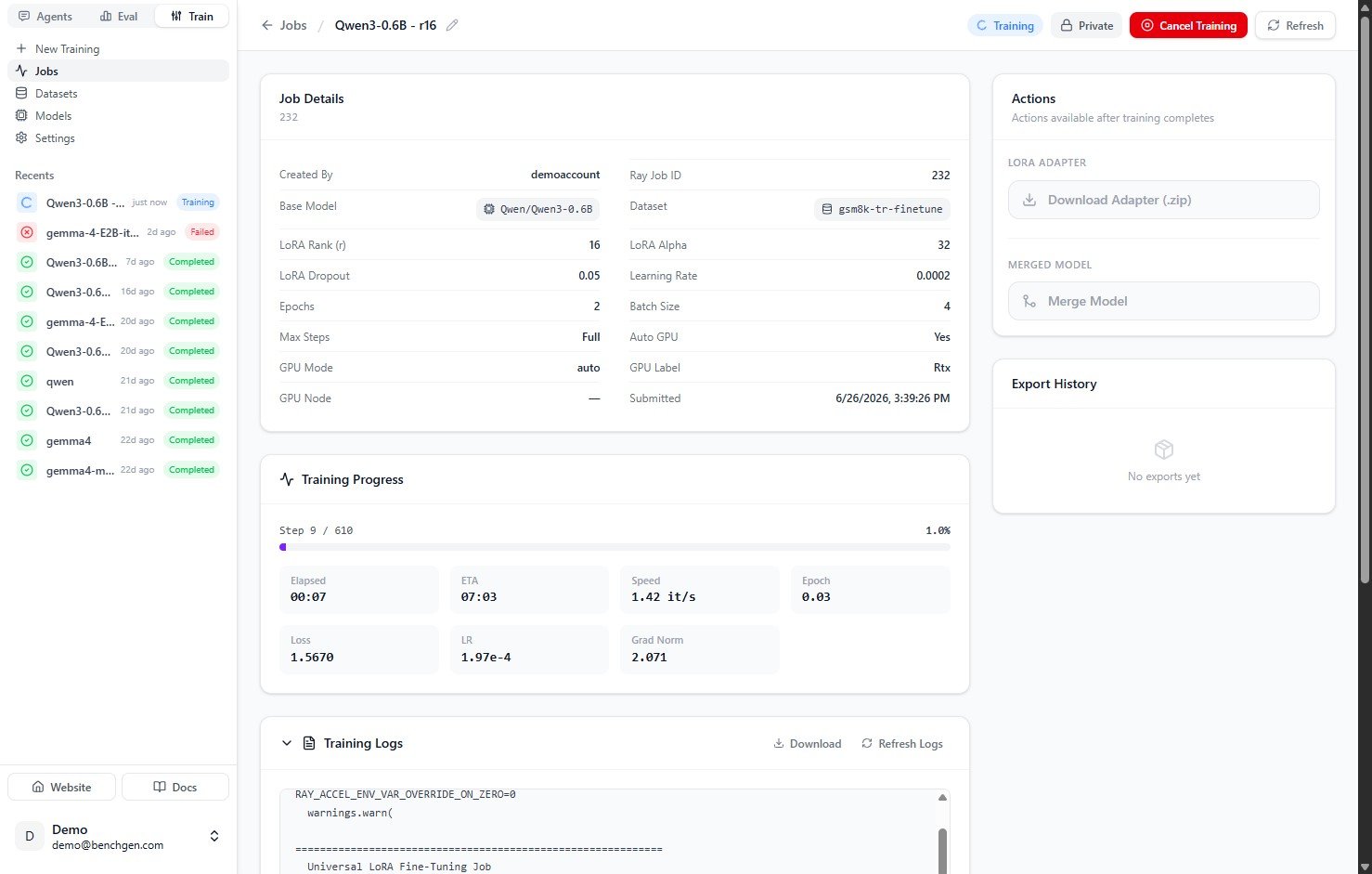
Training in progress with live metrics
8. Training completes
When the run finishes, the status changes to Completed and the progress card shows Finished with the final loss and runtime. The Actions panel unlocks so you can download the adapter or merge and save the model.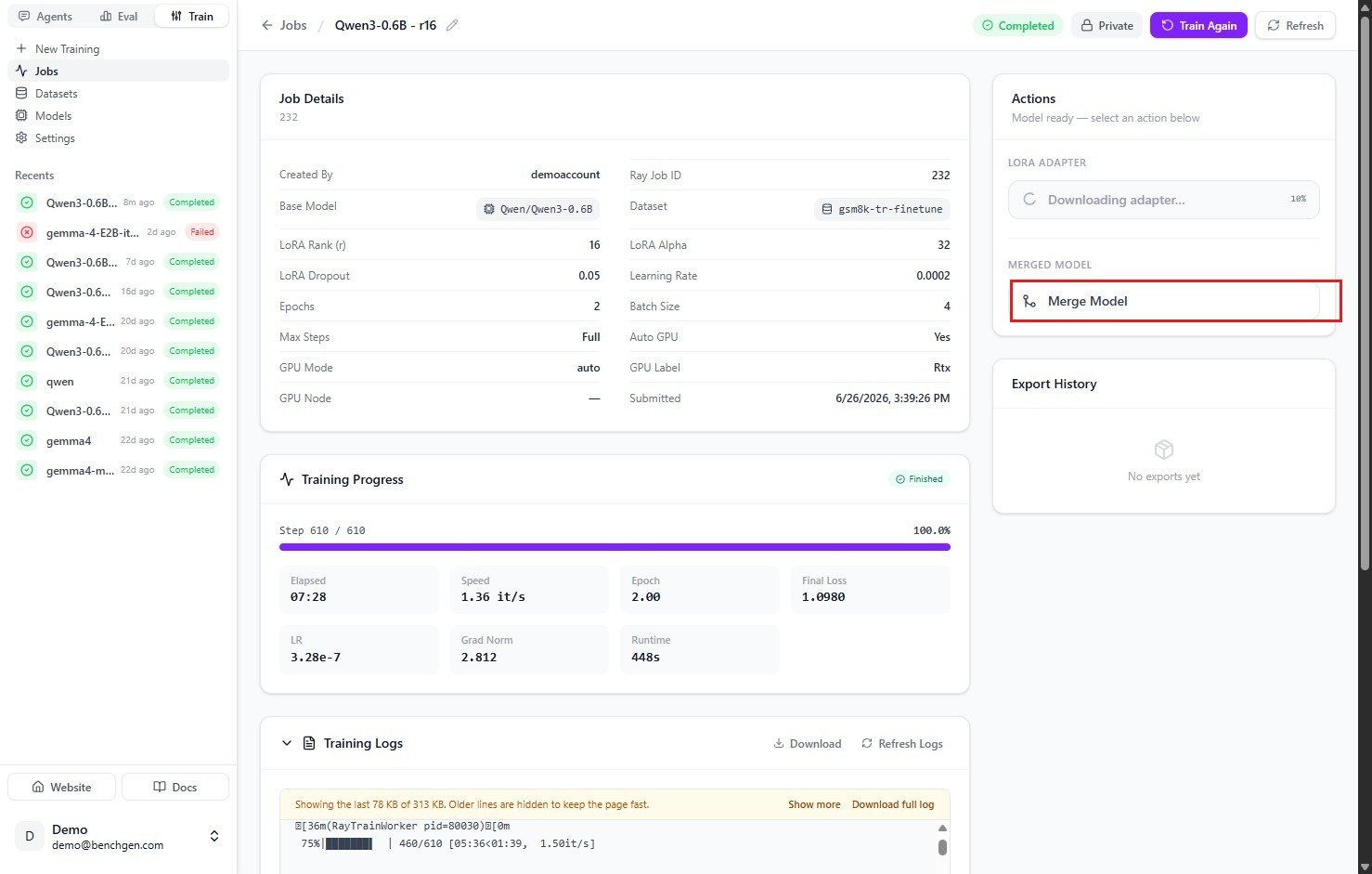
A completed training run with the Actions panel unlocked, Merge Model outlined
Other training approaches
Supervised (SFT) is one of three Training Methods on the New Training form:Head trains a lightweight agent-selection head instead of a language model: it picks the best agent for a query from past scores, without generating text and without a GPU by default. It doesn’t have its own page yet, look for it in a future update.
Next Steps
Training is complete and the adapter is ready. Merge it into the base model and push it to BenchGen so you can run and evaluate it.
Merge & save the model
Combine the adapter with the base model and save it to the platform.
Run inference
Test the adapter in a chat interface before merging.