

Two ways to add a model
Steps
1. Open the Models page and click Add Model
In the Eval tab, click Models in the left sidebar, then click + Add Model in the top right of the AI Models page.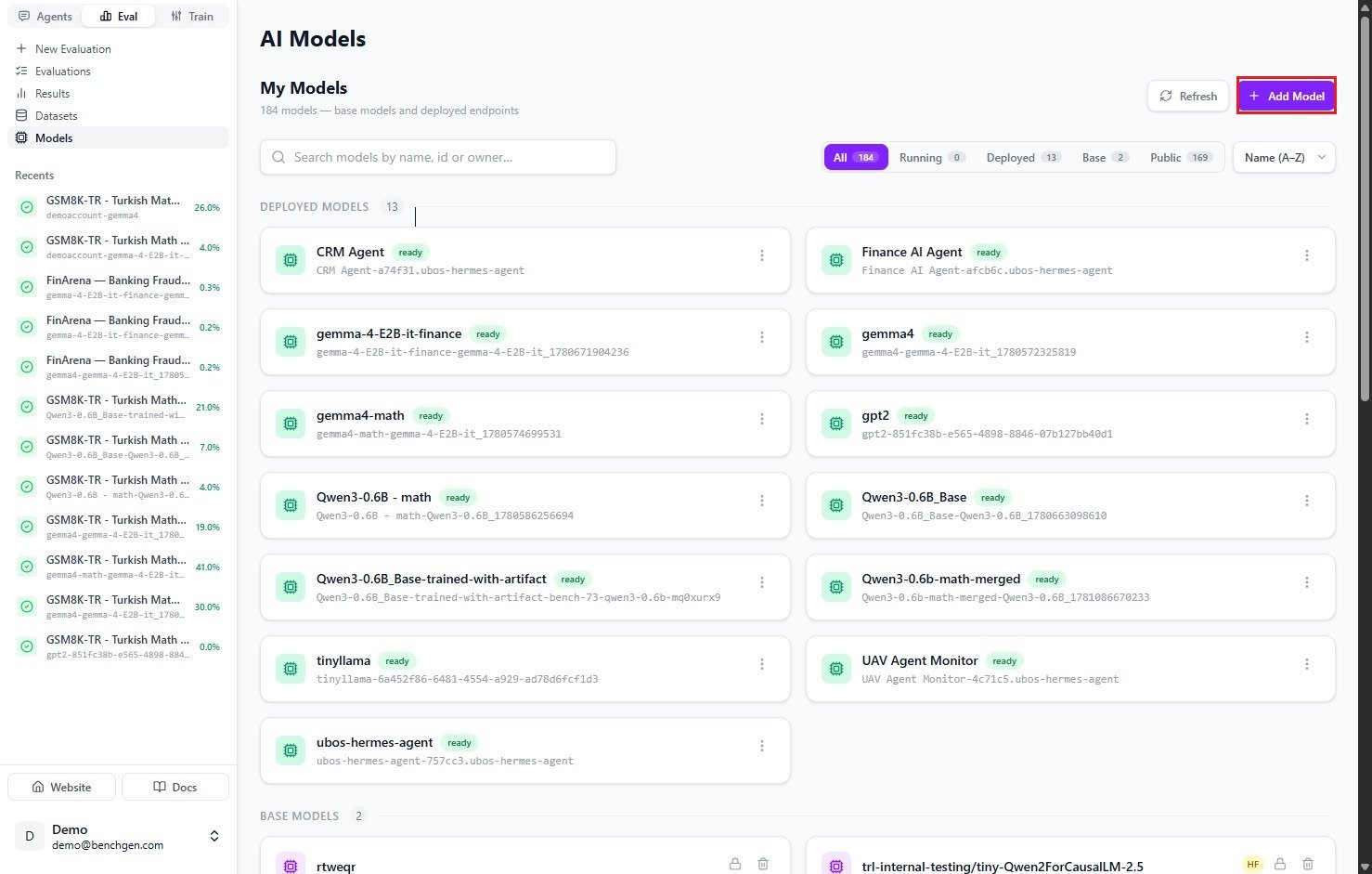
The AI Models page with the Add Model button in the top right
2. Enter the basic details
The Add Model panel slides in. Give the model a name (for examplemyqwen3-0.6b-model) and, optionally, a short description. You can edit the description later, so it’s fine to leave it blank for now.
Click Add Model to continue. You’ll choose where the weights come from on the next step.
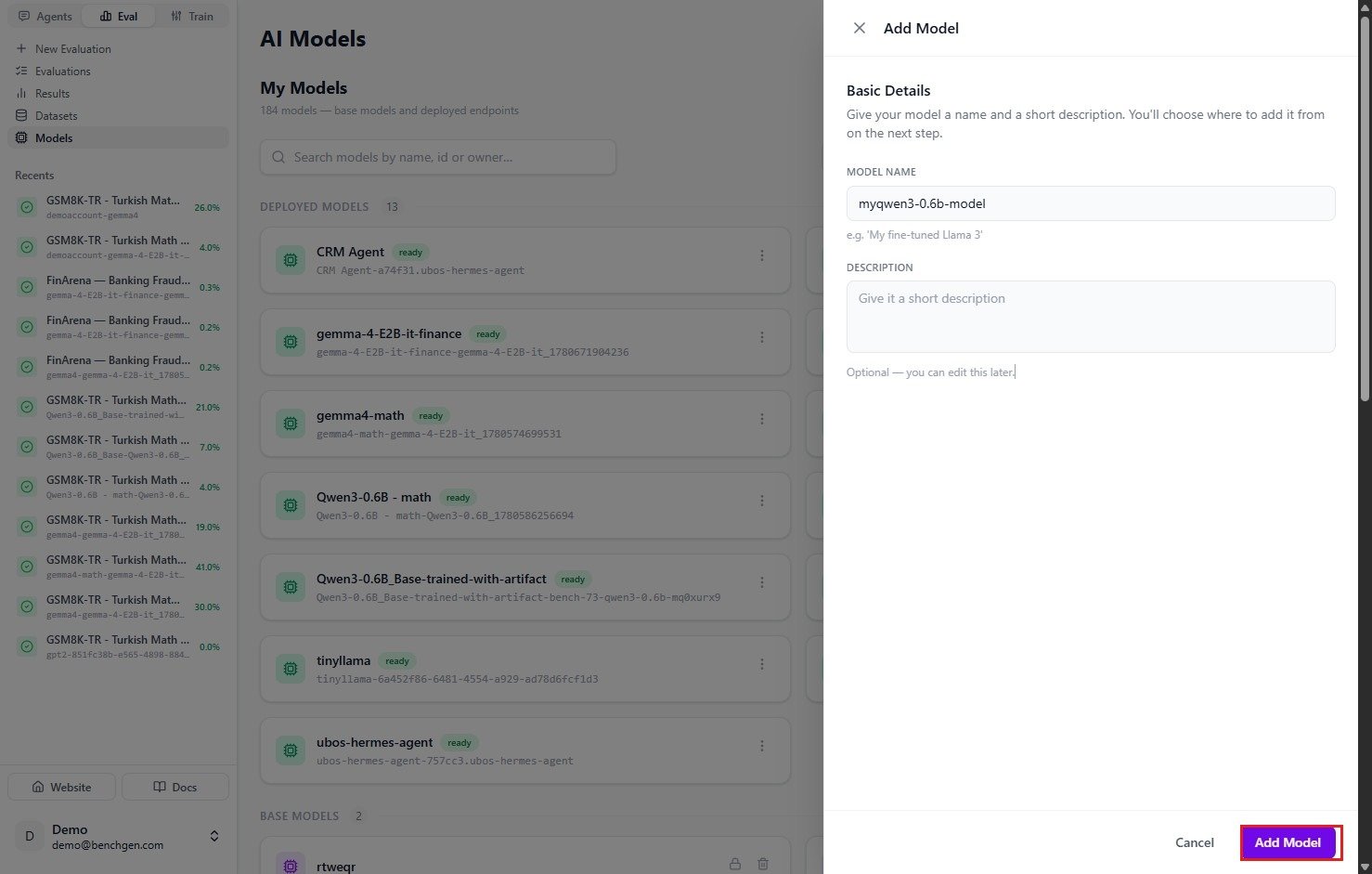
The Add Model panel with the model name and description fields
3. Choose where the model comes from
The model is created in a Draft state and opens to its model card. The Add Model card prompts you to choose a source. Pick one of the two tabs.Option A — Upload a file
On the File tab, drag and drop a model archive onto the upload area, or click Browse Files to pick it. The archive should be a.zip containing config.json and the model weights.
Once the file is attached, click Add model.
For exactly what has to be inside that
.zip (required files, supported weight formats, and which HuggingFace models can and can’t be fine-tuned), see Upload a Model.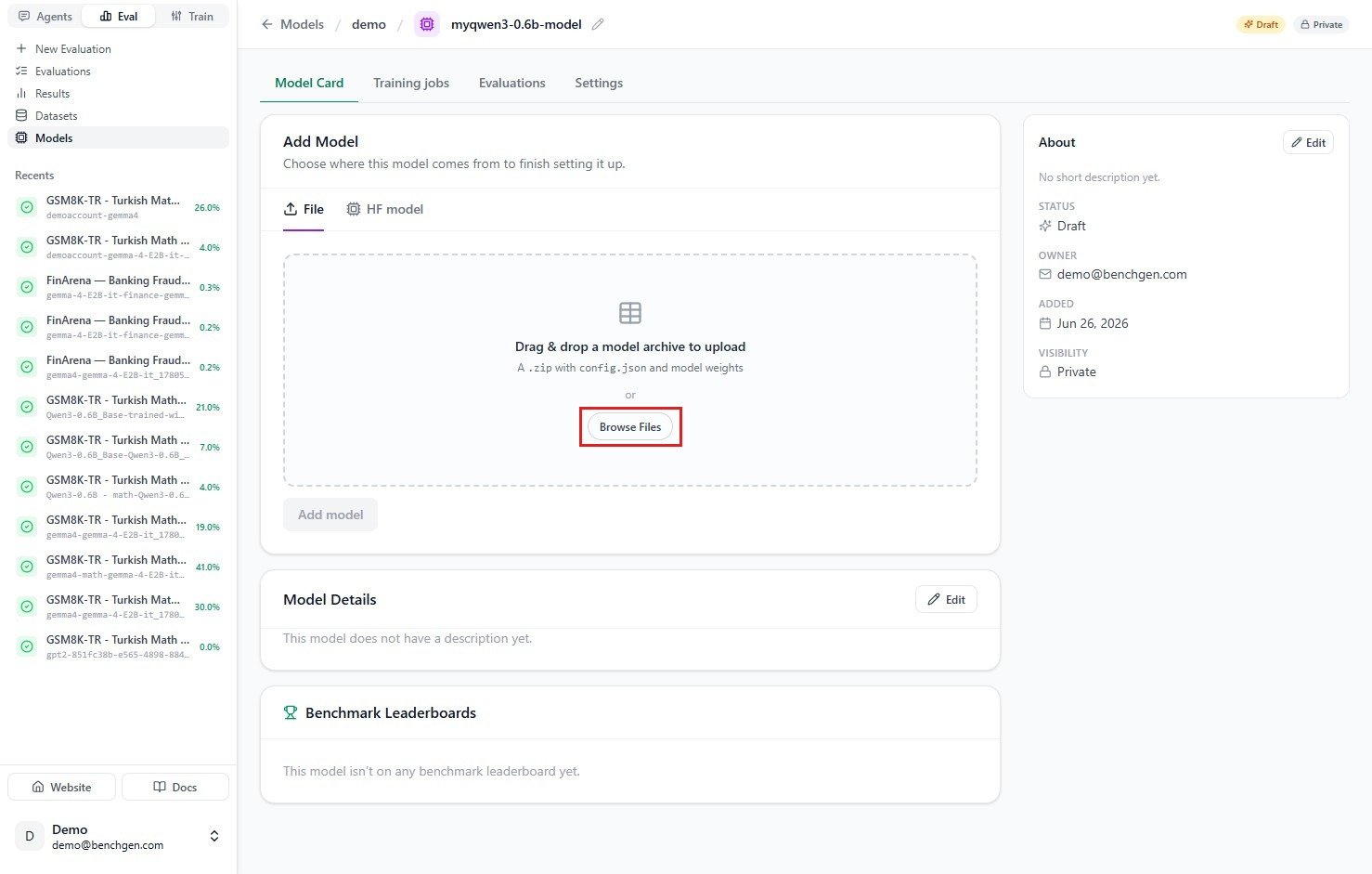
The File tab showing the drag-and-drop upload area
Option B — Import from HuggingFace
On the HF model tab, type a model name into Search HuggingFace models (for examplellama, qwen, or mistral).
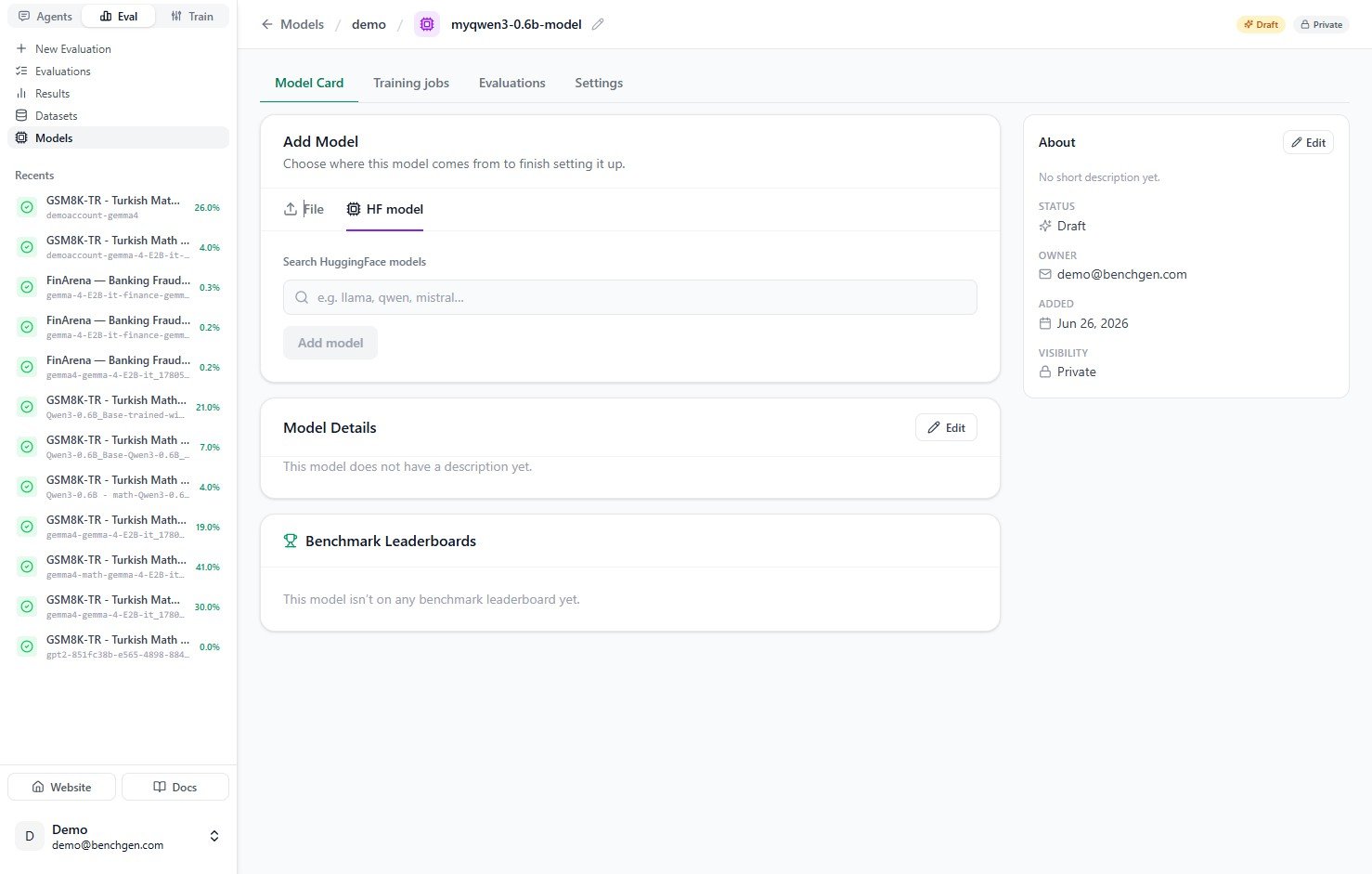
The HF model tab with the HuggingFace search box
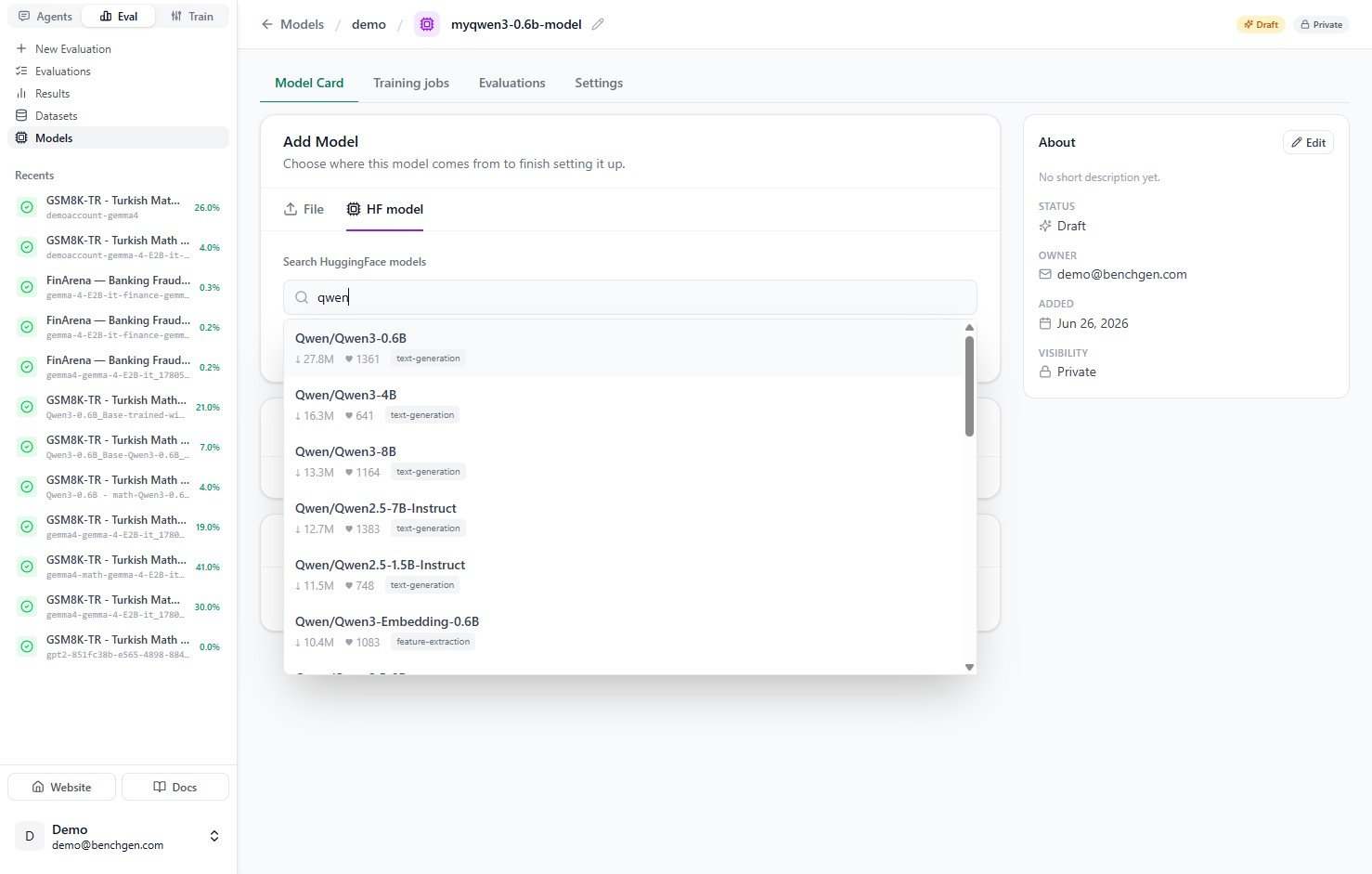
HuggingFace search results for qwen
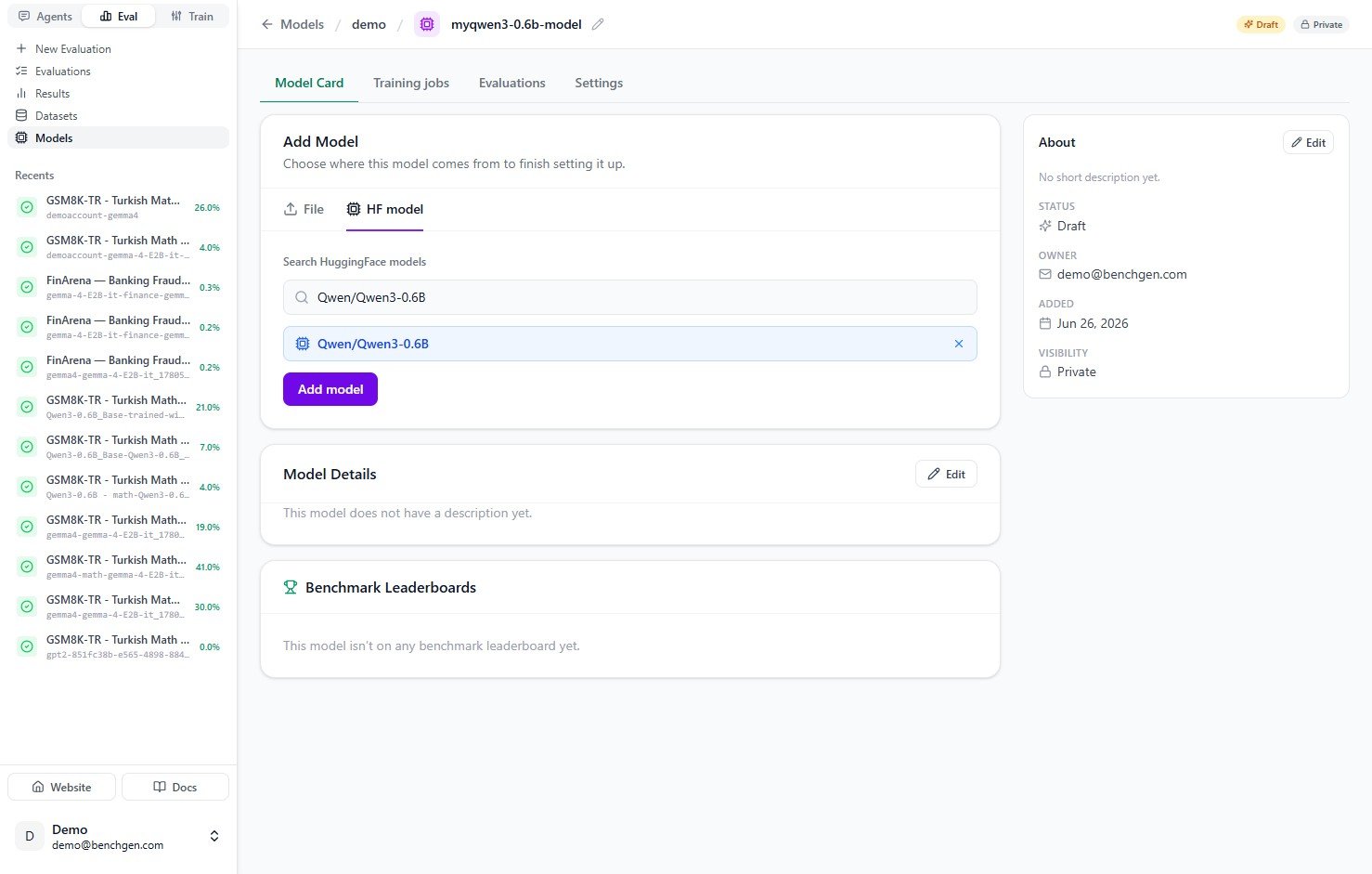
A HuggingFace model selected with the Add model button enabled
4. Confirm the model is ready
BenchGen registers the model and provisions its endpoint. When it finishes, the status badge changes to ready and the model card’s endpoint panel fills in with its Model Name, Endpoint URL, access Token, and basic information such as format and visibility.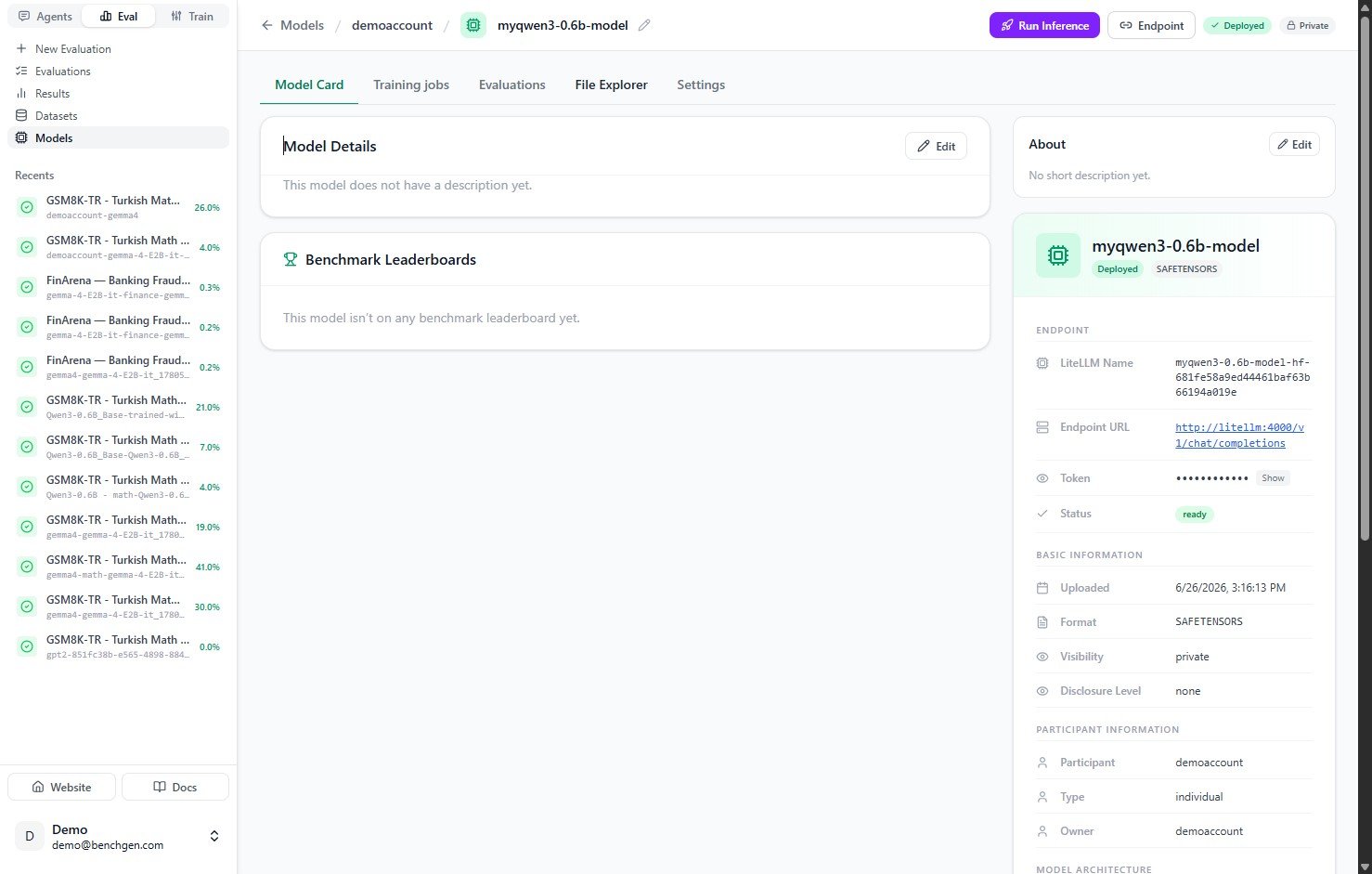
The model card after import, showing a ready status and endpoint details
Next Steps
Deploy an Inference Model
Spin up a live, OpenAI-compatible inference endpoint for this model.
Evaluate an Inference Model
Benchmark a live inference endpoint and watch the run in real time.
On a Platform Model
Run a benchmark against this model once it’s ready.
Upload a Model
What has to be inside the
.zip, and which HuggingFace models can be fine-tuned.