

Run Inference here vs. in TrainThis page covers deploying a model as a persistent, OpenAI-compatible endpoint inside Eval. If you only want a quick chat sanity-check against a freshly trained adapter, use Train → Run Inference instead.
Prerequisites
- A model available in your workspace: uploaded weights, a model from Train, or a published model. See Add a model.
- At least one GPU node with free capacity in your environment.
Steps
1. Open the Models page
In the Eval tab, click Models in the left sidebar. The AI Models page lists every model in your workspace, both base models and deployed endpoints. Use the filter chips (All, Running, Deployed, Base, Public) or the search box to find the model you want to deploy.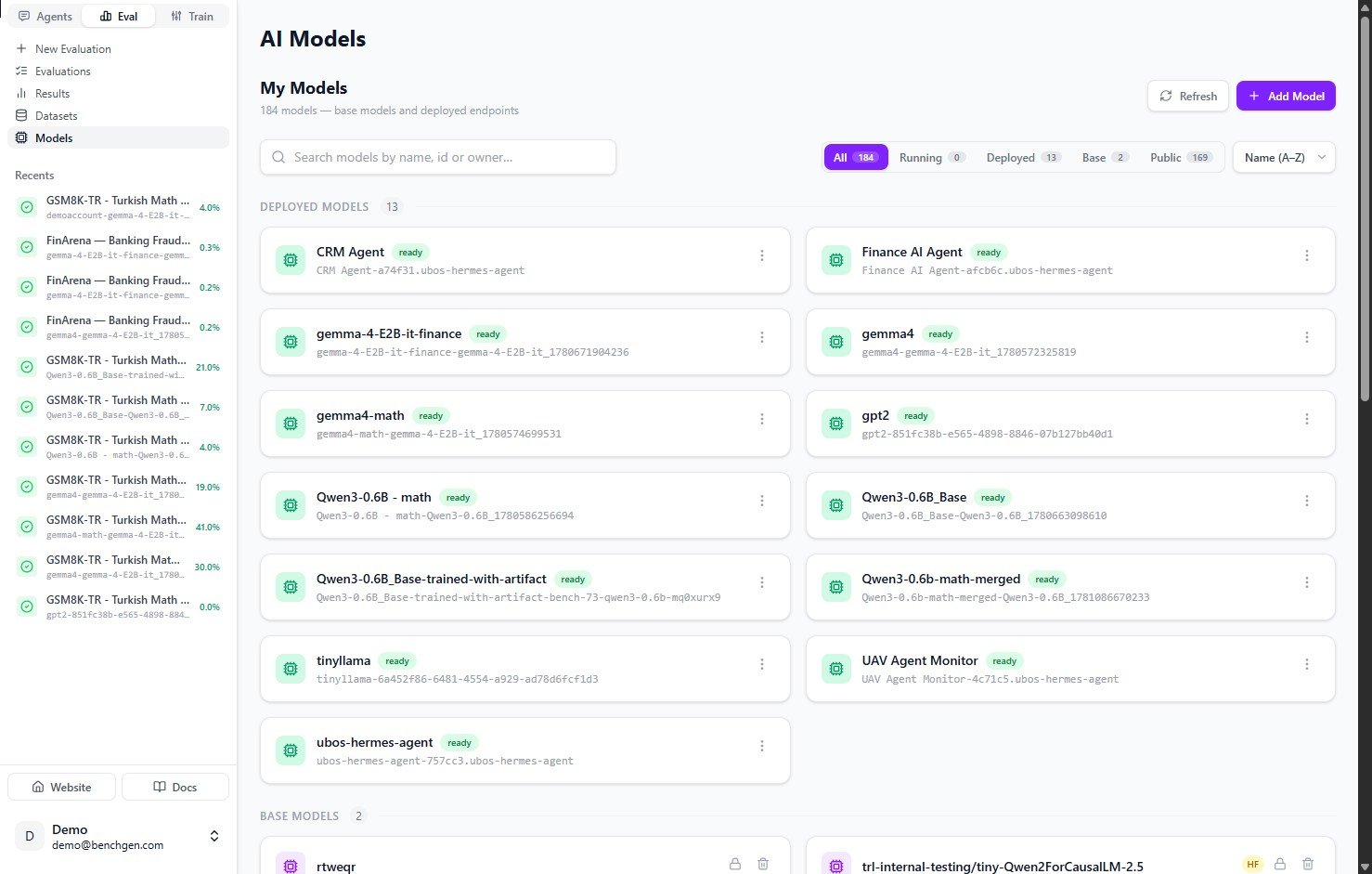
The AI Models list in Eval, showing deployed models and filter chips
2. Open the model card
Click a model to open its Model Card. The card shows the model’s details, benchmark leaderboards, and, in the panel on the right, its endpoint and basic information. To deploy it for inference, click Run Inference in the top right corner.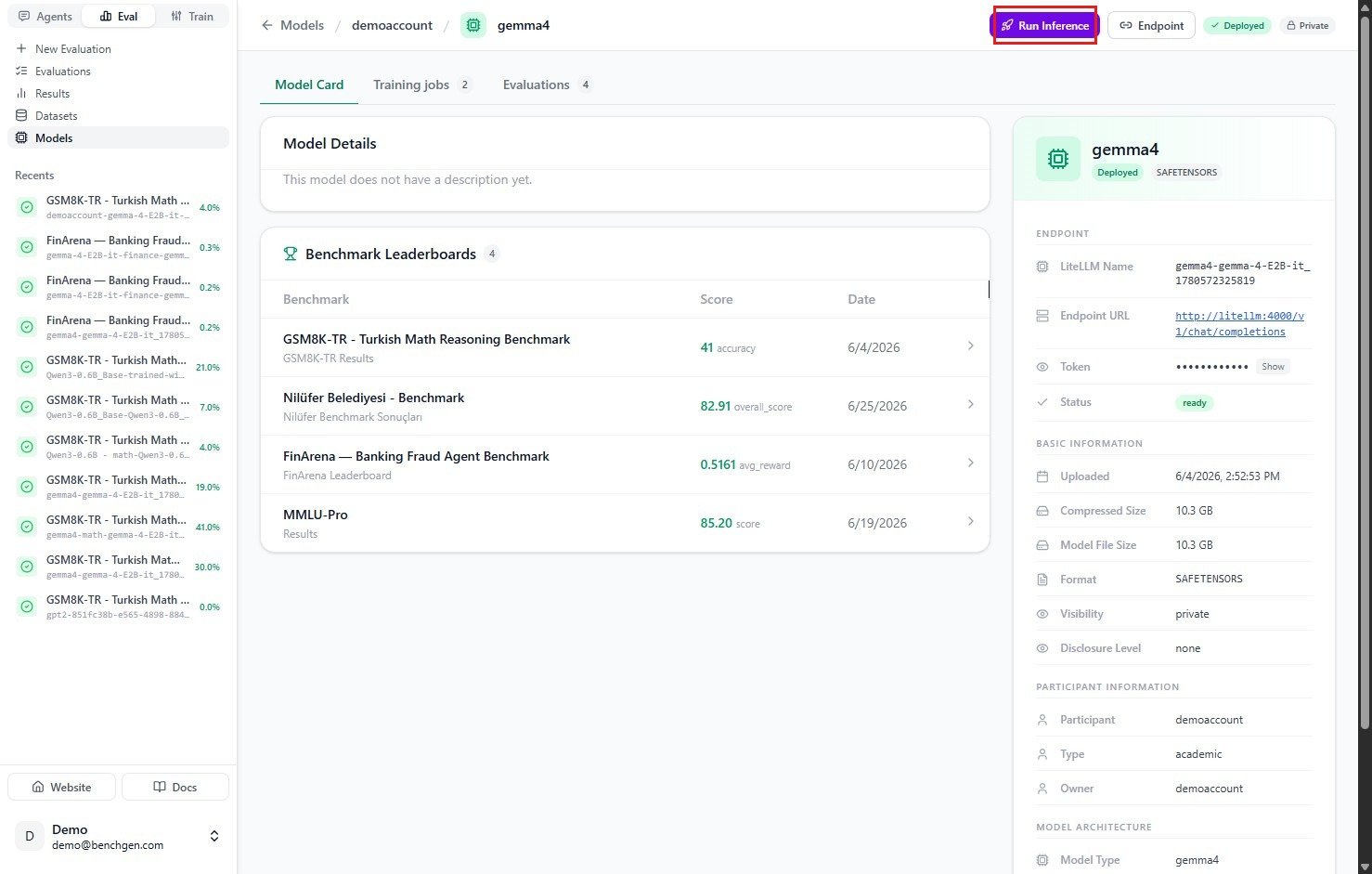
The gemma4 model card with the Run Inference button in the top right
3. Configure and start inference
The Run Inference dialog opens. At the top, the Will be served as line shows the identifier your endpoint will use, for exampledemoaccount/gemma4.
Pick a GPU from the dropdown, which lists nodes that still have free capacity such as 1/1 free, then review the inference configuration:
When you’re happy with the settings, click Run model.
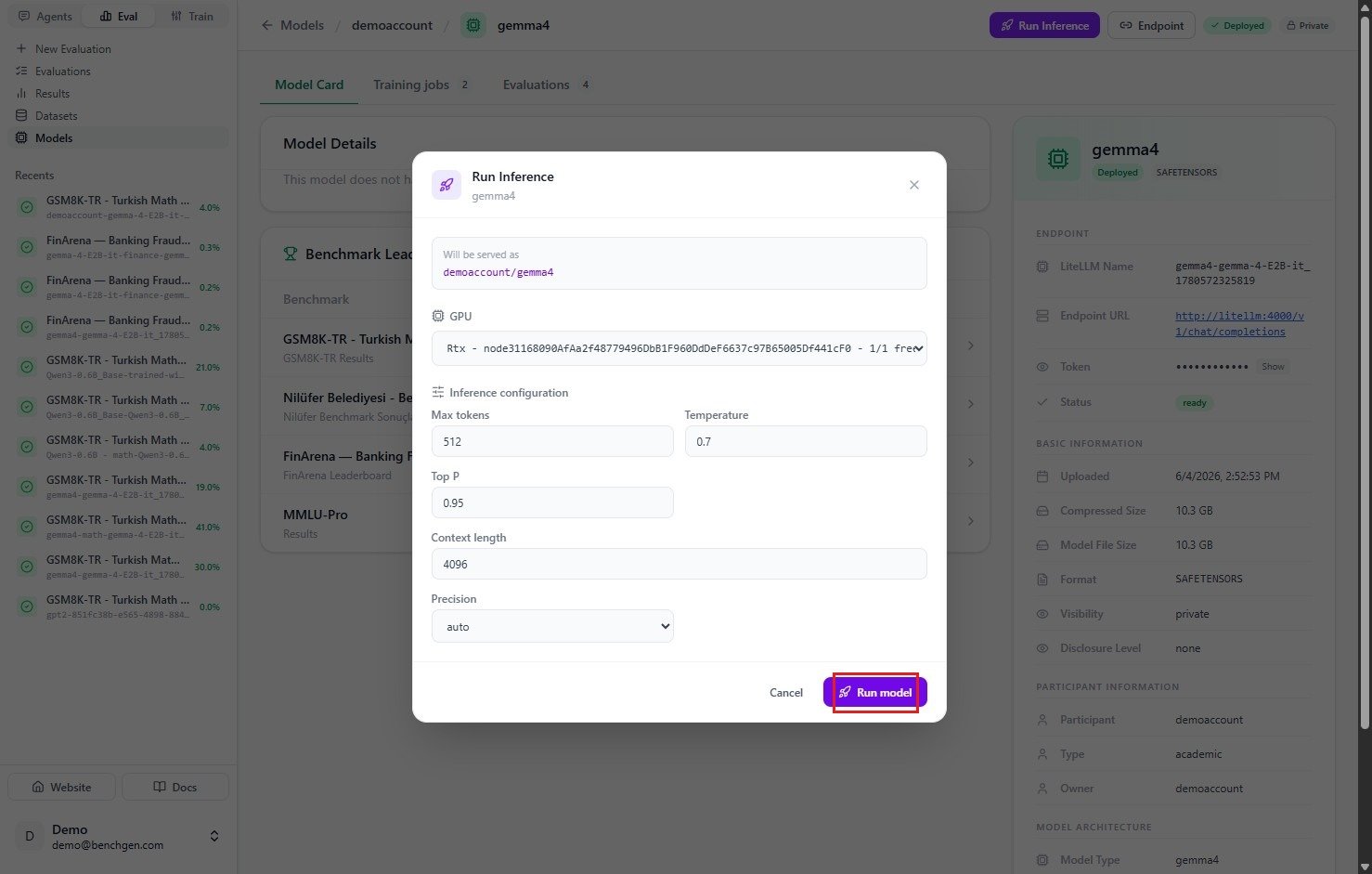
The Run Inference dialog with GPU selection and inference configuration fields
4. Monitor deployment status
After you click Run model, the model begins deploying. A banner reads “Deploying… the model is starting up”, the status badge switches to Deploying, and a Stop Model button appears in the top right. The panel on the right updates with the new endpoint details: its Model Name, Endpoint URL, access Token, and a Status ofdeploying. New Logs and Usage tabs also appear. The Usage tab is where you track requests, tokens, and latency once the model is serving traffic. See Monitor model usage.
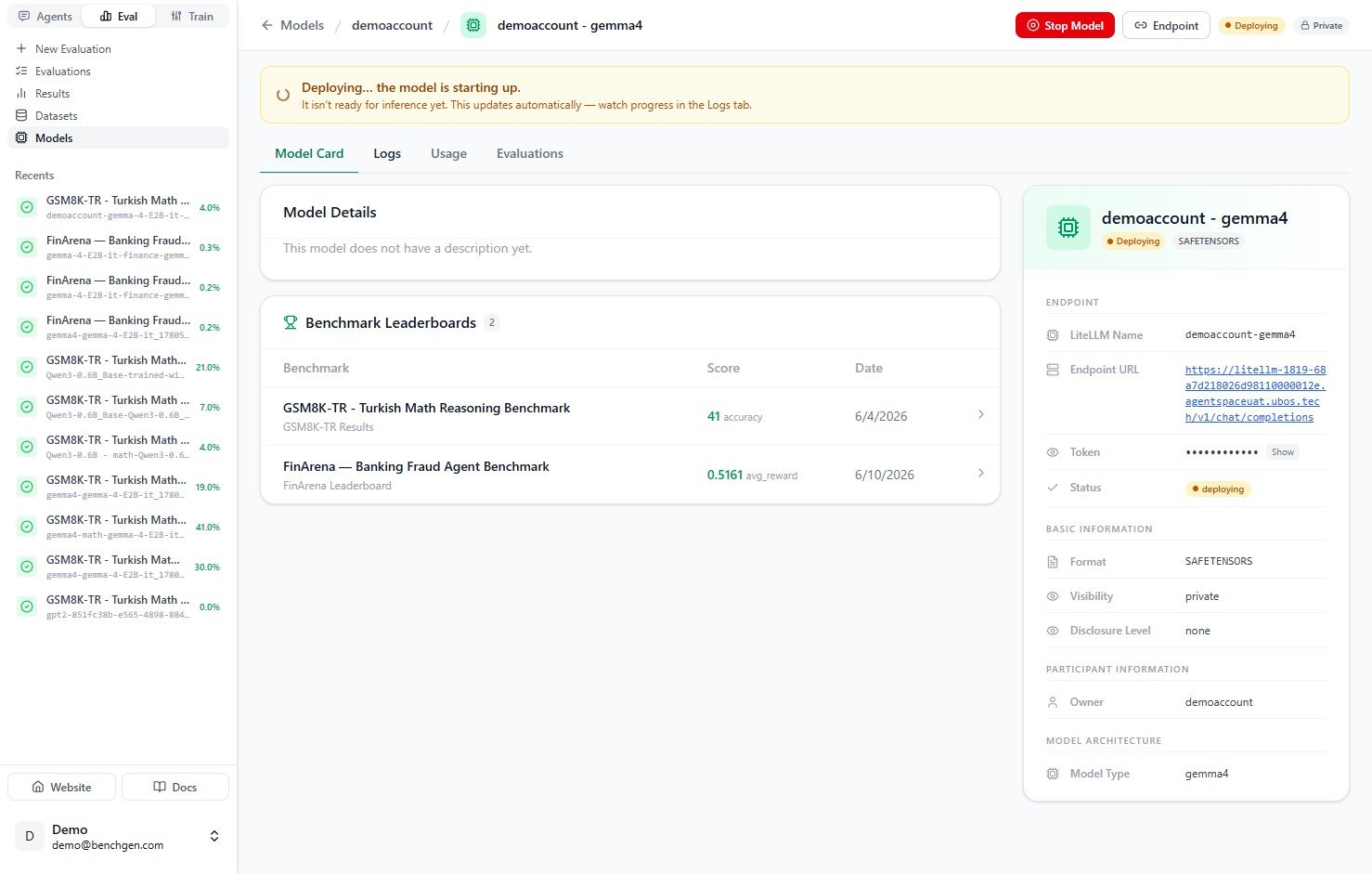
The deploying banner and status badge while the endpoint starts up
5. Inspect the deployment logs
Open the Logs tab to watch the deployment in real time. The logs stream the runtime setup as the Ray cluster connects, the serve application starts, and the model weights load.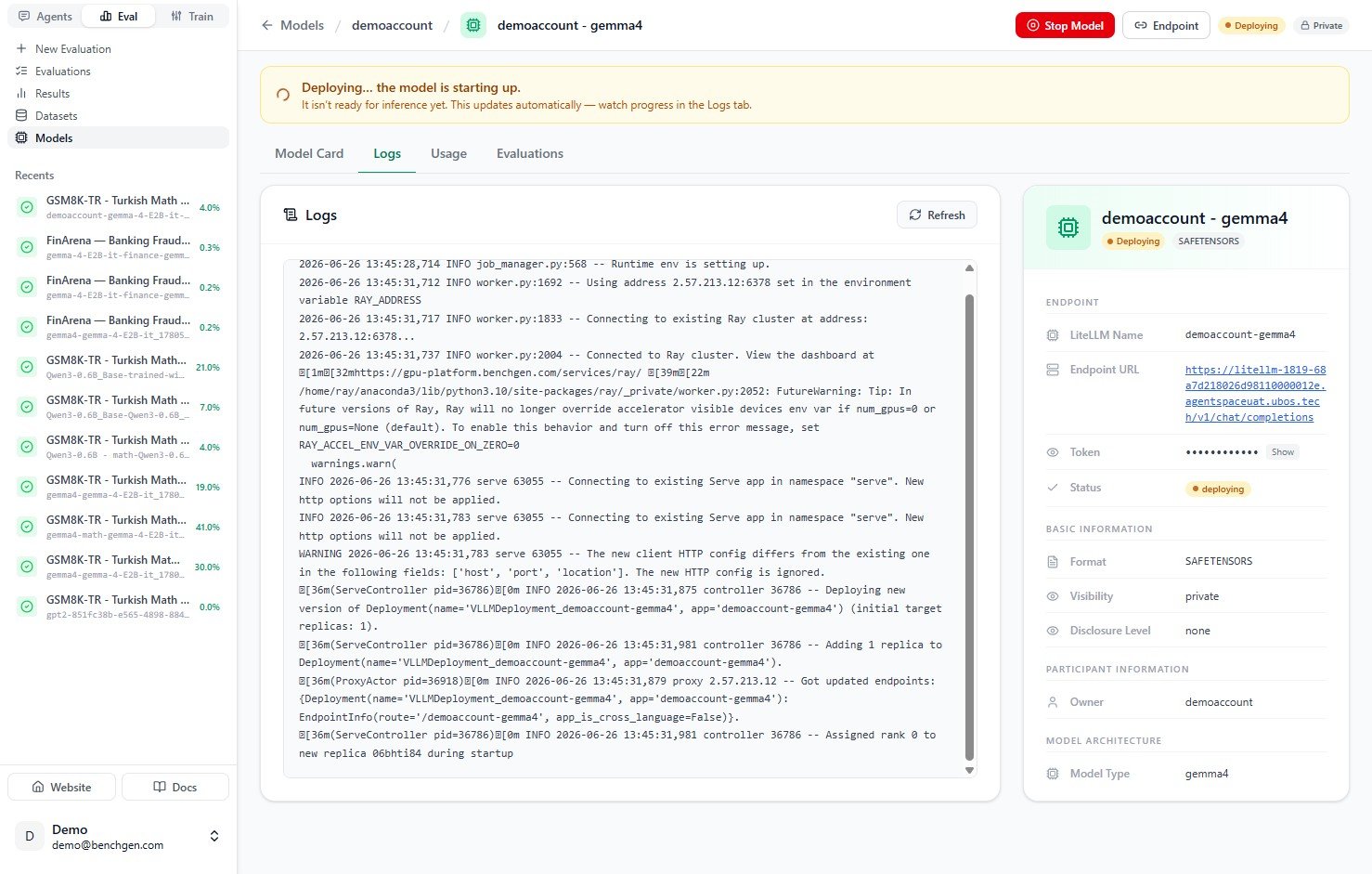
Deployment logs streaming during startup
6. Verify the model is running
When startup finishes, the logs report that the application is ready. For example: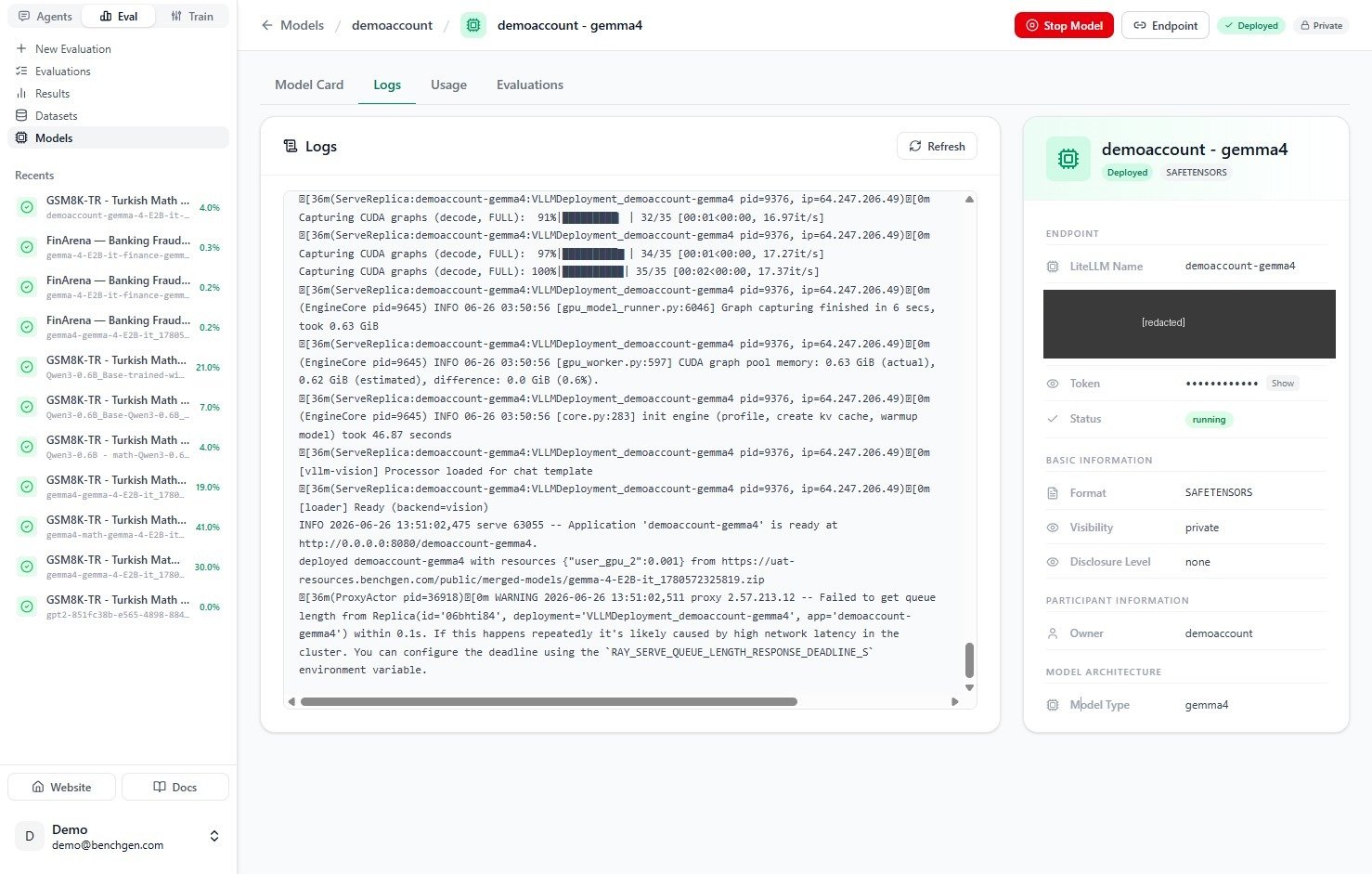
Logs showing the application is ready and the status set to running
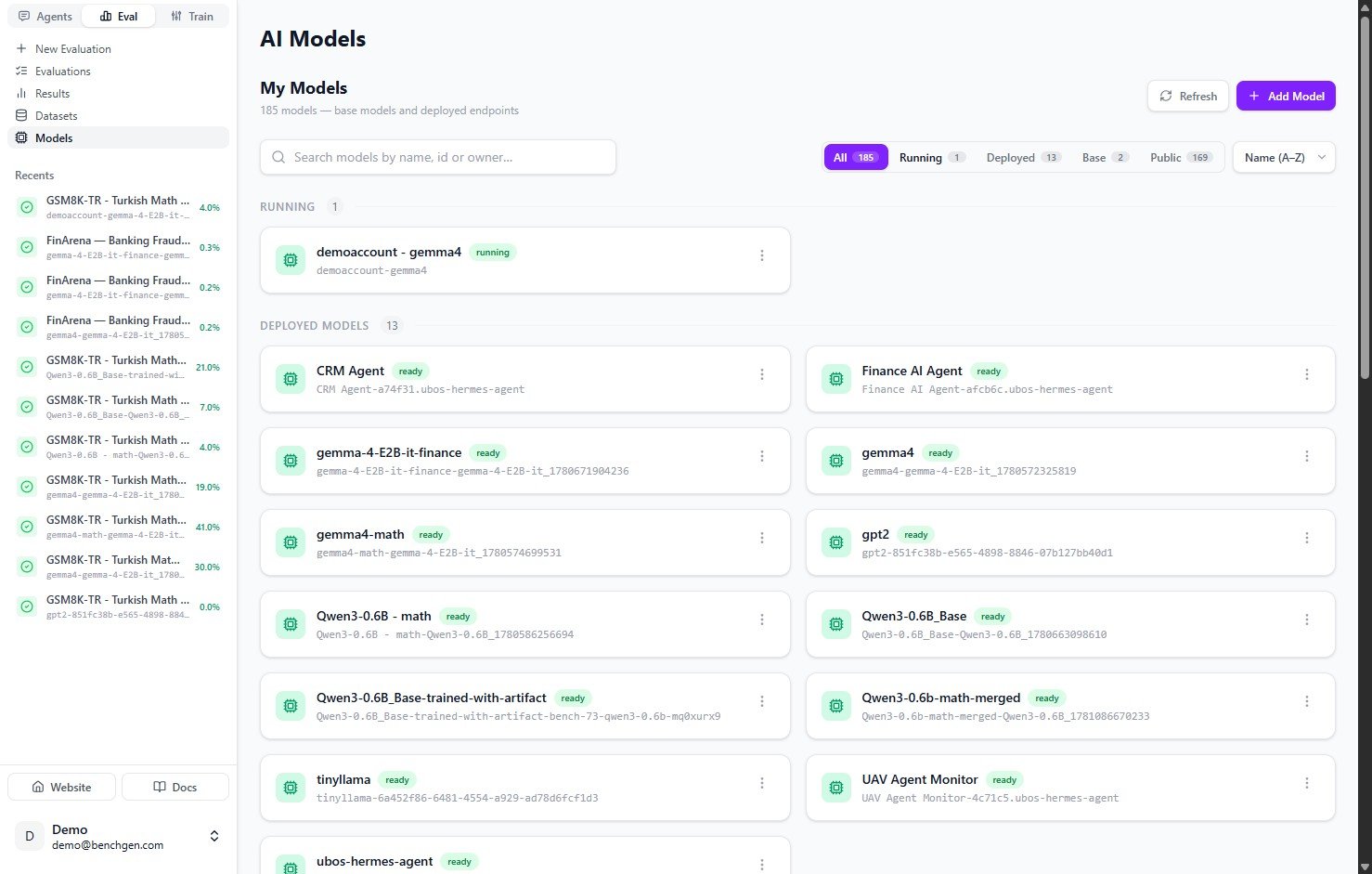
The Models list with the newly running model in the Running section
Accessing the inference endpoint
Once the model is running, the panel on the right of the model card gives you everything you need to call it:
The endpoint is OpenAI-compatible, so you can call it with any OpenAI client or a plain
curl request:
Next Steps
Evaluate an Inference Model
Benchmark this live endpoint and watch the run in real time.
Monitor Model Usage
Track requests, tokens, latency, and spend for this endpoint.
On a Platform Model
Run a benchmark against a model already on BenchGen.
Add a Model
Register another model by uploading an archive or importing from HuggingFace.