

The Usage tab is available on any deployed model. If you don’t have one yet, see Deploy an inference model.
Steps
1. Open the Usage tab
Open a deployed model’s card and select the Usage tab. Use the Last 7 Days dropdown to change the time window, Refresh to pull the latest data, or Live to stream new requests as they arrive.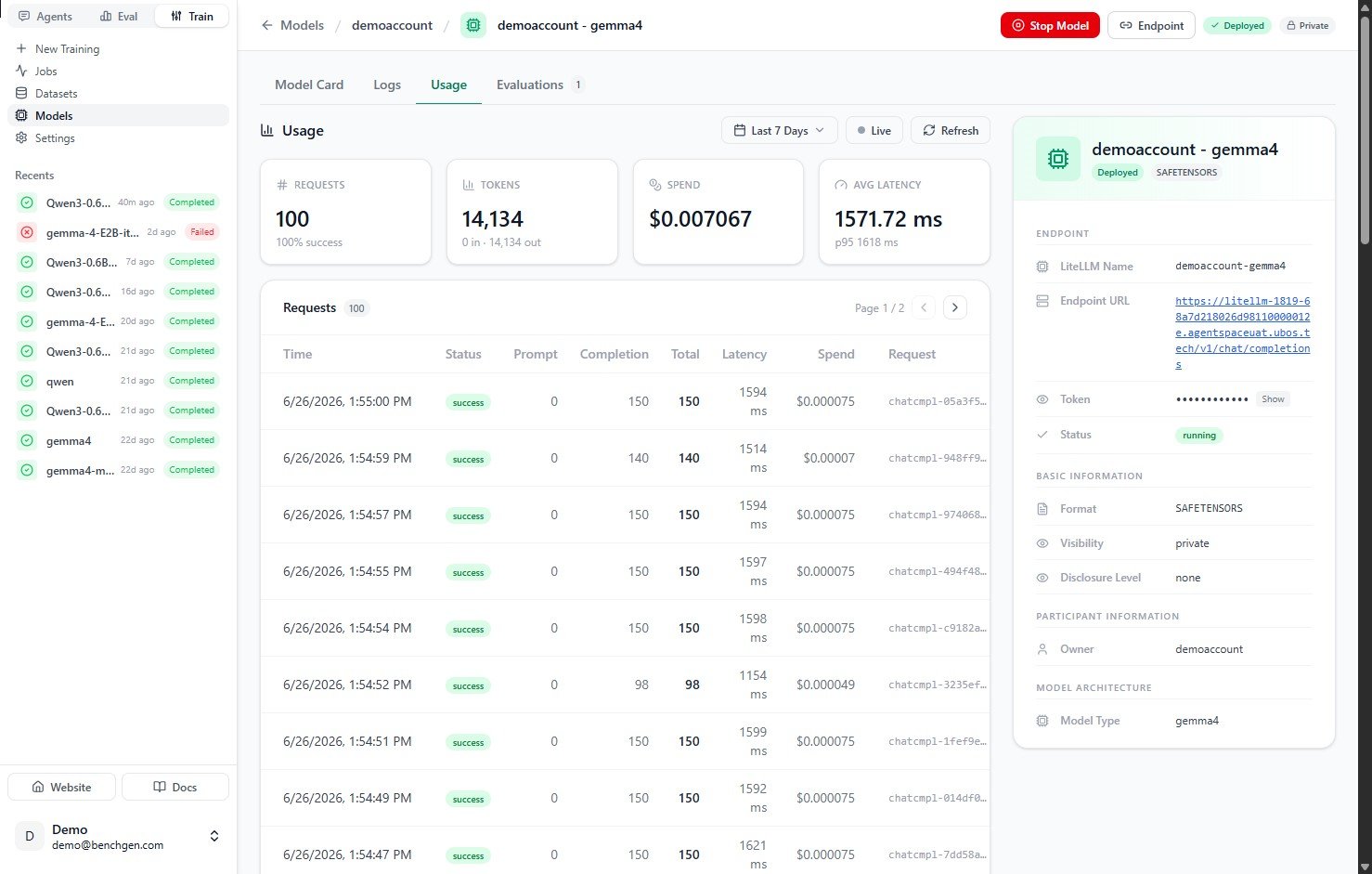
The Usage tab with summary metric cards and the request log
2. Read the summary metrics
Four cards summarize activity for the selected window:3. Browse the request log
The Requests table lists every call to the endpoint, newest first. It’s paginated, so use the arrows to page through history.4. Inspect a single request
Click any row to open its detail drawer. This is where you debug a specific call.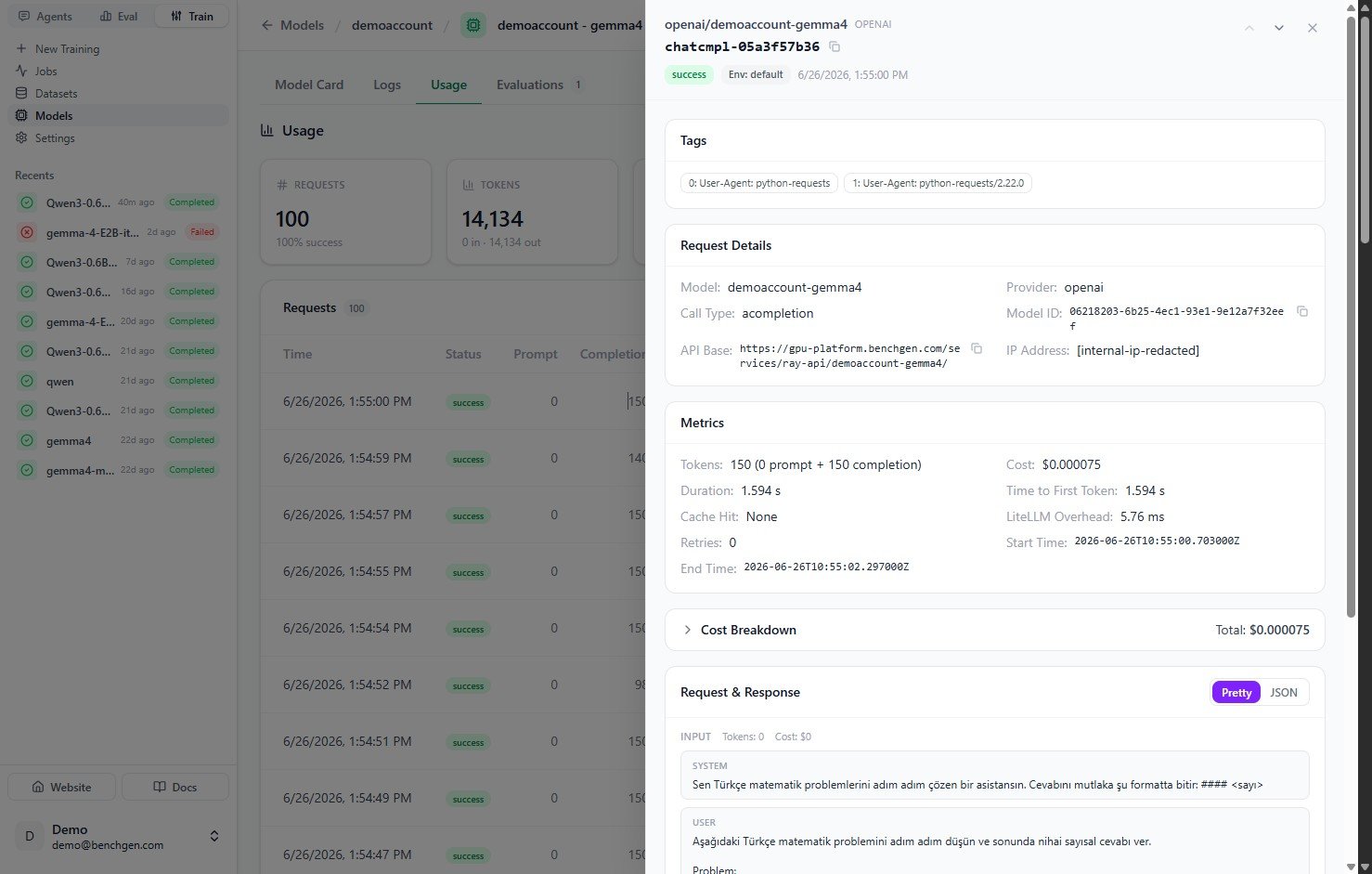
A single request's details, tags, and metrics
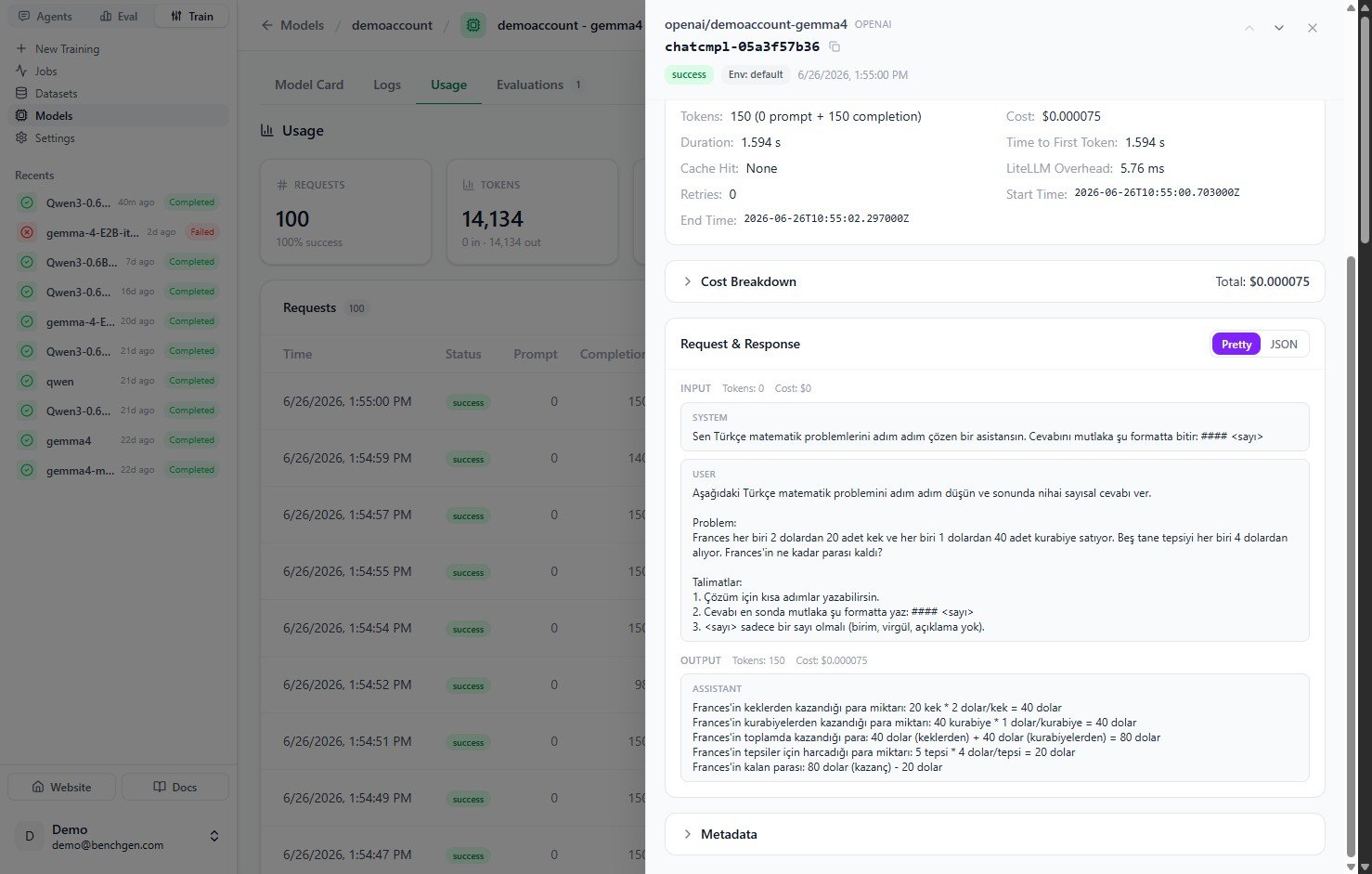
The request and response payloads for a single call
5. Watch live traffic
Toggle Live to auto-refresh the tab every 15 seconds. A banner confirms live mode is on; click Stop to pause it. This is useful while load-testing or watching a benchmark run drive requests.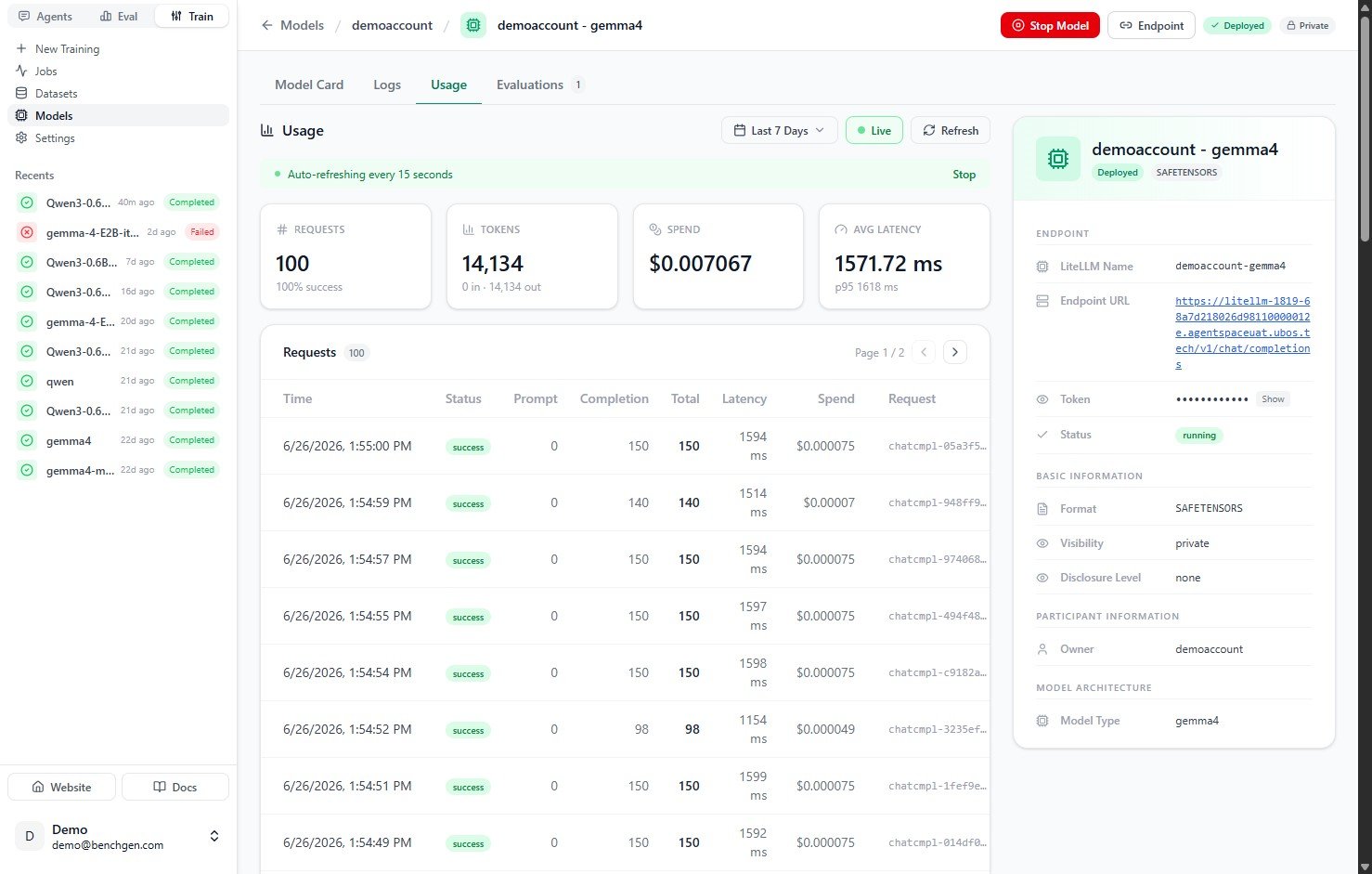
Live mode auto-refreshing the Usage tab
Next Steps
Usage data comes from real traffic. Deploy a model to start serving requests, or run an evaluation against it to generate activity you can watch here in real time.
Deploy an inference model
Spin up a live, OpenAI-compatible endpoint that records usage.
Evaluate an inference model
Benchmark a running model and watch the requests stream in.