

Download the Adapter
Open the completed job under Train → Jobs. The Actions panel splits into two independent things: the LoRA Adapter, ready immediately, and the Merged Model, built only if you ask for it.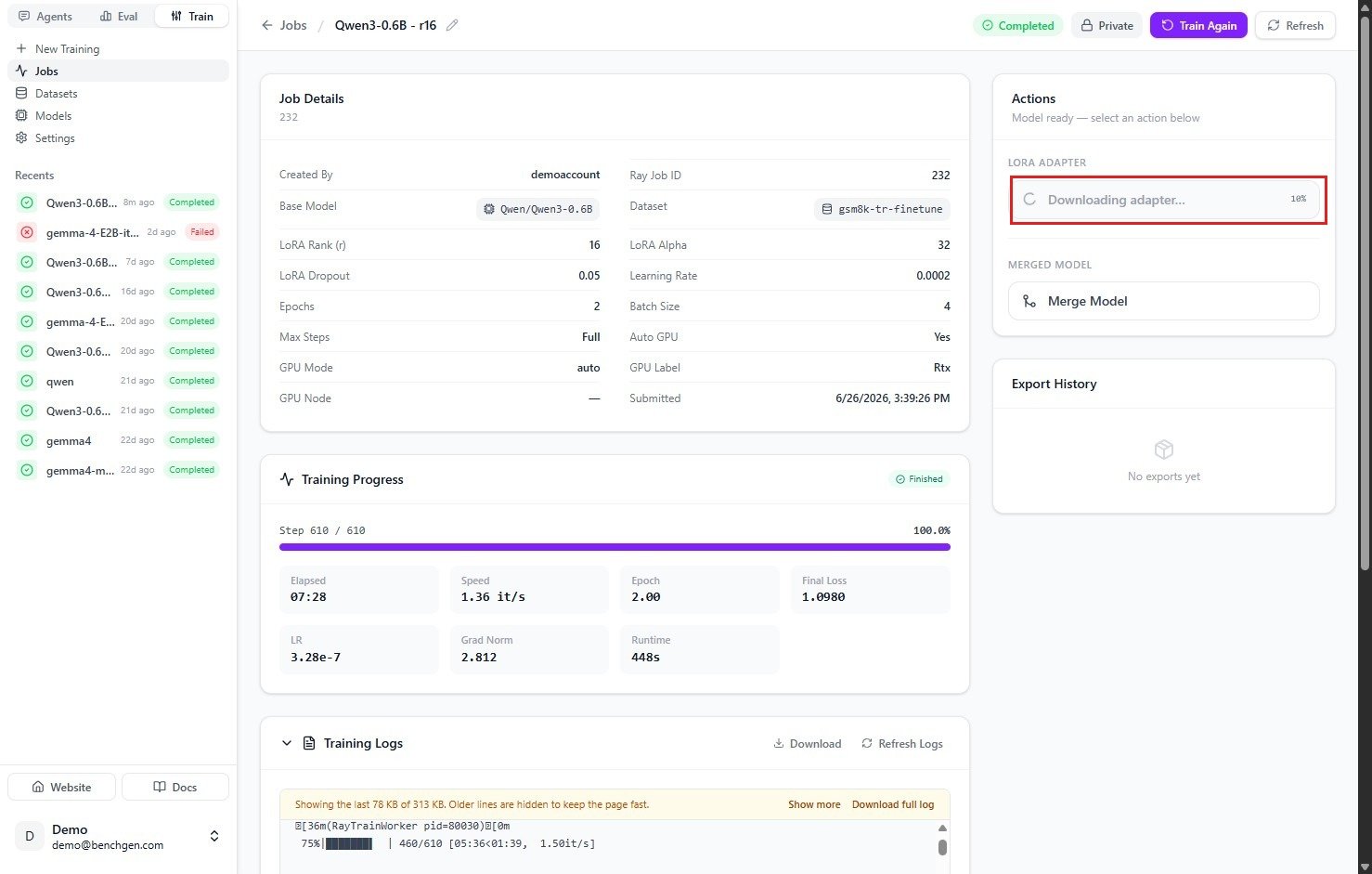
A completed job's Actions panel: Download Adapter under LoRA Adapter, Merge Model under Merged Model, Export History still empty
Merging into a full checkpoint
Merge when you want a single, self-contained checkpoint with no separate adapter file, for example to hand off, benchmark alongside non-LoRA models, or deploy somewhere that expects one set of weights.1. Click Merge Model
Under Merged Model, click Merge Model. The panel shows “Merging in progress…”, and a new Export History entry appears with a Preparing badge. This usually takes a couple of minutes.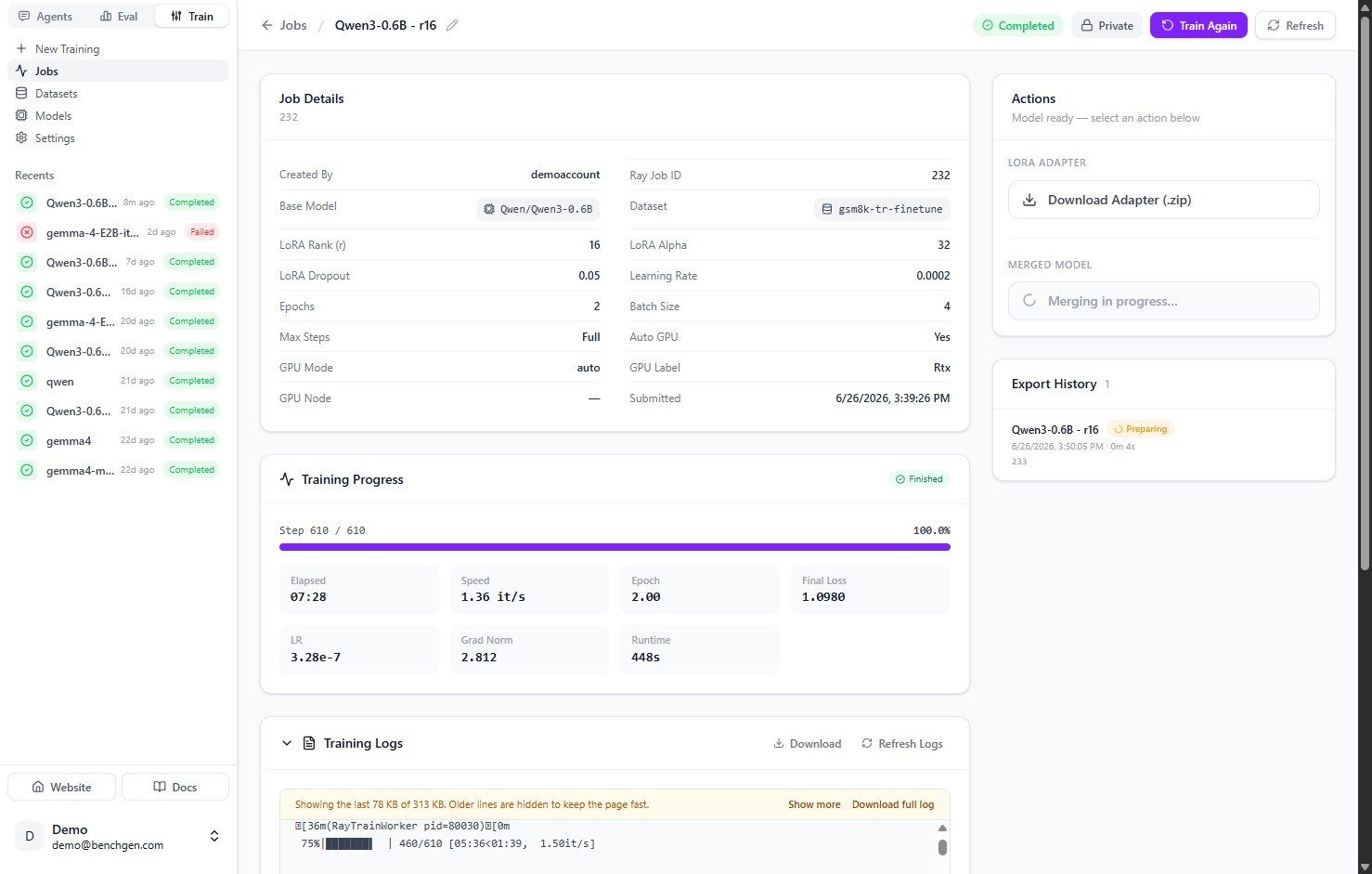
A merge running: the Merged Model action shows 'Merging in progress…' and Export History tracks it as Preparing
2. Name it and push to BenchGen
When the merge is ready, click Save on Platform on the Export History entry. Enter the name it should appear under (for exampleQwen3-0.6B_math), then click Push to BenchGen.
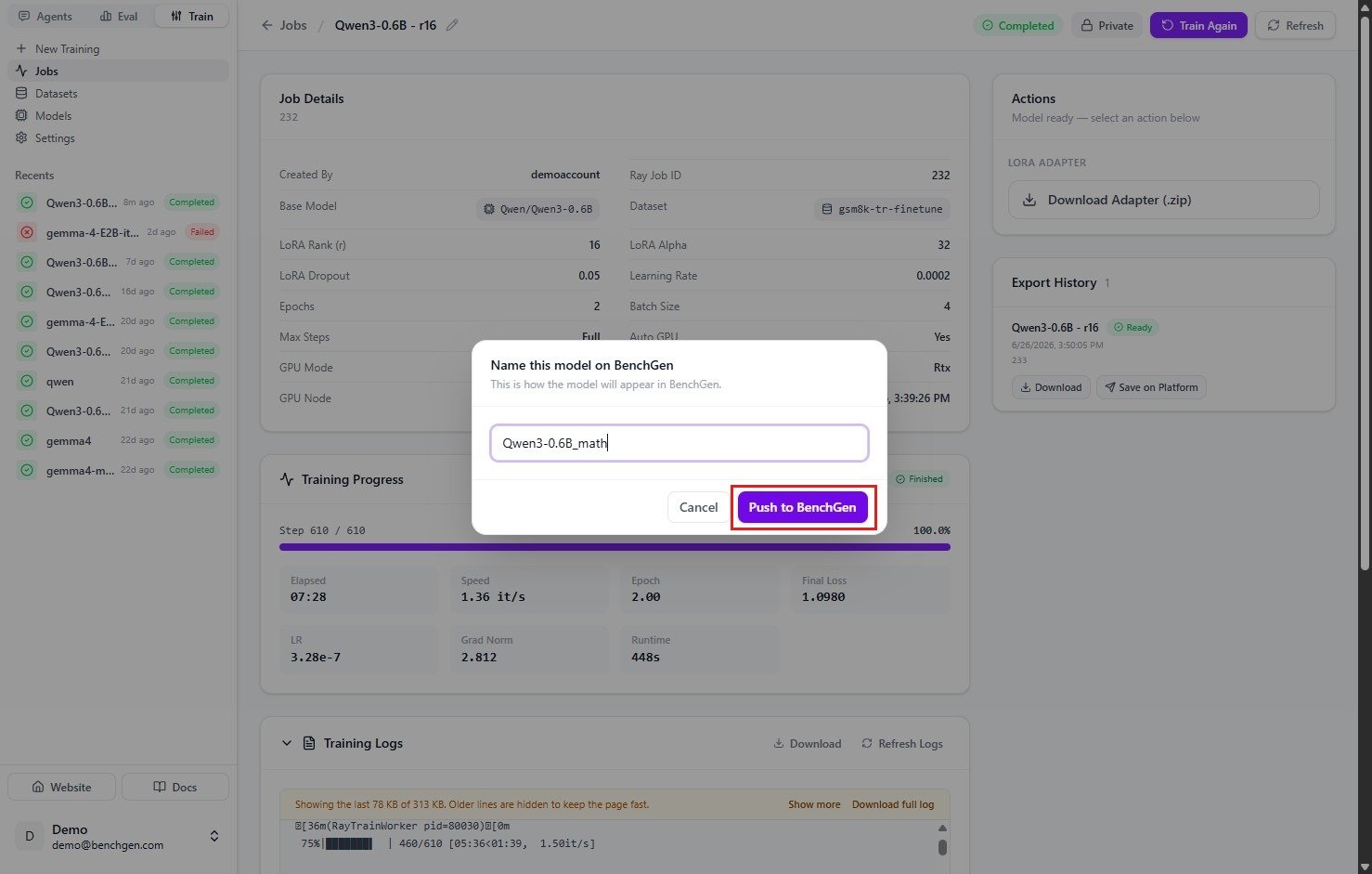
The naming dialog before pushing a merged model to BenchGen
3. Confirm it’s saved
The Export History entry updates to Ready and Pushed, with its own Download and Save on Platform buttons, download pulls the merged checkpoint to your own computer at any point, whether or not you’ve pushed it.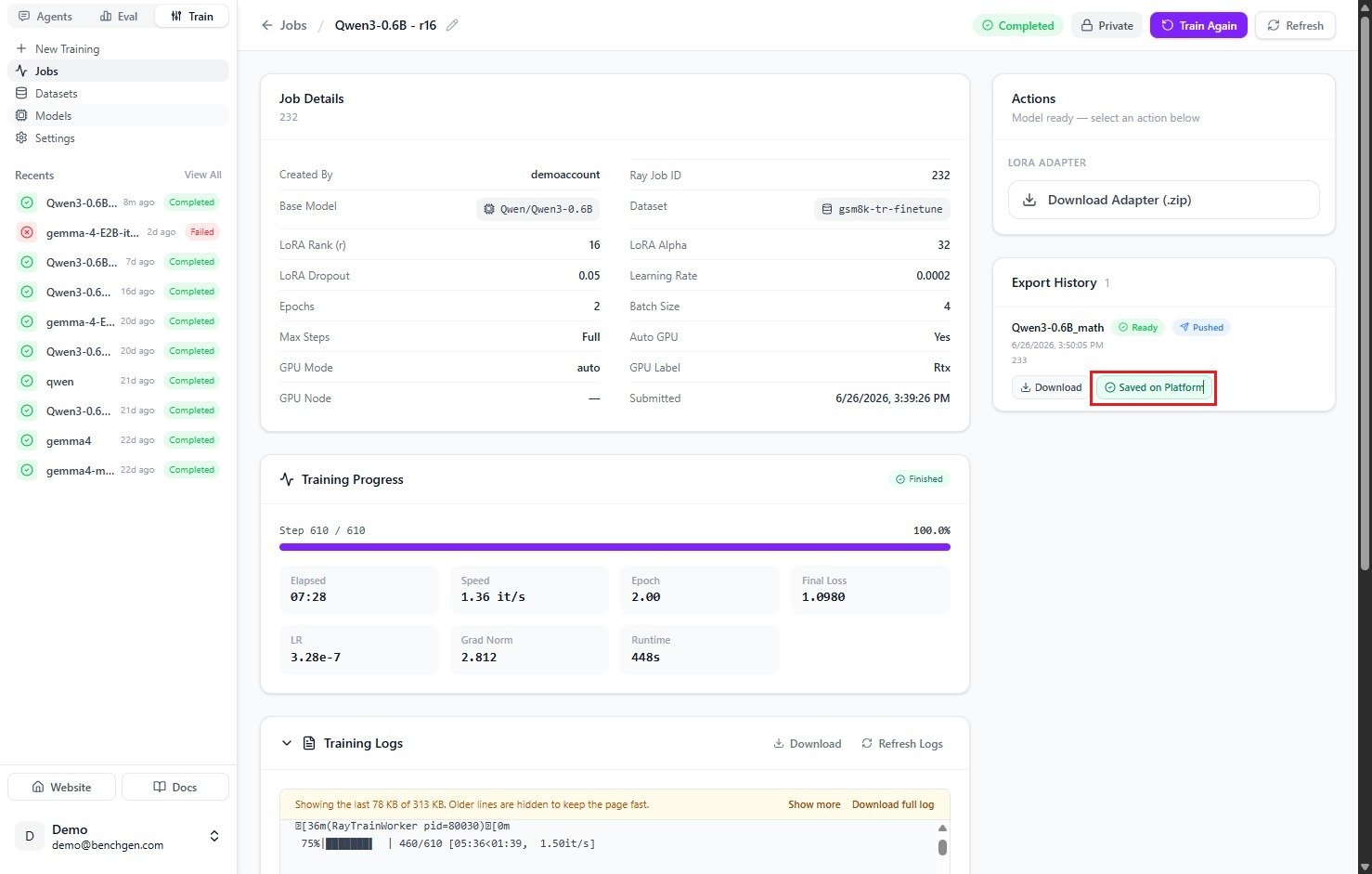
The Export History entry once the merge is Ready and Pushed, with Download and Save on Platform actions
4. Use the model
The saved model now appears in Models as a deployed, ready endpoint, with its model name, Endpoint URL, access Token, and format (for exampleSAFETENSORS).
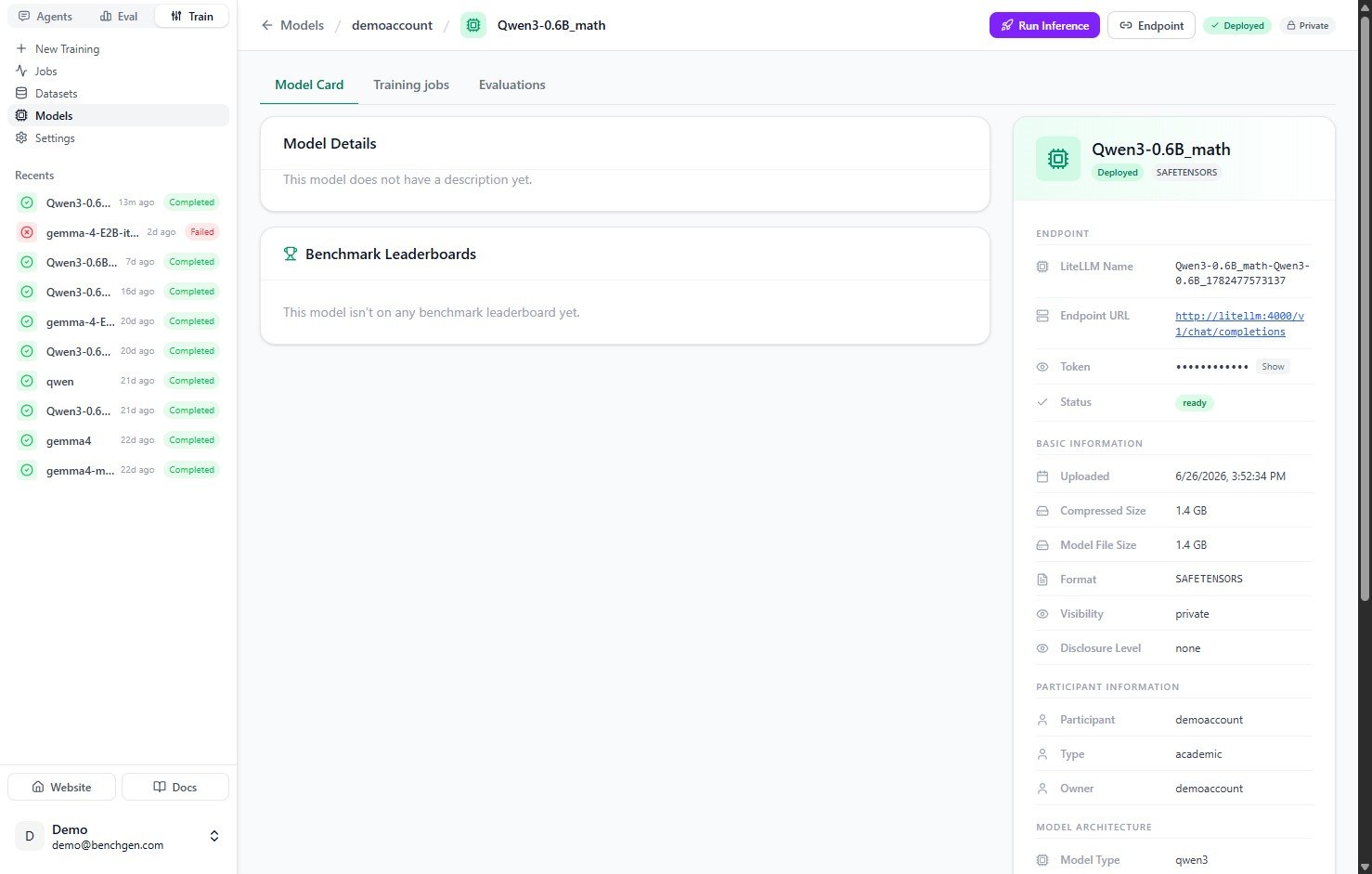
The merged, pushed model's card, deployed and ready with its endpoint details
Downloading to your own computer
Both artifacts can be pulled down locally at any time, independently of whether you’ve saved either to your Models list:Using the adapter without merging
Save it to run in benchmarks
Saving the adapter to your Models list registers it like any other model, so it becomes selectable as a Trained model when you evaluate it against a benchmark in Eval, no merge required.
Continue training from it
Starting a new training job, the Platform tab in the Base Model picker lists your previous runs, adapter included. Pick one to build the next round directly on top of it.
The adapter-only “Save on Platform” action is newer than the screenshot above, if your Actions panel already shows a Save on Platform button directly under LoRA Adapter, use that; otherwise, download the adapter with the button shown and re-upload it as a model the same way you would upload any model.
Next Steps
Fine-tune a Model
Start a new run, optionally continuing from this one’s adapter or merged output.
Evaluate an inference model
Benchmark the saved model against an environment and read the scores.