

Two ways to add a dataset
Datasets exported from an Eval benchmark run show up automatically under the Fine-tune filter, so you don’t need to add those by hand. See Export datasets to Train.
A dataset can also be built from an OpenClaw agent’s own traces instead of HuggingFace or a file upload, see Build a dataset from OpenClaw agent traces below.
Steps
1. Open the Datasets page and click Add Dataset
In the Train tab, click Datasets in the left sidebar. The AI Datasets page lists your datasets, filterable by Public Library, My Datasets, and Fine-tune. Click + Add Dataset in the top right.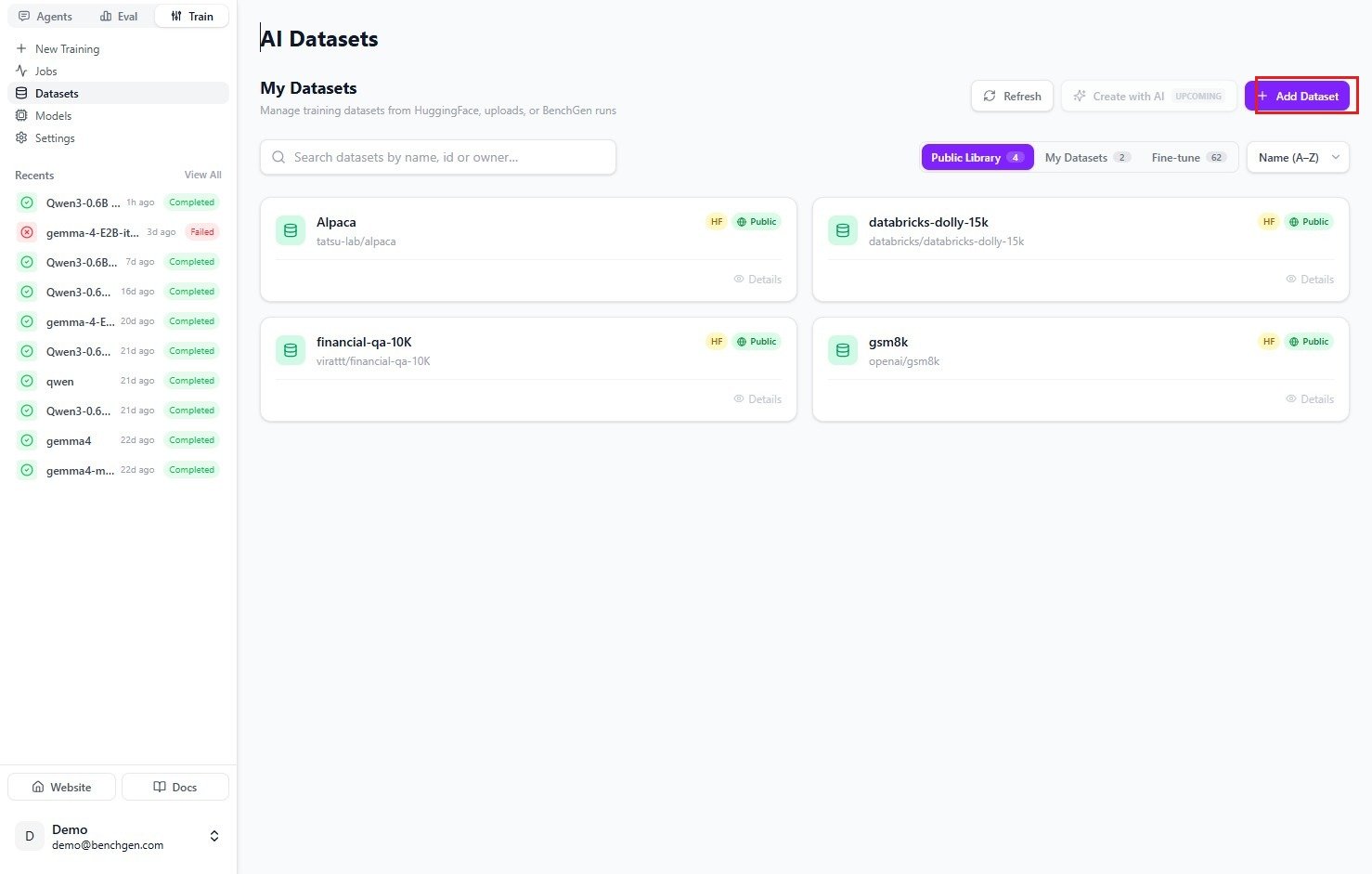
The AI Datasets page with the Add Dataset button
2. Enter the basic details
The Add Dataset panel slides in. Give the dataset a name (for examplemy-math-dataset) and, optionally, a short description. You can edit the description later.
Click Add Dataset to continue. You’ll choose where the data comes from on the next step.
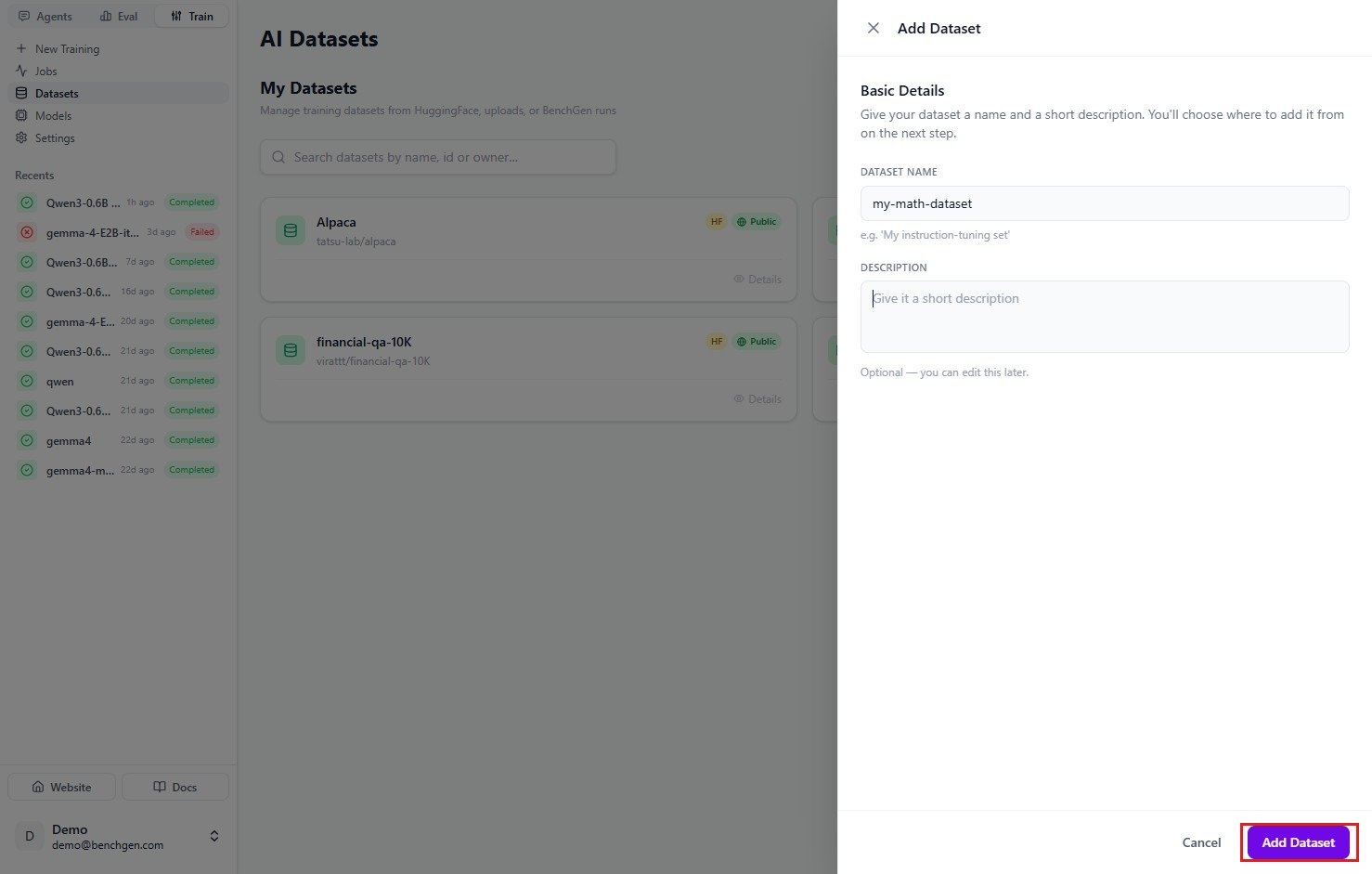
The Add Dataset panel with the dataset name and description fields
3. Choose where the data comes from
The dataset is created in a Draft state and opens to its card. The Add Dataset card prompts you to choose a source. Pick one of the two tabs.Option A — Import from HuggingFace
On the From HuggingFace tab, type a dataset name into Search HuggingFace datasets. Matching datasets appear with their download count, language, and license tags. Click the one you want.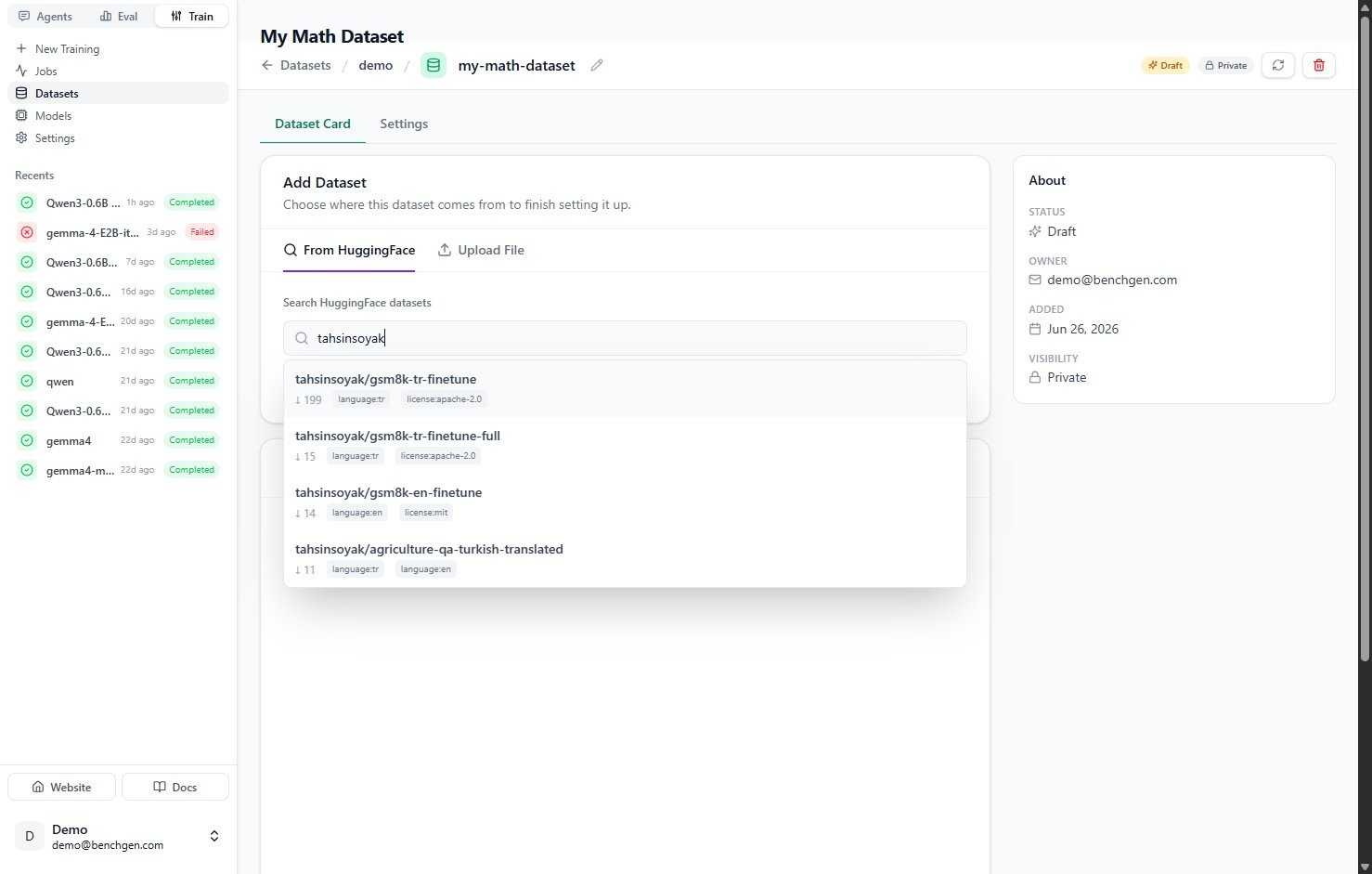
Searching HuggingFace for a dataset
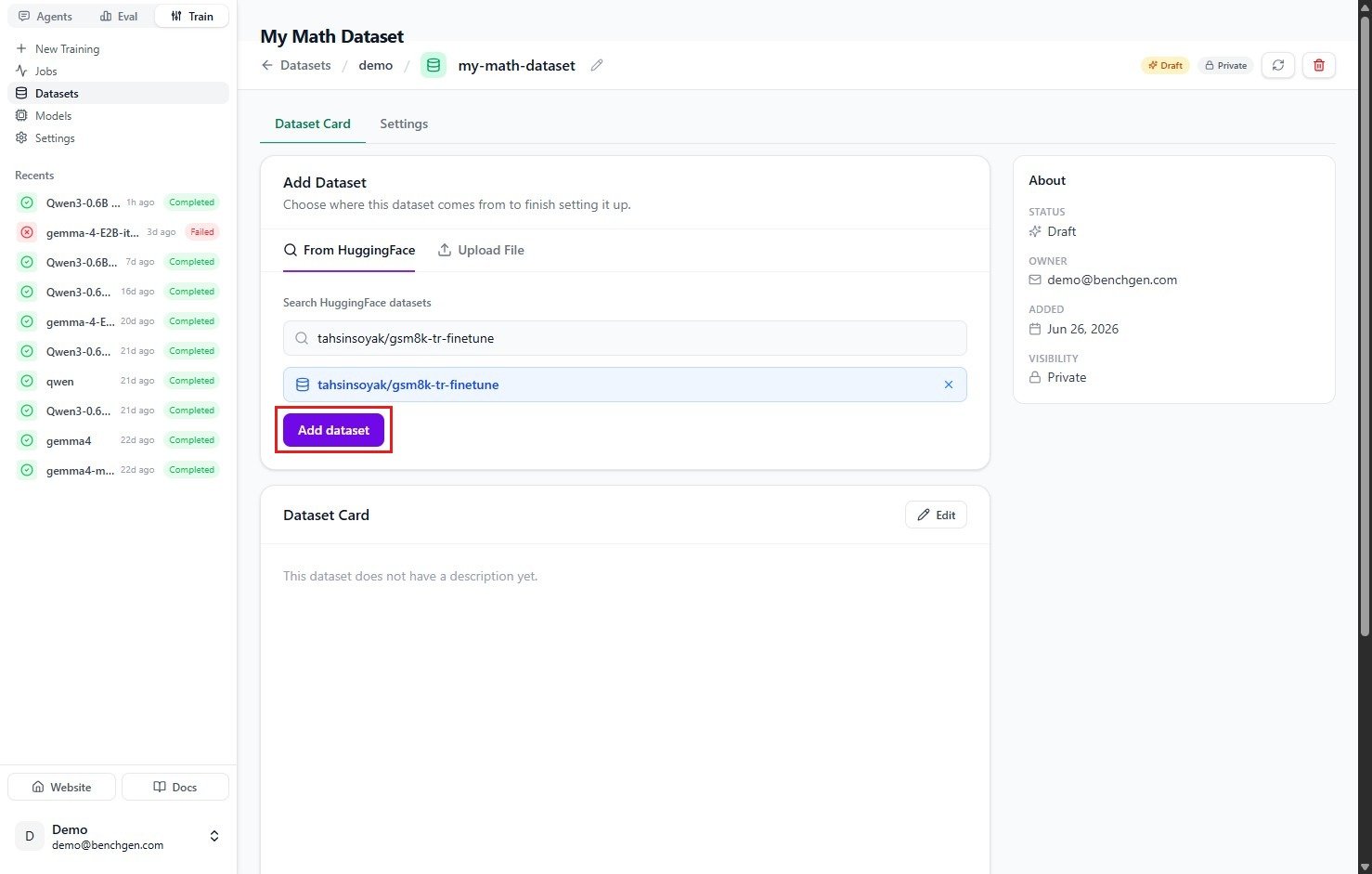
A HuggingFace dataset selected with the Add dataset button enabled
Option B — Upload a file
On the Upload File tab, upload your own dataset file, then click Add dataset. The upload flow is the same drag-and-drop area used to add a model, just for a dataset file instead of a model archive.4. Confirm the dataset is ready
BenchGen registers the dataset and fills in its card with details such as Rows, Columns, Splits, download size, and update dates. The status badge reflects the source (for example HuggingFace).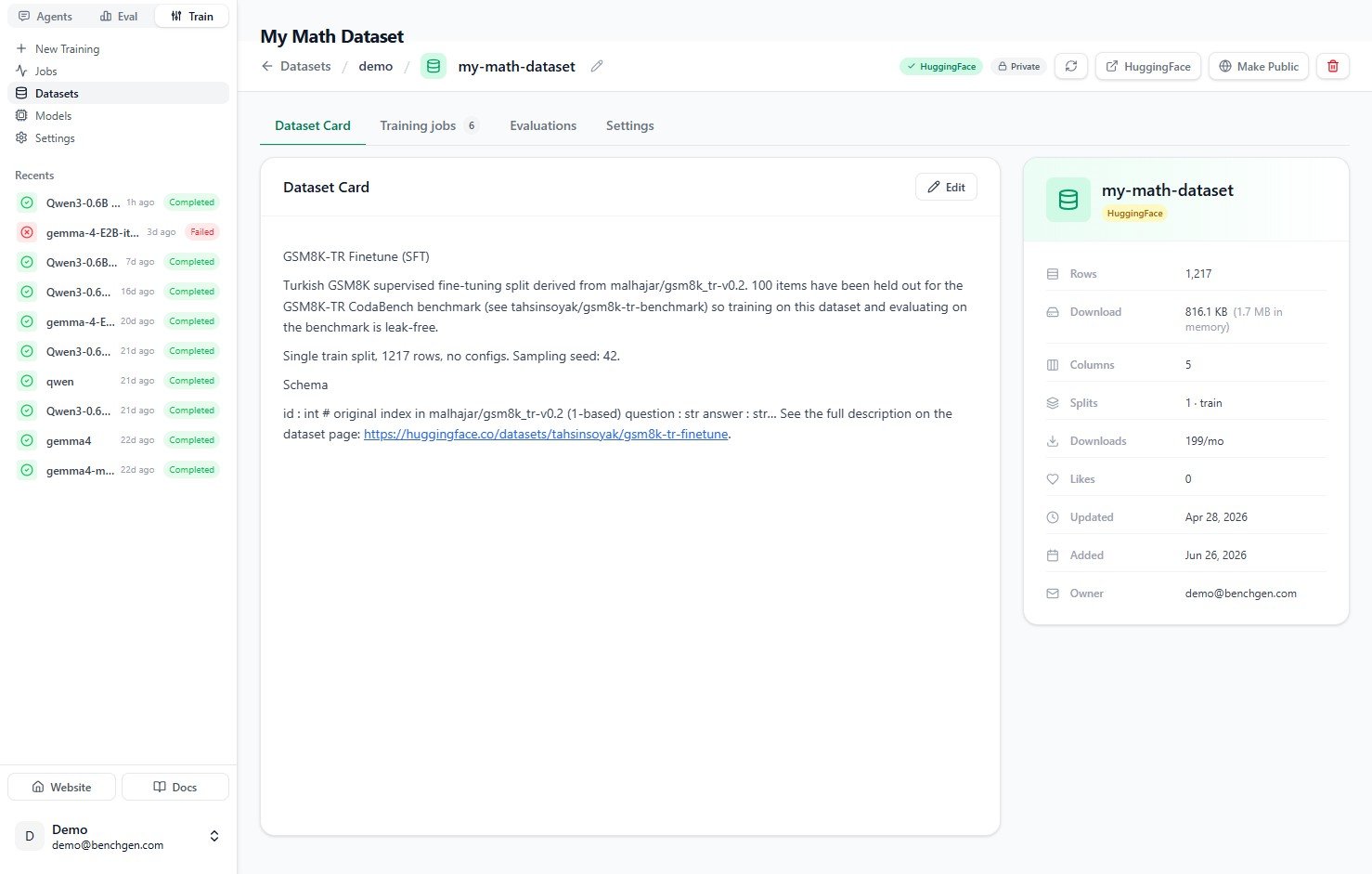
The dataset card after import, showing row, column, and split details
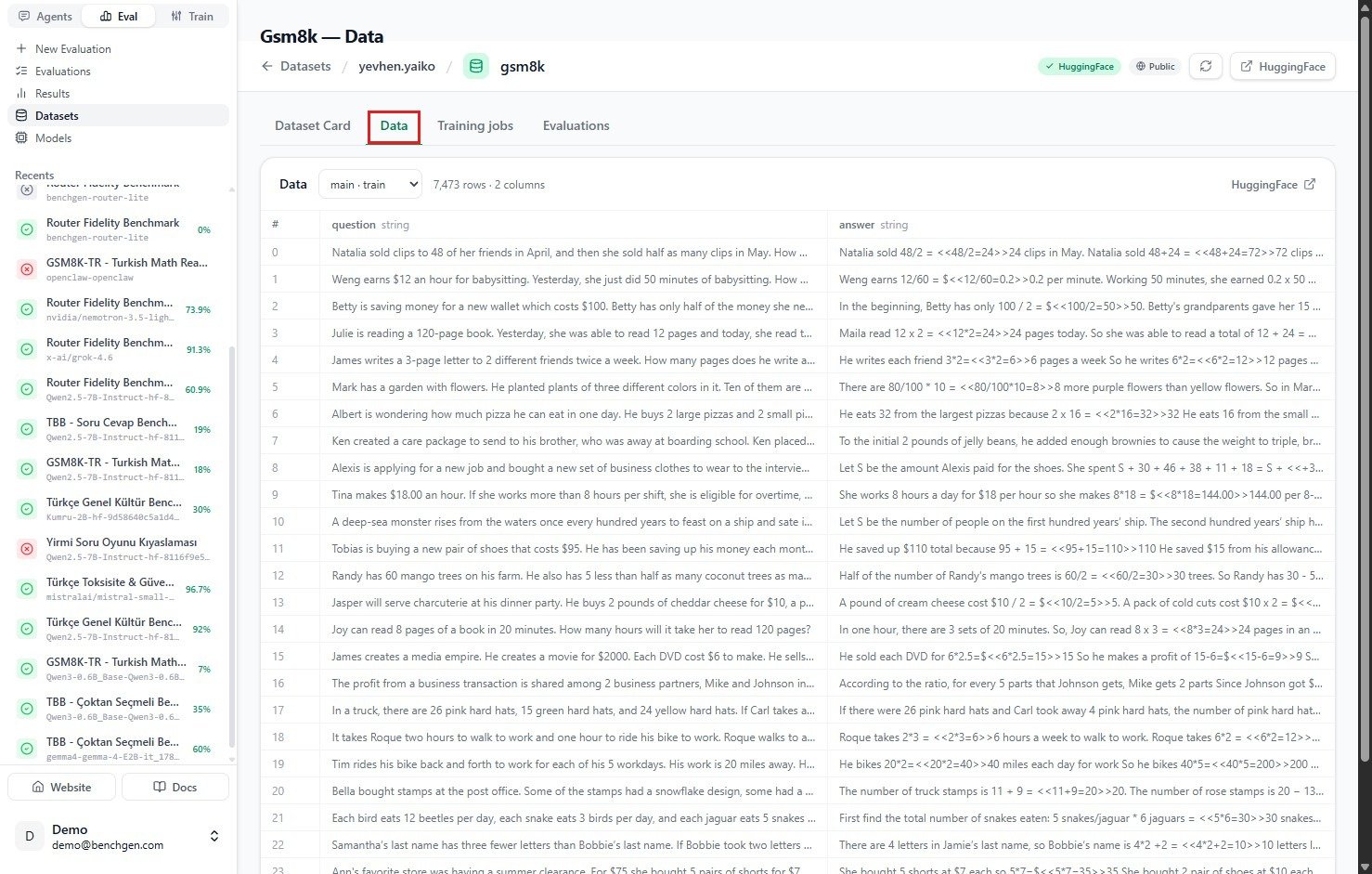
The Data tab previewing rows and columns for the gsm8k dataset
Build a dataset from OpenClaw agent traces
Datasets don’t only come from HuggingFace or a file upload. If you’ve connected an OpenClaw agent, its real conversation turns are raw material too: select the ones you want on the agent’s Traces tab and click Add to dataset, picking an existing dataset or naming a new one.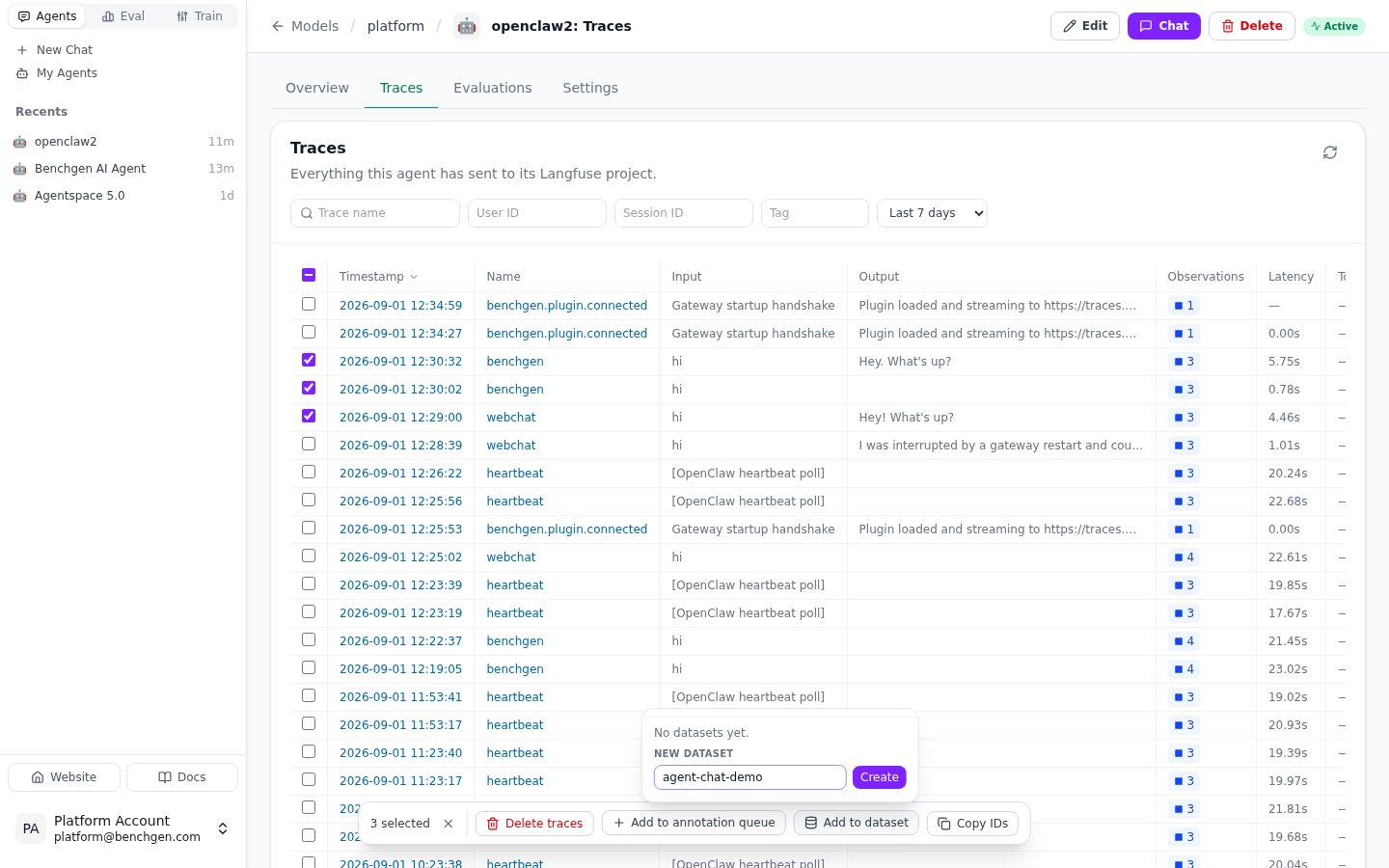
Three chat turns selected on the Traces tab, with Add to dataset open and a new dataset being created
Next Steps
Fine-tune a Model
Use your dataset in a training run.
Export Datasets → Train
Turn benchmark failures into training data.
Datasets from an OpenClaw Agent
Build a dataset straight from an agent’s real traces.