Every deployed model has its own API Keys tab where you generate a key scoped to that model, then call its endpoint directly, from curl, your own backend, or any OpenAI-compatible client.
This works on any deployed model, a router like benchgen-router-lite, a model you uploaded, or one you fine-tuned in Train. If you don’t have a deployed model yet, see Deploy an Inference Model.

Step 1: Open your model

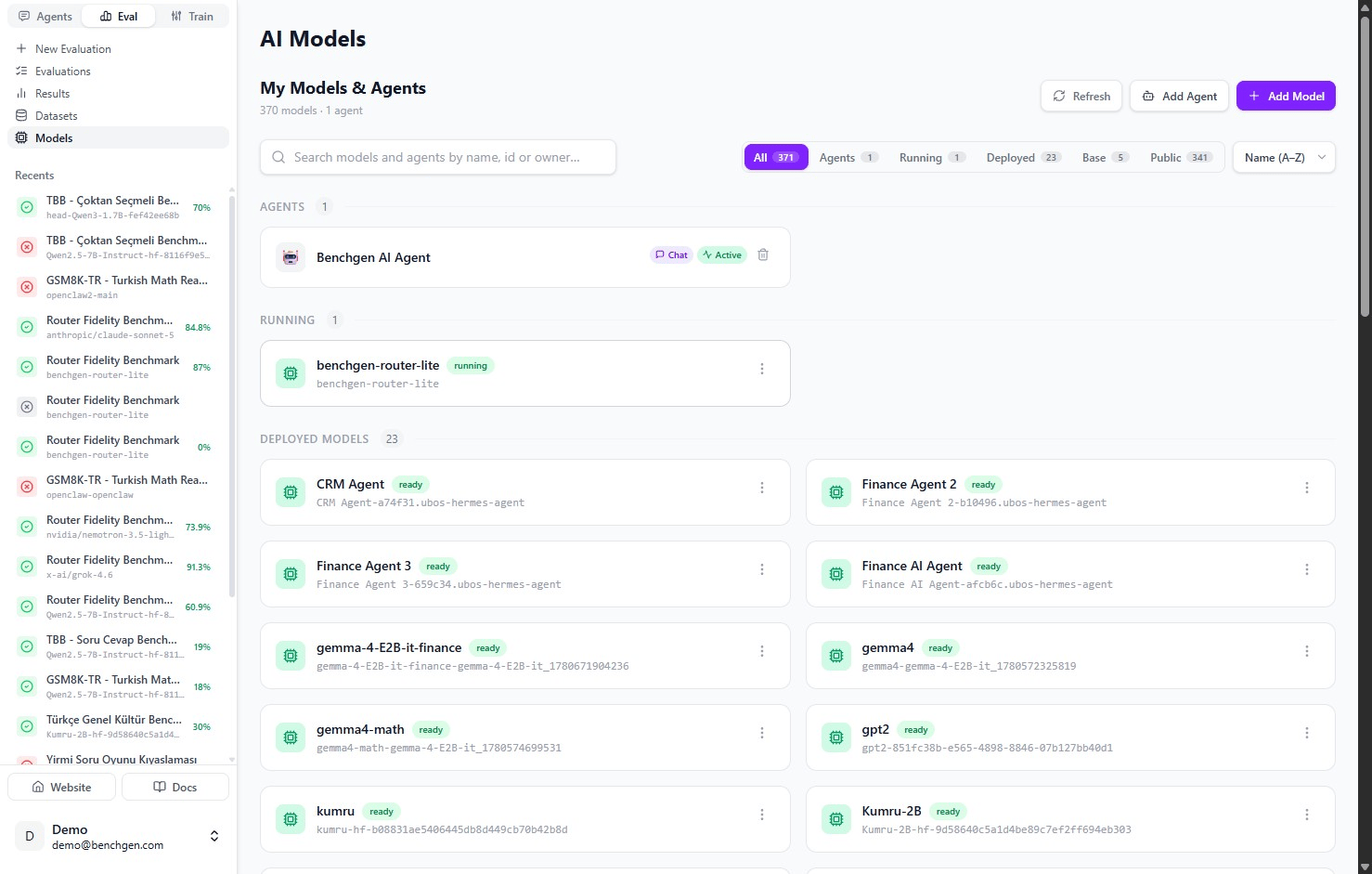
In Models, find the model you want a key for, it needs to be Deployed or Running to serve an endpoint. Here, benchgen-router-lite is running.
The AI Models page listing benchgen-router-lite under Running, and deployed models such as CRM Agent and Finance Agent below it

AI Models: a running router (benchgen-router-lite) and deployed models beneath it
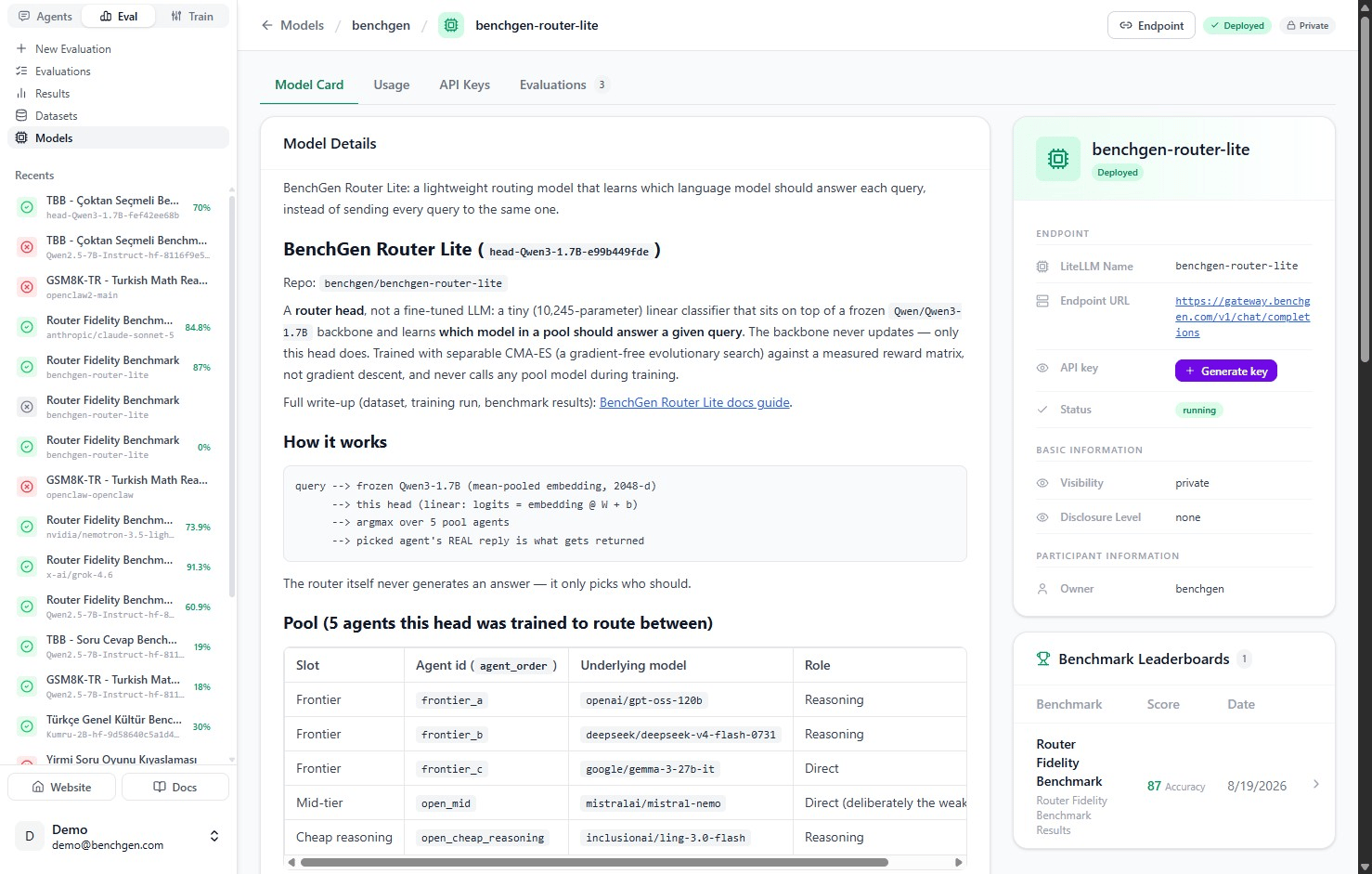
Open it. Its card has four tabs: Model Card, Usage, API Keys, and Evaluations. Notice the sidebar on the right already carries an API key field with a Generate key shortcut, that same control is there no matter which tab you’re on.
A model card's Model Card tab, showing tab navigation for Model Card, Usage, API Keys, and Evaluations, and an API key field with a Generate key button in the sidebar

The Model Card tab, with the same Generate key shortcut already sitting in the sidebar

Step 2: The quick way, or the full API Keys tab

Click that sidebar Generate key button any time you just need a key fast. For naming keys or seeing everything you’ve already issued, click the API Keys tab instead, it’s the same action dialog either way, just with more around it.
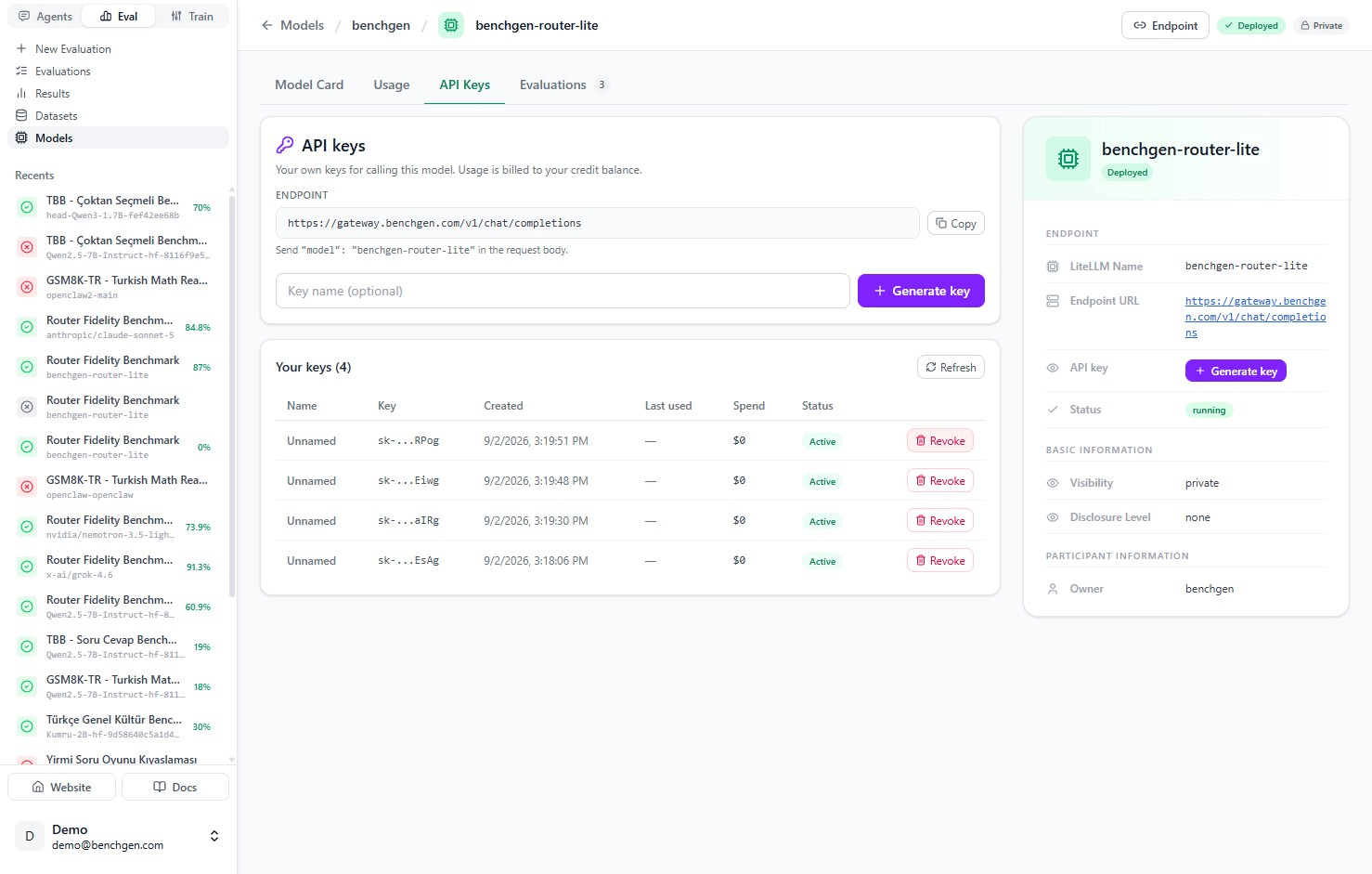
The API Keys tab showing the endpoint URL with a Copy button, a Key name input, a Generate key button, and a table of four active keys with their creation date, last used, spend, and a Revoke button

The API Keys tab: endpoint, key name field, Generate key, and a table of existing keys

Optionally name the key (useful if you’re issuing separate keys per app or environment), then click + Generate key.

Step 3: Copy the key now, it won’t be shown again

A dialog shows your new secret key plus a ready-to-run example request.
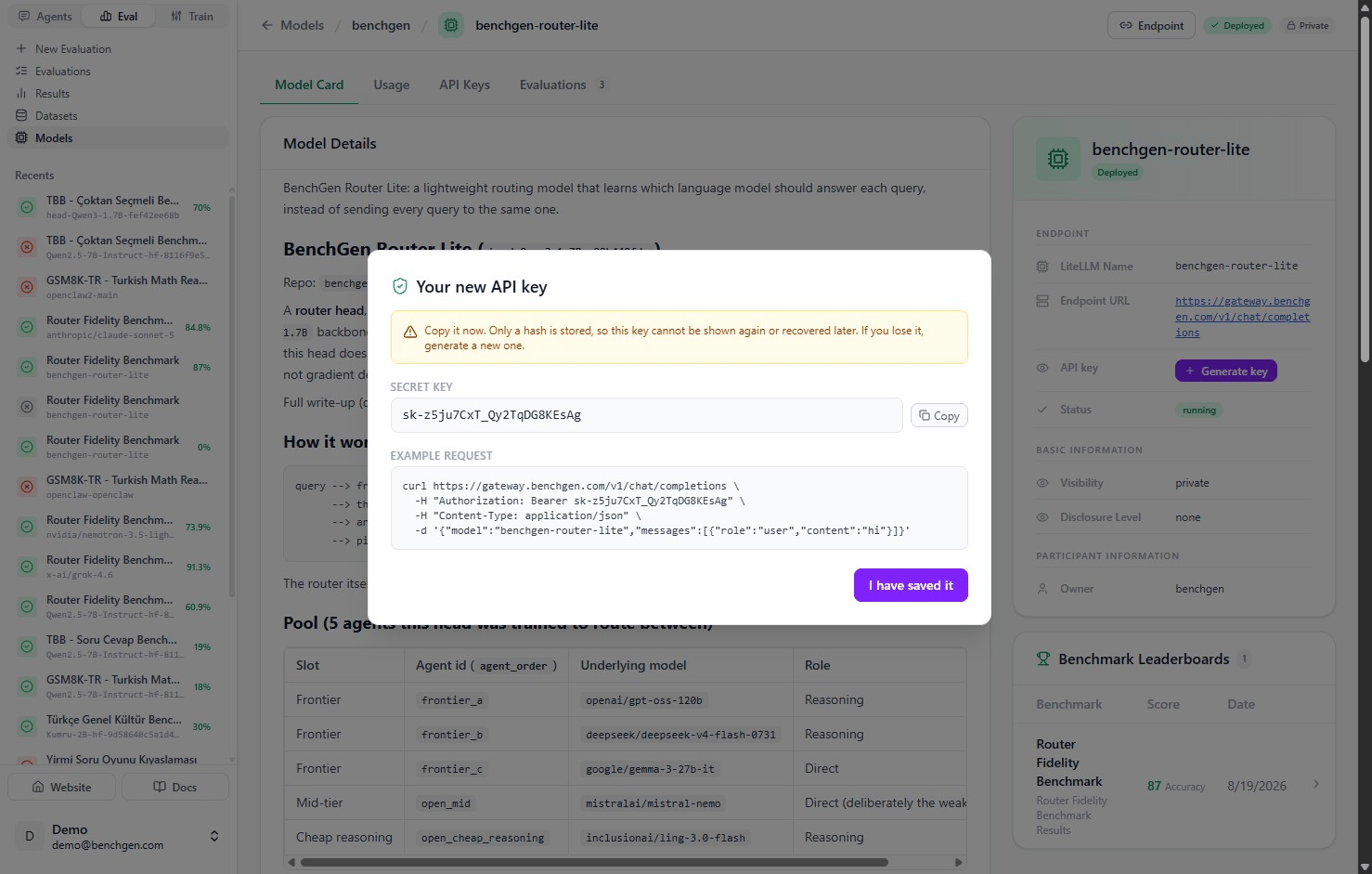
A dialog titled Your new API key, warning that only a hash is stored so the key cannot be recovered later, with the secret key, a Copy button, and an example curl request against the chat completions endpoint

The new API key dialog: the secret key, a Copy button, and an example curl request using it

Copy it now. BenchGen stores only a hash of the key, so if you close this dialog without saving it, you can’t recover it, you’d have to generate a new one. If a key is ever exposed, revoke it and generate a replacement.
Click Copy to grab just the key, or copy the example request as-is:
Click I have saved it to dismiss the dialog.

Managing keys afterward

Your new key appears in the table on the API Keys tab, Active, with its creation date, last-used timestamp, and running spend. Click Revoke on any key you no longer want live, it flips to a Revoked status immediately and stops authenticating.
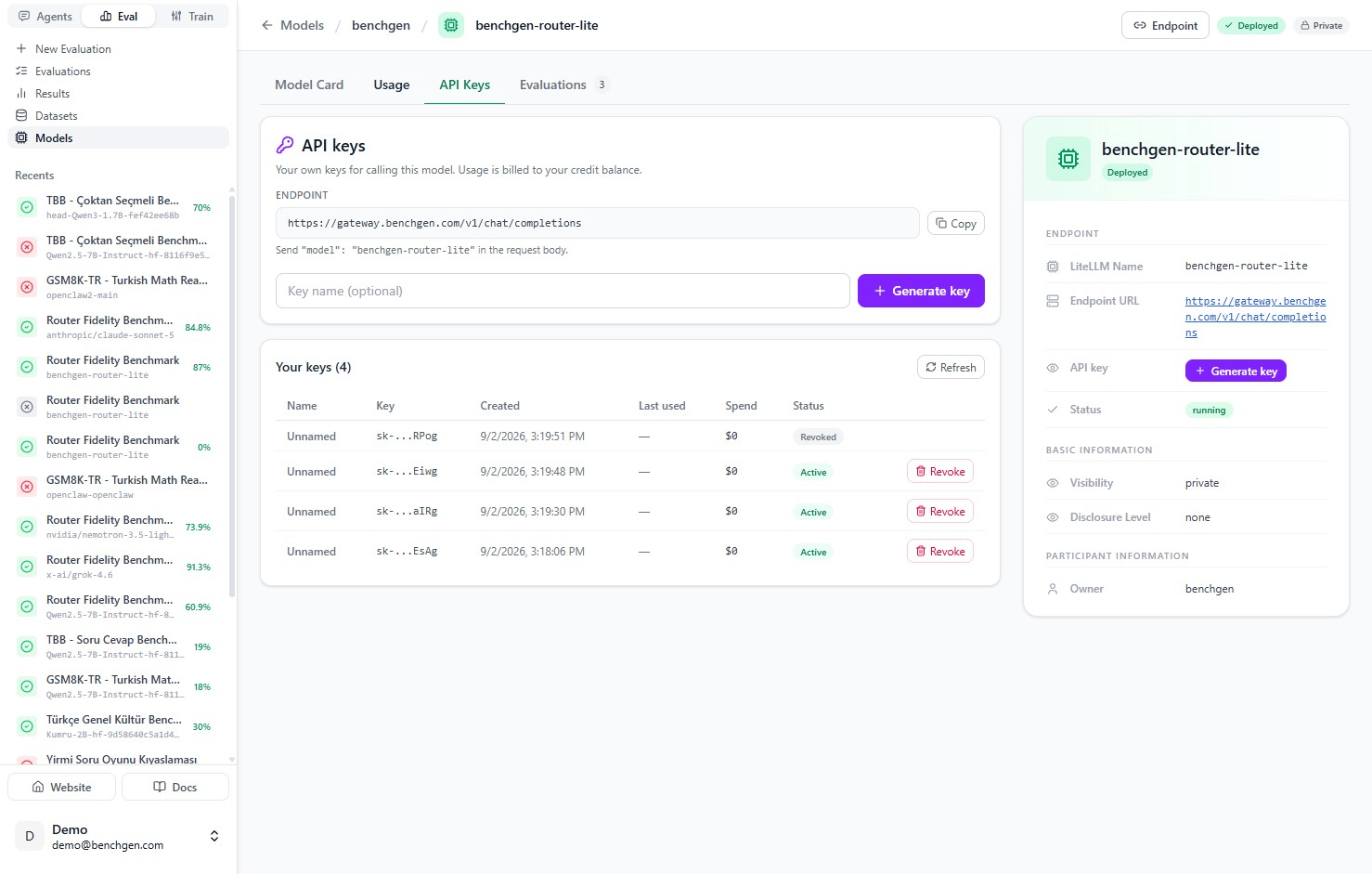
The same keys table with one key now showing a Revoked badge instead of Active and a Revoke button

A revoked key: status changes to Revoked and its Revoke button disappears


Watching it get used

Every call made with the key rolls up into the model’s Usage tab: total requests, tokens, spend, and average latency, plus a log of every individual request.
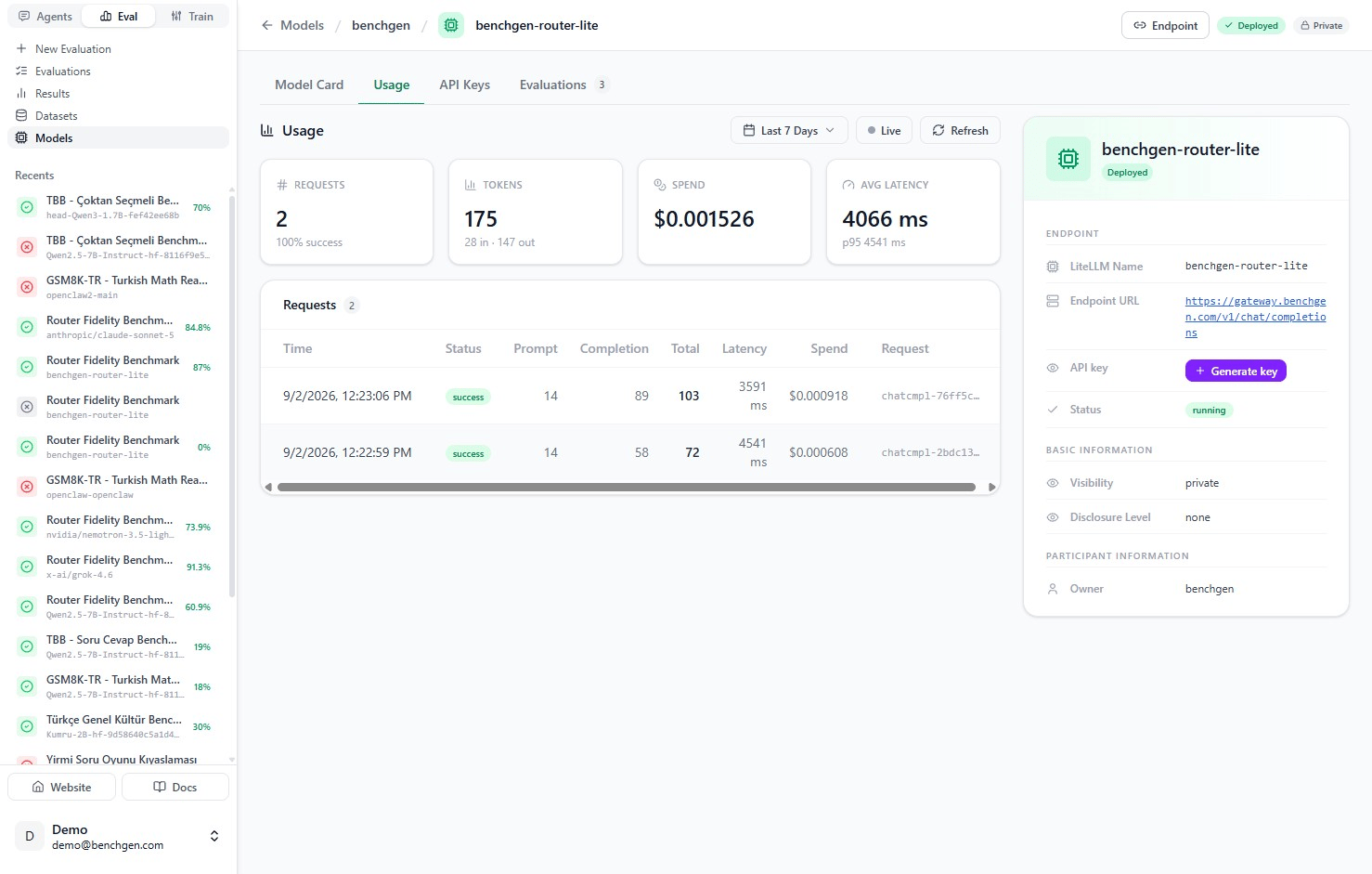
The Usage tab showing 2 requests, 175 tokens, $0.001526 spend, 4066 ms average latency, and a Requests table with two successful calls

The Usage tab after two calls: requests, tokens, spend, and latency, with each call logged below
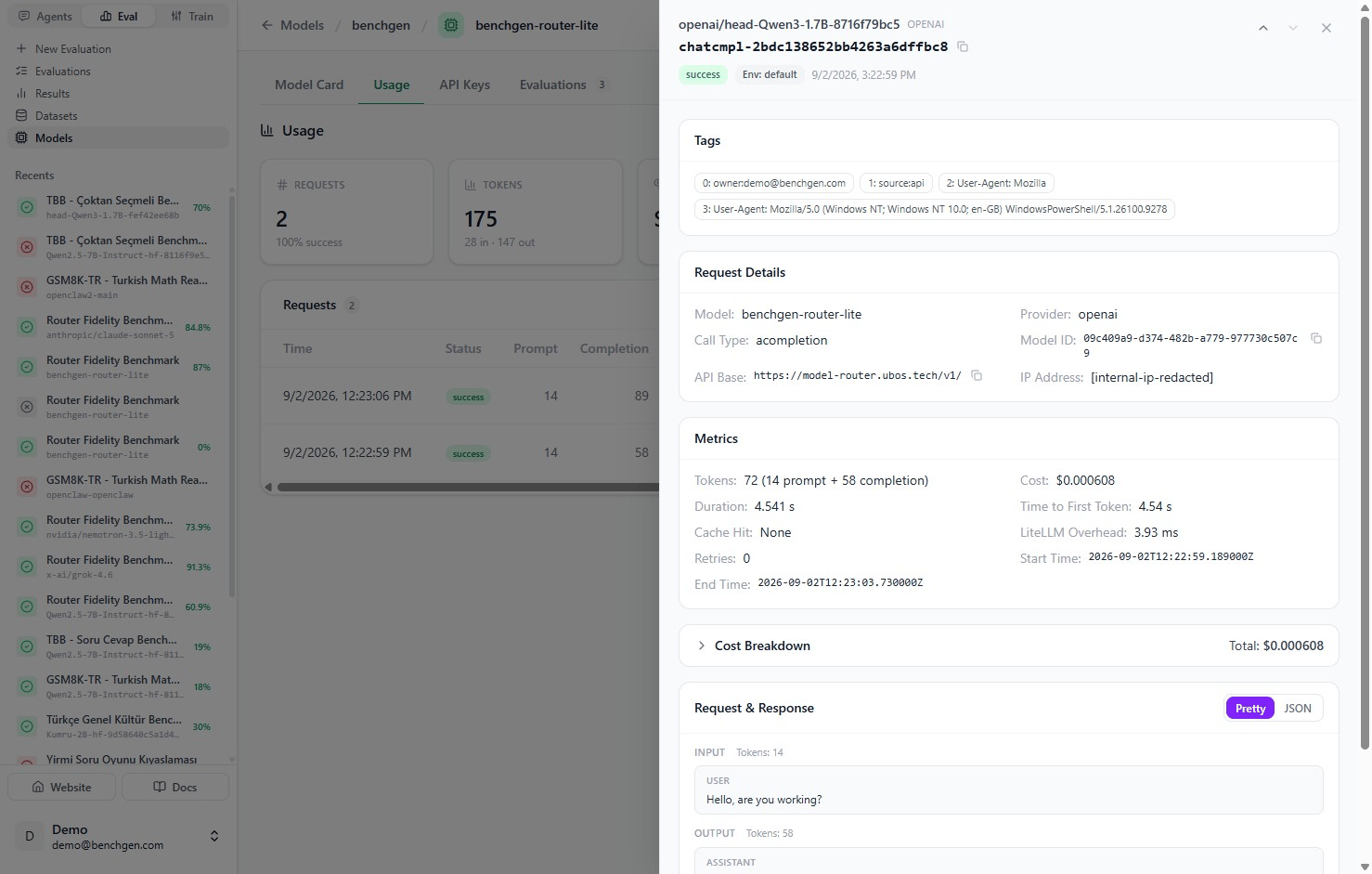
Click any row to see that exact call in full: its tags, request details, token and cost metrics, and the actual prompt and response.
A request detail drawer showing owner and source tags, request details including model and provider, token and cost metrics, and the start of the request and response payload

One request opened: tags, request details, metrics, and cost so far, with the full prompt and response below

See Monitor Model Usage for the full breakdown of everything on this tab.

Next Steps

Monitor Model Usage

Track requests, tokens, spend, and inspect individual calls made with your key.

BenchGen Router Lite

Point your key at the router endpoint instead of a single model.

benchgen-router-lite model page

Open the model card these screenshots were taken from.
Last modified on September 3, 2026