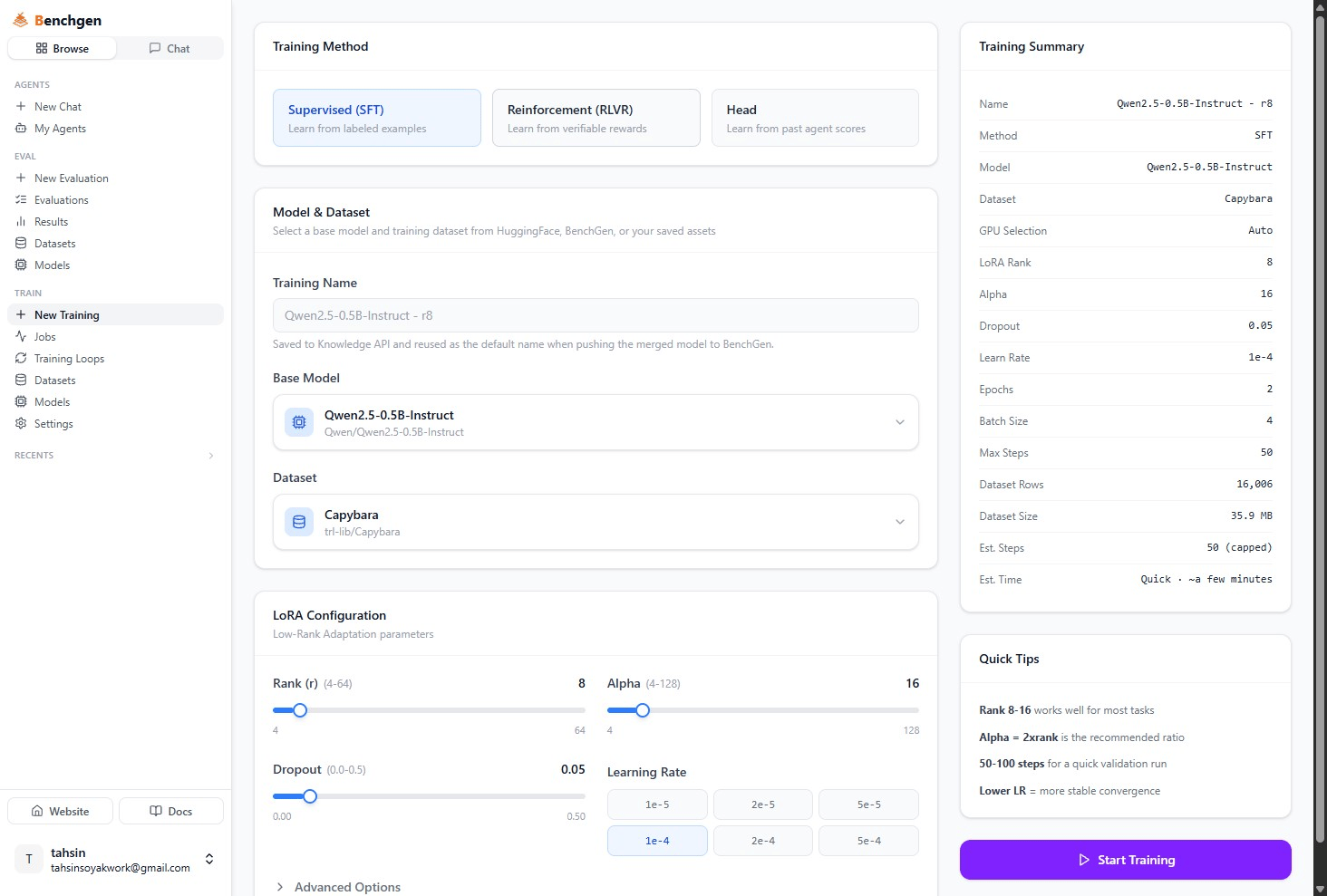
Fine-tuning isn’t the only Training Method. Alongside Supervised (SFT), which learns from labeled examples, Train also offers Reinforcement (RLVR): the model generates its own answers and a reward function scores them, no labeled dataset required for two of the three reward functions.
The New Training page's Training Method selector, showing Supervised (SFT) selected alongside Reinforcement (RLVR) and Head options

The Training Method selector: Supervised (SFT), Reinforcement (RLVR), and Head

RLVR stands for Reinforcement Learning from Verifiable Rewards. Under the hood it runs GRPO (Group Relative Policy Optimization) on top of a LoRA adapter: for each prompt, the model generates a group of candidate answers, the reward function scores each one, and the adapter is nudged toward whichever answers scored best relative to the rest of the group.
This page assumes you’re already on the New Training form. If you haven’t started one yet, see Fine-tune a Model for how to name a run and pick a base model, everything up to the Training Method choice works the same way.

Pick a reward function

Selecting Reinforcement (RLVR) swaps the LoRA config card for a Reward Function card.
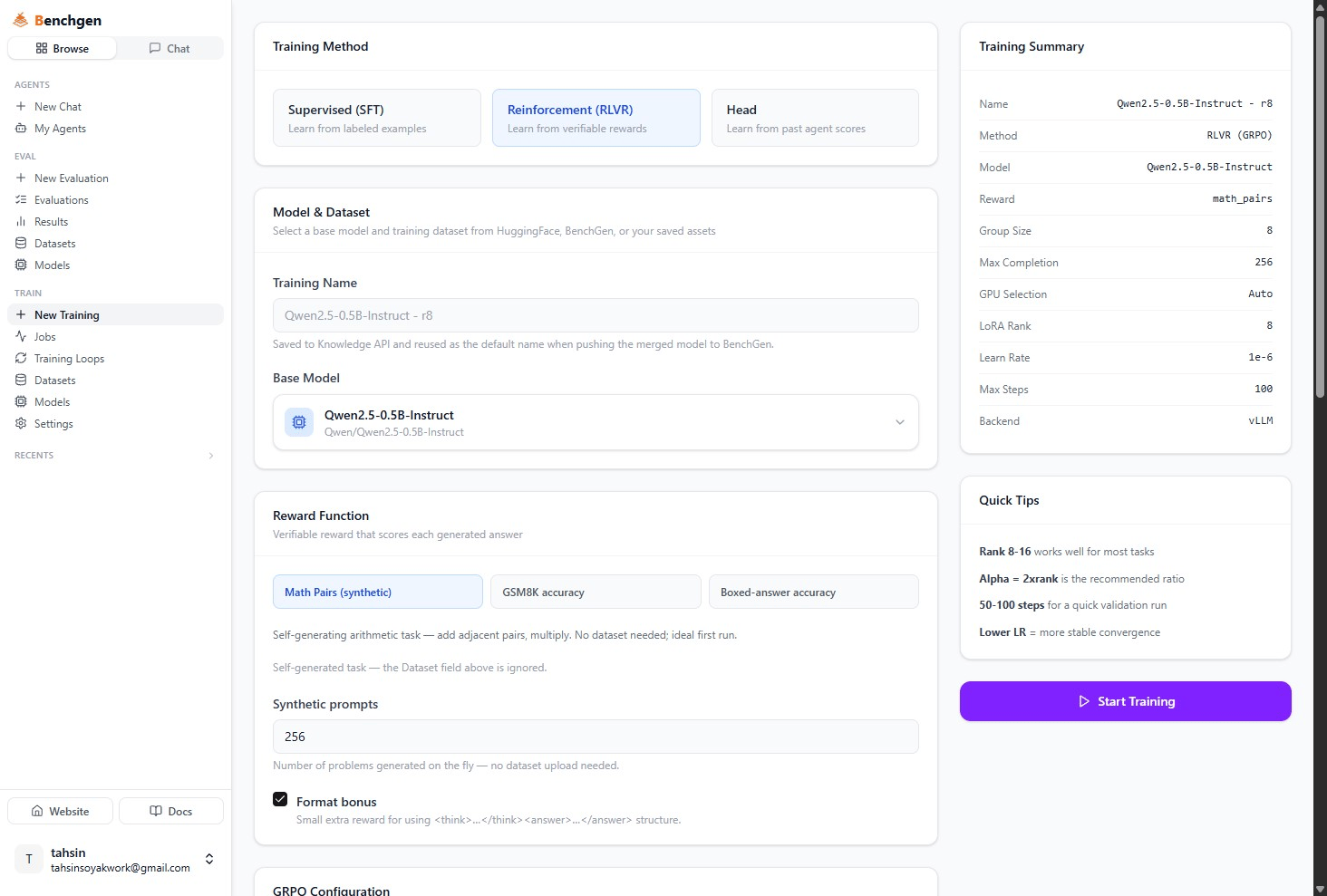
The Reward Function card showing three options, Math Pairs synthetic selected, a Synthetic prompts field set to 256, and a checked Format bonus checkbox, with the Training Summary sidebar on the right

The Reward Function card with Math Pairs (synthetic) selected, Synthetic prompts and Format bonus below it

Picking Math Pairs (synthetic) reveals a Synthetic prompts field, how many problems to generate on the fly (8–100,000, default 256), no dataset upload needed either way. Whichever reward you pick, Format bonus is checked by default: a small extra reward for wrapping the answer in <think>…</think><answer>…</answer> structure, on top of whether the answer itself was correct.

Configure GRPO

Below the reward, the GRPO Configuration card sets how the group-based training itself runs.
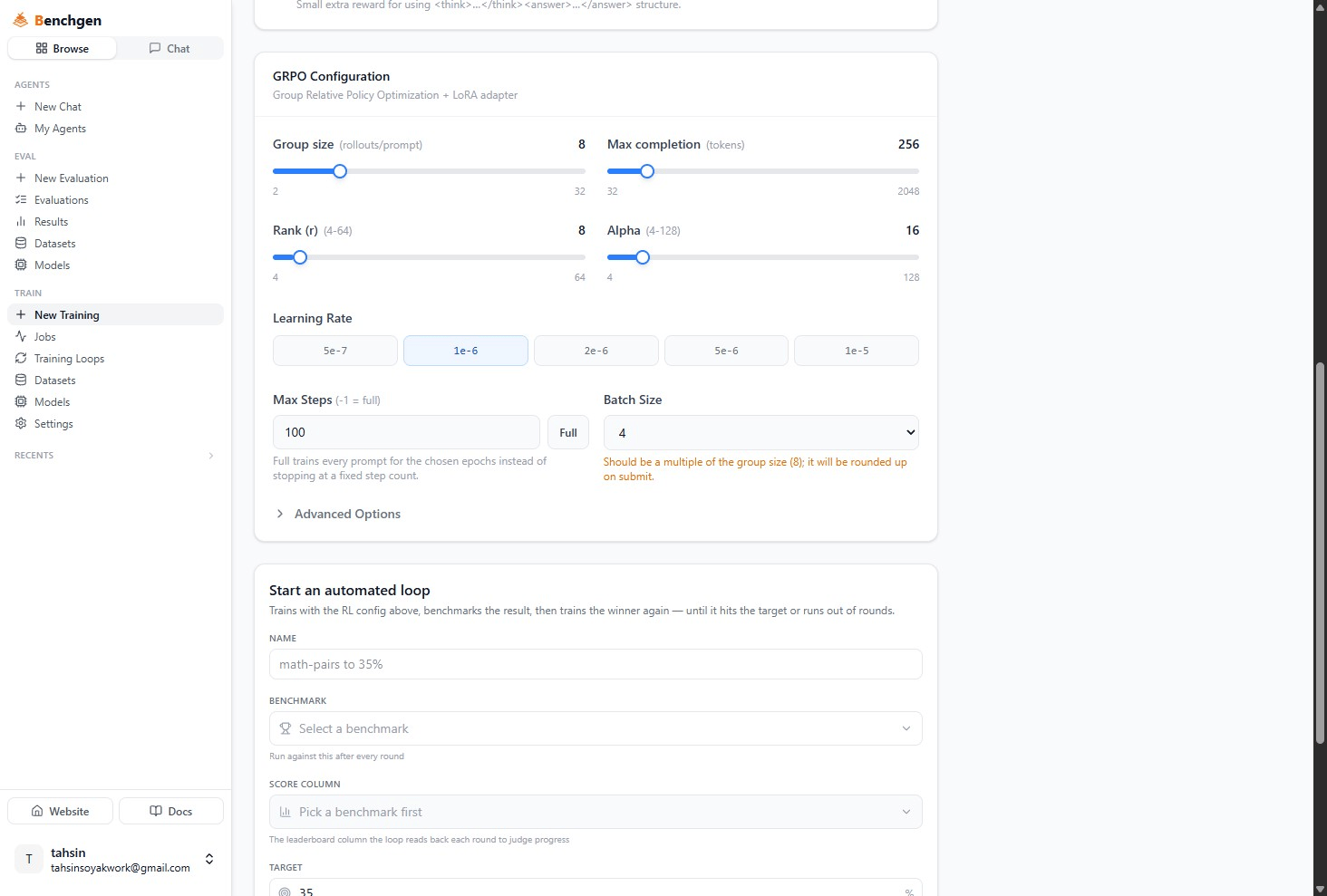
The GRPO Configuration card with Group size, Max completion, Rank, Alpha sliders, Learning Rate buttons, Max Steps set to -1 with Full active, and a Batch Size warning about being a multiple of the group size

GRPO Configuration: group size, max completion, rank, alpha, learning rate, max steps, and batch size

Batch Size should be a multiple of Group size. If it isn’t, for example the default Batch Size 4 against a Group size of 8, the form shows a warning and rounds it up for you on submit. You can ignore the warning and let it round up, or pick a multiple yourself.
Expand Advanced Options for finer control: Loss Type (grpo, dapo, or dr_grpo), Epochs, Quantization (Full Precision, 4-bit QLoRA, or 8-bit), and Generation Backend, either vLLM (colocate) (fast, shares the training GPU) or Transformers (in-process, use if vLLM runs out of memory). Picking vLLM colocate also exposes a GPU memory slider controlling how much of the training GPU vLLM gets to keep for itself.

Start training

The Training Summary sidebar mirrors an RLVR run’s specific fields: Method (RLVR (GRPO)), Model, Reward, Group Size, Max Completion, GPU Selection, LoRA Rank, Learn Rate, Max Steps, and Backend. Click Start Training once it looks right.

Monitor an RLVR run

An RLVR job’s detail page adds an RL Metrics section above the usual Actions panel.
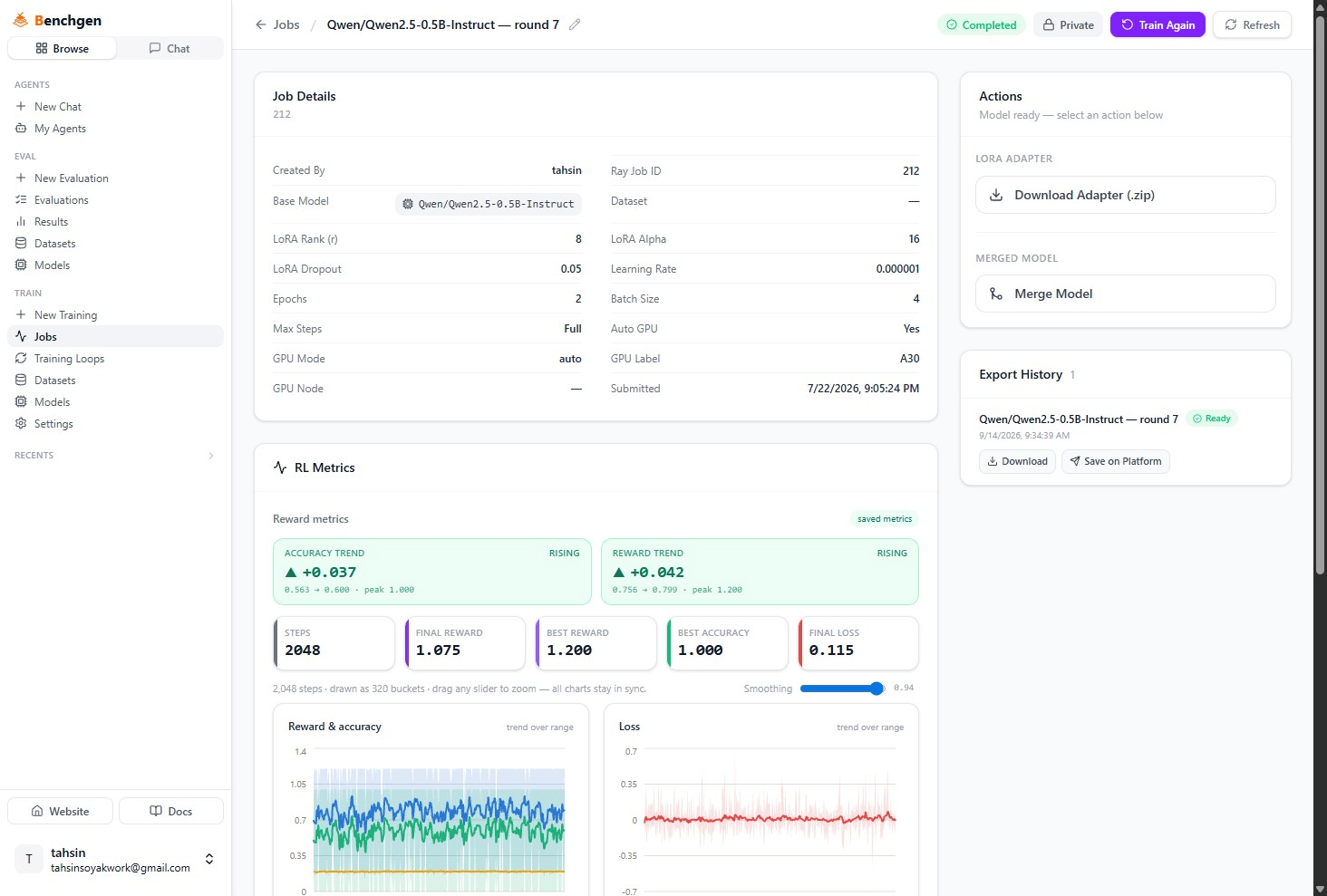
The RL Metrics card showing Accuracy Trend +0.037 rising and Reward Trend +0.042 rising, stat tiles for Steps, Final Reward, Best Reward, Best Accuracy, and Final Loss, Reward & accuracy and Loss line charts, and the Actions panel with Download Adapter and Merge Model below

RL Metrics on a completed RLVR job: Accuracy Trend, Reward Trend, stat tiles, and the reward/accuracy and loss charts

  • Accuracy Trend and Reward Trend compare an early window of training against a later one, showing the delta and the direction (rising, falling, flat), plus the peak value reached.
  • The stat tiles, Steps, Final Reward, Best Reward, Best Accuracy, Final Loss, summarize the whole run once it’s done.
  • Reward & accuracy and Loss chart every step. If the run logged them, you may also see KL & entropy and Completion length charts below.
The Actions panel underneath, Download Adapter, Merge Model, Export History, works exactly like an SFT job’s, see Merge & Save a Model.

Automate rounds with a training loop

Instead of babysitting one run, you can point Train at a target score and let it train, benchmark, and retrain the winner on its own. Configure your reward and GRPO settings as above, then scroll to Start an automated loop.
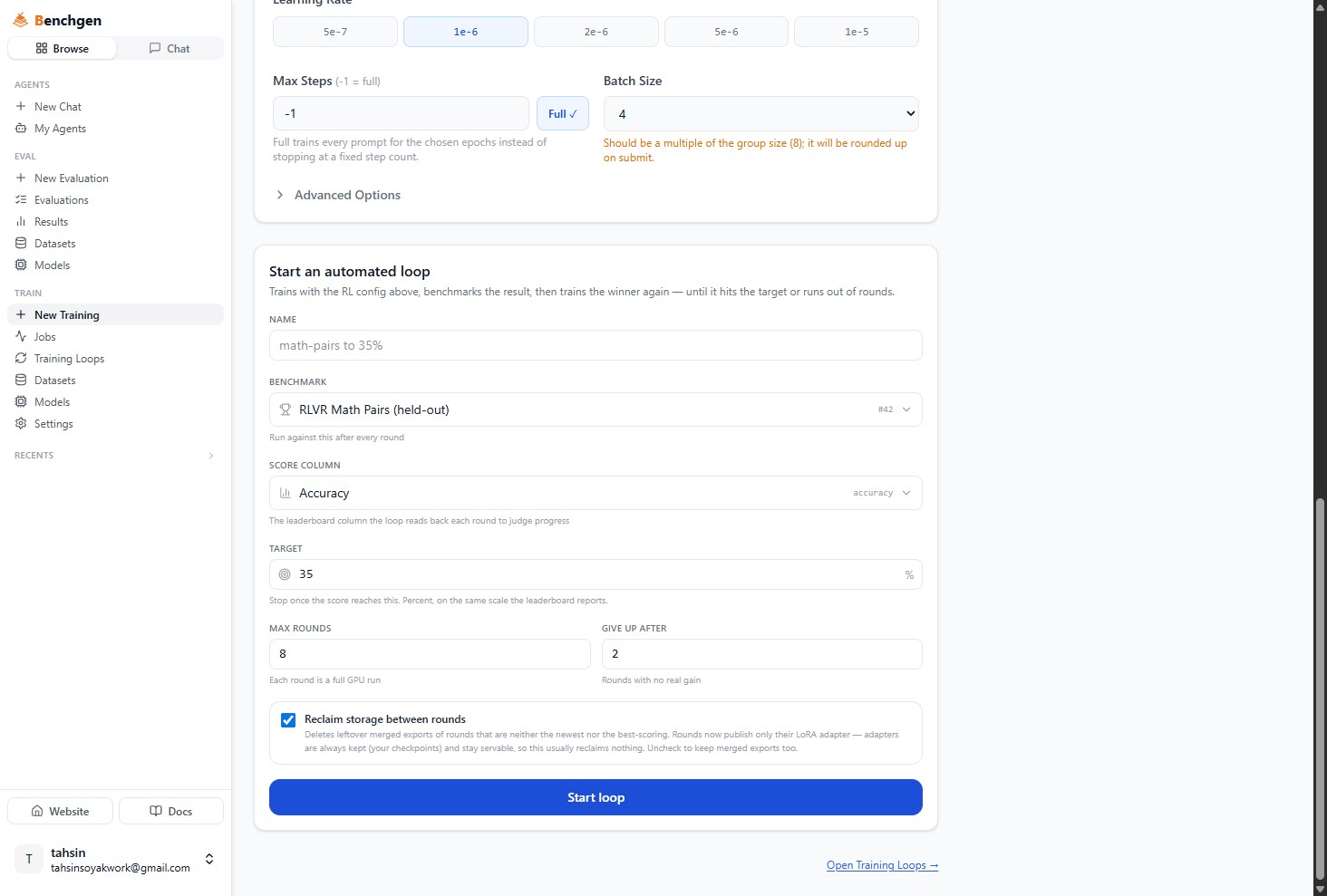
The Start an automated loop form with Name set to math-pairs to 35%, Benchmark set to RLVR Math Pairs held-out, Score Column set to Accuracy, Target set to 35%, Max Rounds 8, Give Up After 2, a checked Reclaim storage between rounds checkbox, and a Start loop button

The Start an automated loop form: name, benchmark, score column, target, max rounds, give up after, and reclaim storage

Each round trains a fresh GRPO adapter on top of the previous round’s best result, benchmarks it, and either stops (target reached, rounds spent, or plateaued) or starts the next round automatically. Click Start loop.

Reading loop results

Open the loop from Training Loops in the sidebar to see it live or after it finishes.
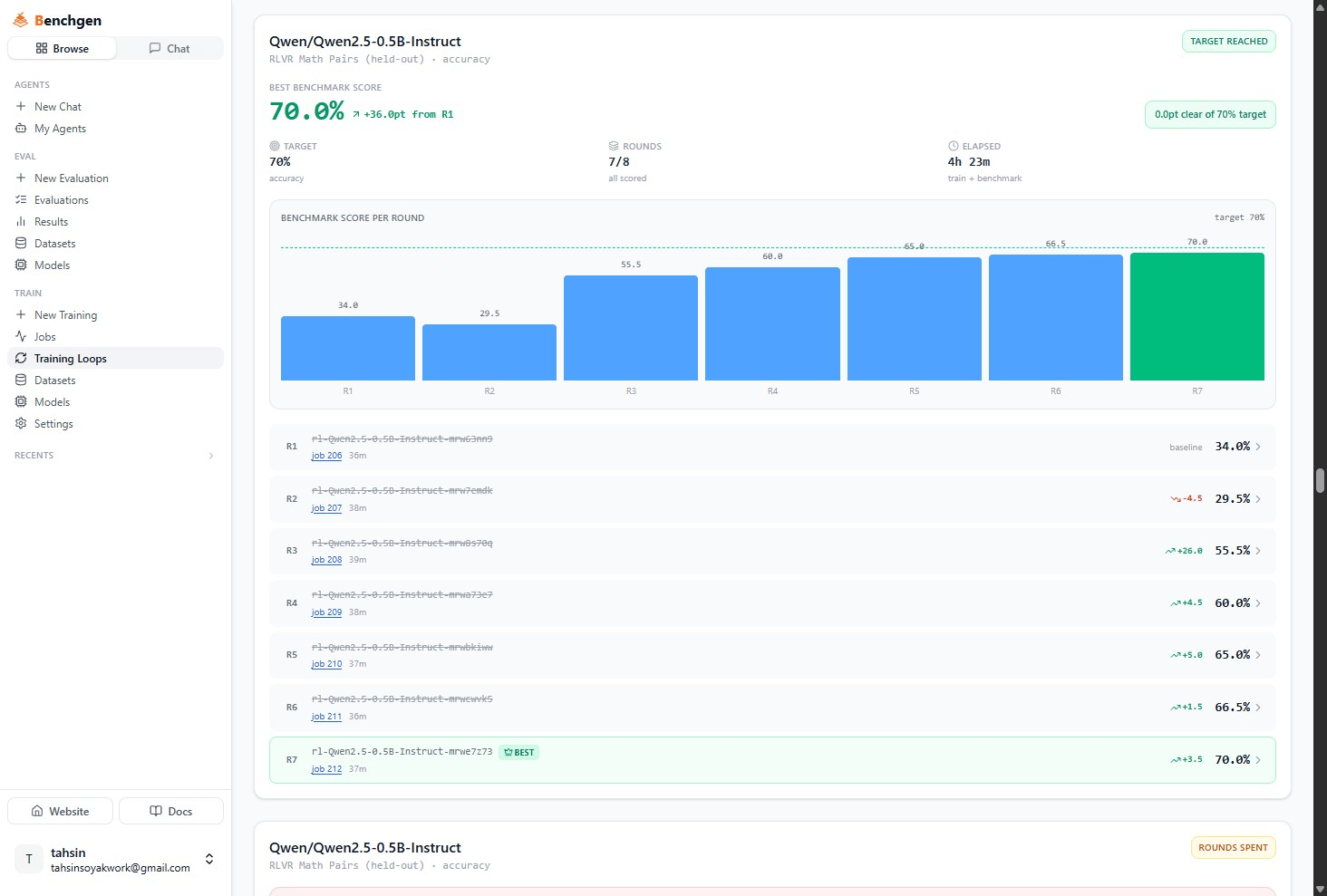
A Training Loop detail page for Qwen2.5-0.5B-Instruct on RLVR Math Pairs held-out, showing Target Reached, a best benchmark score of 70.0% up 36 points from round 1, 7 of 8 rounds all scored, elapsed 4h 23m, a bar chart of benchmark score per round rising from 34 to 70 percent, and a list of rounds R1 through R7 each with a job link, duration, and score delta, with R7 marked BEST

A finished training loop: best score, target, rounds, elapsed time, a bar chart per round, and the round-by-round list

The header stats show the best benchmark score reached so far (with its gain over round 1), the target, how many of the max rounds have run, and total elapsed time across training and benchmarking. The bar chart plots score per round, and each row below links to that round’s training job, its duration, and its score with a delta arrow against the previous scored round. The round with the best score gets a BEST badge, ties go to the earlier round. A loop’s overall status shows as Queued, Training, Benchmarking, Target reached, Rounds spent, Plateaued, Failed, or Stopped.

Evaluating an RLVR model

An RLVR-trained model benchmarks the same way as any other, see On a Platform Model. The Score Breakdown just reflects whatever the reward measured during training:
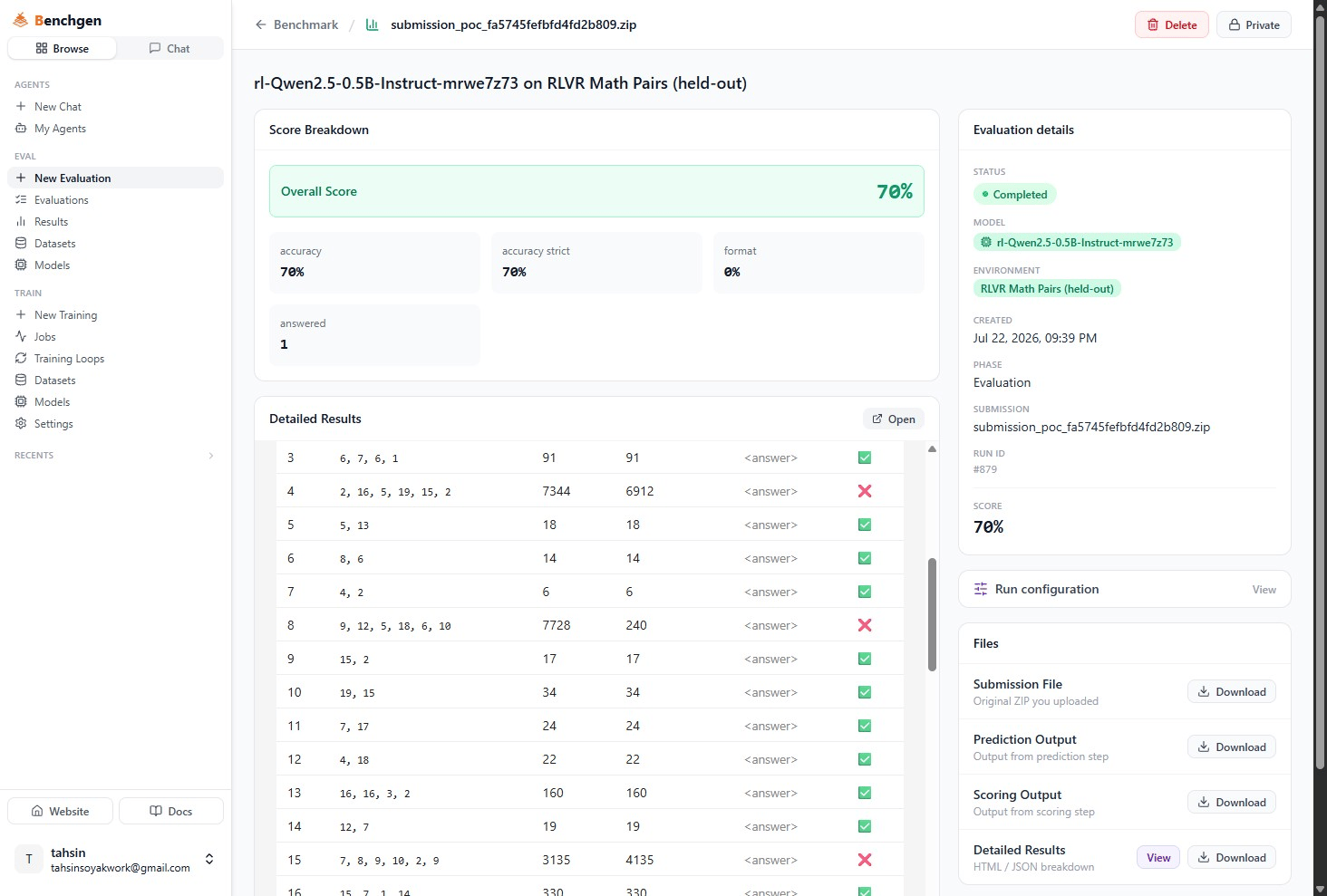
An evaluation detail page for an RLVR-trained model on RLVR Math Pairs held-out, with an overall score of 70% and tiles for accuracy 70%, accuracy strict 70%, format 0%, and answered 1, plus a per-question Detailed Results table

An evaluation of an RLVR-trained model against the RLVR Math Pairs benchmark, showing accuracy, accuracy strict, format, and answered

accuracy and accuracy strict mirror the reward function’s own scoring, format reflects the <think>/<answer> format bonus, and answered counts responses the model actually completed. See Benchmark Results for how to read the rest of this page.

Next Steps

Merge & Save a Model

Download the adapter, save it to run in benchmarks, or merge it into a full checkpoint.

Fine-tune a Model

Train on a labeled dataset with Supervised (SFT) instead.
Last modified on September 14, 2026