

Not the source you need? If you want to pull a model from the Hub, see From a HuggingFace
model; if you started a live endpoint yourself, see On a
running model.
Prerequisites
- A benchmark or environment to evaluate against, from the Environments Hub or a custom environment you uploaded.
- At least one model available under Platform Models. See Add a model.
Steps
1. Open a benchmark
From Eval → Environments, open the benchmark you want to run against.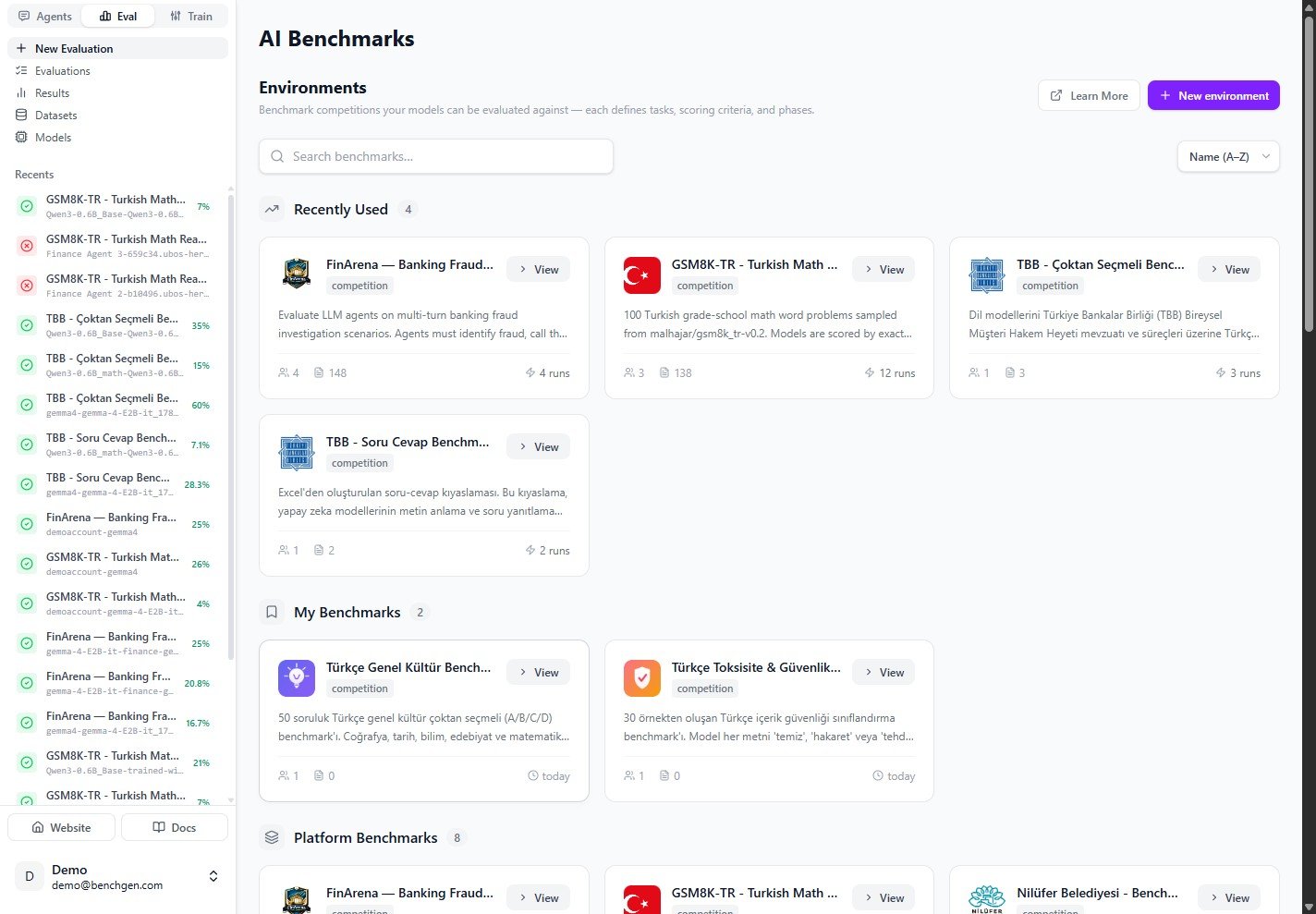
The AI Benchmarks environment list
2. Select a platform model
The Evaluate tab opens on the Platform Models tab. It lists every model available on the platform, each with a ready badge. Use the search box to filter, then click a model to select it.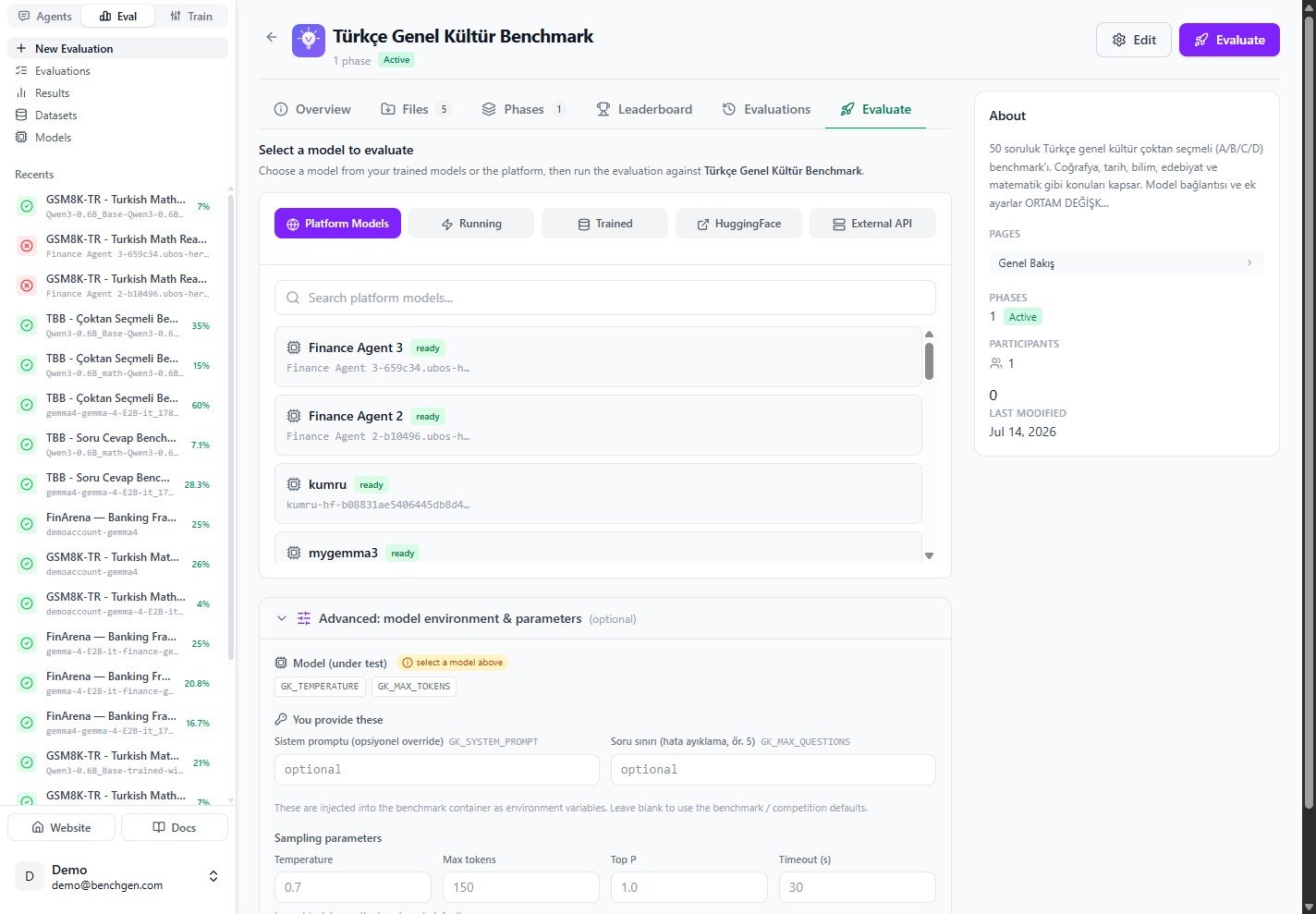
The Platform Models tab with the model list and Advanced panel
3. Set run values (optional)
Expand Advanced: model environment & parameters to review what the benchmark injects:- Model (under test) chips are auto-filled from the selected model.
- You provide these are the fields the benchmark owner exposed to runners.
- Sampling parameters (Temperature, Max tokens, Top P, Timeout) tune the model connection.
4. Run and review
Click Run Evaluation. BenchGen creates the run, streams live logs, and computes the score when it finishes. Open the completed run to see the Score Breakdown and the per-question Detailed Results table. See Benchmark Results for a full walkthrough of the results page.Next steps
Evaluate an Inference Model
Benchmark a live endpoint you deployed.
From a HuggingFace Model
Pull and score a Hub model.
Benchmark Results
Interpret the score breakdown and detailed table.