

Need a running model first? This guide assumes you already have a live endpoint. If you don’t, follow Deploy an inference model and come back once its status reads running.
Prerequisites
- A model in the running state. See Deploy an inference model.
- A benchmark or environment to evaluate against, either from the Environments Hub or a custom environment you uploaded.
Steps
1. Open a benchmark
Open the environment you want to evaluate against. Its Overview tab describes what the benchmark measures and how submissions are scored, and shows tabs for Phases, Leaderboard, Evaluations, and Evaluate. To start, click Evaluate in the top right corner, or open the Evaluate tab.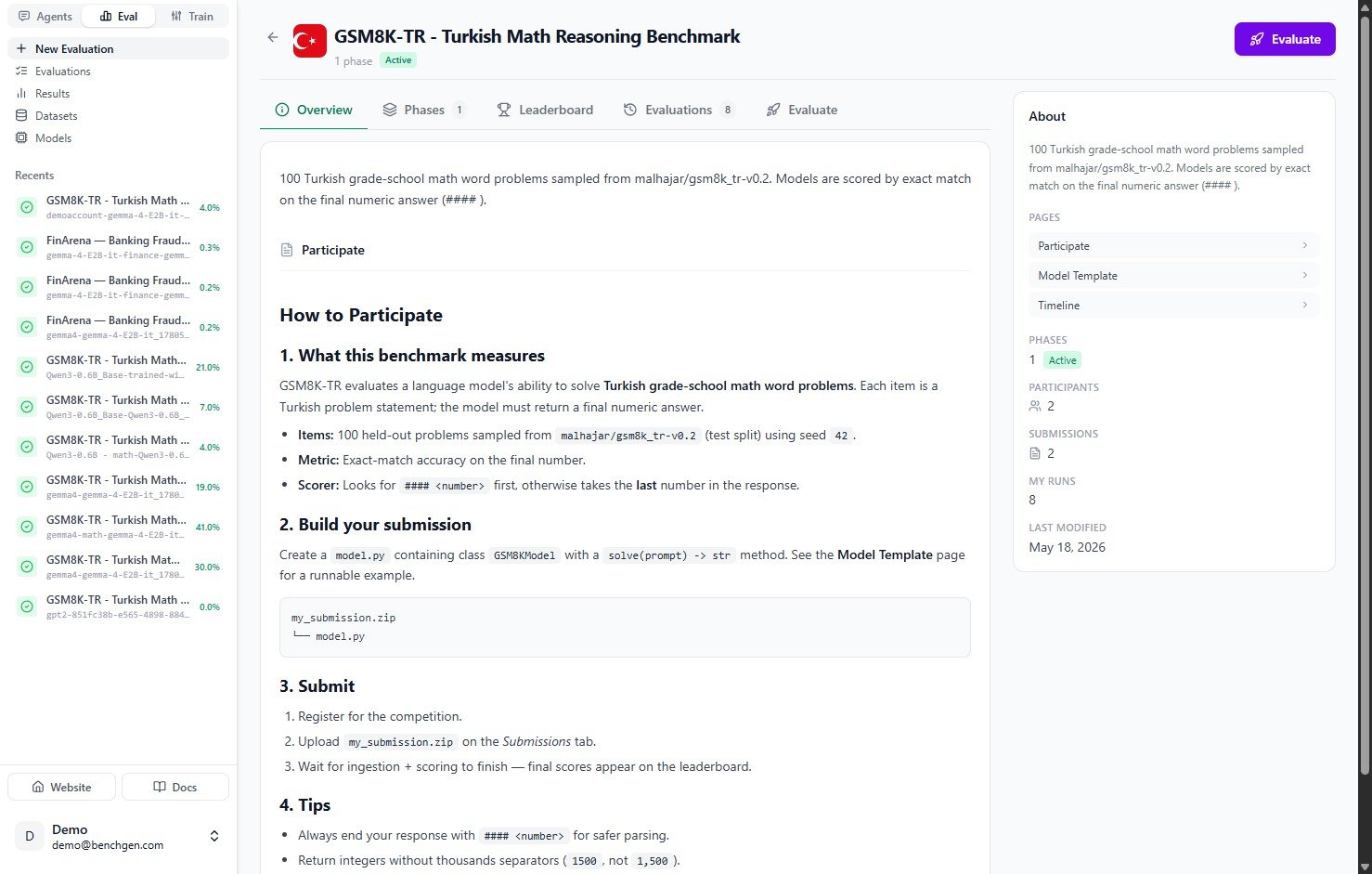
The GSM8K-TR benchmark overview page with the Evaluate button
2. Choose a model source
The Evaluate tab opens with “Select a model to evaluate.” Models are grouped by source. Pick the tab that matches where your model lives: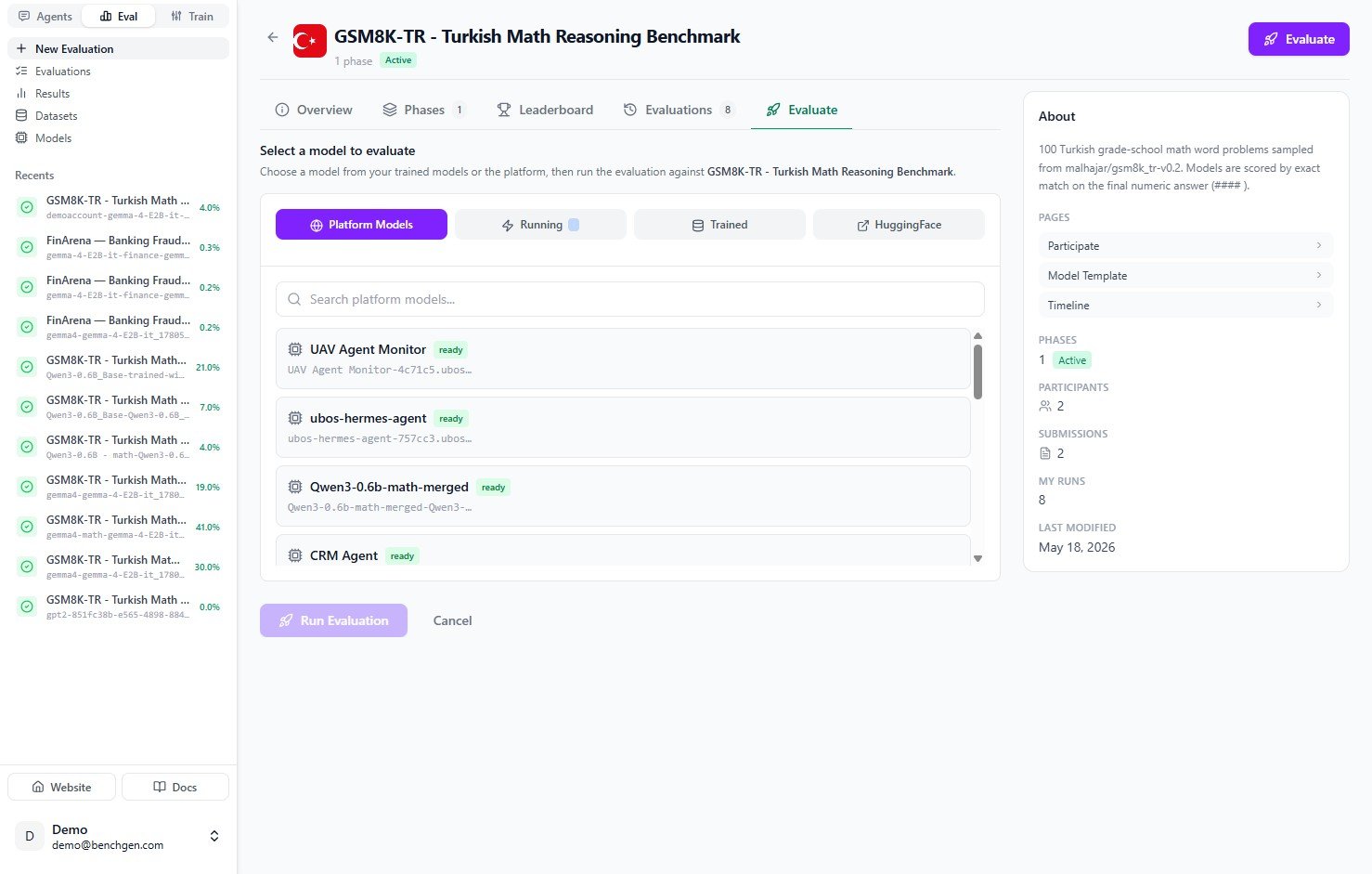
The Evaluate tab showing the four model source tabs
3. Select your running model
Since you just deployed an endpoint, click the Running tab. It lists every model that is currently live. Find the one you deployed. It shows a green running badge.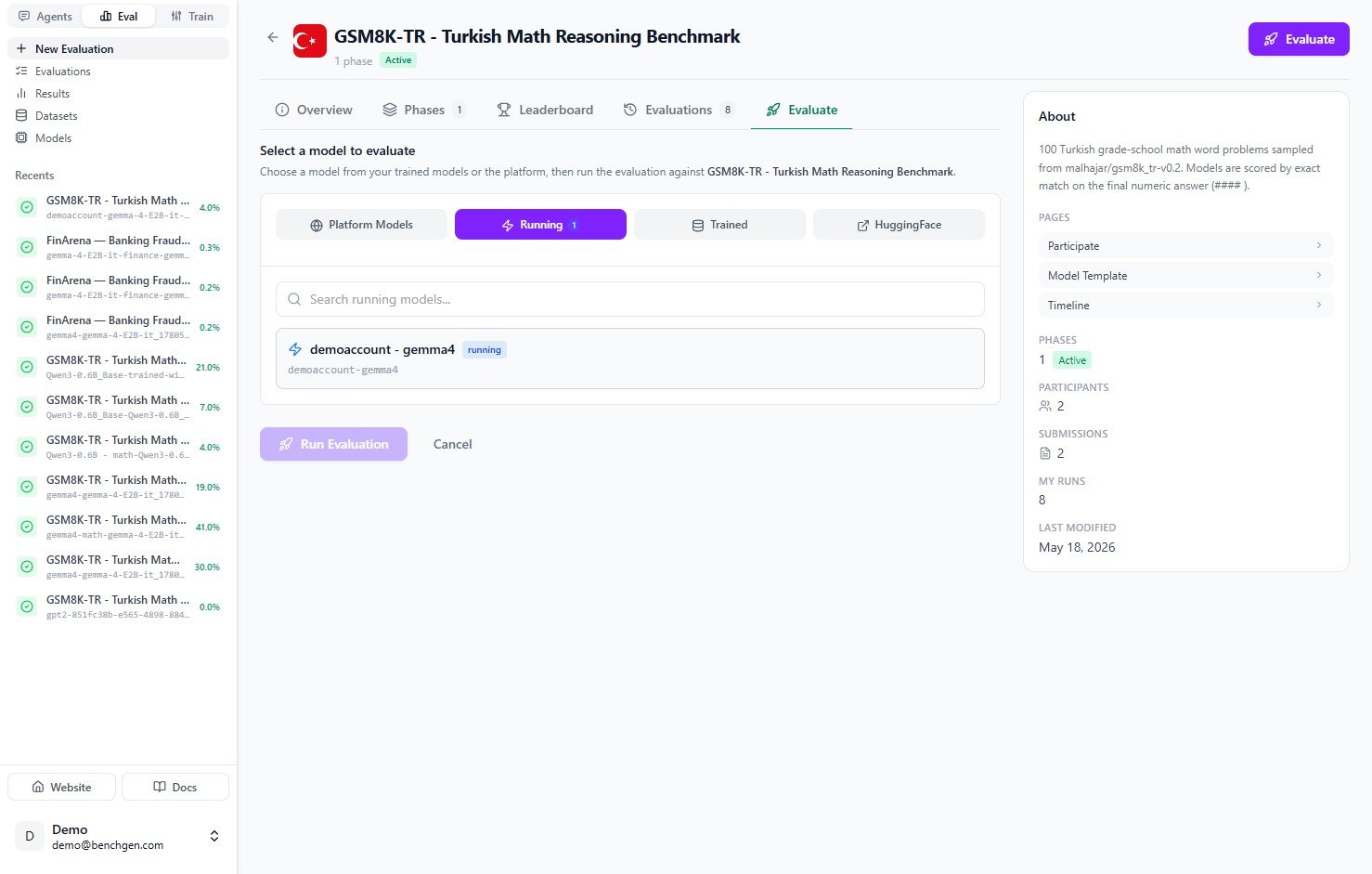
The Running tab listing the live demoaccount-gemma4 endpoint
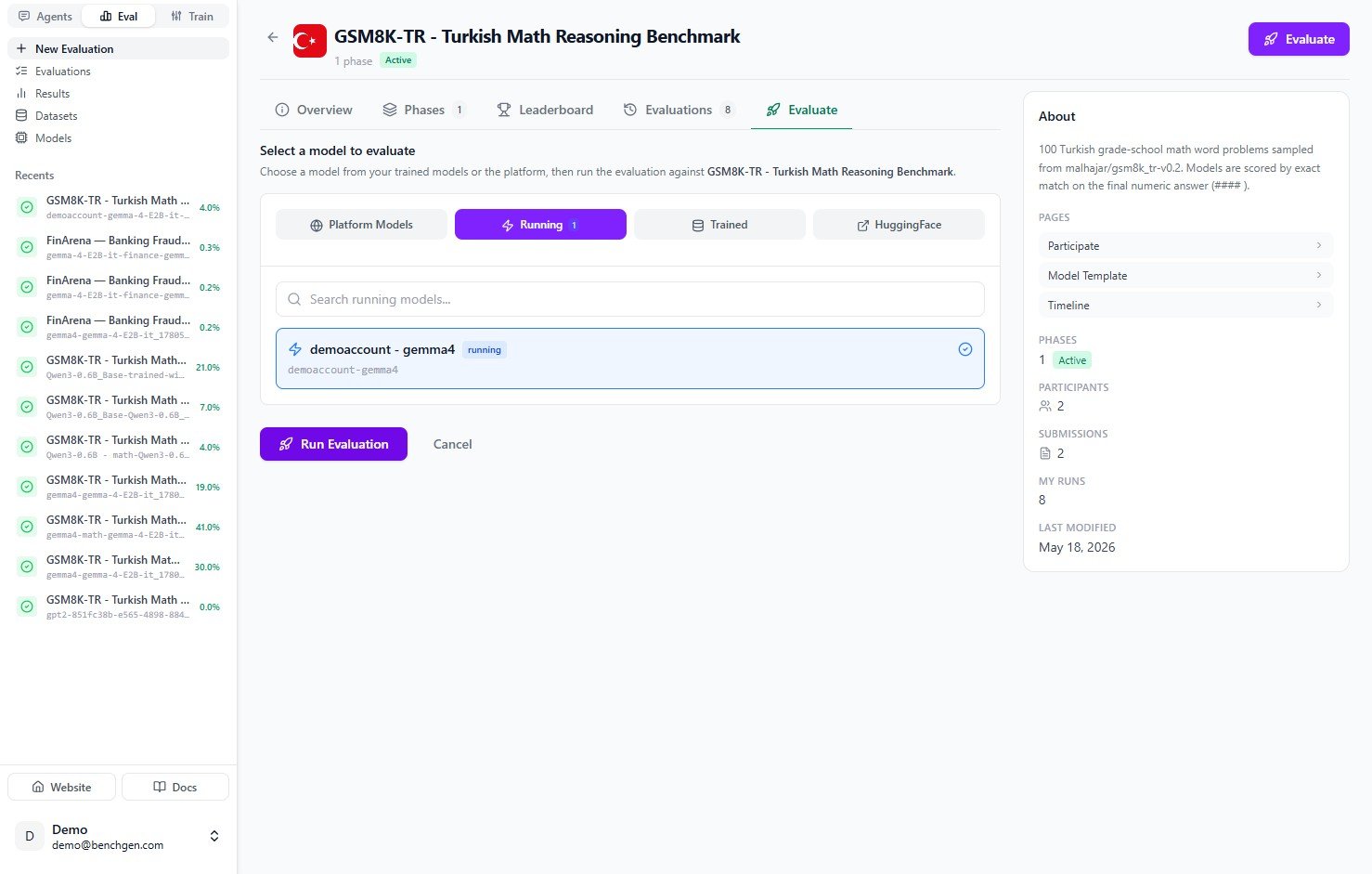
The running model selected, with Run Evaluation now enabled
4. Run the evaluation
Click Run Evaluation. BenchGen creates an evaluation run, generates a submission for the selected environment, and starts running your model against the test cases.5. Monitor progress
The run opens to a live log view. Status messages stream as the run progresses: it loads the benchmark data, runs the model on each item, and reports progress likeProcessing: 10/100 (10%).
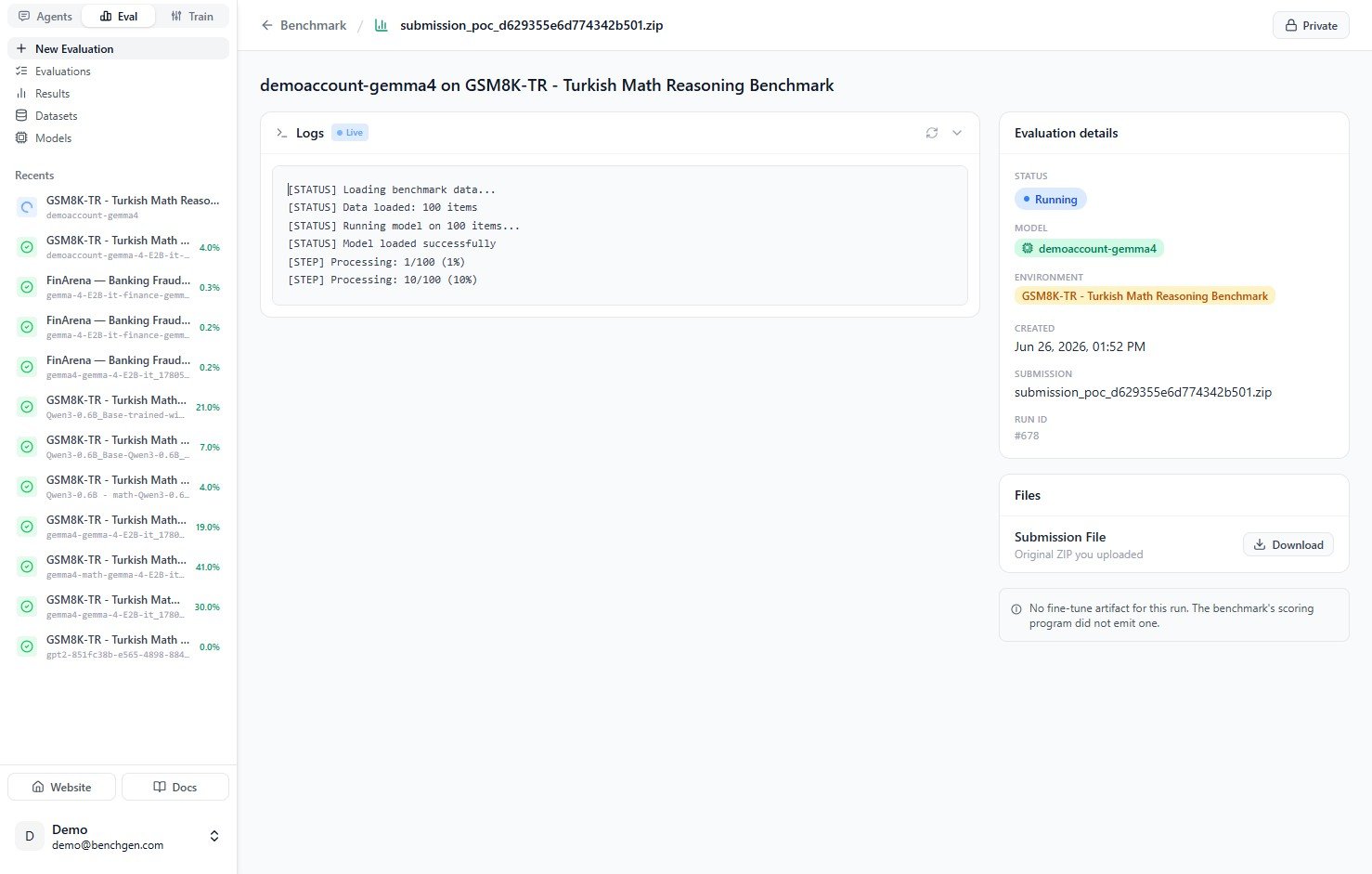
The evaluation running with live logs and the evaluation details panel
As the run nears completion, the logs show predictions being generated and the final score being computed, for example
accuracy=26.00% correct=26/100.
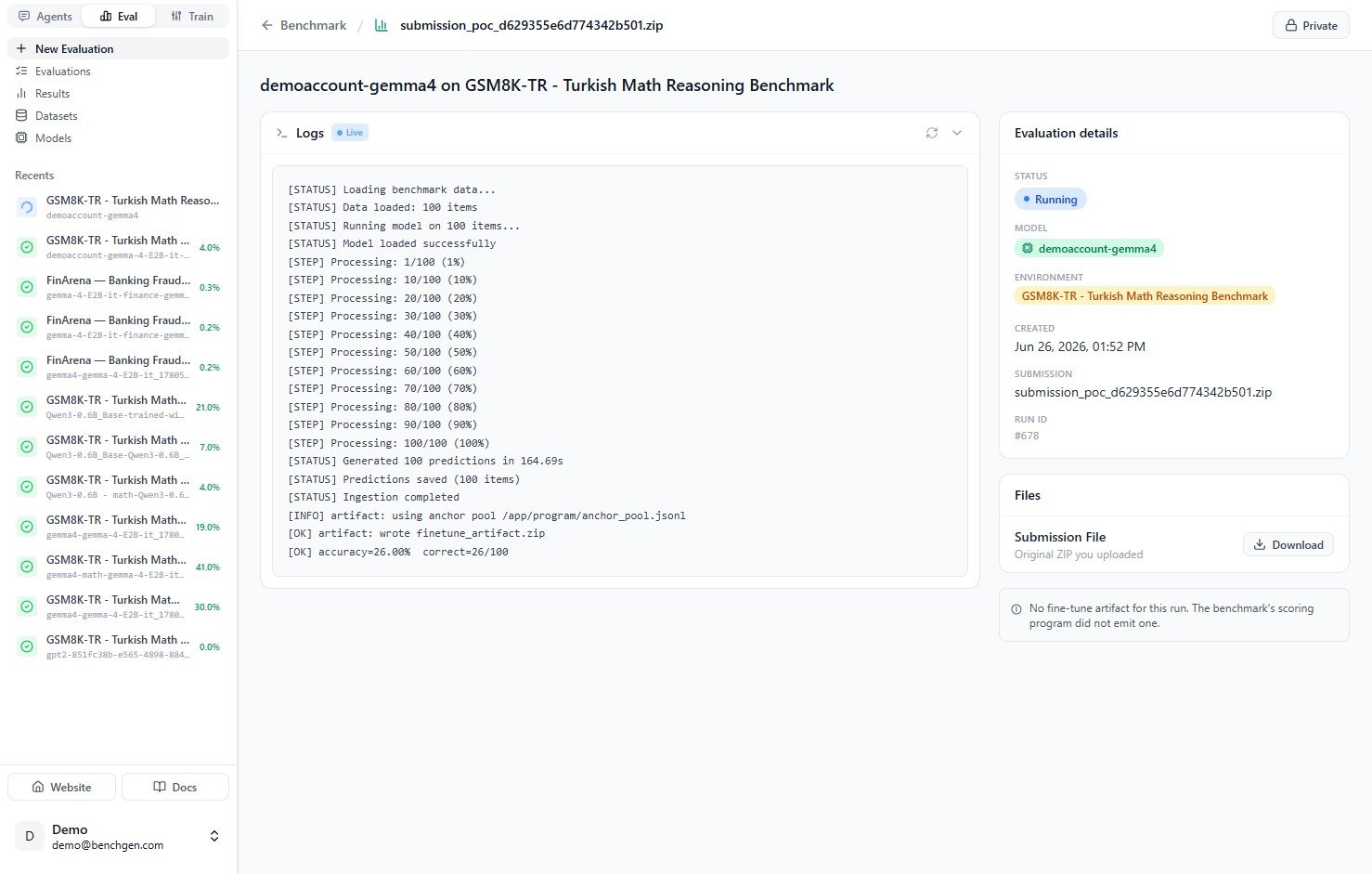
Completed logs showing generated predictions and the computed accuracy
6. Review scores and results
When the run finishes, the status turns to Completed and a Score Breakdown replaces the live logs.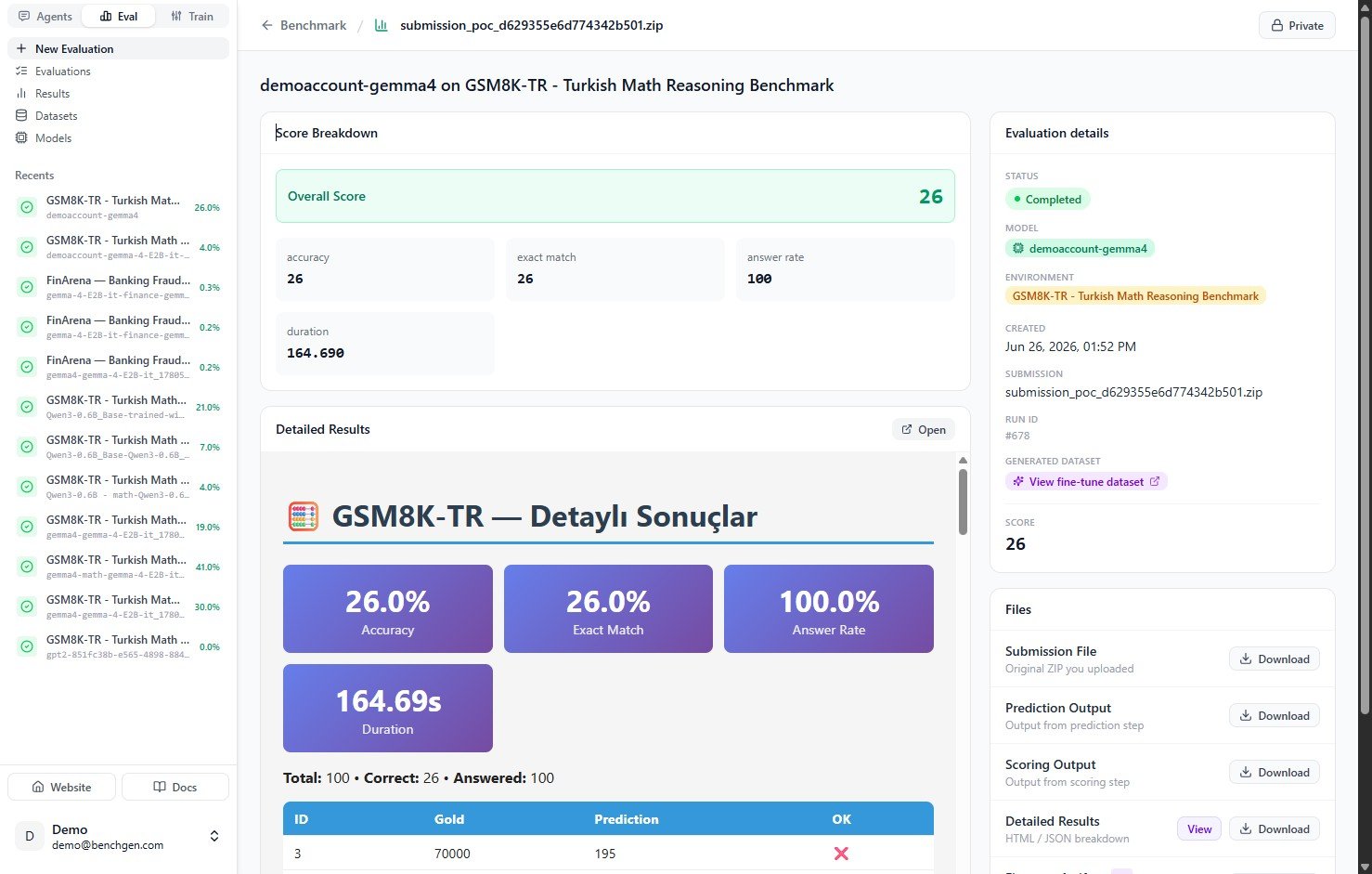
The Score Breakdown and detailed results for the completed run
Below the metrics, Detailed Results shows a table with one row per test case. Each row lists the item ID, the gold (expected) answer, the model’s prediction, and whether it was correct.
Download the artifacts
The Files section in the panel on the right lets you download everything the run produced:Next Steps
Benchmark Results
Understand the benchmark results report and what the metrics mean.
Export Datasets → Train
Export failing cases as a labeled dataset to kick off a fine-tuning run.
Deploy an Inference Model
Spin up a live, OpenAI-compatible inference endpoint for a model.