

When to use this. Reach for HuggingFace when the model lives on the Hub and you just want a
quick score. If the model is already deployed on BenchGen, use On a platform
model; if you started it yourself, use On a running
model.
Prerequisites
- A benchmark or environment to evaluate against, from the Environments Hub or a custom environment you uploaded.
- GPU capacity for BenchGen to deploy the model onto.
- For private or gated models, a HuggingFace access token.
Steps
1. Open a benchmark
Open the environment you want to evaluate against. The Overview tab describes what the benchmark measures and how it scores submissions.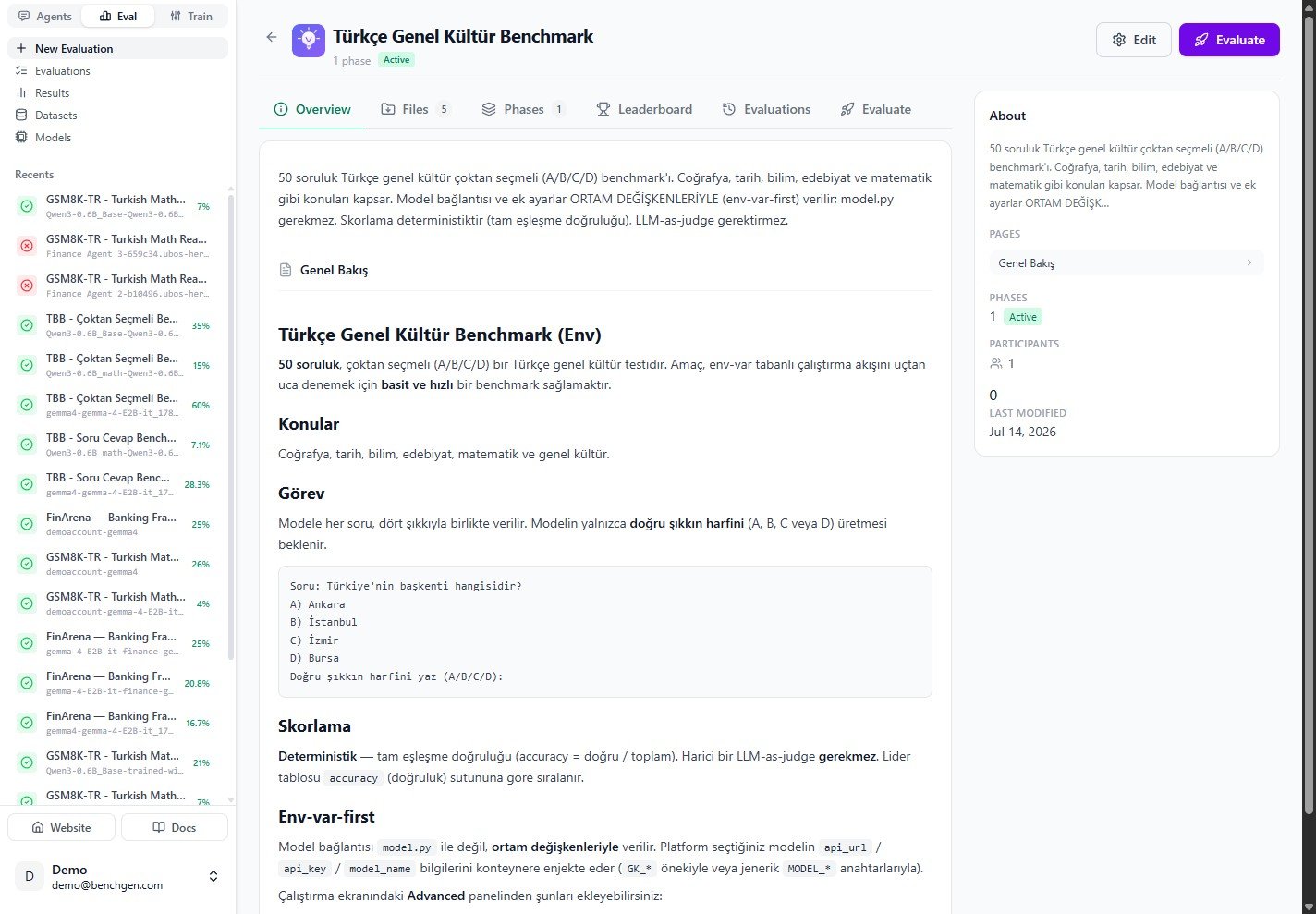
The benchmark overview page
2. Switch to the HuggingFace source
On the Evaluate tab, the model sources are grouped into tabs: Platform Models, Running, Trained, HuggingFace, and External API. Click HuggingFace.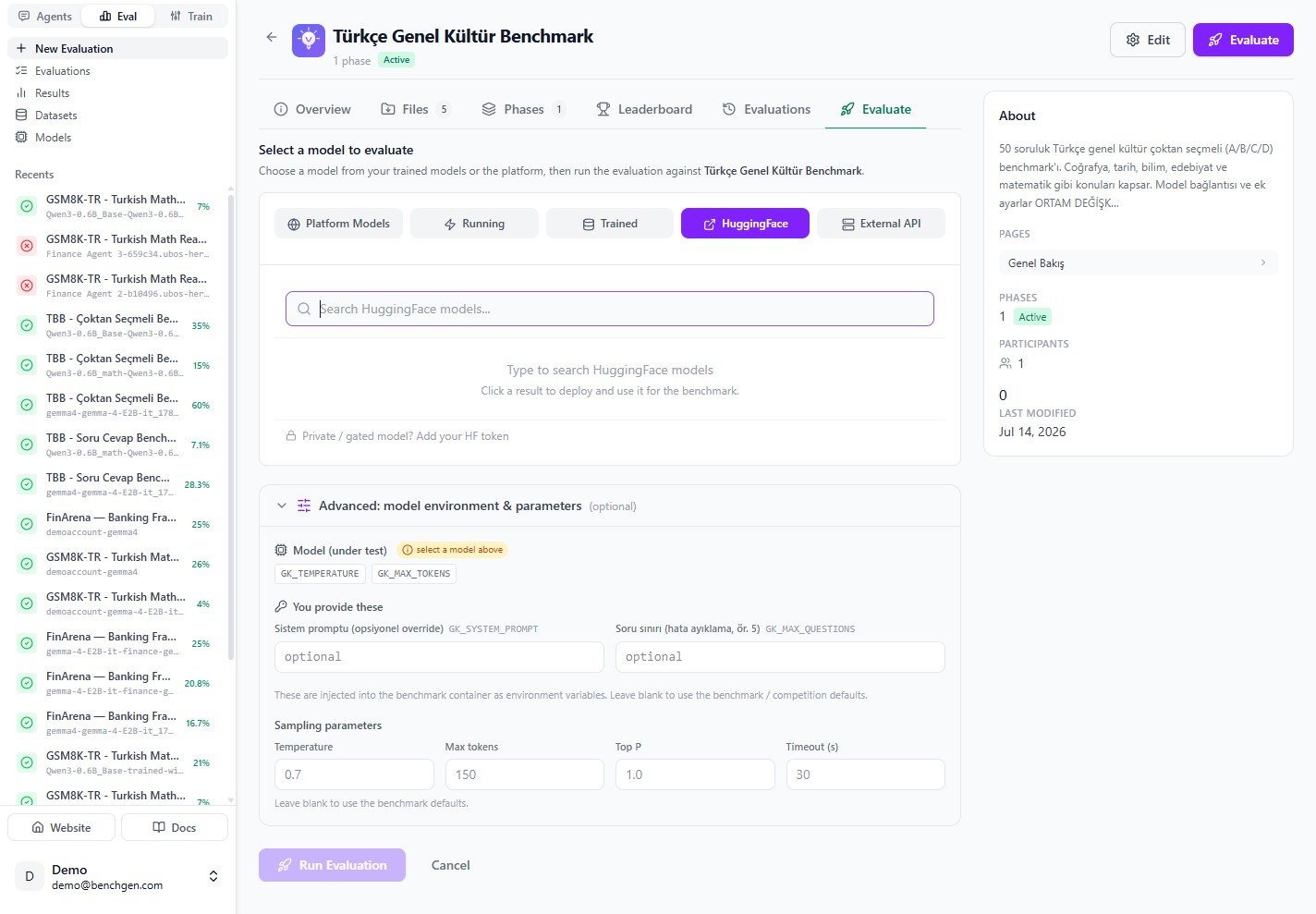
The HuggingFace tab selected on the Evaluate screen
3. Search the Hub
Type a model name to search the HuggingFace Hub. Results show the repository, download and like counts, and the task tag (for exampletext-generation).
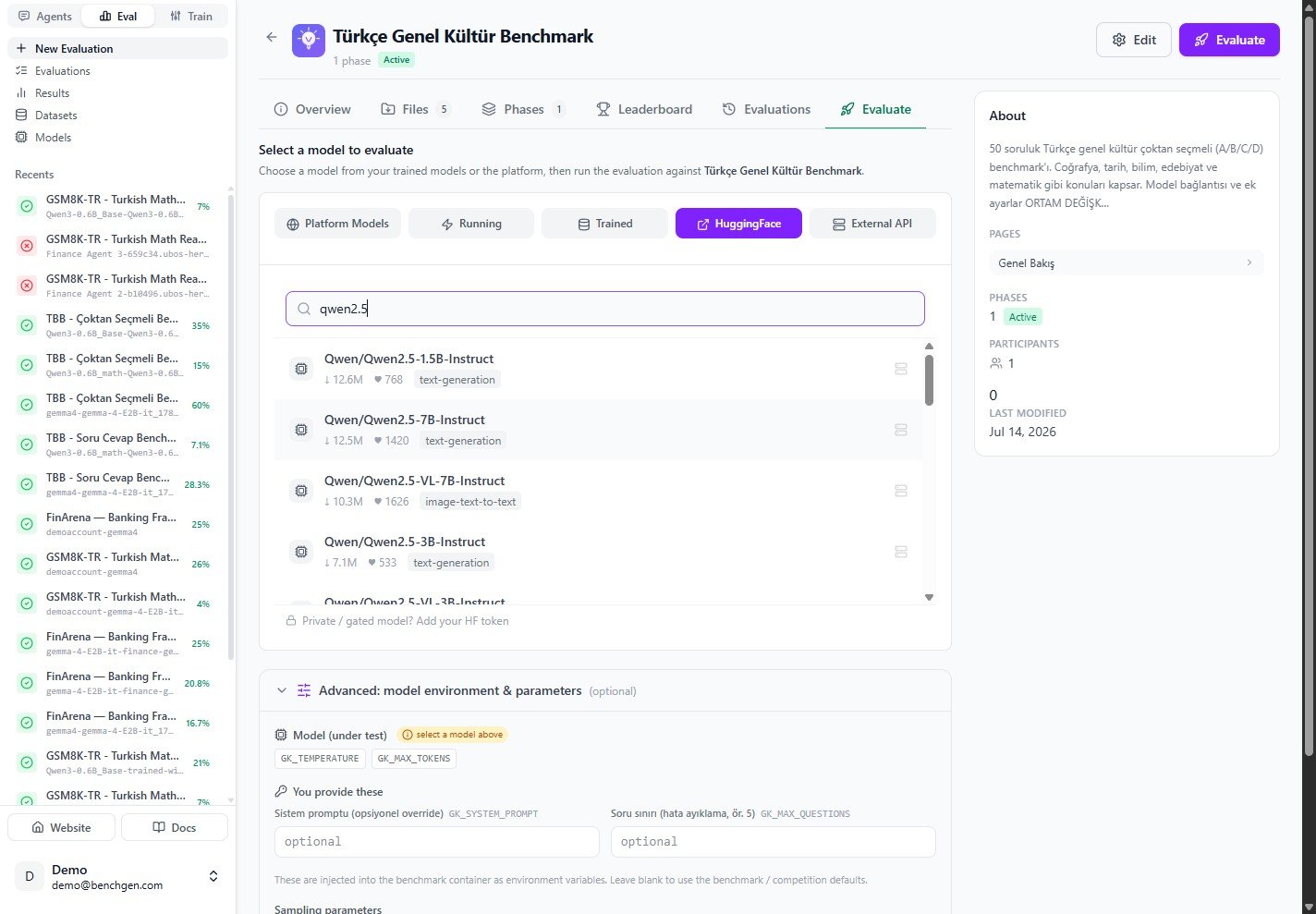
Searching the HuggingFace Hub for qwen2.5
4. Select and deploy the model
Click a result to select it. BenchGen deploys the model and confirms with Deployed & selected. The Advanced: model environment & parameters panel now reads auto-filled from selected model, so the model connection values are wired up for you.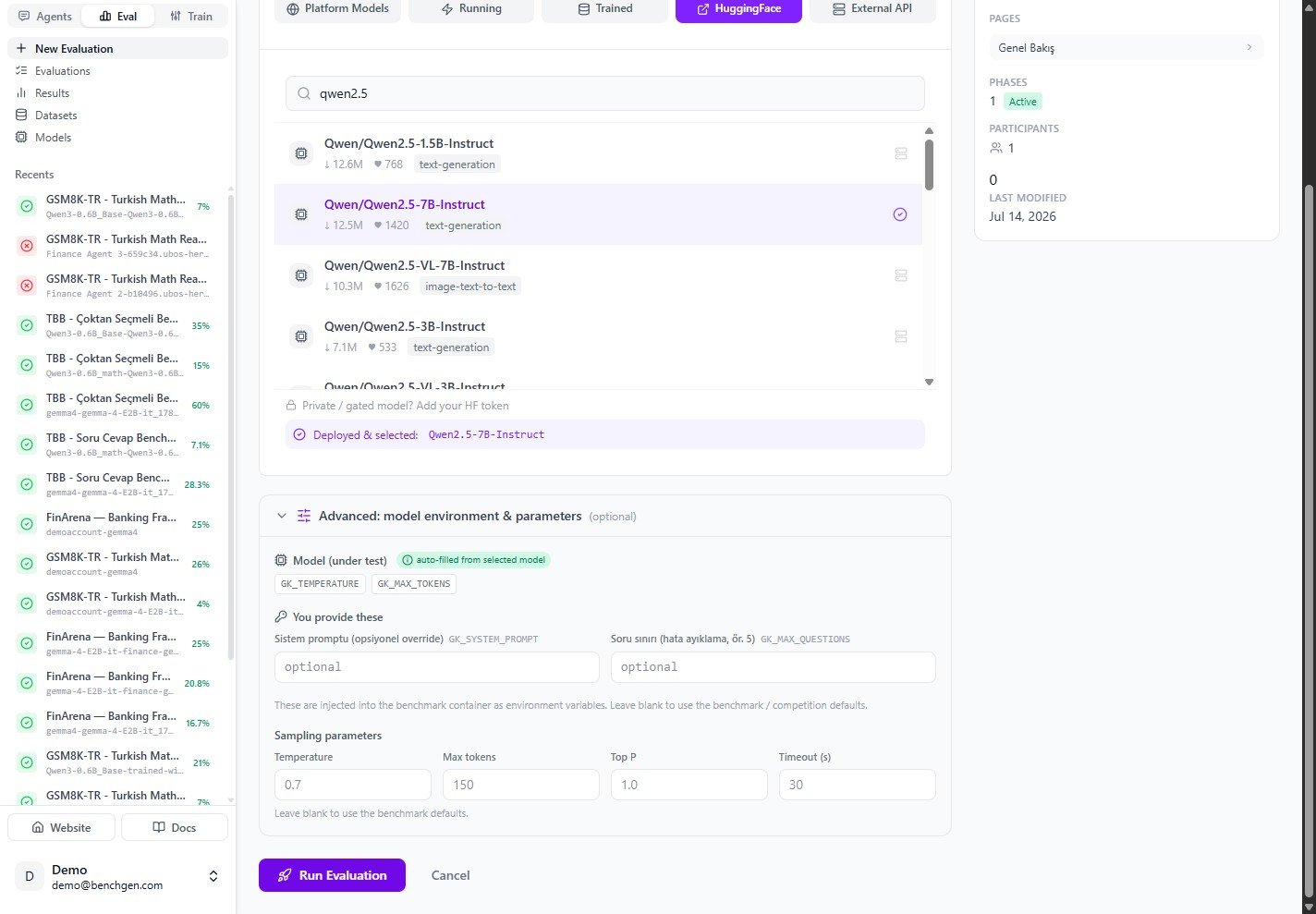
Qwen2.5-7B-Instruct deployed and selected, with Run Evaluation enabled
GK_SYSTEM_PROMPT and GK_MAX_QUESTIONS), and you
can adjust the sampling parameters. See Environment variables for how
these values are injected.
5. Run the evaluation
Click Run Evaluation. BenchGen creates the run and opens a live view. While the model comes online, the status reads Deploying and the logs wait for output.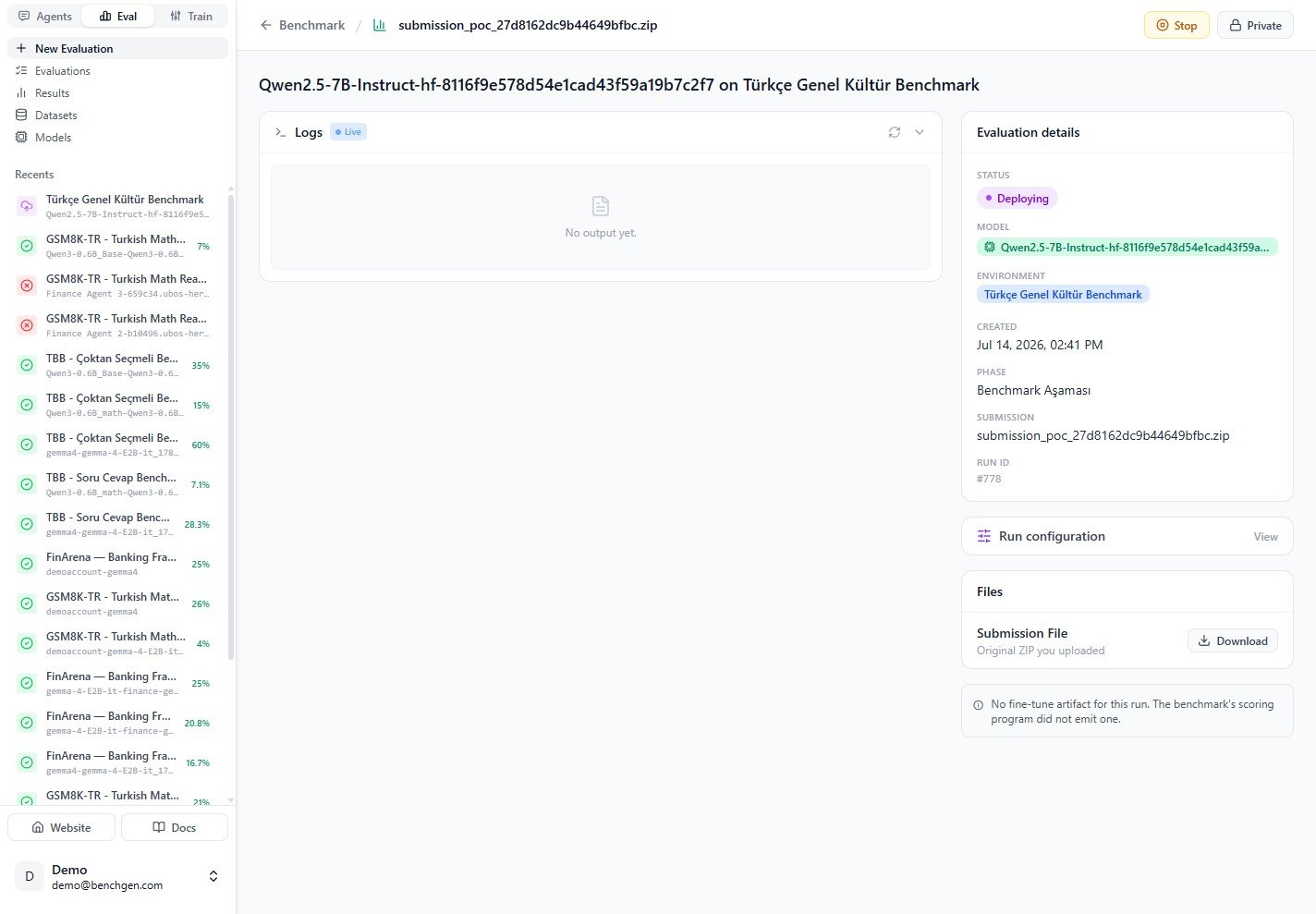
The run page showing Deploying status and live logs
6. Review the results
When the run finishes, the status turns Completed and the Score Breakdown appears. The example below scored 92% (46 of 50 correct).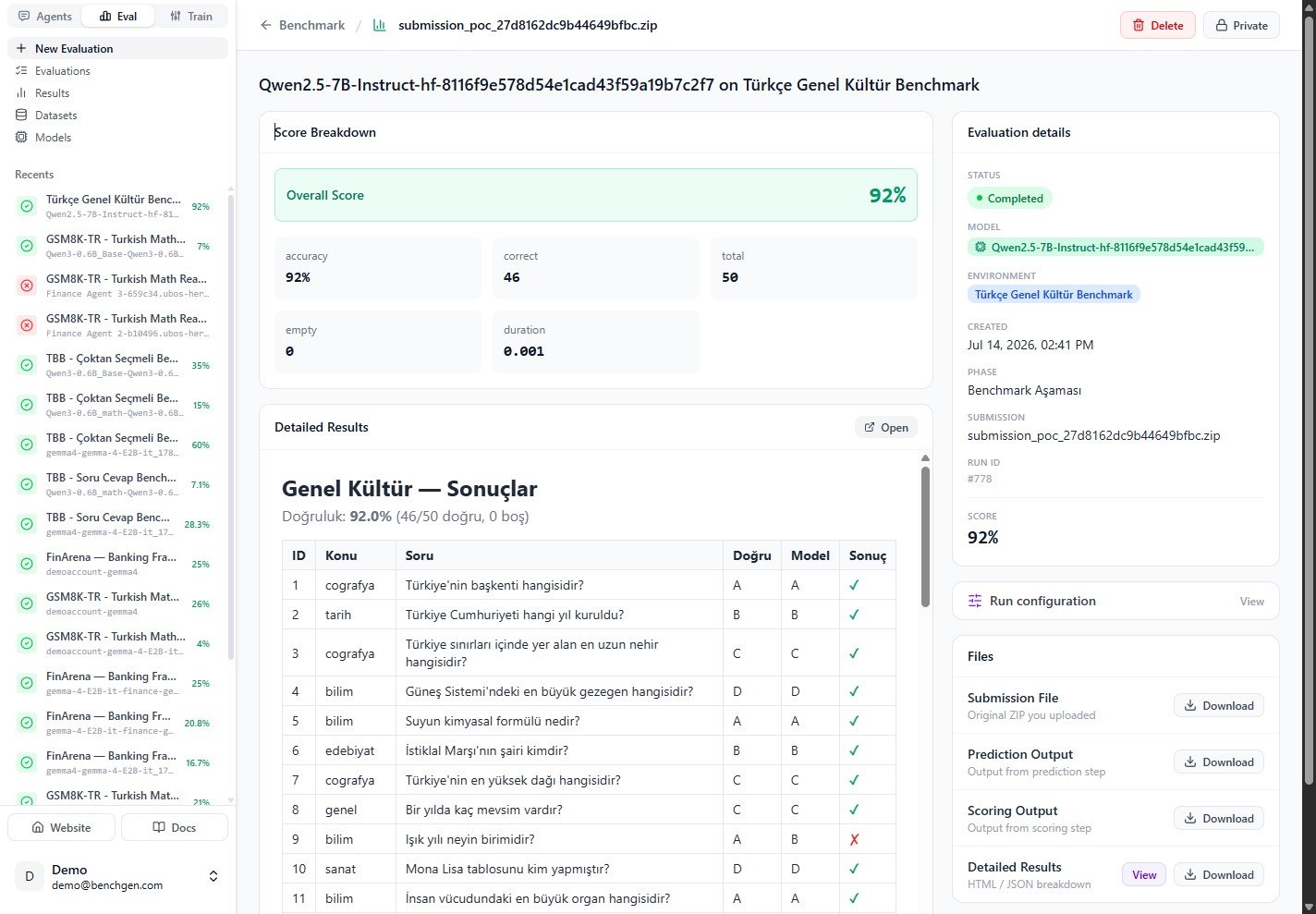
The completed run with a 92% score and detailed per-question results
Next steps
Benchmark Results
Interpret the score breakdown and detailed table.
Environment Variables
How run values reach the model.
On a Platform Model
Benchmark a model already on BenchGen.