

Build a dataset from traces
On the Traces tab, select the turns you want (say, everybenchgen-chat turn where the agent went wrong) and choose Add to dataset. Pick an existing dataset of this agent, or type a name (for example failed-turns) to create one.
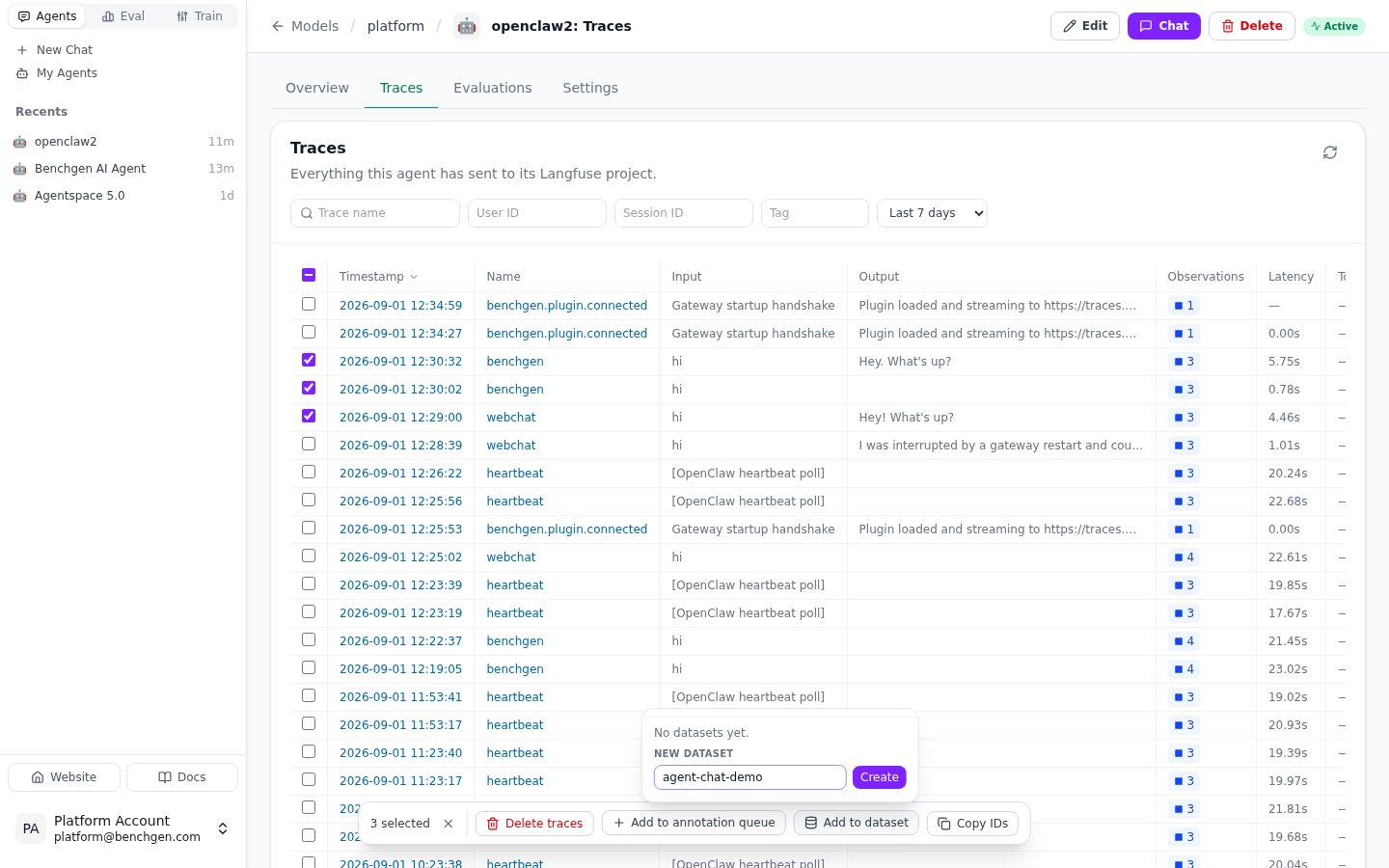
Three chat turns selected, with Add to dataset open and a new dataset being created
- appears under Datasets with its own URL, linking back to the traces it was built from;
- can be picked in the training form, the same as any dataset uploaded by hand or imported from HuggingFace.
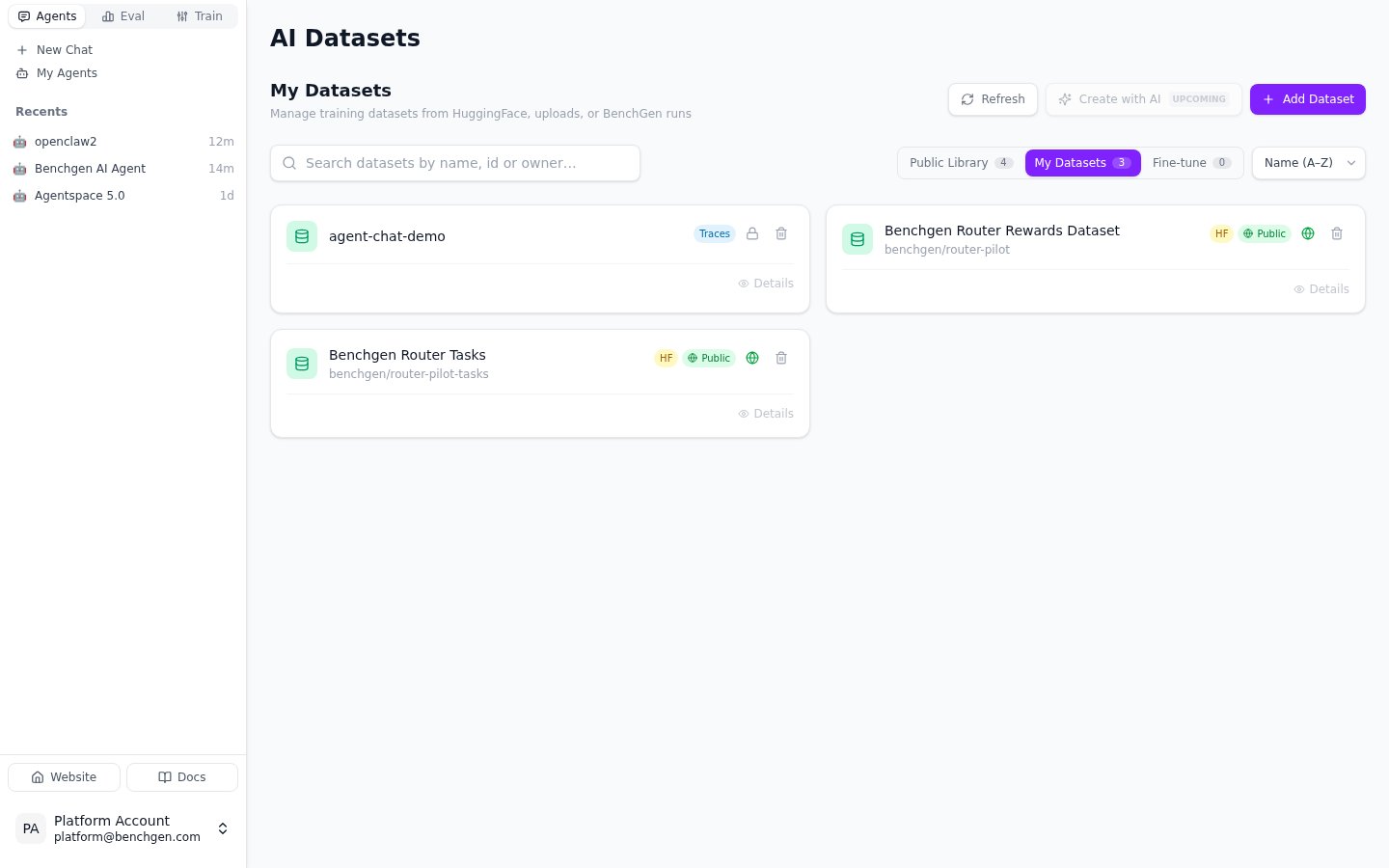
The Datasets page: a dataset built from traces carries a Traces badge
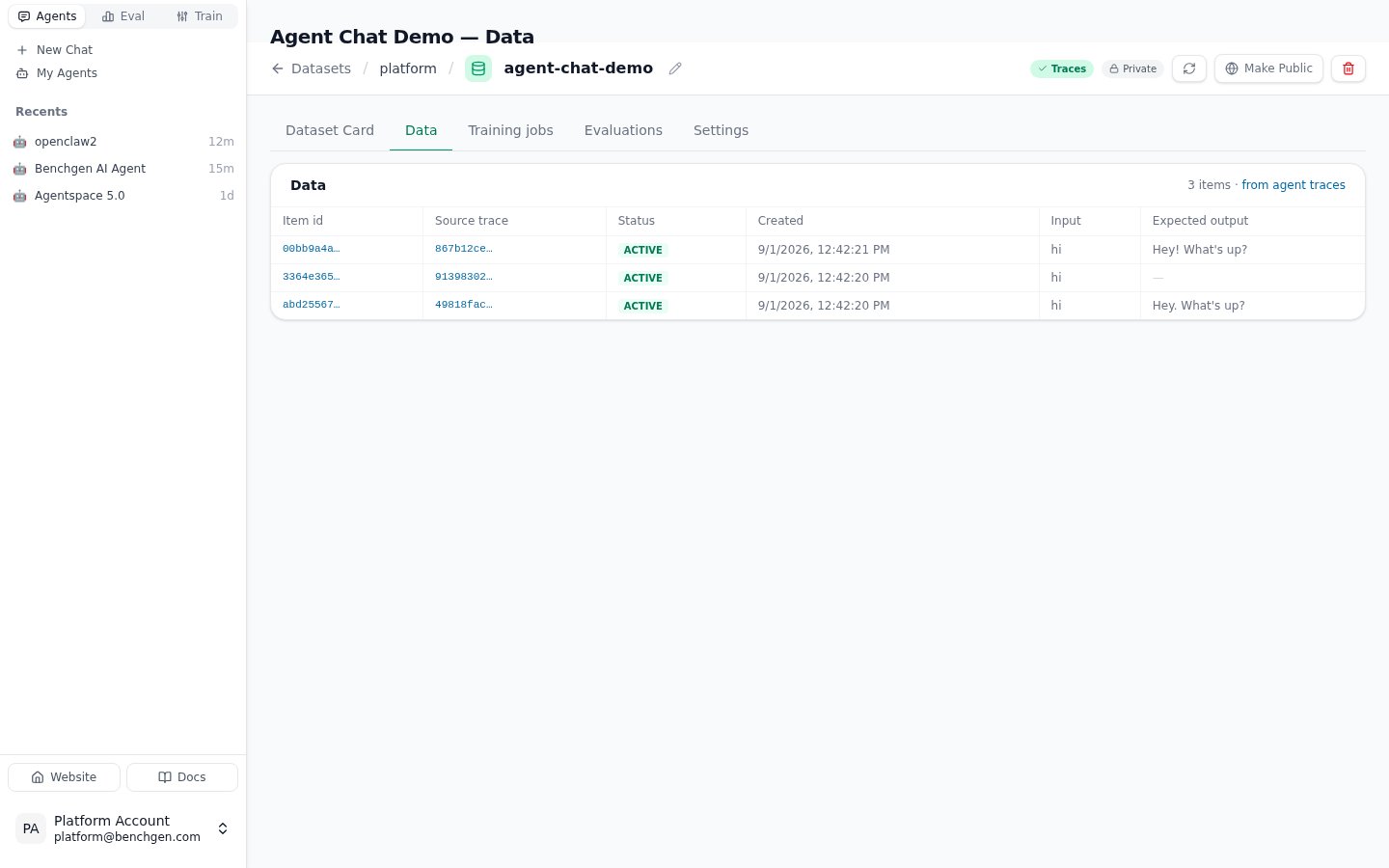
The dataset's Data tab: one item per trace, with its source trace, input and expected output
Find an item’s id and its source trace
The Data tab lists one row per item. The Item id column carries the id the training form and the API refer to, and Source trace links the item back to the trace it was made from; click it to open that trace in place, with the same observation tree and input/output view as on the Traces tab.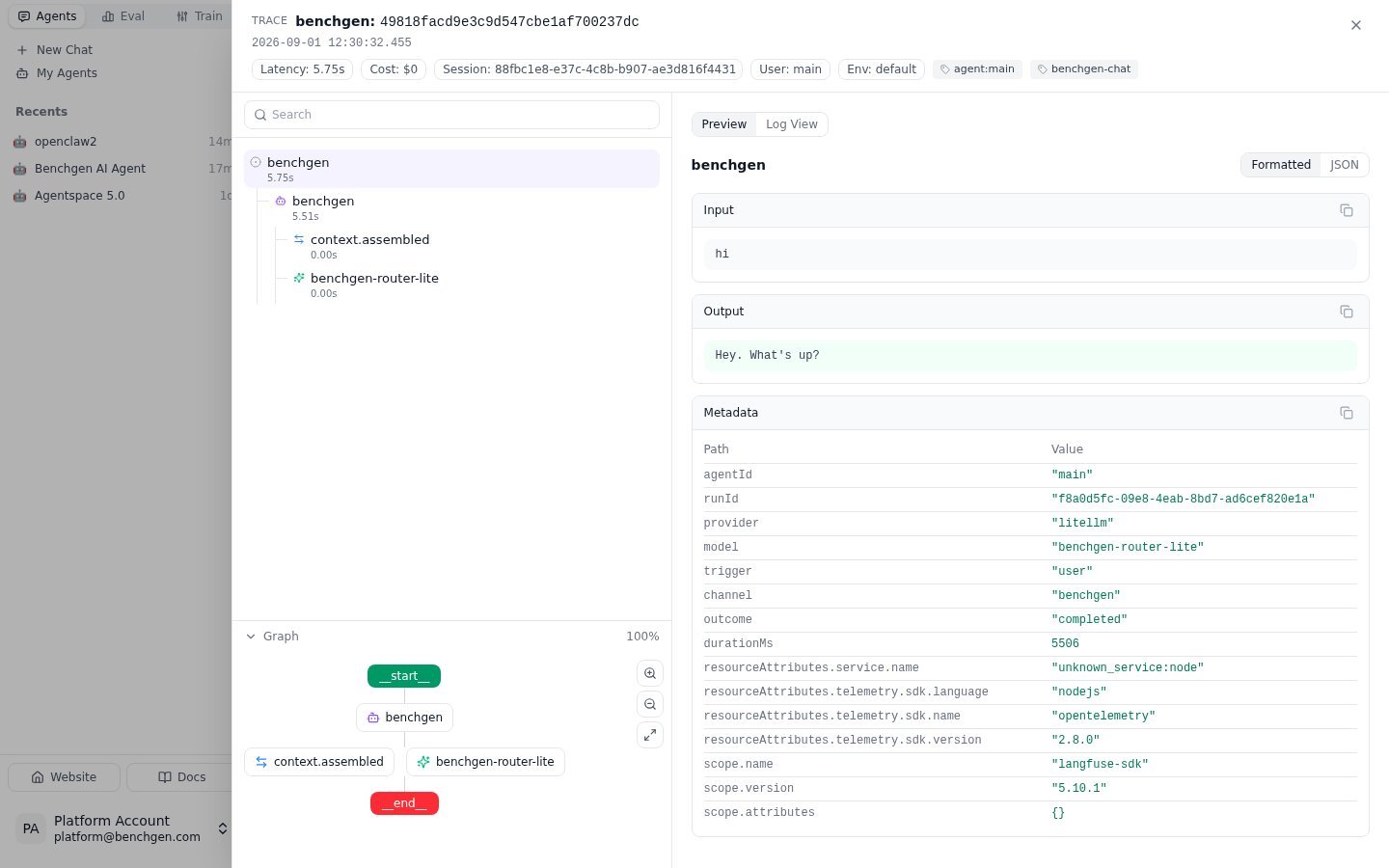
A dataset item's source trace opened straight from the Data tab
Next: fine-tune a model
Add a Dataset
Or bring in more data by uploading a file or importing from HuggingFace.
Fine-tune a Model
Configure and launch a LoRA fine-tuning run on the dataset you just built.